

編輯:關於 Android 程式設計
在做手機項目時經常會涉及本地文件管理的內容:用戶頭像、下載的圖片、視頻等等。把這些文件緩存到本地,必須設計一套合理的組織方式,否則後續的維護與擴展會非常痛苦。
此前我先后研究過微視和美拍的本地文件組織方式,思路基本一致:一個大的 cache 文件夾,內部按類別劃分子目錄,分別存放圖片、視頻。隨後又看了微信的做法,感覺頗有意思,同時也留下了幾個到現在沒完全想明白的疑問。
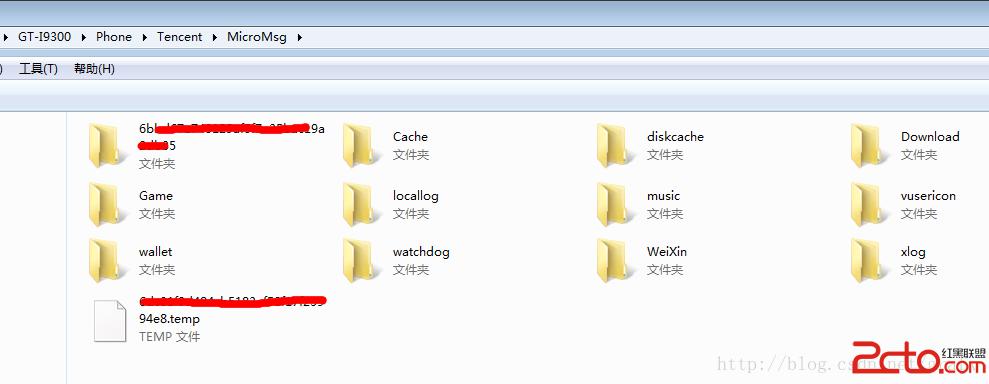
微信的安裝目錄位於 Tencent 文件夾內,這個文件夾下集中了騰訊全家桶——手機 QQ、微信等應用的數據都在這裡。其中 MicroMsg 文件夾就是微信自己的目錄,聊天過程中產生的圖片、語音等緩存文件都分門別類地存放在內部。
由於微信支持多帳號切換登錄,不同帳號產生的緩存需要隔離,因此 MicroMsg 下還有一層以帳號為名的目錄(分析應該是帳號加密後的密文作為文件夾名):
進入該帳號文件夾後,又是若干子文件夾:
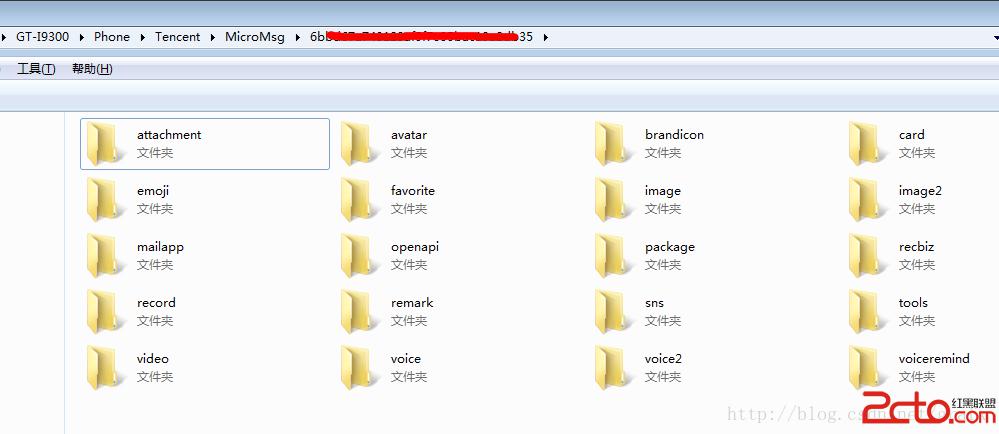
.png 或 .jpg 就能正常打開。從命名判斷,存放的應該是用戶瀏覽朋友圈時產生的圖片。需要注意的是,上面提到的目錄還有更深的子層級。以 voice2 為例,打開後會看到一批子文件夾,進入子文件夾後還有一層,再次進入才是 amr 語音文件本身。
疑問一:00 至 ff 的映射機制。子文件夾採用 00 到 ff 的十六進制命名,也就是最多 256 個。當用戶收到一條語音後,該文件應該放進哪個子文件夾,背後必然存在某種映射算法。這個算法是在服務端執行(下發時就指定好路徑),還是在客戶端執行(收到後本地計算),我沒有找到確切答案。這種設計的目的猜測是為了避免單個目錄下文件過多導致遍歷變慢——這是一個在文件系統層面很常見的性能考量。
疑問二:語音文件的命名規則。每條語音的文件名由 30 個字符組成,前三個字符為 msg 前綴,隨後是一串看起來像日期拼接的數字,格式推測為「秒-時-分-月-日-年」。但再往後的 14 個字符就讓人費解了:初判是帳號加密後的密文,可是接收自相同帳號的語音文件,這 14 個字符又存在差異。反覆推演仍未理順,希望有了解的朋友能指點一二。
說完目錄,來做點動手的。個人對微信的主介面設計頗有好感——簡潔、克制、信息密度恰到好處。雖然 tab 從底部移到了頂部,一開始著實需要適應一段時間。
網上已經有前輩做過高仿,原文思路清晰且附了源碼,值得學習。但原文使用的第三方類 PagerSlidingTabStrip 讓我有些不適:這個類近 600 行代碼,全部通過自繪方式實現 tab 的滑動與顯示。靈活性確實極好,參數隨意改就能呈現不同效果,但內部邏輯複雜、註釋稀少,維護成本很高。為一個簡單的 tab 切換功能引入這麼重的實現,得不償失。
於是我嘗試在原工程基礎上重寫 tab 切換邏輯,把自繪方案替換為調用 Android 系統原生組件。改動之後代碼量大幅下降,邏輯調用一目了然,擴展與維護都變得容易。工程中標題欄部分代碼與所有圖片資源均沿用原作者的成果,這裡一併致謝。
tab 頁面切換包含兩部分:
第一部分:文字狀態切換。點擊標籤頁時文字呈現「點擊態」顏色,選中後呈現「選中態」顏色,本質上就是同一個 TextView 的顏色變換兩次。
第二部分:頁面切換。分為手指左右滑動切換與點擊 tab 文字切換兩種入口,最終都彙集到同一個 setCurrentItem 調用上。
思路理清後,實現就沒有難度了。
<RelativeLayout xmlns:android="https://schemas.android.com/apk/res/android"
    xmlns:tools="https://schemas.android.com/tools"
    android:layout_width="match_parent"
    android:layout_height="match_parent"
    android:background="@color/white"
    tools:context=".MainActivity" >

    <RelativeLayout
        android:id="@+id/headLayout"
        android:layout_width="match_parent"
        android:layout_height="40dp"
        android:orientation="vertical" >

        <LinearLayout
            android:layout_width="match_parent"
            android:layout_height="match_parent"
            android:background="@color/white"
            android:orientation="horizontal" >

            <TextView
                android:id="@+id/chatTextView"
                android:layout_width="match_parent"
                android:layout_height="match_parent"
                android:layout_weight="1"
                android:gravity="center"
                android:text="@string/chatText"
                android:textColor="@color/text_dark"
                android:textSize="16sp" />

            <TextView
                android:id="@+id/foundTextView"
                android:layout_width="match_parent"
                android:layout_height="match_parent"
                android:layout_weight="1"
                android:gravity="center"
                android:text="@string/foundText"
                android:textColor="@color/text_dark"
                android:textSize="16sp" />

            <TextView
                android:id="@+id/contactsTextView"
                android:layout_width="match_parent"
                android:layout_height="match_parent"
                android:layout_weight="1"
                android:gravity="center"
                android:text="@string/contactsText"
                android:textColor="@color/text_dark"
                android:textSize="16sp" />
        </LinearLayout>

        <!-- 選中標識 -->
        <ImageView
            android:id="@+id/tabBottomLine"
            android:layout_width="wrap_content"
            android:layout_height="3dp"
            android:layout_alignParentBottom="true"
            android:layout_alignParentLeft="true"
            android:background="@color/text_green"
            android:contentDescription="@string/app_name" />
    </RelativeLayout>

    <!-- 分隔線 -->
    <View
        android:id="@+id/dividerLine"
        android:layout_below="@+id/headLayout"
        android:layout_width="match_parent"
        android:layout_height="1dp"
        android:background="@color/gray_light" />

</RelativeLayout>
這裡有個小細節:三個 TextView 的寬度都是 match_parent 配合 layout_weight="1",這樣它們會等分整個橫向空間,且每個的點擊熱區都是完整的一份寬度,比使用 wrap_content 更好點。
package com.example.wechatsample;

import java.lang.reflect.Field;
import java.lang.reflect.Method;
import java.util.ArrayList;
import java.util.List;

import android.graphics.Color;
import android.os.Bundle;
import android.support.v4.app.Fragment;
import android.support.v4.app.FragmentActivity;
import android.support.v4.app.FragmentPagerAdapter;
import android.support.v4.view.ViewPager;
import android.support.v4.view.ViewPager.OnPageChangeListener;
import android.util.DisplayMetrics;
import android.view.Menu;
import android.view.View;
import android.view.View.OnClickListener;
import android.view.ViewConfiguration;
import android.view.Window;
import android.view.animation.Animation;
import android.view.animation.TranslateAnimation;
import android.widget.ImageView;
import android.widget.RelativeLayout;
import android.widget.TextView;

/** 高仿微信主介面 */
public class MainActivity extends FragmentActivity
        implements OnClickListener, OnPageChangeListener {

    private static final int VIEW_ID_CHAT = 0;
    private static final int VIEW_ID_FOUND = 1;
    private static final int VIEW_ID_CONTACTS = 2;

    private TextView[] tabTextView = null;
    private ImageView tabBottomLine = null;
    private ViewPager viewPager = null;
    private List<Fragment> listFragments = null;
    private FragmentPagerAdapter fmPagerAdapter = null;

    private int tabWidth = 0;
    private int curTabIndex = VIEW_ID_CHAT;

    @Override
    protected void onCreate(Bundle savedInstanceState) {
        super.onCreate(savedInstanceState);
        setContentView(R.layout.activity_main);
        setOverflowShowingAlways();

        // 初始化 tab 文字
        tabTextView = new TextView[3];
        tabTextView[VIEW_ID_CHAT] = (TextView) findViewById(R.id.chatTextView);
        tabTextView[VIEW_ID_FOUND] = (TextView) findViewById(R.id.foundTextView);
        tabTextView[VIEW_ID_CONTACTS] = (TextView) findViewById(R.id.contactsTextView);
        tabTextView[VIEW_ID_CHAT].setOnClickListener(this);
        tabTextView[VIEW_ID_FOUND].setOnClickListener(this);
        tabTextView[VIEW_ID_CONTACTS].setOnClickListener(this);

        // 初始化 tab 指示線,寬度等分屏幕
        tabBottomLine = (ImageView) findViewById(R.id.tabBottomLine);
        RelativeLayout.LayoutParams lParams =
                (RelativeLayout.LayoutParams) tabBottomLine.getLayoutParams();
        DisplayMetrics dm = getResources().getDisplayMetrics();
        lParams.width = dm.widthPixels / 3;
        tabBottomLine.setLayoutParams(lParams);
        tabWidth = lParams.width;

        // 初始化頁面
        listFragments = new ArrayList<Fragment>();
        listFragments.add(new ChatFragment());
        listFragments.add(new FoundFragment());
        listFragments.add(new ContactsFragment());

        viewPager = (ViewPager) findViewById(R.id.viewPager);
        fmPagerAdapter = new FragmentPagerAdapter(getSupportFragmentManager()) {
            @Override
            public int getCount() {
                return listFragments.size();
            }

            @Override
            public Fragment getItem(int index) {
                return listFragments.get(index);
            }
        };
        viewPager.setAdapter(fmPagerAdapter);
        viewPager.setOnPageChangeListener(this);
        viewPager.setCurrentItem(VIEW_ID_CHAT);
        updateTabTextStatus(VIEW_ID_CHAT);
    }

    /** 更新 tab 文字選中狀態 */
    private void updateTabTextStatus(int index) {
        for (TextView tv : tabTextView) {
            tv.setTextColor(Color.parseColor("#2c2c2c"));
        }
        tabTextView[index].setTextColor(Color.parseColor("#45c01a"));
    }

    /** 切換 tab 指示線位置 */
    private void changeTabItem(int index) {
        Animation animation = new TranslateAnimation(curTabIndex * tabWidth, index * tabWidth, 0, 0);
        curTabIndex = index;
        animation.setFillAfter(true);
        animation.setDuration(300);
        tabBottomLine.startAnimation(animation);
        animation.setAnimationListener(new Animation.AnimationListener() {
            @Override
            public void onAnimationStart(Animation animation) { }

            @Override
            public void onAnimationRepeat(Animation animation) { }

            @Override
            public void onAnimationEnd(Animation animation) {
                // 動畫結束後再更新文字選中狀態
                updateTabTextStatus(curTabIndex);
            }
        });
    }

    @Override
    public void onPageSelected(int position) {
        // 左右滑動切換 tab
        changeTabItem(position);
    }

    @Override
    public void onPageScrolled(int position, float positionOffset, int positionOffsetPixels) { }

    @Override
    public void onPageScrollStateChanged(int state) { }

    @Override
    public void onClick(View v) {
        // 點擊切換 tab
        switch (v.getId()) {
            case R.id.chatTextView:
                tabTextView[VIEW_ID_CHAT].setTextColor(Color.parseColor("#8a8a8a"));
                viewPager.setCurrentItem(VIEW_ID_CHAT);
                break;
            case R.id.foundTextView:
                tabTextView[VIEW_ID_FOUND].setTextColor(Color.parseColor("#8a8a8a"));
                viewPager.setCurrentItem(VIEW_ID_FOUND);
                break;
            case R.id.contactsTextView:
                tabTextView[VIEW_ID_CONTACTS].setTextColor(Color.parseColor("#8a8a8a"));
                viewPager.setCurrentItem(VIEW_ID_CONTACTS);
                break;
            default:
                break;
        }
    }

    @Override
    public boolean onCreateOptionsMenu(Menu menu) {
        getMenuInflater().inflate(R.menu.main, menu);
        return true;
    }

    @Override
    public boolean onMenuOpened(int featureId, Menu menu) {
        if (featureId == Window.FEATURE_ACTION_BAR && menu != null) {
            if (menu.getClass().getSimpleName().equals("MenuBuilder")) {
                try {
                    Method m = menu.getClass()
                            .getDeclaredMethod("setOptionalIconsVisible", Boolean.TYPE);
                    m.setAccessible(true);
                    m.invoke(menu, true);
                } catch (Exception e) {
                    // ignore
                }
            }
        }
        return super.onMenuOpened(featureId, menu);
    }

    /** 強制顯示 Overflow 菜單中的圖標 */
    private void setOverflowShowingAlways() {
        try {
            ViewConfiguration config = ViewConfiguration.get(this);
            Field menuKeyField =
                    ViewConfiguration.class.getDeclaredField("sHasPermanentMenuKey");
            menuKeyField.setAccessible(true);
            menuKeyField.setBoolean(config, false);
        } catch (Exception e) {
            e.printStackTrace();
        }
    }
}
有幾處值得留意。指示線的動畫放在 onAnimationEnd 中才更新文字顏色,這樣視覺上「線滑到位、字才變色」,比同時變化更貼近原版手感的節奏。點擊切換時先把被點的 tab 文字置為灰色,再由 onPageSelected 統一改為綠色,是為了避免點擊當前頁時顏色被錯誤重置。setOverflowShowingAlways 通過反射修改 sHasPermanentMenuKey,則是為了讓 Overflow 菜單的圖標在有實體菜單鍵的設備上也能顯示。

這次實踐最大的體會是:能用系統組件解決的問題,不要急著引入第三方庫。ViewPager 本身就提供了完整的頁面切換能力,tab 指示線不過是一個 TranslateAnimation,文字狀態切換不過是兩次 setTextColor。全部代碼加起來不到 200 行,可讀性與可維護性遠勝於近 600 行的自繪方案。
當然,如果需求上升到「指示線寬度隨滾動連續變化」「tab 可拖動」「支持超過屏幕寬度的滾動 tab」,那麼自繪或成熟開源庫仍然是更好的選擇。技術選型永遠取決於需求的複雜度,而不是代碼行數的多少。
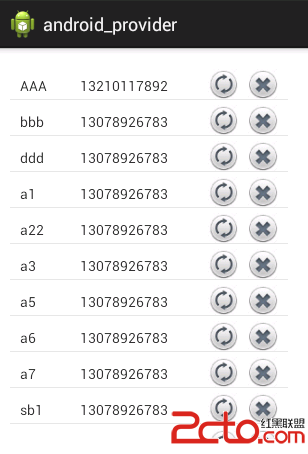 Android ContentProvider 電話簿案例:列表顯示、更新與刪除
需求說明 本案例透過 ContentResolver 操作 ContentProvider 的資料,將姓名與電話顯示在 ListView 中,並提供更新與刪除功能。 列
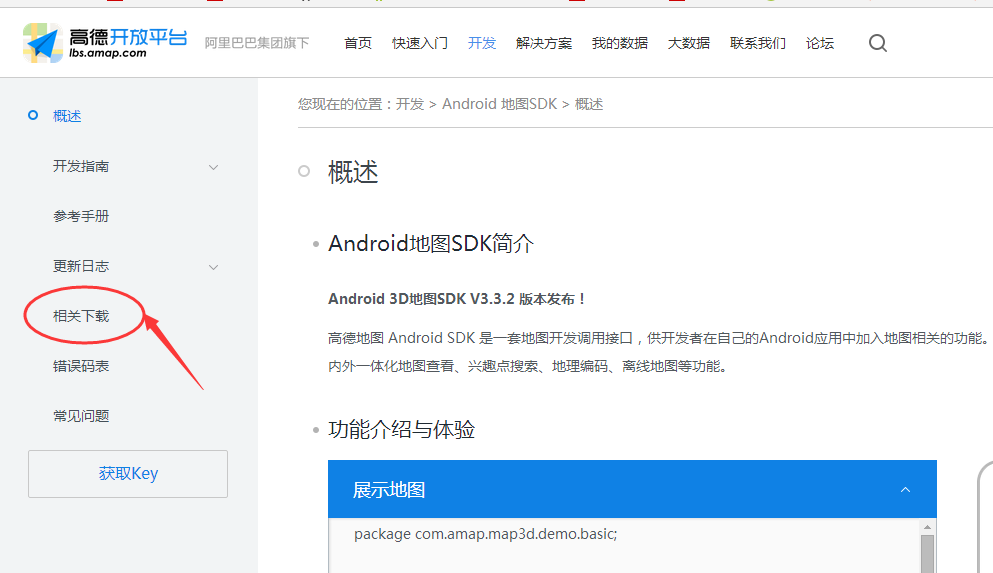 高德地圖定位接入實戰:從申請 Key 到顯示與定位全流程
一、前期準備 1. 註冊高德開放平台帳號 地址:https://lbs.amap.com 2. 下載 SDK 在開發者文檔中選擇 Android 平台,按需下載地圖 SD
 微信、微博 SDK 實戰踩坑記:登入與分享常見問題排查
前言 近來在整合第三方登入與分享的過程中踩了不少坑。一部分可以歸因於自己經驗不足,但另一部分確實是官方文件語焉不詳所致。這篇不談「怎麼用」——官方文件已經把步驟寫清楚了—
 深度剖析 Android ImageView 及其擴展技巧
版本:1.0 日期:2014.6.11(2014.6.12 修訂) 版權:© 2014 kince(轉載請註明出處) ImageVi