

編輯:關於 Android 程式設計
View Animation(又稱 Tween Animation)是 Android 最直觀的動畫方案。它的本質並不改變 View 物件本身,只改變它被繪製的方式——這句話解釋了 Tween 動畫的兩個重要特性:動畫結束後 View 會「跳回」原位置,且效能開銷相對較低。
實作上有兩條路:在 XML 中宣告,或純程式碼建立。
<?xml version="1.0" encoding="utf-8"?>
<translate xmlns:android="https://schemas.android.com/apk/res/android"
    android:duration="1000"
    android:fromXDelta="0"
    android:toXDelta="100%p"
    android:fromYDelta="0"
    android:toYDelta="0"
    android:repeatCount="50"
    android:repeatMode="reverse"
    android:fillAfter="true" />
關鍵屬性說明:
repeatCount — 動畫重複次數
repeatMode — 重複模式,reverse 表示每次反向
fillAfter — 動畫結束後 View 是否停留在結束位置(注意:實際位置並未改變)
50%p — 相對於父容器;50% 則相對於自身
<?xml version="1.0" encoding="utf-8"?>
<rotate xmlns:android="https://schemas.android.com/apk/res/android"
    android:duration="1000"
    android:fromDegrees="0"
    android:toDegrees="-90"
    android:pivotX="50%"
    android:pivotY="50%"
    android:repeatCount="50"
    android:repeatMode="reverse"
    android:fillAfter="true" />
fromDegrees 起始角度、toDegrees 結束角度、pivotX/Y 為旋轉中心點。中心點沒設對是旋轉動畫最常見的錯誤來源。
<?xml version="1.0" encoding="utf-8"?>
<alpha xmlns:android="https://schemas.android.com/apk/res/android"
    android:duration="1000"
    android:fromAlpha="0"
    android:toAlpha="1"
    android:fillAfter="true" />
fromAlpha 為起始透明度(0 全透明)、toAlpha 為結束透明度(1 完全不透明)。
<?xml version="1.0" encoding="utf-8"?>
<scale xmlns:android="https://schemas.android.com/apk/res/android"
    android:duration="1000"
    android:fromXScale="0.5"
    android:fromYScale="1"
    android:toXScale="3"
    android:toYScale="2"
    android:pivotX="50%"
    android:pivotY="50%"
    android:fillAfter="true"
    android:repeatCount="50"
    android:repeatMode="reverse" />
把多個動畫組成一組同時播放:
<?xml version="1.0" encoding="utf-8"?>
<set xmlns:android="https://schemas.android.com/apk/res/android"
    android:duration="2000"
    android:fillAfter="true"
    android:repeatCount="50"
    android:repeatMode="reverse" >

    <scale
        android:fromXScale="0.5"
        android:fromYScale="1"
        android:pivotX="50%"
        android:pivotY="50%"
        android:repeatCount="50"
        android:repeatMode="reverse"
        android:toXScale="3"
        android:toYScale="2" />

    <rotate
        android:fromDegrees="0"
        android:pivotX="50%"
        android:pivotY="50%"
        android:repeatCount="50"
        android:repeatMode="reverse"
        android:toDegrees="-100" />
</set>
若需要「先後執行」而非同時,為子動畫加上 android:startOffset 延遲即可。
Animation translate = AnimationUtils.loadAnimation(this, R.anim.translate);
imageview_translate.setBackground(getResources().getDrawable(R.drawable.a11));
imageview_translate.startAnimation(translate);

// 其餘類型同理,替換資源 ID 即可
Animation rotate = AnimationUtils.loadAnimation(this, R.anim.rotate);
Animation alpha  = AnimationUtils.loadAnimation(this, R.anim.alpha);
Animation scale  = AnimationUtils.loadAnimation(this, R.anim.scale);
Animation set    = AnimationUtils.loadAnimation(this, R.anim.set);
AnimationSet animationSet = new AnimationSet(true);
animationSet.addAnimation(scale);
animationSet.addAnimation(translate);
animationSet.addAnimation(alpha);
animationSet.addAnimation(rotate);
animationSet.setDuration(2000);
animationSet.setRepeatCount(50);
animationSet.setRepeatMode(Animation.RESTART);
// animationSet.setRepeatMode(Animation.REVERSE);

imageview_set.setBackground(getResources().getDrawable(R.drawable.a11));
imageview_set.startAnimation(animationSet);

// 四種動畫物件
TranslateAnimation translateAnimation;
RotateAnimation   rotateAnimation;
AlphaAnimation    alphaAnimation;
ScaleAnimation    scaleAnimation;

// Animation.RELATIVE_TO_SELF  相對於自身
// Animation.RELATIVE_TO_PARENT 相對於父 View
AnimationSet 構造方法的 boolean 參數控制 shareInterpolator:設為 true 表示共用同一個插入器,設為 false 則各子動畫用自己的。
scale.setAnimationListener(new AnimationListener() {
    @Override
    public void onAnimationStart(Animation animation) { }

    @Override
    public void onAnimationRepeat(Animation animation) { }

    @Override
    public void onAnimationEnd(Animation animation) { }
});
插入器決定動畫在時間軸上的速率變化。不設定時預設為「隨時間均勻推進」。可透過 android:interpolator="@android:anim/overshoot_interpolator" 指定。
各內建插入器的行為:
accelerate_interpolator — 類似加速度,開始慢、後漸快
accelerate_decelerate_interpolator — 先加速後減速(預設值之一)
anticipate_interpolator — 先往反方向退一點,再往前衝
anticipate_overshoot_interpolator — 先退,再衝過頭,最後回落到終點
overshoot_interpolator — 直接衝過終點一點,再回落
bounce_interpolator — 到達終點時反覆彈跳兩次
cycle_interpolator — 快速到達終點後,再遵循正弦模式往復擺動
linear_interpolator — 加速度為 0,等速運動
fillAfter 只是視覺效果。動畫結束後 View 的實際位置、大小、透明度都沒變。若要讓「假的位置」變成「真的位置」,必須在 onAnimationEnd 中真正修改 LayoutParams 或呼叫 setX/setAlpha,否則後續的點擊事件位置會錯亂。
它不改變真正的繪製狀態。這也是為什麼 Android 3.0 之後推出了 Property Animation(ObjectAnimator、ValueAnimator)——後者修改的是 View 的屬性本身,動畫結束後狀態自然保留。
大量動畫時效能要注意。View Animation 每一幀都要重新繪製,同時跑幾十個複雜動畫容易掉幀。這種情況應改用 Property Animation 並搭配硬體加速。
新專案中,優先選擇 Property Animation。Tween 動畫仍有價值——它的 XML 宣告式寫法簡潔,適合簡單的進場效果。
 Android ViewPager 與內部 View 的事件分發機制及輪播圖實作
我們在使用 ViewPager 時常會有這樣的疑問:當手指在螢幕上滑動時,究竟是 ViewPager 在滑動它內部的那一頁 View,還是 ViewPager 在滑動自己
 Android 5.0 材料設計抽屜旋轉菜單實作詳解
先看效果: 這是 Android 5.0 推出「材料設計」之後的標準 UI 呈現,左上方漢堡按鈕點擊後側邊菜單滑出,同時左上角圖示會跟著旋轉。以前一直沒仔細研究,寫篇文
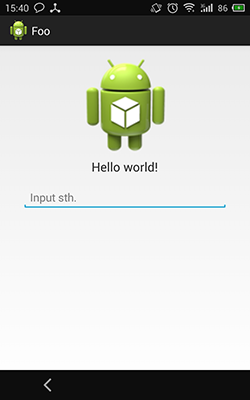 Android 動態改變布局:軟鍵盤彈出時的介面調整
在登入頁或輸入頁中,軟鍵盤彈出時常常會遮住重要按鈕或輸入欄位。為了改善使用者體驗,可以讓介面依據鍵盤狀態動態調整布局。本文以登入頁為例,說明如何透過 RelativeLa
 使用開源庫 MagicalRecord:讓 Core Data 操作更簡潔
MagicalRecord 開源地址:https://github.com/magicalpanda/MagicalRecord 需要留意的是,MagicalRecord