

編輯:關於 Android 程式設計
做社群、新聞或商品詳情類的介面時,常常會碰到一段文字太長、把整個版面撐開的情況。理想的做法是預設只顯示前面幾行,尾端用省略符號收尾,使用者點一下再把全文展開。本文就示範如何自定義一個 ExpandableTextView 來完成這樣的互動。
核心邏輯其實很單純:繼承 TextView,內部同時保存「原始全文」與「截斷後的文字」兩份內容,再用一個 boolean 旗標決定目前該顯示哪一份。掛上 OnClickListener 切換旗標,折疊與展開就完成了。
public class ExpandableTextView extends TextView {

    private static final int DEFAULT_TRIM_LENGTH = 200;
    private static final String ELLIPSIS = ".....";

    private CharSequence originalText;
    private CharSequence trimmedText;
    private BufferType bufferType;
    private boolean trim = true;
    private int trimLength;

    public ExpandableTextView(Context context) {
        this(context, null);
    }

    public ExpandableTextView(Context context, AttributeSet attrs) {
        super(context, attrs);
        TypedArray typedArray = context.obtainStyledAttributes(
                R.styleable.ExpandableTextView);
        trimLength = typedArray.getInt(
                R.styleable.ExpandableTextView_trimLength, DEFAULT_TRIM_LENGTH);
        typedArray.recycle();

        setOnClickListener(new OnClickListener() {
            @Override
            public void onClick(View v) {
                trim = !trim;
                setText();
                requestFocusFromTouch();
            }
        });
    }

    private void setText() {
        super.setText(getDisplayableText(), bufferType);
    }

    private CharSequence getDisplayableText() {
        return trim ? trimmedText : originalText;
    }

    @Override
    public void setText(CharSequence text, BufferType type) {
        originalText = text;
        trimmedText = getTrimmedText(text);
        bufferType = type;
        setText();
    }

    private CharSequence getTrimmedText(CharSequence text) {
        if (originalText != null && originalText.length() > trimLength) {
            return new SpannableStringBuilder(originalText, 0, trimLength + 1)
                    .append(ELLIPSIS);
        }
        return originalText;
    }

    public CharSequence getOriginalText() {
        return originalText;
    }

    public void setTrimLength(int trimLength) {
        this.trimLength = trimLength;
        trimmedText = getTrimmedText(originalText);
        setText();
    }

    public int getTrimLength() {
        return trimLength;
    }
}
因為我們希望折疊長度可以從 XML 指定,所以必須先在 res/values/attr.xml 中宣告 styleable:
<?xml version="1.0" encoding="utf-8"?>
<resources>
    <declare-styleable name="ExpandableTextView">
        <attr name="trimLength" format="integer" />
    </declare-styleable>
</resources>
<RelativeLayout xmlns:android="https://schemas.android.com/apk/res/android"
    xmlns:tools="https://schemas.android.com/tools"
    android:layout_width="match_parent"
    android:layout_height="match_parent"
    android:paddingBottom="@dimen/activity_vertical_margin"
    android:paddingLeft="@dimen/activity_horizontal_margin"
    android:paddingRight="@dimen/activity_horizontal_margin"
    android:paddingTop="@dimen/activity_vertical_margin"
    tools:context=".ExpandableTextActivity" >

    <com.example.expandtextviewdemo.ExpandableTextView
        android:id="@+id/lorem_ipsum"
        android:layout_width="fill_parent"
        android:layout_height="wrap_content"
        android:textSize="20sp" />

</RelativeLayout>
public class ExpandableTextActivity extends Activity {

    @Override
    protected void onCreate(Bundle savedInstanceState) {
        super.onCreate(savedInstanceState);
        setContentView(R.layout.activity_expandable_text);

        String yourText = "Lorem ipsum dolor sit amet, consectetur adipiscing elit. "
                + "Ut volutpat interdum interdum. Nulla laoreet lacus diam, vitae "
                + "sodales sapien commodo faucibus. Vestibulum et feugiat enim. Donec "
                + "semper mi et euismod tempor. Sed sodales eleifend mi id varius. Nam "
                + "et ornare enim, sit amet gravida sapien. Quisque gravida et enim vel "
                + "volutpat. Vivamus egestas ut felis a blandit.";

        ExpandableTextView expandableTextView =
                (ExpandableTextView) findViewById(R.id.lorem_ipsum);
        expandableTextView.setText(yourText);
    }
}
這個實作把折疊狀態綁在點擊事件上,寫法簡潔,但如果要更貼近產品需求,通常還需要補強幾點:
TextView.getLayout().getLineCount() 搭配 Layout 來判斷,或在 API 26 以上直接使用系統提供的 TextView.setMaxLines() 搭配 collapseActionCode。onSaveInstanceState 中保存。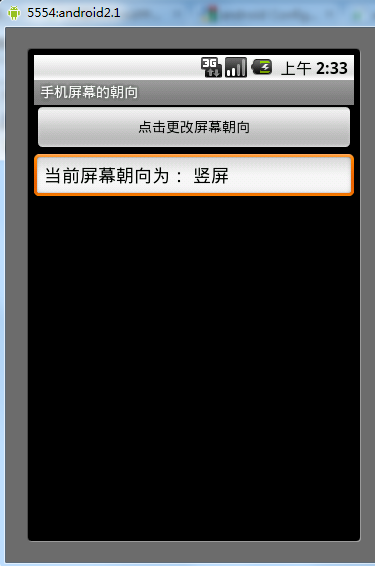 Android 切換螢幕方向:setRequestedOrientation 用法解析
行動裝置的螢幕方向切換看似簡單,實際上涉及 Activity 的設定、系統方向感測器,以及 Configuration 變動時的生命週期處理。本文示範以程式碼主動切換橫向
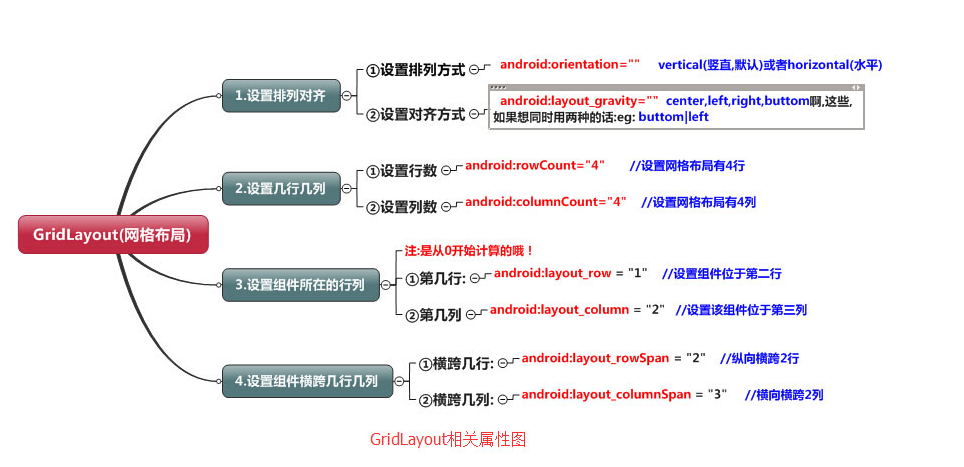 Android GridLayout 網格布局介紹
GridLayout 是 Android 4.0 之後加入的版面配置,適合用於建立網格狀畫面。它允許子元件跨行或跨列排列,適合用於計算機按鈕、圖示牆或需要對齊的介面。 G
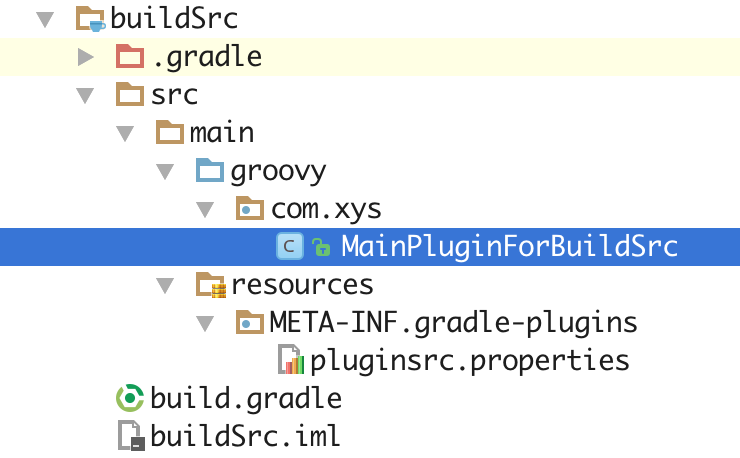 動手實作 Gradle 自定義插件:從 buildSrc 到獨立模組
動手實作 Gradle 自定義插件 在日常的 Android 建置流程裡,難免會遇到需要把某段重複的建置邏輯抽取出來的需求。這時候,自定義 Gradle 插件就是最好的幫
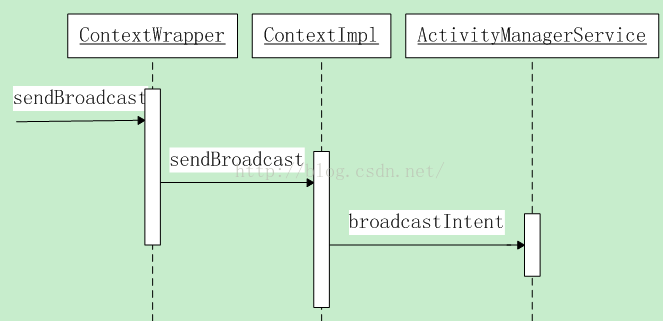 Android 广播发送流程源码剖析:从 AMS 到 Receiver 的完整链路
前面聊过广播的注册过程,这篇来看发送。相比之下,发送流程要复杂得多。 整体分为四步 发送者把一个特定类型的广播交给 ActivityManagerService(AMS