

編輯:關於 Android 程式設計
Android 主要提供兩類動畫機制:
1. Property Animation(屬性動畫)——相關類別位於 android.animation 套件。
2. View Animation(視圖動畫)——相關類別位於 android.view.animation 套件,顧名思義它是針對「視圖」的動畫。
對應的類別是 AnimationDrawable。你可以把它單純理解為一個 Drawable,使用方式與其他 Drawable 資源大同小異,一樣可以在 XML 或程式碼中實作:
<?xml version="1.0" encoding="utf-8"?>
<animation-list xmlns:android="https://schemas.android.com/apk/res/android">
    <item android:drawable="@drawable/rocket_thrust1" android:duration="200" />
    <item android:drawable="@drawable/rocket_thrust2" android:duration="200" />
    <item android:drawable="@drawable/rocket_thrust3" android:duration="200" />
</animation-list>
ImageView rocketImage = (ImageView) findViewById(R.id.rocket_image);
rocketImage.setBackgroundResource(R.drawable.rocket_thrust);
rocketAnimation = (AnimationDrawable) rocketImage.getBackground();
rocketAnimation.start();
啟動動畫是呼叫 start(),但要注意這個方法不能寫在 onCreate() 裡,因為此時動畫資源尚未完全載入到視窗;比較恰當的位置是放在 onWindowFocusChanged() 中。
補間動畫是對一張圖片進行的變換效果,例如縮放。查看原始碼不難理解:以 ScaleAnimation 為例,縮放效果是透過 Matrix 矩陣變換來實現,本質上就是動態地對位圖做變換操作。這也說明了為何補間動畫只有四種——AlphaAnimation、ScaleAnimation、TranslateAnimation 與 RotateAnimation,因為一張圖片的矩陣變換也就這四類。
Animation 抽象類是這四個類別的基底,我們也可以模仿它們,透過矩陣變換或其他操作位圖的方式實作自訂補間動畫,例如讓其中兩種效果同時變化。
這類動畫通常作為獨立的動畫資源檔,存放在 res/anim/ 資料夾下,資料夾中每個資源對應的都是 Animation 類別的物件:
<?xml version="1.0" encoding="utf-8"?>
<set xmlns:android="https://schemas.android.com/apk/res/android"
    android:interpolator="@[package:]anim/interpolator_resource"
    android:shareInterpolator=["true" | "false"] >
    <alpha android:fromAlpha="float" android:toAlpha="float" />
    <scale android:fromXScale="float" android:toXScale="float"
        android:fromYScale="float" android:toYScale="float"
        android:pivotX="float" android:pivotY="float" />
    <translate android:fromXDelta="float" android:toXDelta="float"
        android:fromYDelta="float" android:toYDelta="float" />
    <rotate android:fromDegrees="float" android:toDegrees="float"
        android:pivotX="float" android:pivotY="float" />
    <set> ... </set>
</set>
其中唯一稍有難度的是 interpolator 屬性,會在後續文章中再詳細說明。在程式碼中,可用 AnimationUtils.loadAnimation() 載入動畫資源,再呼叫 startAnimation() 啟動:
ImageView image = (ImageView) findViewById(R.id.image);
Animation hyperspaceJump = AnimationUtils.loadAnimation(this, R.anim.hyperspace_jump);
image.startAnimation(hyperspaceJump);
兩者最大的差異在於:View Animation 的作用對象是 View,而 Property Animation 的作用對象則是「所有物件」。屬性動畫的基底類別是 Animator,它在 XML 中同樣是一種動畫資源,只是檔案要放在 res/animator/ 資料夾中:
<set android:ordering="sequentially">
    <set>
        <objectAnimator android:propertyName="x" android:duration="500" android:valueTo="400" android:valueType="intType"/>
        <objectAnimator android:propertyName="y" android:duration="500" android:valueTo="300" android:valueType="intType"/>
    </set>
    <objectAnimator android:propertyName="alpha" android:duration="500" android:valueTo="1f"/>
</set>
啟動方式如下:
AnimatorSet set = (AnimatorSet) AnimatorInflater.loadAnimator(myContext, R.anim.property_animator);
set.setTarget(myObject);
set.start();
總結來說:視圖動畫針對 View,又可細分為「影格動畫」(可視為完整的 Drawable 資源)與「補間動畫」(透過矩陣變換操作單一位圖);屬性動畫則針對所有 Object,能實現更靈活的效果。
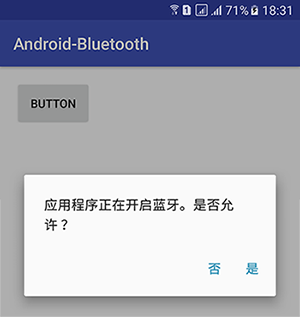 Android 藍牙開發詳解:權限、搜尋與裝置間資料傳輸
藍牙是 Android 上常見的短距離通訊技術,可用於裝置配對、資料傳輸與物聯網應用。本文整理藍牙權限、開啟方式、裝置搜尋、UUID 概念與資料傳輸流程。 藍牙權限設定
 AlertDialog 常用方法與自定義對話框實作
日常開發中最常遇到的對話框有五種:確認框、列表框、多選框、單選框,以及完全自定義的對話框。它們都建立在同一組 Builder 方法之上。 Builder 常用方法速查 ·
 Windows 下使用 Eclipse 建置 Android NDK 開發環境
一、為什麼需要 Cygwin Android NDK 主要用來編譯 C 與 C++ 原始碼。在 Windows 環境中,若想執行 make、gcc 等編譯工具,通常需要一
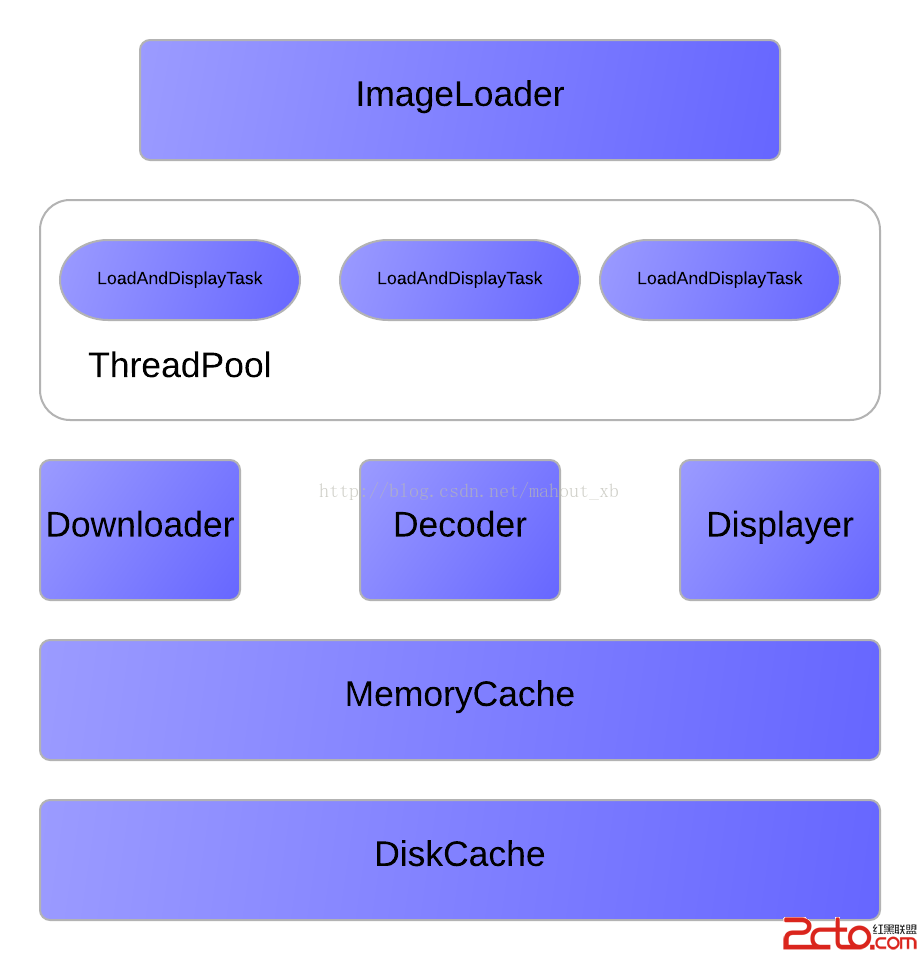 Android-Universal-Image-Loader 架構剖析
簡介 Android Universal Image Loader(簡稱 UIL)是一個相當知名的圖片載入框架,專案位址為 https://github.com/nost