

編輯:關於 Android 程式設計
以下整理自 Android 官方對 Toast 的使用說明。Toast 是一種極為輕量的提示機制,只佔用訊息所需的最小空間,會顯示在目前的 Activity 之上,並在一段時間後自動消失。舉例來說,當你尚未寄出正在撰寫的郵件便離開時,會彈出一個「草稿已保存」的 Toast,提醒你可以稍後繼續編輯。
首先透過 Toast.makeText() 建立物件,這個方法有三個參數:Context、訊息文字、顯示時間長短;接著呼叫 show() 讓它顯示出來:
Context context = getApplicationContext();
CharSequence text = "Hello toast!";
int duration = Toast.LENGTH_SHORT;
Toast toast = Toast.makeText(context, text, duration);
toast.show();
標準的 Toast 會出現在螢幕底部、水平居中的位置。若要改變位置,可呼叫 setGravity(int, int, int),三個參數分別代表 Gravity、x 方向偏移、y 方向偏移。例如想讓它顯示在左上角:
toast.setGravity(Gravity.TOP | Gravity.LEFT, 0, 0);
若想往右移,就加大第二個參數;想往下移,則加大第三個參數。
如果單純的文字訊息無法滿足需求,還可以自訂版面。先定義一個檢視(可用 XML 或程式碼),再呼叫 setView(View) 套用。以下是一個包含圖片與文字的自訂版面:
<LinearLayout xmlns:android="https://schemas.android.com/apk/res/android"
    android:id="@+id/toast_layout_root"
    android:orientation="horizontal"
    android:layout_width="fill_parent"
    android:layout_height="fill_parent"
    android:padding="8dp"
    android:background="#DAAA"
    >
    <ImageView android:src="@drawable/droid"
        android:layout_width="wrap_content"
        android:layout_height="wrap_content"
        android:layout_marginRight="8dp"
        />
    <TextView android:id="@+id/text"
        android:layout_width="wrap_content"
        android:layout_height="wrap_content"
        android:textColor="#FFF"
        />
</LinearLayout>
對應的程式碼如下:
LayoutInflater inflater = getLayoutInflater();
View layout = inflater.inflate(R.layout.custom_toast,
                (ViewGroup) findViewById(R.id.toast_layout_root));
TextView text = (TextView) layout.findViewById(R.id.text);
text.setText("This is a custom toast");
Toast toast = new Toast(getApplicationContext());
toast.setGravity(Gravity.CENTER_VERTICAL, 0, 0);
toast.setDuration(Toast.LENGTH_LONG);
toast.setView(layout);
toast.show();
流程是:先呼叫 getLayoutInflater()(或 getSystemService())取得 LayoutInflater,再用 inflate(int, ViewGroup) 填充版面(第一個參數是版面 ID,第二個是根檢視)。填充後即可取得內部的 ImageView、TextView 等元素並設定內容。最後透過 Toast(Context) 建立物件,設定位置與顯示時間,呼叫 setView(View),再用 show() 呈現自訂樣式。
最後提醒:除非你需要自訂檢視,否則不要使用公開的建構子。一般情況建議直接用 makeText(Context, int, int) 來建立 Toast 即可。
 打造與眾不同的新手引導頁(一):自學 CirclePageIndicator
本篇要動手做一個自定義的 CircleIndicator 控制項;下一篇再談如何改寫 ViewPager 的切換效果,預計明晚之前更新。 效果預覽 一、怎麼
 Android 7.0 Nougat 全解析:新特性、性能改進與版本演進
網上關於 Android 的教程已經汗牛充棟,所以寫這篇時我更傾向於做一件事:把散落在各處、但彼此關聯的知識點整理到一起,方便日後查閱。今天的主角是 Android 7.
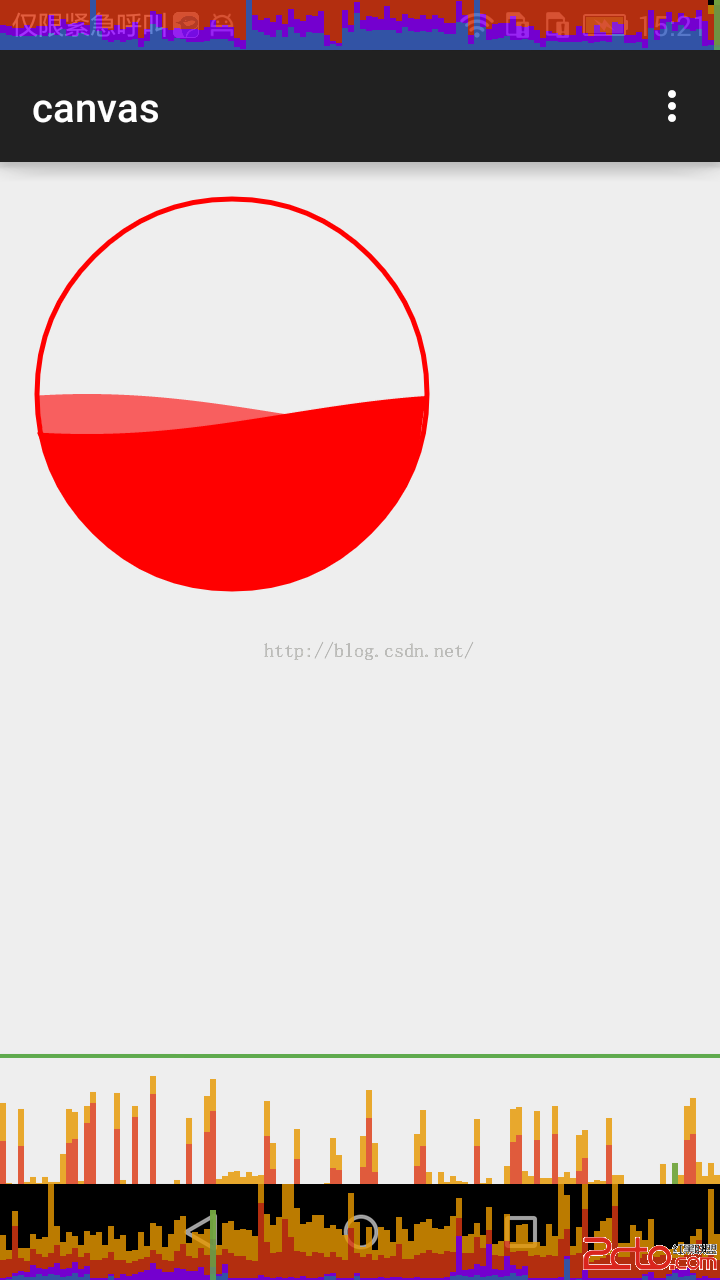 Android 繪製波浪曲線動畫,效果很不錯
以下分享兩種在 Android 上繪製動態波浪曲線的做法,一個基於自定義 View,一個基於 SurfaceView,效果相當流暢。 做法一:自定義 View pack
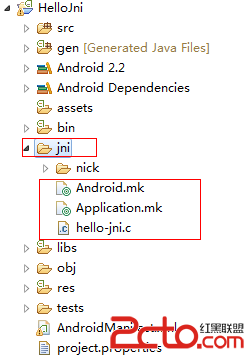 Android NDK 命令行開發:編譯並打包多個 so
NDK 開發流程即使不使用 Eclipse 或特殊打包工具,也可以透過命令行完成 Android NDK 開發。核心流程是建立 Android 專案、撰寫 JNI 原始碼