

編輯:關於 Android 程式設計
Drawable animation 是一張接一張切換 Drawable 資源來形成動畫的技術,AnimationDrawable 就是它的核心類別。官方建議以 XML 宣告的方式實作,而不是在程式碼中動態組裝——XML 版本結構清楚、修改方便,也更容易看出整體的播放順序。
把 XML 放在 res/drawable/ 目錄下,以 <animation-list> 作為根節點,每個 <item> 就是一幀,分別指定要顯示的 drawable 與持續時間(毫秒):
<animation-list xmlns:android="https://schemas.android.com/apk/res/android"
    android:oneshot="true">

    <item android:drawable="@drawable/rocket_thrust1" android:duration="200" />
    <item android:drawable="@drawable/rocket_thrust2" android:duration="200" />
    <item android:drawable="@drawable/rocket_thrust3" android:duration="200" />

</animation-list>
android:oneshot 決定播放行為:設為 true 時動畫只跑一遍並停在最後一幀;設為 false 則會無限循環。
方式一:AnimationDrawable 本身就是 Drawable,可直接在 XML 版面中指定為某個 View 的背景,然後呼叫 start()。
方式二:在程式碼中用 View.setBackgroundResource(resID) 掛上,再呼叫 start()。
AnimationDrawable rocketAnimation;

public void onCreate(Bundle savedInstanceState) {
    super.onCreate(savedInstanceState);
    setContentView(R.layout.main);

    ImageView rocketImage = (ImageView) findViewById(R.id.rocket_image);
    // rocket_thrust 就是我們定義的 animation-list
    rocketImage.setBackgroundResource(R.drawable.rocket_thrust);
    rocketAnimation = (AnimationDrawable) rocketImage.getBackground();
}

public boolean onTouchEvent(MotionEvent event) {
    if (event.getAction() == MotionEvent.ACTION_DOWN) {
        rocketAnimation.start();
        return true;
    }
    return super.onTouchEvent(event);
}
一旦為某個 View 設定了 Drawable Animation,它的背景就會變成 AnimationDrawable 物件,因此可以用 getBackground() 轉型取回來操作。
原因在於 AnimationDrawable 此時尚未完全關聯到 Window,View 還沒真正完成顯示,動畫自然起不來。同樣的道理,在 onCreate() 中量測某個 View 的寬高往往只得到 0;SurfaceHolder 需要額外掛 Callback,也是同一個根源。
解法是把啟動時機往後挪,最推薦放在 onWindowFocusChanged() 中——這是能保證 View 已完成配置的最早時機。
用一個簡單的例子就能確認上述推論。版面檔中放一個固定尺寸的 TextView:
<TextView
    android:id="@+id/textView"
    android:layout_width="50dip"
    android:layout_height="100dip"
    android:text="@string/special_character" />
然後在 onWindowFocusChanged() 中讀取它的實際尺寸:
@Override
public void onWindowFocusChanged(boolean hasFocus) {
    super.onWindowFocusChanged(hasFocus);

    int width  = mTextView.getMeasuredWidth();
    int height = mTextView.getMeasuredHeight();

    Log.d("window_focus", "textview width is:" + width);
    Log.d("window_focus", "textview height is:" + height);
}
在這個時機點就能拿到正確的 50dip 與 100dip 換算後的值。結論很清楚:只有在 View 完全關聯到 Window 之後,才能取得它的寬高,也才能可靠地為它設定背景。
@Override
public void onWindowFocusChanged(boolean hasFocus) {
    super.onWindowFocusChanged(hasFocus);
    if (hasFocus) {
        imageView.setBackgroundResource(R.anim.frame_animation);
        animDrawable = (AnimationDrawable) imageView.getBackground();
        animDrawable.start();

        AlphaAnimation aas = new AlphaAnimation(0.1f, 1.0f);
        aas.setDuration(3500);
        imageView.startAnimation(aas);

        aas.setAnimationListener(new AnimationListener() {
            @Override
            public void onAnimationStart(Animation animation) {
                imageView.setBackgroundResource(R.anim.frame_animation);
                animDrawable = (AnimationDrawable) imageView.getBackground();
                animDrawable.setAlpha(80);
                animDrawable.start();
            }

            @Override
            public void onAnimationRepeat(Animation animation) { }

            @Override
            public void onAnimationEnd(Animation arg0) {
                // 淡入結束後收起圖片並停止幀動畫
                imageView.setVisibility(View.GONE);
                animDrawable.stop();
            }
        });
    }
}
這個組合示範了兩件事:幀動畫(AnimationDrawable)與補間動畫(AlphaAnimation)可以並行運作,前者負責內容變化、後者負責呈現效果;而透過 AnimationListener 你能精準掌握動畫的生命週期,在結束時做收尾——例如隱藏元件並停止幀動畫,避免它持續消耗資源。
 AsyncTask 非同步任務使用
AsyncTask 概念AsyncTask 是 Android 提供的輕量級非同步工具,可在背景執行工作,並在合適時機更新 UI。執行流程呼叫 execute 後,會依序
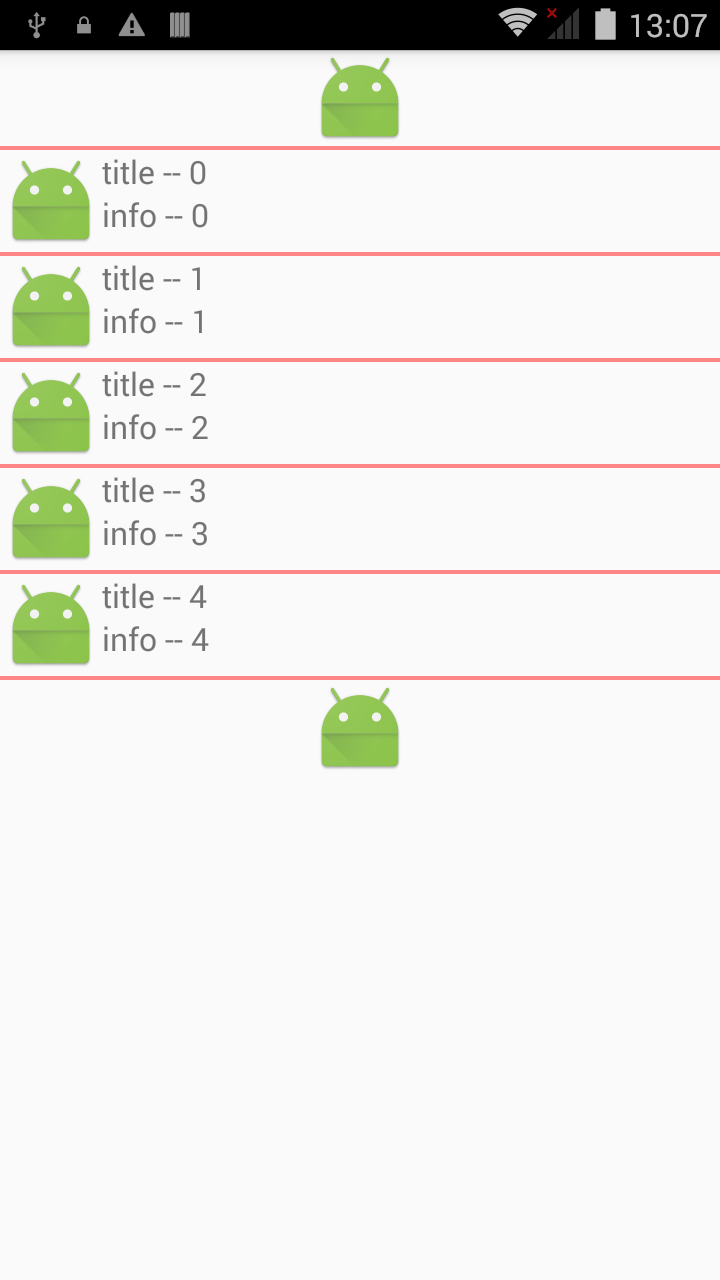 Android ListView 與 SimpleAdapter 實戰:快速構建自定義列表
SimpleAdapter 的優勢在 Android 的列表開發中,SimpleAdapter 是相當易用的適配器。它能將 Map 資料集合快速綁定到自定義布局,適合需要
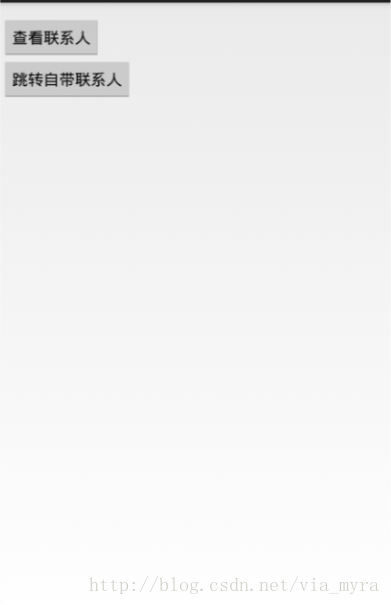 用 ContentProvider 讀取手機聯絡人的兩種實作
看到不少 App 內建「讀取聯絡人」功能,實際動手做之後發現原理並不複雜。以下示範兩種取用方式:第一種跳轉到系統內建的聯絡人介面挑選,第二種直接查詢後顯示在自己的頁面上。
 仿微信底部 Tab 切換實作:拋棄 TitlePagerTabStrip 的輕量 ViewPager 方案
網路上的 Tab 教學品質參差,最常見的寫法是 TitlePagerTabStrip 搭配 ViewPager。但實測下來,TitlePagerTabStrip 有個挺惱