

編輯:關於 Android 程式設計
常常有開發者問:在 Android 裡,能不能把 RadioButton 的文字放到右邊、圓形選取圖示放到左邊?預設的 RadioButton 是圖示在左、文字在右,若要做成相反的排版,其實只需要兩個屬性就能搞定。
第一步:透過 android:button="@null" 把系統原生的 RadioButton 圓形圖示隱藏起來。
第二步:透過 android:drawableRight="@android:drawable/btn_radio",在文字的右側放上一個系統內建的 btn_radio 圖示。可以想成 RadioButton 本身就是對 btn_radio 這個圖示的一層封裝。
以下是一個完整的版面配置範例:
<?xml version="1.0" encoding="utf-8"?>
<LinearLayout xmlns:android="https://schemas.android.com/apk/res/android"
android:layout_width="match_parent"
android:layout_height="match_parent"
android:orientation="vertical" >
<RadioGroup
android:id="@+id/radioGroup1"
android:layout_width="wrap_content"
android:layout_height="wrap_content" >
<RadioButton
android:id="@+id/button1"
android:layout_width="match_parent"
android:layout_height="wrap_content"
android:button="@null"
android:checked="true"
android:drawableRight="@android:drawable/btn_radio"
android:paddingLeft="10dp"
android:text="RadioButton" />
<RadioButton
android:id="@+id/button2"
android:layout_width="319dp"
android:layout_height="wrap_content"
android:button="@null"
android:drawableRight="@android:drawable/btn_radio"
android:paddingLeft="10dp"
android:text="RadioButton" />
</RadioGroup>
</LinearLayout>
透過這樣的組合,就能實現「文字在左、選取圖示在右」的效果,同時仍完整保留 RadioGroup 的單選邏輯。若日後想改成圖示在左,只要把 drawableRight 換成 drawableLeft 即可。
參考網站:https://www.02521.com/cod/10496.html
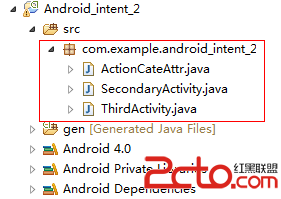 Android 筆記六:深入理解 Intent 與 IntentFilter(二)
作者:Jiangdg_VIP https://blog.csdn.net/u012637501 上一篇我們較詳細地學習了 Intent 的相關知識,這次接著學習如何設定
 關於 Android ListView 的基礎用法詳解
最近參與的一個專案需要呈現一個包含標題與內容的列表頁面。過去雖然用過 ListView,但當時的資料是從手機本地資料庫讀取的;這次資料來源換成了公司 PHP 網站的伺服器
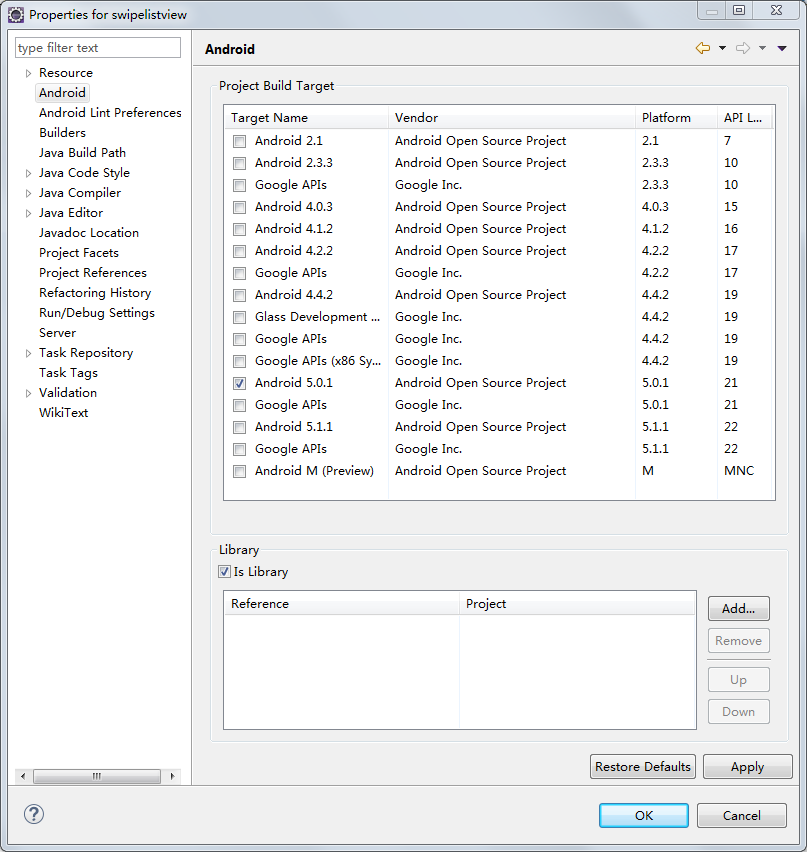 用 SwipeListView 實作類 QQ 的滑動刪除效果
QQ 的滑動刪除互動相當順手,想做出類似效果,可以借助 SwipeListView 這個開源庫。 1. 下載 com.fortysevendeg.swipelistvie
 Android 事件分發機制探析與攔截實作
做過自訂 ViewGroup 的人遲早會碰到事件分發的問題:明明在自己的 View 上實作了觸控處理,事件卻被上層或其他子 View 搶走了。要解決這類問題,必須先理解