

編輯:關於 Android 開發
不論是 Java Swing 還是 HTML,表格都是表達結構化資料的常見手法,Android 也提供了對應的容器:TableLayout。它把子元素視為表格中的儲存格,適合呈現鍵盤、表單、對齊的多欄資料。
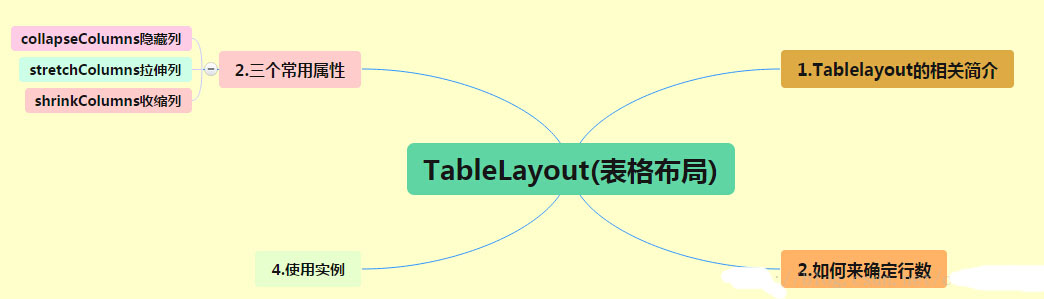
TableLayout 並不需要你明確宣告行列數,規則相當直觀:
TableRow 裡。TableRow 裡有幾個子元素,這一列就有幾欄。這三個屬性的索引都從 0 開始,而且一次可以指定多欄,用逗號分隔。
以下範例刻意不為控制項設定 ID,只為了把三種屬性的視覺差異示範清楚。
<?xml version="1.0" encoding="utf-8"?>
<LinearLayout xmlns:android="https://schemas.android.com/apk/res/android"
    android:layout_width="match_parent"
    android:layout_height="match_parent"
    android:orientation="vertical">

    <!-- 第一個表格:第二欄可收縮,第三欄可拉伸 -->
    <TableLayout
        android:layout_width="match_parent"
        android:layout_height="wrap_content"
        android:shrinkColumns="1"
        android:stretchColumns="2">

        <!-- 直接加入的元件會獨佔一列 -->
        <Button
            android:layout_width="wrap_content"
            android:layout_height="wrap_content"
            android:text="獨自占一列" />

        <TableRow>
            <Button android:layout_width="wrap_content" android:layout_height="wrap_content" android:text="普通按鈕" />
            <Button android:layout_width="wrap_content" android:layout_height="wrap_content" android:text="收縮按鈕" />
            <Button android:layout_width="wrap_content" android:layout_height="wrap_content" android:text="拉伸按鈕" />
        </TableRow>
    </TableLayout>

    <!-- 第二個表格:指定第二欄隱藏 -->
    <TableLayout
        android:layout_width="match_parent"
        android:layout_height="wrap_content"
        android:collapseColumns="1">

        <Button
            android:layout_width="wrap_content"
            android:layout_height="wrap_content"
            android:text="獨自占一列" />

        <TableRow>
            <Button android:layout_width="wrap_content" android:layout_height="wrap_content" android:text="普通按鈕" />
            <Button android:layout_width="wrap_content" android:layout_height="wrap_content" android:text="普通按鈕" />
            <Button android:layout_width="wrap_content" android:layout_height="wrap_content" android:text="普通按鈕" />
        </TableRow>
    </TableLayout>

    <!-- 第三個表格:第二、三欄都可拉伸 -->
    <TableLayout
        android:layout_width="match_parent"
        android:layout_height="wrap_content"
        android:stretchColumns="1,2">

        <Button
            android:layout_width="wrap_content"
            android:layout_height="wrap_content"
            android:text="獨自占一列" />

        <TableRow>
            <Button android:layout_width="wrap_content" android:layout_height="wrap_content" android:text="普通按鈕" />
            <Button android:layout_width="wrap_content" android:layout_height="wrap_content" android:text="拉伸按鈕" />
            <Button android:layout_width="wrap_content" android:layout_height="wrap_content" android:text="拉伸按鈕" />
        </TableRow>
    </TableLayout>
</LinearLayout>
表格佈局的優勢在「對齊」:同一欄的元件會自動對齊寬度,做起來的小鍵盤、報表、設定清單都很省事。但如果欄位內容長度差異極大,拉伸與收縮的組合會讓版面難以預期,這時改用線性佈局加上權重,往往更好控制。
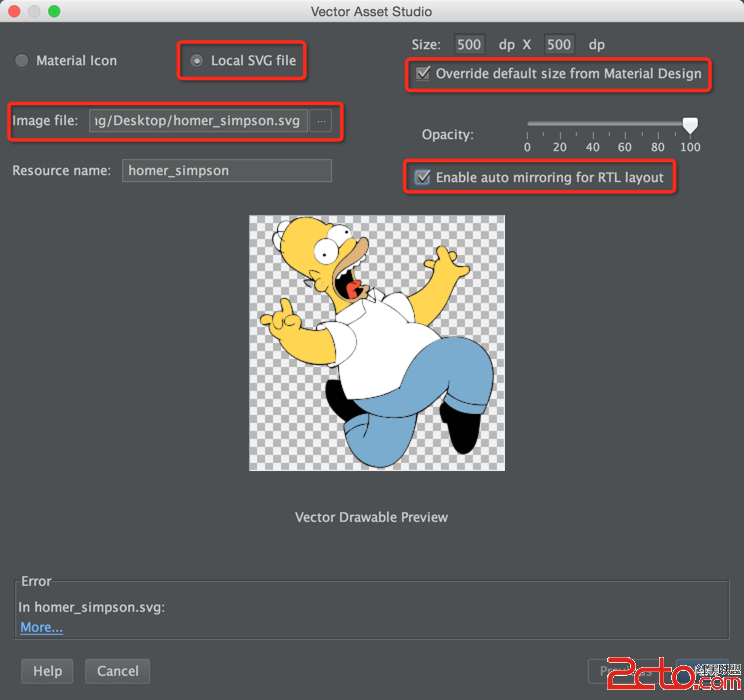 在 Android 專案中使用 SVG 向量圖形完整指南
 SVG 具備自適應螢幕、檔案體積小等眾多優勢,近年來越來越受到開發者的青睞。本文將帶你完整走一遍在 Androi
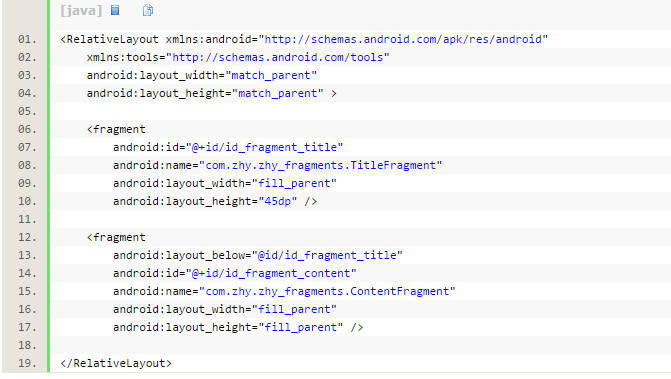 Android Fragment 全面剖析:生命週期、動態操作與回退棧
 一、Fragment 為何而生 Android 運行在形態各異的設備上:小屏手機、大屏平板,甚至
 Kotlin 與 Android SDK 集成(KAD 05):讓 Java 呼叫更簡潔
作者:Antonio Leiva | 時間:2016 年 12 月 19 日 | 原文:antonioleiva.com/kotlin-integrations-andr
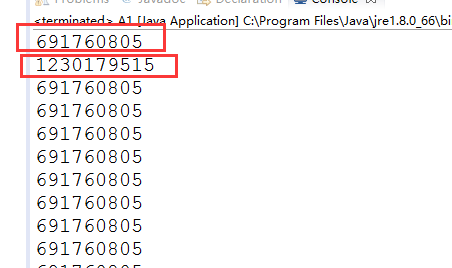 Java 單例模式六種寫法比較: thread 安全與效能該怎麼取捨
Java 單例模式六種寫法比較:執行緒安全與效能該怎麼取捨 前言 公司打算把專案裡的部分功能抽成 SDK 給外部產品使用,一拆成 SDK,很多原本不以為意的細節就浮上檯面