

編輯:關於 Android 開發
1. 寫入緩存:建立文件夾,把 List 集合中的對象轉換為 JSON 數組,存入文件夾。
2. 讀取緩存:把 JSON 數組從文件夾中讀取出來,然後放入 List 集合,返回該 List 集合。
private final static File filefolder=new File("/sdcard/myData");
private final static File filename=new File("/sdcard/myData/tem.txt");

public static boolean writeCache(List<Data> list) { if(!filefolder.exists()) filefolder.mkdirs(); try { JSONArray array=new JSONArray(); for(int i=0;i<list.size();i++) { Data data=list.get(i); JSONObject ob=new JSONObject(); ob.put("name", data.getName()); ob.put("reason", data.getReason()); array.put(ob); } FileWriter fw=new FileWriter(filename); fw.write(array.toString()); fw.close(); } catch(Exception e) { e.printStackTrace(); return false; } return true; } public static List<Data> readCache() throws JSONException,IOException { if(!filefolder.exists()) filefolder.mkdir(); List<Data> list=new ArrayList<Data>(); if(filename.exists()) { FileInputStream in=new FileInputStream(filename); String line=null; StringBuffer sb=new StringBuffer(""); BufferedReader br=new BufferedReader(new InputStreamReader(in)); while((line=br.readLine())!=null) sb.append(line); br.close(); in.close(); JSONArray array=new JSONArray(sb.toString()); for(int i=0;i<array.length();i++) { JSONObject ob=new JSONObject(); ob=array.getJSONObject(i); Data data=new Data(); data.setName(ob.getString("name")); data.setReason(ob.getString("reason")); list.add(data); } } return list; }
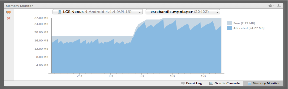 Android 內存分析工具入門:Memory Monitor、Heap Viewer 與 Allocation Tracker
Heap Viewer、Memory Monitor 與 Allocation Tracker 都是用來「視覺化」你的 App 內存使用情况的輔助工具,三者各有側重,搭配
 Android 屬性動畫實作:用 Java 程式碼驅動動畫
用 Java 程式碼實現屬性動畫 除了透過 XML 檔定義動畫之外,屬性動畫也可以用 Java 程式碼來靈活控制。下面用一個簡單的位移範例帶大家走一遍。 先看佈局檔:
 Activity 詳解三:啟動 Activity 並返回結果
 在 Android 中,若希望新開啟的 Activity 關閉後能將結果回傳給上一個頁面,可以使用 star
 Android 圖片內存占用與 drawable 文件夾關係分析
在 Android 開發中,經常有人問:能否只提供一套切圖來適配所有分辨率?要回答這個問題,需要理解圖片在