

編輯:關於 Android 開發
本文把先前動態建立 Fragment 的知識拿來做個實作:用 Fragment 拼出一組可點擊切換的選項卡,上方四個標籤,下方換不同內容。
上方用權重均分的水平 LinearLayout 放四個 TextView 當標籤,下方留一個容器給 Fragment:
<LinearLayout xmlns:android="https://schemas.android.com/apk/res/android"
    xmlns:tools="https://schemas.android.com/tools"
    android:layout_width="match_parent"
    android:layout_height="match_parent"
    android:orientation="vertical"
    tools:context=".MainActivity" >

    <LinearLayout
        android:layout_width="fill_parent"
        android:layout_height="wrap_content"
        android:orientation="horizontal" >
        <TextView android:id="@+id/tab1" android:layout_width="0dip"
            android:layout_height="wrap_content" android:layout_weight="1"
            android:gravity="center" android:text="社會新聞" />
        <TextView android:id="@+id/tab2" android:layout_width="0dip"
            android:layout_height="wrap_content" android:layout_weight="1"
            android:gravity="center" android:text="生活新聞" />
        <TextView android:id="@+id/tab3" android:layout_width="0dip"
            android:layout_height="wrap_content" android:layout_weight="1"
            android:gravity="center" android:text="軍事新聞" />
        <TextView android:id="@+id/tab4" android:layout_width="0dip"
            android:layout_height="wrap_content" android:layout_weight="1"
            android:gravity="center" android:text="娛樂新聞" />
    </LinearLayout>

    <LinearLayout
        android:id="@+id/content"
        android:layout_width="fill_parent"
        android:layout_height="fill_parent" >
    </LinearLayout>
</LinearLayout>
Fragment1.java 到 Fragment4.java,每個只負責攤開自己的版面:
public class Fragment1 extends Fragment {
    @Override
    public View onCreateView(LayoutInflater inflater, ViewGroup container,
                             Bundle savedInstanceState) {
        return inflater.inflate(R.layout.fragment1, null);
    }
}
其餘三個寫法相同,只換掉 layout 資源。
<?xml version="1.0" encoding="utf-8"?>
<LinearLayout xmlns:android="https://schemas.android.com/apk/res/android"
    android:layout_width="match_parent"
    android:layout_height="match_parent"
    android:gravity="center"
    android:orientation="vertical" >
    <TextView
        android:id="@+id/textview1"
        android:layout_width="wrap_content"
        android:layout_height="wrap_content"
        android:text="社會新聞"
        android:textAppearance="?android:attr/textAppearanceLarge"/>
</LinearLayout>
public class MainActivity extends Activity implements OnClickListener {
    private LinearLayout content;
    private TextView tv1, tv2, tv3, tv4;
    private FragmentManager fm;
    private FragmentTransaction ft;

    @Override
    protected void onCreate(Bundle savedInstanceState) {
        super.onCreate(savedInstanceState);
        setContentView(R.layout.activity_main);

        content = (LinearLayout) findViewById(R.id.content);
        tv1 = (TextView) findViewById(R.id.tab1);
        tv2 = (TextView) findViewById(R.id.tab2);
        tv3 = (TextView) findViewById(R.id.tab3);
        tv4 = (TextView) findViewById(R.id.tab4);

        tv1.setOnClickListener(this);
        tv2.setOnClickListener(this);
        tv3.setOnClickListener(this);
        tv4.setOnClickListener(this);

        fm = getFragmentManager();
        ft = fm.beginTransaction();
        ft.replace(R.id.content, new Fragment1());  // 預設顯示 Fragment1
        ft.commit();
    }

    @Override
    public void onClick(View v) {
        ft = fm.beginTransaction();
        switch (v.getId()) {
        case R.id.tab1: ft.replace(R.id.content, new Fragment1()); break;
        case R.id.tab2: ft.replace(R.id.content, new Fragment2()); break;
        case R.id.tab3: ft.replace(R.id.content, new Fragment3()); break;
        case R.id.tab4: ft.replace(R.id.content, new Fragment4()); break;
        default: break;
        }
        ft.commit();
    }
}
執行後即可看到點標籤換內容的效果:
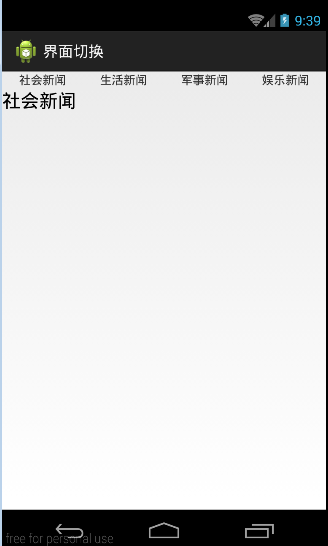
這個版本還很樸素,實務上通常還會補上:用 ft.addToBackStack() 支援返回鍵、在切換時同步更新標籤的選中態顏色、加上 setTransition() 讓切換有過場動畫。另外每個 Fragment 若各自有網路請求,記得在 onDestroyView() 中取消,避免快速切換時回呼打到已銷毀的視圖。
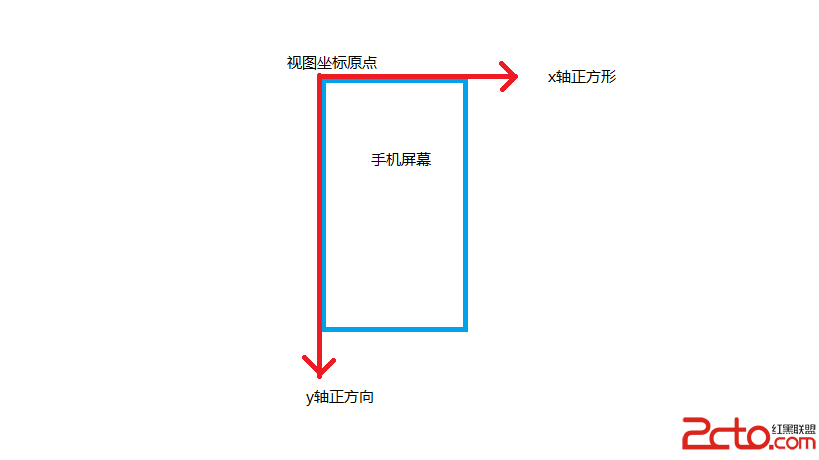 Android 滾動機制入門:mScrollX、scrollTo 與重繪原理
 在理解 Android 使用者介面的滾動效果之前,需要先釐清觸摸事件、座標系統與 View
 取得手機螢幕密度:三種寫法與 density 換算公式完整整理
 螢幕密度(density)是 Android 自適應開發的基礎。本篇以一個可執行的範例,示範三種取得螢幕密
 二手交易平台的 Android 端實作:Dagger2 + MVP + Bmob 雲後端
專案概況 這是我的畢業設計專案,一個二手交易平台。技術主線是 Dagger2 搭配 MVP 分層,後端使用 Bmob 雲服務,並整合了百度地圖與友盟第三方登入。 系統架
 交叉編譯可在 Android 上運行的 qemu user mode 完整踩坑記錄
 前言 本文記錄在 Ubuntu 64 位元系統上對 qemu 專案進行交叉編譯,且只編