

編輯:關於 Android 開發
Application 裡有兩個與記憶體管理相關的方法:onLowMemory() 與 onTrimMemory(int level)。先看它們的源碼:
@CallSuper public void onLowMemory() { Object[] callbacks = collectComponentCallbacks(); if (callbacks != null) { for (int i=0; i<callbacks.length; i++) { ((ComponentCallbacks)callbacks[i]).onLowMemory(); } } } @CallSuper public void onTrimMemory(int level) { Object[] callbacks = collectComponentCallbacks(); if (callbacks != null) { for (int i=0; i<callbacks.length; i++) { Object c = callbacks[i]; if (c instanceof ComponentCallbacks2) { ((ComponentCallbacks2)c).onTrimMemory(level); } } } }
從源碼可以看到,Application 收到這兩個回呼時,會把它轉發給所有註冊的元件。而 Activity 與 Service 本身就實作了這些監聽介面,因此我們有兩個地方可以攔:在 Application 中覆寫,或在各個元件中覆寫。前者適合放全域的資源清理,後者適合處理自己特有的資源。
注意 onTrimMemory 裡多了一個 instanceof ComponentCallbacks2 的判斷——這是因為只有實作了 ComponentCallbacks2 的元件才接收得到這個回呼,舊版的 ComponentCallbacks 不會收到。
為了更好地管理記憶體,onTrimMemory 在 API 14 被引入,可以在所有元件中取得(Activity、Service、ContentProvider、Application)。
你應該根據當前設備的記憶體狀況覆寫 onTrimMemory(int),逐步釋放不需要的記憶體。透過這個方法釋放資源,可以幫助 App 更好地配合系統整體調度;同時因為讓你的 App 能在系統中存活更久,使用者體驗也會提升。反之,如果在系統記憶體極度緊張時你仍然不釋放記憶體,系統會優先把你的進程殺掉——使用者下次回到 App 時必須重新啟動,這對體驗的傷害遠比「少快取幾張圖」嚴重。
onTrimMemory(int) 的 level 值並不成線性關係,它只是提供記憶體不同狀態的線索。這句話很重要,直接影響你的判斷方式該怎麼寫。
/** * Called when the operating system has determined that it is a good * time for a process to trim unneeded memory from its process. This will * happen for example when it goes in the background and there is not enough * memory to keep as many background processes running as desired. You * should never compare to exact values of the level, since new intermediate * values may be added -- you will typically want to compare if the value * is greater or equal to a level you are interested in. * * <p>To retrieve the processes current trim level at any point, you can * use {@link android.app.ActivityManager#getMyMemoryState * ActivityManager.getMyMemoryState(RunningAppProcessInfo)}. * * @param level The context of the trim, giving a hint of the amount of * trimming the application may like to perform. May be * {@link #TRIM_MEMORY_COMPLETE}, {@link #TRIM_MEMORY_MODERATE}, * {@link #TRIM_MEMORY_BACKGROUND}, {@link #TRIM_MEMORY_UI_HIDDEN}, * {@link #TRIM_MEMORY_RUNNING_CRITICAL}, {@link #TRIM_MEMORY_RUNNING_LOW}, * or {@link #TRIM_MEMORY_RUNNING_MODERATE}. */ void onTrimMemory(int level);
當作業系統認為這是一個讓進程釋放無用記憶體的好時機時,就會呼叫這個方法。例如當已經沒有足夠記憶體維持目前所有後台進程,而你的進程正好在後台。
官方文件裡那句 "You should never compare to exact values of the level" 是重點:永遠不要用精確值比對,因為未來可能會新增中間層級的值。正確寫法是判斷「大於或等於你感興趣的 level」:
// 建議
if (level >= TRIM_MEMORY_BACKGROUND) { /* 清掉快取 */ }

// 不建議
if (level == TRIM_MEMORY_BACKGROUND) { /* 可能永遠不會命中 */ }
想在任何時刻取得目前進程的 trim level,可以呼叫 ActivityManager.getMyMemoryState(RunningAppProcessInfo)。
/** * Level for {@link #onTrimMemory(int)}: the process is nearing the end * of the background LRU list, and if more memory isn't found soon it will * be killed. */ static final int TRIM_MEMORY_COMPLETE = 80; /** * Level for {@link #onTrimMemory(int)}: the process is around the middle * of the background LRU list; freeing memory can help the system keep * other processes running later in the list for better overall performance. */ static final int TRIM_MEMORY_MODERATE = 60; /** * Level for {@link #onTrimMemory(int)}: the process has gone on to the * LRU list. This is a good opportunity to clean up resources that can * efficiently and quickly be re-built if the user returns to the app. */ static final int TRIM_MEMORY_BACKGROUND = 40; /** * Level for {@link #onTrimMemory(int)}: the process had been showing * a user interface, and is no longer doing so. Large allocations with * the UI should be released at this point to allow memory to be better * managed. */ static final int TRIM_MEMORY_UI_HIDDEN = 20; /** * Level for {@link #onTrimMemory(int)}: the process is not an expendable * background process, but the device is running extremely low on memory * and is about to not be able to keep any background processes running. * Your running process should free up as many non-critical resources as it * can to allow that memory to be used elsewhere. The next thing that * will happen after this is {@link #onLowMemory()} called to report that * nothing at all can be kept in the background, a situation that can start * to notably impact the user. */ static final int TRIM_MEMORY_RUNNING_CRITICAL = 15; /** * Level for {@link #onTrimMemory(int)}: the process is not an expendable * background process, but the device is running low on memory. * Your running process should free up unneeded resources to allow that * memory to be used elsewhere. */ static final int TRIM_MEMORY_RUNNING_LOW = 10; /** * Level for {@link #onTrimMemory(int)}: the process is not an expendable * background process, but the device is running moderately low on memory. * Your running process may want to release some unneeded resources for * use elsewhere. */ static final int TRIM_MEMORY_RUNNING_MODERATE = 5;
TRIM_MEMORY_COMPLETE(80):當前進程在 LRU 列表的尾端,如果再找不到足夠記憶體,它很快會被殺死。這時應該釋放任何不影響 App 正常運行的資源。
TRIM_MEMORY_MODERATE(60):進程位於 LRU 列表中段,若系統需要更多記憶體,你的進程可能會被殺。
TRIM_MEMORY_BACKGROUND(40):進程在 LRU 列表的前段,雖然不會被優先殺掉,但系統已經開始準備清理列表中的其他進程。因此你應該盡量釋放那些「可以快速重建」的資源,確保使用者返回 App 時能迅速恢復。
TRIM_MEMORY_UI_HIDDEN(20):進程的介面已經不可見,這是釋放 UI 相關資源的最佳時機。大塊的 Bitmap 快取、已 inflate 但用不到的 view,都可以在這裡清掉。
TRIM_MEMORY_RUNNING_MODERATE(5):系統進入輕度低記憶體狀態,你的進程正在運行且不會被殺,但可以釋放一些非必要資源。
TRIM_MEMORY_RUNNING_LOW(10):系統記憶體偏低,應該釋放不必要的資源以維持效能,否則會影響使用者體驗。
TRIM_MEMORY_RUNNING_CRITICAL(15):雖然你的進程不會被殺,但系統已準備清理其他後台進程。這時應盡可能釋放非關鍵資源。下一階段就會呼叫 onLowMemory(),代表連一個後台進程都留不住了——那種狀況已經會明顯影響到使用者。
在 onTrimMemory 問世之前,大家用的都是 onLowMemory()。如果你的 App 跑在 API 14 以上的機器上,應該優先實作 onTrimMemory(int)。onLowMemory() 的呼叫時機大致等同於 TRIM_MEMORY_COMPLETE,也就是「已經無路可退」的最後警報。
把 level 當成「該清多深」的刻度,而不是「要不要清」的開關。一個實用的分層策略是:
切記不要在這些回呼裡做耗時運算或同步 IO。系統呼叫它是因為記憶體已經很緊,你在這裡多跑幾十毫秒,被殺的機率就更高。
另外補充一個實務判斷:Android 4.0 以上其實有另一個 API ComponentCallbacks2 搭配 onTrimMemory 使用,而 LeakCanary 這類記憶體監控工具能幫你確認洩漏點——onTrimMemory 只能「減少浪費」,它治不了洩漏。如果你的 App 在後台一陣子後記憶體持續攀升,該查的是有沒有靜態變數或 handler 持有 Activity 參考,而不是拼命在 onTrimMemory 裡清快取。
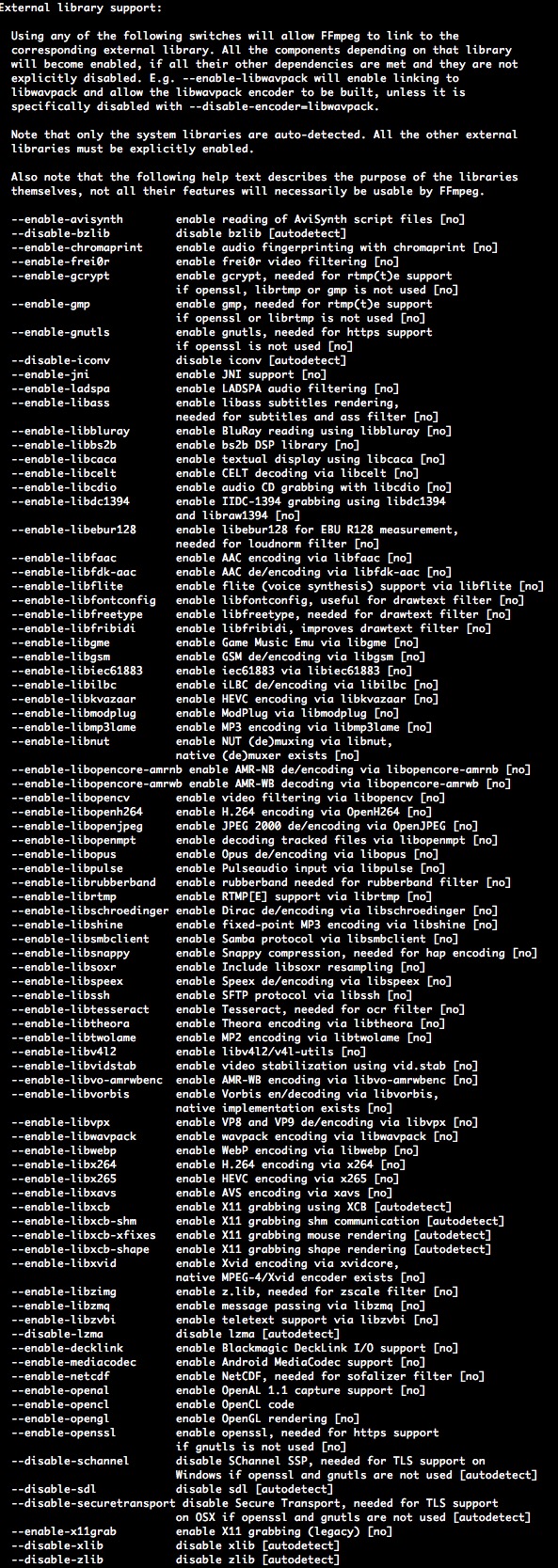 FFmpeg 編碼支援與自訂編譯指南
FFmpeg 的模組化設計 FFmpeg 本身提供了一套多媒體處理框架,但預設編譯不一定包含所有編碼、封裝與協議。部分功能受限於授權或體積,需要透過外部函式庫加入。可利用
 Android 內存分析工具入門:Memory Monitor、Heap Viewer 與 Allocation Tracker
Heap Viewer、Memory Monitor 與 Allocation Tracker 都是用來「視覺化」你的 App 內存使用情况的輔助工具,三者各有側重,搭配
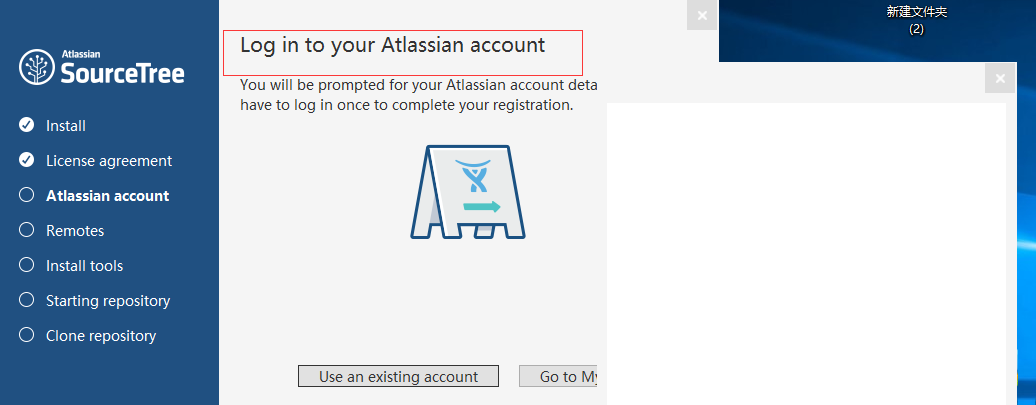 Android 開發常用的 Git 客戶端工具推薦
 以下整理幾款在 Android 開發中常用的版本控制客戶端工具,方便下載與使用。 1、TortoiseGit Git
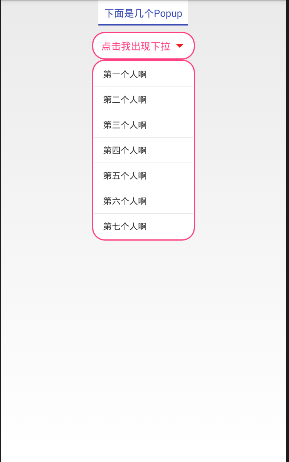 PopupWindow 使用詳解:下拉列表、底部彈窗與背景變暗
PopupWindow 是實現浮層彈窗的常用元件。本文整理了兩種常見用法,並補充以 Dialog 實現相同效果的寫法,以及 TextView 的下劃線製作技巧。 一、下