

編輯:關於 Android 開發
ToggleButton 顧名思義是一個「開關」控件,具有兩種不同狀態(開與關)。它有三個主要特有屬性:
android:textOn="開":狀態為 true 時顯示的文字android:textOff="關":狀態為 false 時顯示的文字android:checked="true":標識是否被選中以下用一個簡單例子說明:用 ToggleButton 的狀態控制 TextView 顯示不同文字。
<ToggleButton
    android:id="@+id/toggleButton1"
    android:layout_width="match_parent"
    android:layout_height="wrap_content"
    android:layout_alignParentLeft="true"
    android:layout_alignParentTop="true"
    android:textOn="開"
    android:textOff="關"
    android:checked="true"/>
<!-- android:checked 標識是否被選中,若未寫則默認未選中 -->

<TextView
    android:id="@+id/textView1"
    android:layout_width="fill_parent"
    android:layout_height="wrap_content"
    android:layout_alignLeft="@+id/toggleButton1"
    android:layout_alignParentRight="true"
    android:layout_below="@+id/toggleButton1"
    android:layout_marginTop="31dp" />
透過 setOnCheckedChangeListener 監聽狀態變化,依開關狀態顯示不同文字:
private ToggleButton tgB;
private TextView tV;

protected void onCreate(Bundle savedInstanceState) {
    super.onCreate(savedInstanceState);
    setContentView(R.layout.activity_main);
    tgB = (ToggleButton) findViewById(R.id.toggleButton1);
    tV = (TextView) findViewById(R.id.textView1);

    tgB.setOnCheckedChangeListener(new OnCheckedChangeListener() {
        public void onCheckedChanged(CompoundButton buttonView, boolean isChecked) {
            // 依不同狀態顯示不同文字
            if (isChecked) {
                tV.setText("此時狀態為開");
                tV.setTextSize(30f);
            } else {
                tV.setText("此時狀態為關");
                tV.setTextSize(30f);
            }
        }
    });
}
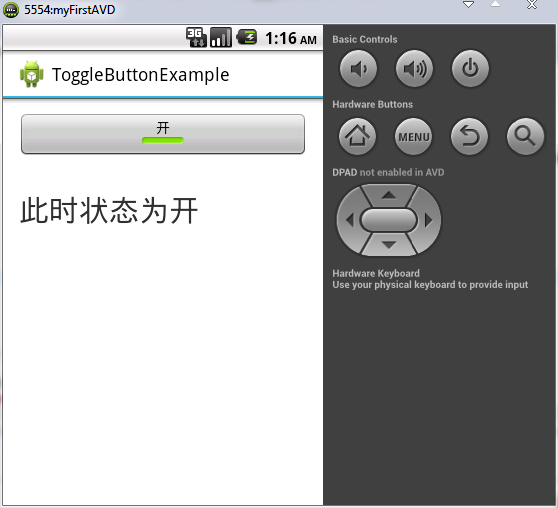
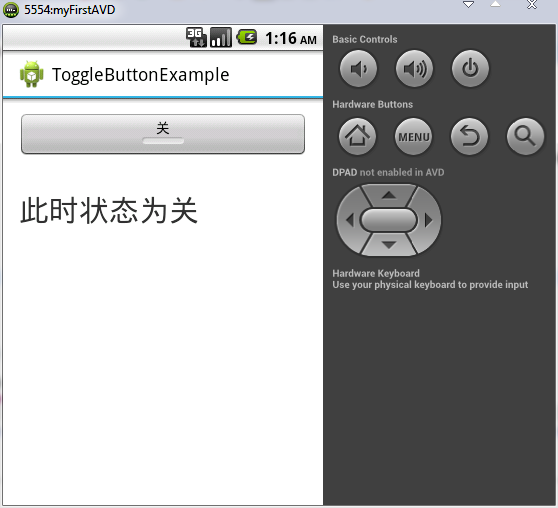
運行效果:
 GitHub 上的 Android UI 靈感庫:開源介面設計參考
為什麼要參考開源 UI 專案 Android 開發入門容易,但要做出細節完整、互動自然的介面並不容易。GitHub 上有許多 UI 聚合專案,收錄大量開源元件與效果範例,
 Android 快速發布開源庫到 JitPack
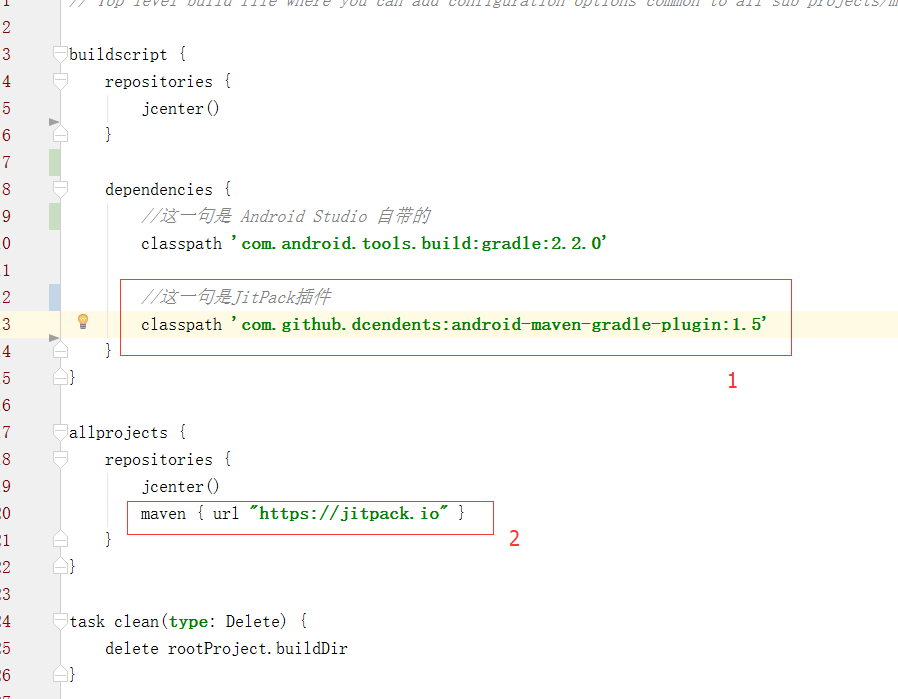
發布到 JitPack JitPack 是一個簡化的 Maven 倉庫服務,只要提供 GitHub 專案與版本標籤,即可讓其他專案透過 Gradle 引用。 設定步驟
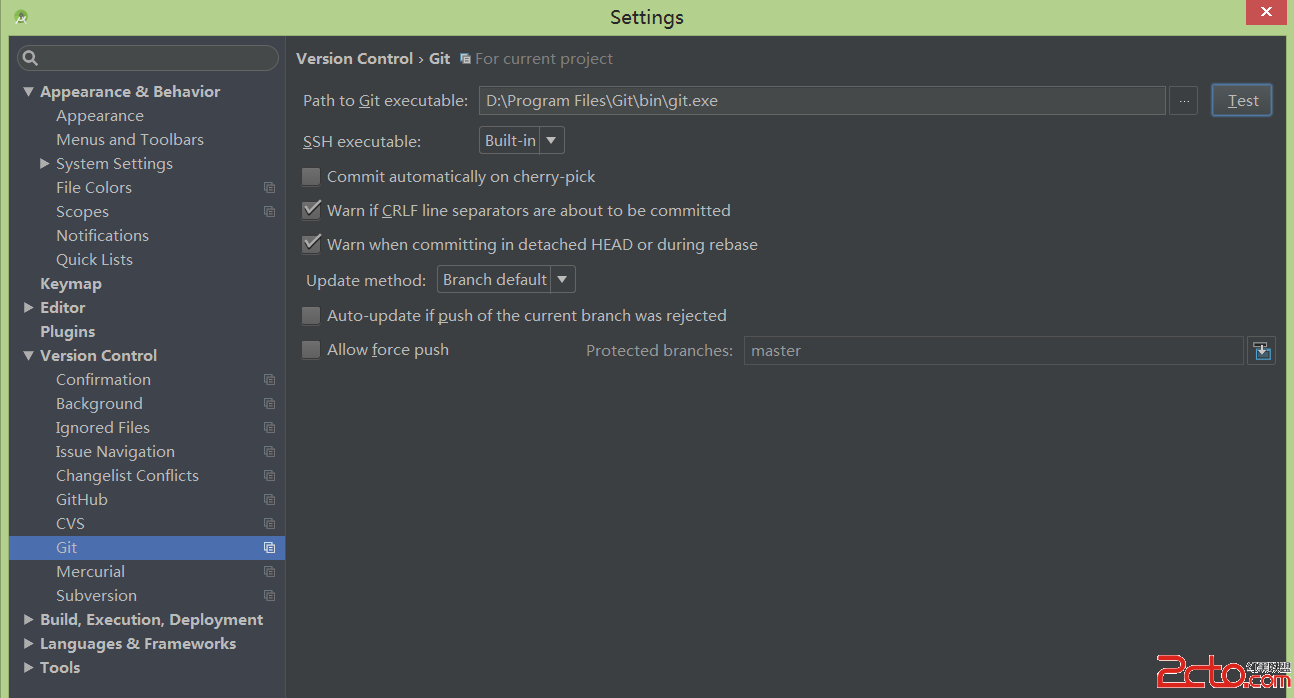 Android Studio 項目提交與更新到 GitHub 的完整步驟
 使用 Android Studio 開發時,若想把專案同步到 GitHub,不必總是依賴命令列。
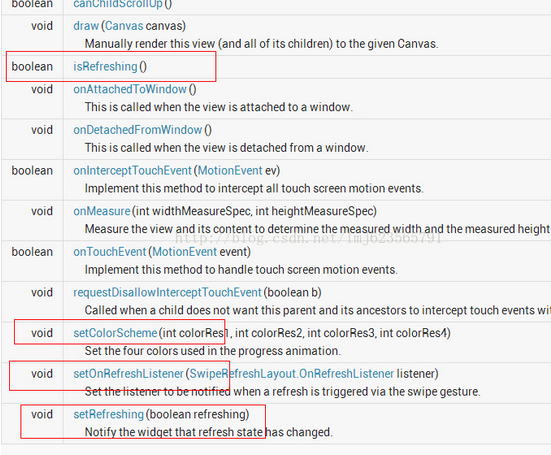 SwipeRefreshLayout 下拉刷新實作指南
SwipeRefreshLayout 簡介 SwipeRefreshLayout 是 Google 在 support v4 中提供的下拉刷新元件。它使用簡單,只需將可捲