

編輯:關於 Android 開發
今天要介紹的是 CheckBox 多選框——它允許用戶在一組選項中同時勾選多個,是表單類界面的常見控件。
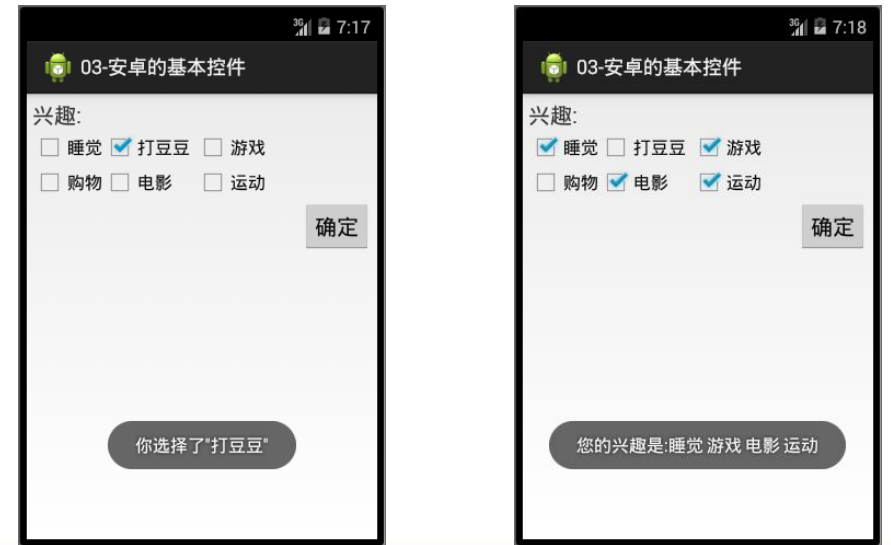
下面是一個完整的興趣多選示例,透過 CheckBox 讓用戶勾選自己的興趣愛好,並在點擊確定後彙總顯示。
1.Activity:
//復選框,[基礎控件]---狀態切換控件CompoundButton及其子類CheckBox、RadioButton、ToggleButton、switch事件監聽與場景使用 public class CheckBoxActivity extends Activity implements CompoundButton.OnCheckedChangeListener{ private Context context; private CheckBox sleepCheckBox; private CheckBox dadoudouCheckBox; private CheckBox gameCheckBox; private CheckBox shoppingCheckBox; private CheckBox filmCheckBox; private CheckBox sportCheckBox; private Button submitButton; @Override protected void onCreate(Bundle savedInstanceState) { super.onCreate(savedInstanceState); setContentView(R.layout.check_box); init(); addAction(); } private void init(){ context = this; sleepCheckBox = (CheckBox)findViewById(R.id.sleepCheckBoxId); dadoudouCheckBox = (CheckBox)findViewById(R.id.dadoudouCheckBoxId); gameCheckBox = (CheckBox)findViewById(R.id.gameCheckBoxId); shoppingCheckBox = (CheckBox)findViewById(R.id.shoppingCheckBoxId); filmCheckBox = (CheckBox)findViewById(R.id.filmCheckBoxId); sportCheckBox = (CheckBox)findViewById(R.id.sportCheckBoxId); submitButton = (Button)findViewById(R.id.submitButtonId); } private void addAction(){ sleepCheckBox.setOnCheckedChangeListener(this); dadoudouCheckBox.setOnCheckedChangeListener(this); gameCheckBox.setOnCheckedChangeListener(this); shoppingCheckBox.setOnCheckedChangeListener(this); filmCheckBox.setOnCheckedChangeListener(this); sportCheckBox.setOnCheckedChangeListener(this); submitButton.setOnClickListener(new View.OnClickListener() { public void onClick(View v) { //String 字符串常量 //StringBuffer 字符串變量(線程安全) //StringBuilder 字符串變量(非線程安全) StringBuilder sb = new StringBuilder("您的興趣是:"); //MyStringBuilder.Insert(6,"Beautiful "); //MyStringBuilder.Remove(5,7); //MyStringBuilder.Replace('!', '?'); //代碼示例指定可以將 MyStringBuilder對象擴充到最大 25個空白。 //StringBuilderMyStringBuilder = new StringBuilder("Hello World!", 25); if(sleepCheckBox.isChecked()){ sb.append("睡覺 "); } if(dadoudouCheckBox.isChecked()){ sb.append("打豆豆 "); } if(gameCheckBox.isChecked()){ sb.append("游戲 "); } if(shoppingCheckBox.isChecked()){ sb.append("購物 "); } if(filmCheckBox.isChecked()){ sb.append("電影 "); } if(sportCheckBox.isChecked()){ sb.append("運動"); } Toast.makeText(context, sb.toString(), Toast.LENGTH_LONG).show(); } }); } @Override public void onCheckedChanged(CompoundButton buttonView, boolean isChecked) { int id = buttonView.getId(); switch(id){ case R.id.sleepCheckBoxId: if(isChecked){ Toast.makeText(context, "你選擇了\"睡覺\"", Toast.LENGTH_SHORT).show(); }else{ Toast.makeText(context, "你取消選擇了\"睡覺\"", Toast.LENGTH_SHORT).show(); } break; case R.id.dadoudouCheckBoxId: if(isChecked){ Toast.makeText(context, "你選擇了\"打豆豆\"", Toast.LENGTH_SHORT).show(); }else{ Toast.makeText(context, "你取消選擇了\"打豆豆\"", Toast.LENGTH_SHORT).show(); } break; case R.id.gameCheckBoxId: if(isChecked){ Toast.makeText(context, "你選擇了\"游戲\"", Toast.LENGTH_SHORT).show(); }else{ Toast.makeText(context, "你取消選擇了\"游戲\"", Toast.LENGTH_SHORT).show(); } break; case R.id.shoppingCheckBoxId: if(isChecked){ Toast.makeText(context, "你選擇了\"購物\"", Toast.LENGTH_SHORT).show(); }else{ Toast.makeText(context, "你取消選擇了\"購物\"", Toast.LENGTH_SHORT).show(); } break; case R.id.filmCheckBoxId: if(isChecked){ Toast.makeText(context, "你選擇了\"電影\"", Toast.LENGTH_SHORT).show(); }else{ Toast.makeText(context, "你取消選擇了\"電影\"", Toast.LENGTH_SHORT).show(); } break; case R.id.sportCheckBoxId: if(isChecked){ Toast.makeText(context, "你選擇了\"運動\"", Toast.LENGTH_SHORT).show(); }else{ Toast.makeText(context, "你取消選擇了\"運動\"", Toast.LENGTH_SHORT).show(); } break; } } }
這裡透過實作 CompoundButton.OnCheckedChangeListener 介面,即時監聽每個 CheckBox 的勾選狀態變化並彈出提示;點擊確定時,則用 StringBuilder 把已勾選的選項拼接起來一次性顯示。
2.xml 文件如下:
<?xml version="1.0" encoding="utf-8"?> <!-- 復選框頁面 --> <LinearLayout xmlns:android="https://schemas.android.com/apk/res/android" android:layout_width="match_parent" android:layout_height="match_parent" android:orientation="vertical" android:padding="5dp" > <TextView android:layout_width="match_parent" android:layout_height="wrap_content" android:text="興趣:" android:textSize="20sp" /> <LinearLayout android:layout_width="match_parent" android:layout_height="wrap_content" android:orientation="horizontal" > <CheckBox android:id="@+id/sleepCheckBoxId" android:layout_width="wrap_content" android:layout_height="wrap_content" android:text="睡覺" /> <CheckBox android:id="@+id/dadoudouCheckBoxId" android:layout_width="85dp" android:layout_height="wrap_content" android:text="打豆豆" /> <CheckBox android:id="@+id/gameCheckBoxId" android:layout_width="wrap_content" android:layout_height="wrap_content" android:text="游戲" /> </LinearLayout> <LinearLayout android:layout_width="match_parent" android:layout_height="wrap_content" android:orientation="horizontal" > <CheckBox android:id="@+id/shoppingCheckBoxId" android:layout_width="wrap_content" android:layout_height="wrap_content" android:text="購物" /> <CheckBox android:id="@+id/filmCheckBoxId" android:layout_width="85dp" android:layout_height="wrap_content" android:text="電影" /> <CheckBox android:id="@+id/sportCheckBoxId" android:layout_width="wrap_content" android:layout_height="wrap_content" android:text="運動" /> </LinearLayout> <Button android:id="@+id/submitButtonId" android:layout_width="wrap_content" android:layout_height="wrap_content" android:layout_gravity="right" android:text="確定" android:textSize="20sp" /> </LinearLayout>
3.效果圖如下:
 Android異步訊息處理:Handler、Message、Looper與AsyncTask初體驗
 在開發簡易音樂播放器時用過Handler,卻沒有深入研究,這裡就來系統
 Fragment 開發實戰(一):Fragment 是什麼,又該怎麼用
Fragment 可以想成「一段模組化的 Activity」:它有自己的生命週期、會接收自己的輸入事件,也能在 Activity 執行期間被動態加入或移除。它通常作為宿主
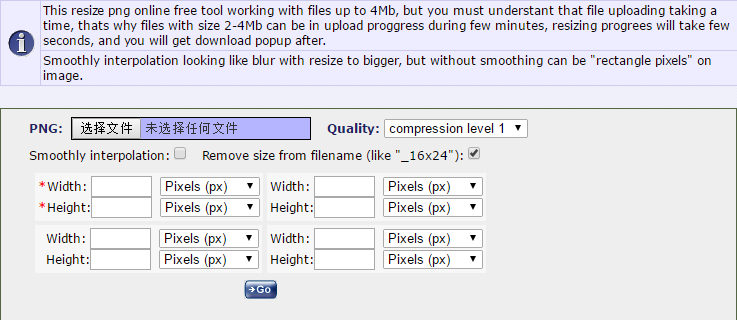 PNG 圖片尺寸快速轉換:Android 多密度資源的實用小工具
 做 Android 開發時,最常被同一張圖折騰的就是密度適配。系統會依裝置的 dpi 去對應 drawa
 百度導航 Android 版常見問題整理
本文整理在 Android 上整合百度導航 SDK 時常見的問題。開發前需準備開發者帳戶、建立應用並取得 Key,同時注意包名需與