

編輯:關於 Android 開發
聯絡人列表中那條可以滑動定位的字母索引,是個很常見也很實用的互動。整體拆下來有三個難點:
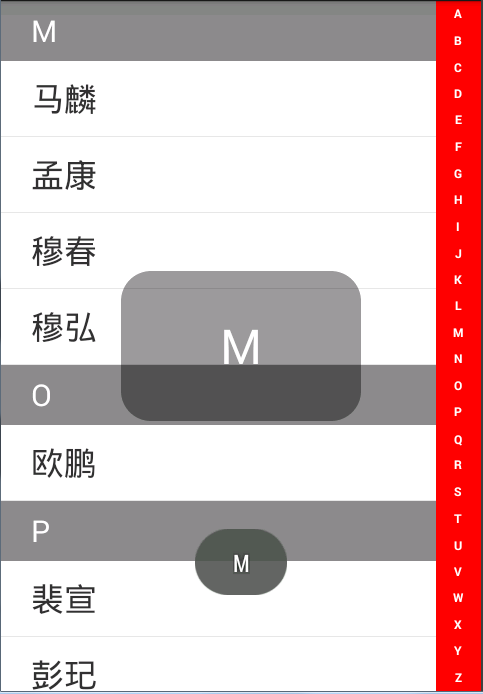
onDraw() 把 A–Z 畫出來。版面結構是:左側一個 ListView,右側一個自定義 View,中間還有一個點擊時短暫顯示的 TextView。
package com.demo.sb.widget;

import android.content.Context;
import android.graphics.Canvas;
import android.graphics.Color;
import android.graphics.Paint;
import android.graphics.Rect;
import android.graphics.Typeface;
import android.util.AttributeSet;
import android.util.Log;
import android.view.MotionEvent;
import android.view.View;

/**
 * 快速索引:根據字母快速定位聯絡人,也就是介面最右邊的那個豎條
 */
public class QuickIndexBar extends View {

    private static final String[] LETTERS = new String[] {
        "A", "B", "C", "D", "E", "F", "G", "H", "I", "J", "K", "L", "M",
        "N", "O", "P", "Q", "R", "S", "T", "U", "V", "W", "X", "Y", "Z"
    };

    private Paint mPaint;
    private float cellHeight;
    private int cellWidth;
    private int touchIndex = -1;

    /** 暴露一個字母更新的監聽 */
    public interface OnLetterUpdateListener {
        void onLetterUpdate(String letter);
    }

    private OnLetterUpdateListener listener;

    public OnLetterUpdateListener getListener() {
        return listener;
    }

    /** 設定字母更新的監聽 */
    public void setListener(OnLetterUpdateListener listener) {
        this.listener = listener;
    }

    public QuickIndexBar(Context context) {
        this(context, null);
    }

    public QuickIndexBar(Context context, AttributeSet attrs) {
        this(context, attrs, 0);
    }

    public QuickIndexBar(Context context, AttributeSet attrs, int defStyleAttr) {
        super(context, attrs, defStyleAttr);
        mPaint = new Paint(Paint.ANTI_ALIAS_FLAG);
        mPaint.setColor(Color.WHITE);
        mPaint.setTypeface(Typeface.DEFAULT_BOLD);
    }

    @Override
    protected void onSizeChanged(int w, int h, int oldw, int oldh) {
        super.onSizeChanged(w, h, oldw, oldh);
        cellWidth = getMeasuredWidth();
        int mHeight = getMeasuredHeight();
        cellHeight = mHeight * 1.0f / LETTERS.length;
    }

    /**
     * 繪製自定義最重要的一步:重寫 onDraw
     * 畫什麼由 Canvas 決定,怎麼畫由 Paint 決定
     */
    @Override
    protected void onDraw(Canvas canvas) {
        for (int i = 0; i < LETTERS.length; i++) {
            String text = LETTERS[i];
            // 計算座標
            int x = (int) (cellWidth / 2.0f - mPaint.measureText(text) / 2.0f);
            // 取得文字高度
            Rect bounds = new Rect();
            mPaint.getTextBounds(text, 0, text.length(), bounds);
            int textHeight = bounds.height();
            int y = (int) (cellHeight / 2.0f + textHeight / 2.0f + i * cellHeight);

            // 依按下的字母設定畫筆顏色
            mPaint.setColor(touchIndex == i ? Color.GRAY : Color.WHITE);

            // 繪製 A-Z
            canvas.drawText(text, x, y, mPaint);
        }
    }

    @Override
    public boolean onTouchEvent(MotionEvent event) {
        int index = -1;
        switch (event.getAction()) {
            case MotionEvent.ACTION_DOWN:
            case MotionEvent.ACTION_MOVE:
                // 取得當前觸摸到的字母索引
                index = (int) (event.getY() / cellHeight);
                if (index >= 0 && index < LETTERS.length) {
                    // 判斷是否與上一次觸摸到的相同
                    if (index != touchIndex) {
                        if (listener != null) {
                            listener.onLetterUpdate(LETTERS[index]);
                        }
                        Log.d("jiejie", "onTouchEvent: " + LETTERS[index]);
                        touchIndex = index;
                    }
                }
                break;
            case MotionEvent.ACTION_UP:
                touchIndex = -1;
                break;
            default:
                break;
        }
        // 重新繪製
        invalidate();
        return true;
    }
}<?xml version="1.0" encoding="utf-8"?>
<RelativeLayout xmlns:android="https://schemas.android.com/apk/res/android"
android:layout_width="match_parent"
android:layout_height="match_parent">
<ListView
android:id="@+id/lv_index"
android:layout_width="match_parent"
android:layout_height="match_parent" />
<com.demo.sb.widget.QuickIndexBar
android:id="@+id/bar"
android:layout_width="30dp"
android:layout_height="match_parent"
android:layout_alignParentRight="true"
android:background="#f00" />
<TextView
android:id="@+id/tv_center"
android:layout_width="160dp"
android:layout_height="100dp"
android:layout_centerInParent="true"
android:background="@drawable/bg_index"
android:gravity="center"
android:text=""
android:textColor="#fff"
android:textSize="32sp"
android:visibility="gone" />
</RelativeLayout>package com.demo.sb.main;
import java.util.ArrayList;
import java.util.Collections;
import com.demo.sb.entity.Cheeses;
import com.demo.sb.entity.HaoHanAdapter;
import com.demo.sb.entity.Person;
import com.demo.sb.utils.DensityUtil;
import com.demo.sb.widget.QuickIndexBar;
import com.demo.sb.widget.QuickIndexBar.OnLetterUpdateListener;
import android.app.Activity;
import android.os.Bundle;
import android.os.Handler;
import android.text.TextUtils;
import android.view.View;
import android.widget.ListView;
import android.widget.TextView;
/** 快速索引 */
public class Activity_Index extends Activity {
/** ListView 用來展示資料 */
private ListView mListView;
/** 儲存的資料 */
private ArrayList<Person> persons;
/** 展示所點的字母,相當於 Toast */
private TextView tv_center;
private Handler mHandler = new Handler();
@Override
protected void onCreate(Bundle savedInstanceState) {
super.onCreate(savedInstanceState);
setContentView(R.layout.mactivity_index);
QuickIndexBar bar = (QuickIndexBar) findViewById(R.id.bar);
bar.setListener(new OnLetterUpdateListener() {
@Override
public void onLetterUpdate(String letter) {
DensityUtil.showToast(Activity_Index.this, letter);
showLetter(letter);
// 依字母定位 ListView:找到集合中第一個以 letter 為拼音首字母的物件
for (int i = 0; i < persons.size(); i++) {
Person p = persons.get(i);
String l = p.getPinyin().charAt(0) + "";
if (TextUtils.equals(letter, l)) {
mListView.setSelection(i);
break;
}
}
}
});
mListView = (ListView) findViewById(R.id.lv_index);
persons = new ArrayList<Person>();
// 填充資料並排序
fillAndSortData(persons);
mListView.setAdapter(new HaoHanAdapter(Activity_Index.this, persons));
tv_center = (TextView) findViewById(R.id.tv_center);
}
/** 顯示字母 */
protected void showLetter(String letter) {
tv_center.setVisibility(View.VISIBLE);
tv_center.setText(letter);
mHandler.removeCallbacksAndMessages(null);
mHandler.postDelayed(new Runnable() {
@Override
public void run() {
tv_center.setVisibility(View.GONE);
}
}, 2000);
}
private void fillAndSortData(ArrayList<Person> persons2) {
for (int i = 0; i < Cheeses.NAMES.length; i++) {
String name = Cheeses.NAMES[i];
persons2.add(new Person(name));
}
// 依拼音排序
Collections.sort(persons2);
}
}這裡的關鍵是只有當「上一筆的首字母」與「當前筆的首字母」不同時,才顯示字母標頭,這樣同一組字母下面就只會出現一次標頭。
package com.demo.sb.entity;

import java.util.ArrayList;

import com.demo.sb.utils.DensityUtil;
import com.demo.suibian.R;

import android.content.Context;
import android.text.TextUtils;
import android.view.View;
import android.view.ViewGroup;
import android.widget.BaseAdapter;
import android.widget.TextView;

public class HaoHanAdapter extends BaseAdapter {

    private Context mContext;
    private ArrayList<Person> persons;

    public HaoHanAdapter(Context mContext, ArrayList<Person> persons) {
        this.mContext = mContext;
        this.persons = persons;
    }

    @Override
    public int getCount() {
        return persons.size();
    }

    @Override
    public Object getItem(int arg0) {
        return persons.get(arg0);
    }

    @Override
    public long getItemId(int arg0) {
        return arg0;
    }

    @Override
    public View getView(final int arg0, View arg1, ViewGroup arg2) {
        ViewHolder holder = null;
        if (arg1 == null) {
            arg1 = View.inflate(mContext, R.layout.item_haohanadapter, null);
            holder = new ViewHolder();
            holder.mIndex = (TextView) arg1.findViewById(R.id.item_tv_index);
            holder.mName = (TextView) arg1.findViewById(R.id.item_tv_name);
            arg1.setTag(holder);
        } else {
            holder = (ViewHolder) arg1.getTag();
        }

        final Person p = persons.get(arg0);
        String string = null;
        String currentLetter = p.getPinyin().charAt(0) + "";

        // 依上一個首字母決定當前是否顯示字母
        if (arg0 == 0) {
            string = currentLetter;
        } else {
            String preLetter = persons.get(arg0 - 1).getPinyin().charAt(0) + "";
            if (!TextUtils.equals(preLetter, currentLetter)) {
                string = currentLetter;
            }
        }

        holder.mIndex.setVisibility(string == null ? View.GONE : View.VISIBLE);
        holder.mIndex.setText(currentLetter);
        holder.mName.setText(p.getName());

        holder.mName.setOnClickListener(new View.OnClickListener() {
            @Override
            public void onClick(View view) {
                DensityUtil.showToast(mContext, arg0 + " " + p.getName());
            }
        });
        return arg1;
    }

    static class ViewHolder {
        TextView mIndex;
        TextView mName;
    }
}Person 在建立時就把拼音算好並快取,排序時直接比拼音即可,避免在 compareTo 中反覆做轉換。
package com.demo.sb.entity;

import com.demo.sb.utils.PinyinUtils;

public class Person implements Comparable<Person> {

    private String name;
    private String pinyin;

    public Person(String name) {
        super();
        this.name = name;
        this.pinyin = PinyinUtils.getPinyin(name);
    }

    public String getName() {
        return name;
    }

    public void setName(String name) {
        this.name = name;
    }

    public String getPinyin() {
        return pinyin;
    }

    public void setPinyin(String pinyin) {
        this.pinyin = pinyin;
    }

    @Override
    public int compareTo(Person another) {
        return this.pinyin.compareTo(another.getPinyin());
    }
}package com.demo.sb.utils;
import net.sourceforge.pinyin4j.PinyinHelper;
import net.sourceforge.pinyin4j.format.HanyuPinyinCaseType;
import net.sourceforge.pinyin4j.format.HanyuPinyinOutputFormat;
import net.sourceforge.pinyin4j.format.HanyuPinyinToneType;
import net.sourceforge.pinyin4j.format.exception.BadHanyuPinyinOutputFormatCombination;
public class PinyinUtils {
public static String getPinyin(String str) {
HanyuPinyinOutputFormat format = new HanyuPinyinOutputFormat();
format.setCaseType(HanyuPinyinCaseType.UPPERCASE);
format.setToneType(HanyuPinyinToneType.WITHOUT_TONE);
StringBuilder sb = new StringBuilder();
char[] charArray = str.toCharArray();
for (int i = 0; i < charArray.length; i++) {
char c = charArray[i];
// 如果是空格則跳過
if (Character.isWhitespace(c)) {
continue;
}
if (c >= -127 && c < 128) {
// 肯定不是漢字
sb.append(c);
} else {
String s = "";
try {
// 透過 char 得到拼音集合,例如 單 -> dan, shan
s = PinyinHelper.toHanyuPinyinStringArray(c, format)[0];
sb.append(s);
} catch (BadHanyuPinyinOutputFormatCombination e) {
e.printStackTrace();
sb.append(s);
}
}
}
return sb.toString();
}
}
這份實作的骨架很清晰,但實際上線前建議再處理幾點:onTouchEvent 中的 DOWN 與 MOVE 分支邏輯幾乎相同,可以合併;定位時每次都從頭遍歷 persons,資料量大時可先建立「字母 → 起始索引」的映射表,把 O(n) 降到 O(1);另外多音字(如「重」、「長」)在 pinyin4j 中會回傳多個讀音,這裡直接取 [0],若首字母與使用者直覺不符,需要自訂一份例外對照表。
 Android 學習指南之四十四:Tab 標籤頁實作教學
Tab 標籤頁控制項在許多程式技術中都見得到,它能讓視窗顯示區被重複利用。在 Android 中,標籤頁會牽涉到 TabActivity、TabHost、TabWidge
 2015 Android Dev Summit 安卓開發峰會第一天現場紀實
 今年的 Google I/O 沒抽到票,無法到現場參加。不過 11 月舉行的 Android
 DB2 效能調優路線圖:深入 LOCK 鎖機制
在整理了 DB2 LOG 相關主題之後,本文接著深入探討 LOCK(鎖)的運作。相較於 LOG,鎖的內容與應用場景關係更為密切,涉及的面向也更為複雜。這篇文章試著從基本概
 常見的 APK 方法數超限問題排查
這個案例一開始看似像某個網路框架出錯,但實際上是專案改版後加入大量內容,導致 APK 方法數超過限制。開發者一開始懷疑框架或快取問題,最