

編輯:關於 Android 開發
在 Android 中,除了基本的 AlertDialog,還有許多好用的提示與選擇元件。本文整理四個常見的 UI 元件:進度對話框、日期/時間選擇器,以及懸浮框。
有兩種顯示方式:
1. 直接呼叫靜態方法 show() 顯示。
2. 先建立 ProgressDialog,設定各項參數後再 show()。
// 方式一:一行搞定
ProgressDialog.show(MainActivity.this, "資源加載中", "資源加載中,請稍後...", false, true);

// 方式二:自訂參數
ProgressDialog pd = new ProgressDialog(mContext);
pd.setTitle("軟件更新中");
pd.setMessage("軟件正在更新中,請稍後...");
pd.setCancelable(true);
pd.setProgressStyle(ProgressDialog.STYLE_HORIZONTAL); // 水平進度條
pd.setIndeterminate(true);
pd.show();
若要顯示實際進度,可將 setIndeterminate(false),並透過 Handler 在子執行緒中更新 setProgress() 的值,達到最大值時呼叫 dismiss() 關閉。由於 Android 只能由主執行緒更新介面,因此需用 Handler 傳遞訊息。
這兩個元件只是供使用者選擇日期與時間,並不會影響系統本身的日期時間。它們的建構子相當類似:
DatePickerDialog(Context;OnDateSetListener 監聽器;年;月;日)
TimePickerDialog(Context;OnTimeSetListener 監聽器;時;分;是否 24 小時制)
Calendar cale1 = Calendar.getInstance();
new DatePickerDialog(MainActivity.this,
    new DatePickerDialog.OnDateSetListener() {
        @Override
        public void onDateSet(DatePicker view, int year, int monthOfYear, int dayOfMonth) {
            // 注意:月份需 +1
            result = "你選擇的是" + year + "年" + (monthOfYear + 1) + "月" + dayOfMonth + "日";
            Toast.makeText(getApplicationContext(), result, Toast.LENGTH_SHORT).show();
        }
    },
    cale1.get(Calendar.YEAR),
    cale1.get(Calendar.MONTH),
    cale1.get(Calendar.DAY_OF_MONTH)).show();
取得月份時記得加 1,這是初學者常踩的小陷阱。
如果想像手機 QQ 那樣,長按列表項目後彈出一個小對話框,用的就是 PopupWindow。與 AlertDialog 不同的是,它的位置可以隨意指定;另外 AlertDialog 是非堵塞執行緒的,而 PopupWindow 則是堵塞執行緒的。
PopupWindow(Context context)PopupWindow(View contentView, int width, int height)PopupWindow(View contentView, int width, int height, boolean focusable)setContentView()/getContentView():設定或取得顯示的 View。showAsDropDown(View anchor):相對於某控件的正左下方顯示,可帶偏移。showAtLocation(View parent, int gravity, int x, int y):相對於父控件的位置顯示。setWidth/setHeight:設定寬高,可用 WRAP_CONTENT 或 MATCH_PARENT。setFocusable(true):設定焦點,彈出後所有觸屏與實體按鍵都先由它處理。setAnimationStyle(int):設定動畫效果。View view = LayoutInflater.from(mContext).inflate(R.layout.item_popup, null, false);
final PopupWindow popWindow = new PopupWindow(view,
ViewGroup.LayoutParams.WRAP_CONTENT,
ViewGroup.LayoutParams.WRAP_CONTENT, true);
popWindow.setAnimationStyle(R.anim.anim_pop);
popWindow.setTouchable(true);
// 記得設定背景,點擊外部才能關閉
popWindow.setBackgroundDrawable(new ColorDrawable(0x00000000));
popWindow.showAsDropDown(v, 50, 0);
實務上有一個關鍵細節:務必為 PopupWindow 設定背景 Drawable,並處理好 touch 事件,否則彈出後按下返回鍵可能無法關閉、甚至退不出程式。掌握以上幾個元件,就能應付絕大多數的提示與互動場景了。
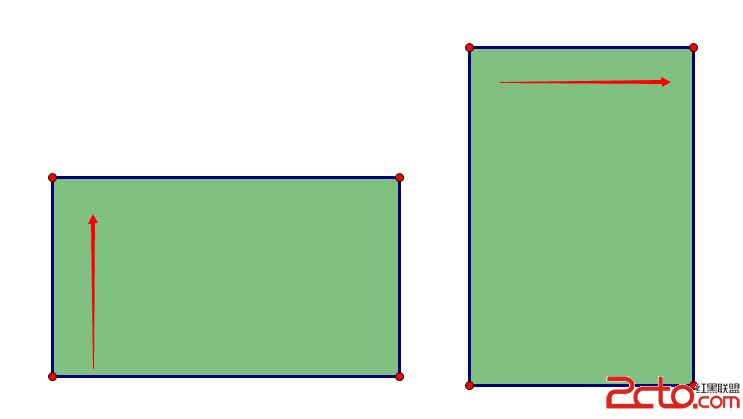 Android 開發技巧:大圖裁剪與旋轉圖處理完整方案
 本篇承接上一篇《Android 開發技巧——定製仿微信圖片裁剪控件》,先簡單介紹該裁剪控件的使用方式,再詳細說明如
 ImageSwitcher 的簡單使用:實現圖片切換動畫
 ImageSwitcher 能在切換圖片時加入淡入淡出的動畫效果,非常適合做圖片瀏覽。下面是完整示例。 act
 重拾 Android:從頭再出發
 從 2012 年自學 Android 至今,一晃眼已邁入第四個年頭。這段時間裡始終沒能接觸到正規的 Android 專案,加上這幾年一直
 React Native 中的 ViewPagerAndroid 使用解析
ViewPagerAndroid 是 React Native 中對應 Android View