編輯:關於android開發
續上一篇博客《Android -- 桌面懸浮,仿360》,傳送門:http://www.cnblogs.com/yydcdut/p/3909888.html,在此代碼上繼續添加實現。
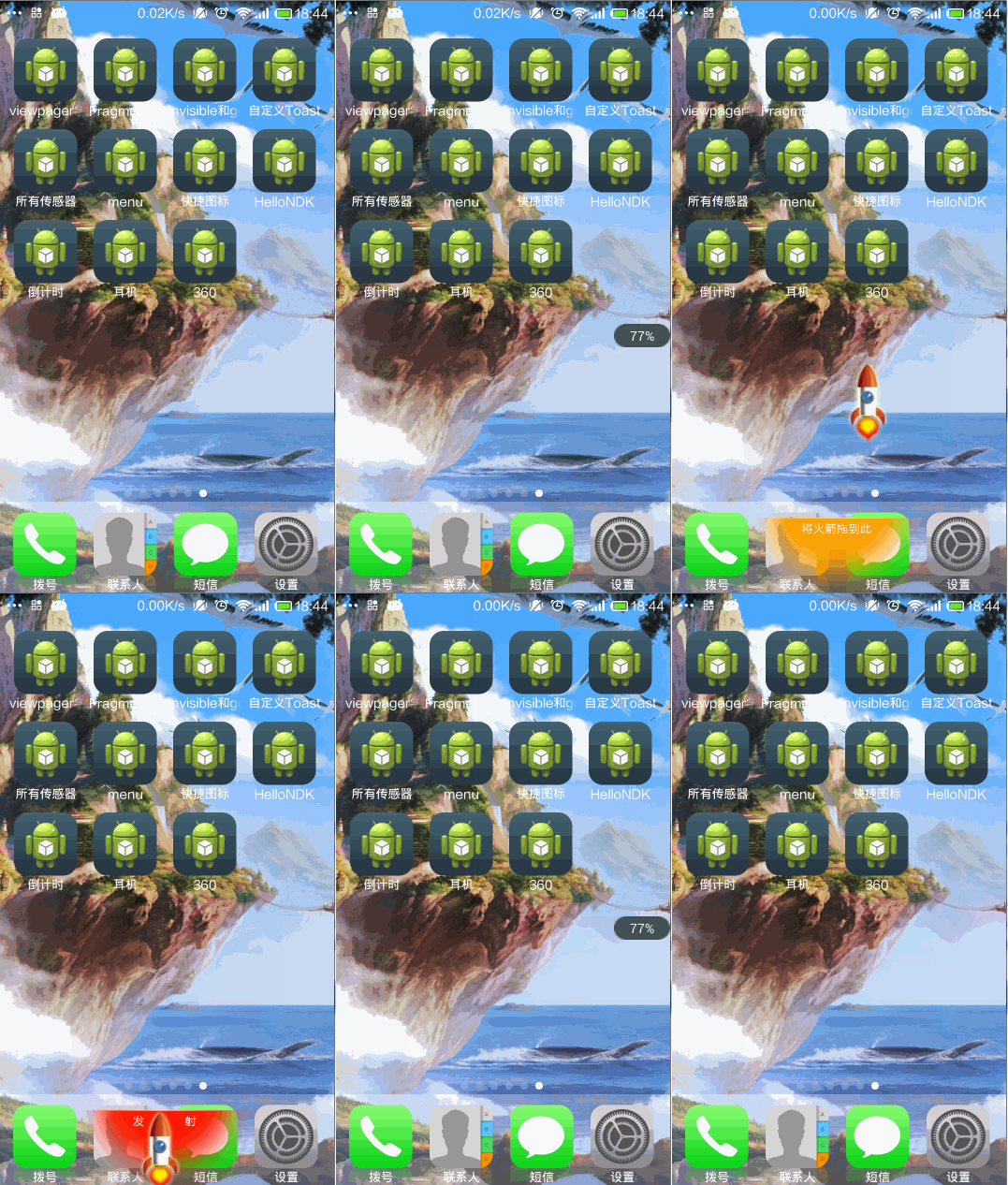
比起普通的桌面懸浮窗,現在我們需要在拖動懸浮窗的時候將懸浮窗變成一個小火箭,並且在屏幕的底部添加一個火箭發射台。那麼我們就從火箭發射台開始編寫吧,首先創建launcher.xml作為火箭發射台的布局文件:
<?xml version="1.0" encoding="UTF-8"?>
<LinearLayout xmlns:android="http://schemas.android.com/apk/res/android"
    android:layout_width="wrap_content"
    android:layout_height="wrap_content"
    android:orientation="vertical" >

    <ImageView
        android:id="@+id/launcher_img"
        android:layout_width="200dp"
        android:layout_height="88dp"
        android:src="@drawable/launcher_bg_hold" />

</LinearLayout>
可以看到,這裡的ImageView是用於顯示當前火箭發射台狀態的。我事先准備好了兩張圖片,一張是當小火箭未拖動到火箭發射台時顯示的,一張是當小火箭拖動到火箭發射台上時顯示的。
接下來創建RocketLauncher類,作為火箭發射台的View:
public class RocketLauncher extends LinearLayout {

    /**
     * 記錄火箭發射台的寬度
     */
    public static int width;

    /**
     * 記錄火箭發射台的高度
     */
    public static int height;

    /**
     * 火箭發射台的背景圖片
     */
    private ImageView launcherImg;

    public RocketLauncher(Context context) {
        super(context);
        LayoutInflater.from(context).inflate(R.layout.launcher, this);
        launcherImg = (ImageView) findViewById(R.id.launcher_img);
        width = launcherImg.getLayoutParams().width;
        height = launcherImg.getLayoutParams().height;
    }

    /**
     * 更新火箭發射台的顯示狀態。如果小火箭被拖到火箭發射台上,就顯示發射。
     */
    public void updateLauncherStatus(boolean isReadyToLaunch) {
        if (isReadyToLaunch) {
            launcherImg.setImageResource(R.drawable.launcher_bg_fire);
        } else {
            launcherImg.setImageResource(R.drawable.launcher_bg_hold);
        }
    }

}
RocketLauncher中的代碼還是非常簡單的,在構建方法中調用了LayoutInflater的inflate()方法來將launcher.xml這個布局文件加載進來,並獲取到了當前View的寬度和高度。在updateLauncherStatus()方法中會進行判斷,如果傳入的參數是true,就顯示小火箭即將發射的圖片,如果傳入的是false,就顯示將小火箭拖動到發射台的圖片。
新增的文件只有這兩個,剩下的就是要修改之前的代碼了。首先修改MyWindowManager中的代碼:
public class MyWindowManager {

    /**
     * 小懸浮窗View的實例
     */
    private static FloatWindowSmallView smallWindow;

    /**
     * 大懸浮窗View的實例
     */
    private static FloatWindowBigView bigWindow;

    /**
     * 火箭發射台的實例
     */
    private static RocketLauncher rocketLauncher;

    /**
     * 小懸浮窗View的參數
     */
    private static LayoutParams smallWindowParams;

    /**
     * 大懸浮窗View的參數
     */
    private static LayoutParams bigWindowParams;

    /**
     * 火箭發射台的參數
     */
    private static LayoutParams launcherParams;

    /**
     * 用於控制在屏幕上添加或移除懸浮窗
     */
    private static WindowManager mWindowManager;

    /**
     * 用於獲取手機可用內存
     */
    private static ActivityManager mActivityManager;

    /**
     * 創建一個小懸浮窗。初始位置為屏幕的右部中間位置。
     */
    public static void createSmallWindow(Context context) {
        WindowManager windowManager = getWindowManager(context);
        int screenWidth = windowManager.getDefaultDisplay().getWidth();
        int screenHeight = windowManager.getDefaultDisplay().getHeight();
        if (smallWindow == null) {
            smallWindow = new FloatWindowSmallView(context);
            if (smallWindowParams == null) {
                smallWindowParams = new LayoutParams();
                smallWindowParams.type = LayoutParams.TYPE_SYSTEM_ALERT;
                smallWindowParams.format = PixelFormat.RGBA_8888;
                smallWindowParams.flags = LayoutParams.FLAG_NOT_TOUCH_MODAL
                        | LayoutParams.FLAG_NOT_FOCUSABLE;
                smallWindowParams.gravity = Gravity.LEFT | Gravity.TOP;
                smallWindowParams.width = FloatWindowSmallView.windowViewWidth;
                smallWindowParams.height = FloatWindowSmallView.windowViewHeight;
                smallWindowParams.x = screenWidth;
                smallWindowParams.y = screenHeight / 2;
            }
            smallWindow.setParams(smallWindowParams);
            windowManager.addView(smallWindow, smallWindowParams);
        }
    }

    /**
     * 將小懸浮窗從屏幕上移除。
     */
    public static void removeSmallWindow(Context context) {
        if (smallWindow != null) {
            WindowManager windowManager = getWindowManager(context);
            windowManager.removeView(smallWindow);
            smallWindow = null;
        }
    }

    /**
     * 創建一個大懸浮窗。位置為屏幕正中間。
     */
    public static void createBigWindow(Context context) {
        WindowManager windowManager = getWindowManager(context);
        int screenWidth = windowManager.getDefaultDisplay().getWidth();
        int screenHeight = windowManager.getDefaultDisplay().getHeight();
        if (bigWindow == null) {
            bigWindow = new FloatWindowBigView(context);
            if (bigWindowParams == null) {
                bigWindowParams = new LayoutParams();
                bigWindowParams.x = screenWidth / 2
                        - FloatWindowBigView.viewWidth / 2;
                bigWindowParams.y = screenHeight / 2
                        - FloatWindowBigView.viewHeight / 2;
                bigWindowParams.type = LayoutParams.TYPE_PHONE;
                bigWindowParams.format = PixelFormat.RGBA_8888;
                bigWindowParams.gravity = Gravity.LEFT | Gravity.TOP;
                bigWindowParams.width = FloatWindowBigView.viewWidth;
                bigWindowParams.height = FloatWindowBigView.viewHeight;
            }
            windowManager.addView(bigWindow, bigWindowParams);
        }
    }

    /**
     * 將大懸浮窗從屏幕上移除。
     */
    public static void removeBigWindow(Context context) {
        if (bigWindow != null) {
            WindowManager windowManager = getWindowManager(context);
            windowManager.removeView(bigWindow);
            bigWindow = null;
        }
    }

    /**
     * 創建一個火箭發射台,位置為屏幕底部。
     */
    public static void createLauncher(Context context) {
        WindowManager windowManager = getWindowManager(context);
        int screenWidth = windowManager.getDefaultDisplay().getWidth();
        int screenHeight = windowManager.getDefaultDisplay().getHeight();
        if (rocketLauncher == null) {
            rocketLauncher = new RocketLauncher(context);
            if (launcherParams == null) {
                launcherParams = new LayoutParams();
                launcherParams.x = screenWidth / 2 - RocketLauncher.width / 2;
                launcherParams.y = screenHeight - RocketLauncher.height;
                launcherParams.type = LayoutParams.TYPE_PHONE;
                launcherParams.format = PixelFormat.RGBA_8888;
                launcherParams.gravity = Gravity.LEFT | Gravity.TOP;
                launcherParams.width = RocketLauncher.width;
                launcherParams.height = RocketLauncher.height;
            }
            windowManager.addView(rocketLauncher, launcherParams);
        }
    }

    /**
     * 將火箭發射台從屏幕上移除。
     */
    public static void removeLauncher(Context context) {
        if (rocketLauncher != null) {
            WindowManager windowManager = getWindowManager(context);
            windowManager.removeView(rocketLauncher);
            rocketLauncher = null;
        }
    }

    /**
     * 更新火箭發射台的顯示狀態。
     */
    public static void updateLauncher() {
        if (rocketLauncher != null) {
            rocketLauncher.updateLauncherStatus(isReadyToLaunch());
        }
    }

    /**
     * 更新小懸浮窗的TextView上的數據,顯示內存使用的百分比。
     *
     * @param context
     *            可傳入應用程序上下文。
     */
    public static void updateUsedPercent(Context context) {
        if (smallWindow != null) {
            TextView percentView = (TextView) smallWindow
                    .findViewById(R.id.percent);
            percentView.setText(getUsedPercentValue(context));
        }
    }

    /**
     * 是否有懸浮窗(包括小懸浮窗和大懸浮窗)顯示在屏幕上。
     *
     * @return 有懸浮窗顯示在桌面上返回true,沒有的話返回false。
     */
    public static boolean isWindowShowing() {
        return smallWindow != null || bigWindow != null;
    }

    /**
     * 判斷小火箭是否准備好發射了。
     *
     * @return 當火箭被發到發射台上返回true,否則返回false。
     */
    public static boolean isReadyToLaunch() {
        if ((smallWindowParams.x > launcherParams.x && smallWindowParams.x
                + smallWindowParams.width < launcherParams.x
                + launcherParams.width)
                && (smallWindowParams.y + smallWindowParams.height > launcherParams.y)) {
            return true;
        }
        return false;
    }

    /**
     * 如果WindowManager還未創建,則創建一個新的WindowManager返回。否則返回當前已創建的WindowManager。
     *
     * @param context
     *            必須為應用程序的Context.
     * @return WindowManager的實例,用於控制在屏幕上添加或移除懸浮窗。
     */
    private static WindowManager getWindowManager(Context context) {
        if (mWindowManager == null) {
            mWindowManager = (WindowManager) context
                    .getSystemService(Context.WINDOW_SERVICE);
        }
        return mWindowManager;
    }

    /**
     * 如果ActivityManager還未創建,則創建一個新的ActivityManager返回。否則返回當前已創建的ActivityManager。
     *
     * @param context
     *            可傳入應用程序上下文。
     * @return ActivityManager的實例,用於獲取手機可用內存。
     */
    private static ActivityManager getActivityManager(Context context) {
        if (mActivityManager == null) {
            mActivityManager = (ActivityManager) context
                    .getSystemService(Context.ACTIVITY_SERVICE);
        }
        return mActivityManager;
    }

    /**
     * 計算已使用內存的百分比,並返回。
     *
     * @param context
     *            可傳入應用程序上下文。
     * @return 已使用內存的百分比,以字符串形式返回。
     */
    public static String getUsedPercentValue(Context context) {
        String dir = "/proc/meminfo";
        try {
            FileReader fr = new FileReader(dir);
            BufferedReader br = new BufferedReader(fr, 2048);
            String memoryLine = br.readLine();
            String subMemoryLine = memoryLine.substring(memoryLine
                    .indexOf("MemTotal:"));
            br.close();
            long totalMemorySize = Integer.parseInt(subMemoryLine.replaceAll(
                    "\\D+", ""));
            long availableSize = getAvailableMemory(context) / 1024;
            int percent = (int) ((totalMemorySize - availableSize)
                    / (float) totalMemorySize * 100);
            return percent + "%";
        } catch (IOException e) {
            e.printStackTrace();
        }
        return "懸浮窗";
    }

    /**
     * 獲取當前可用內存,返回數據以字節為單位。
     *
     * @param context
     *            可傳入應用程序上下文。
     * @return 當前可用內存。
     */
    private static long getAvailableMemory(Context context) {
        ActivityManager.MemoryInfo mi = new ActivityManager.MemoryInfo();
        getActivityManager(context).getMemoryInfo(mi);
        return mi.availMem;
    }

}
這裡在代碼中添加了一個isPressed標識位,用於判斷用戶是否正在拖動懸浮窗。當拖動的時候就調用updateViewStatus()方法來更新懸浮窗的顯示狀態,這時懸浮窗就會變成一個小火箭。然後當手指離開屏幕的時候,也會調用updateViewStatus()方法,這時發現isPressed為false,就會將懸浮窗重新顯示出來。
同時,當手指離開屏幕的時候,還會調用MyWindowManager的isReadyToLaunch()方法來判斷小火箭是否被拖動到火箭發射台上了,如果為true,就會觸發火箭升空的動畫效果。火箭升空的動畫實現是寫在LaunchTask這個任務裡的,可以看到,這裡會在doInBackground()方法中執行耗時邏輯,將小火箭的縱坐標不斷減小,以讓它實現上升的效果。當縱坐標減小到0的時候,火箭升空的動畫就結束了,然後在onPostExecute()方法中重新將懸浮窗顯示出來。
源代碼:http://pan.baidu.com/s/1dD1Qx01
360進階QQ管家火箭實現.zip
參考:http://blog.csdn.net/guolin_blog/article/details/16919859
 Selenium爬蟲Driver的選擇
Selenium爬蟲Driver的選擇 由於Chrome速度快,因此很早便使用Chrome Driver淘汰了IE Driver和PhantomJS Driver。最近
 Android熱補丁技術—dexposed原理簡析(手機淘寶采用方案)
Android熱補丁技術—dexposed原理簡析(手機淘寶采用方案) 本文由嵌入式企鵝圈原創團隊成員、阿裡資深工程師Hao分享。 上篇文章《Android無線開發的幾種
 BaseHttpListActivity,幾行代碼搞定Android Http列表請求、加載和緩存,baseactivity
BaseHttpListActivity,幾行代碼搞定Android Http列表請求、加載和緩存,baseactivityAndroid開發中,向服務器請求一個列表並顯
 Android Studio添加Parcelable序列化小工具(快速提高開發效率)
Android Studio添加Parcelable序列化小工具(快速提高開發效率) Android Studio添加Parcelable序列化小工具(快速提高開發效