編輯:關於android開發
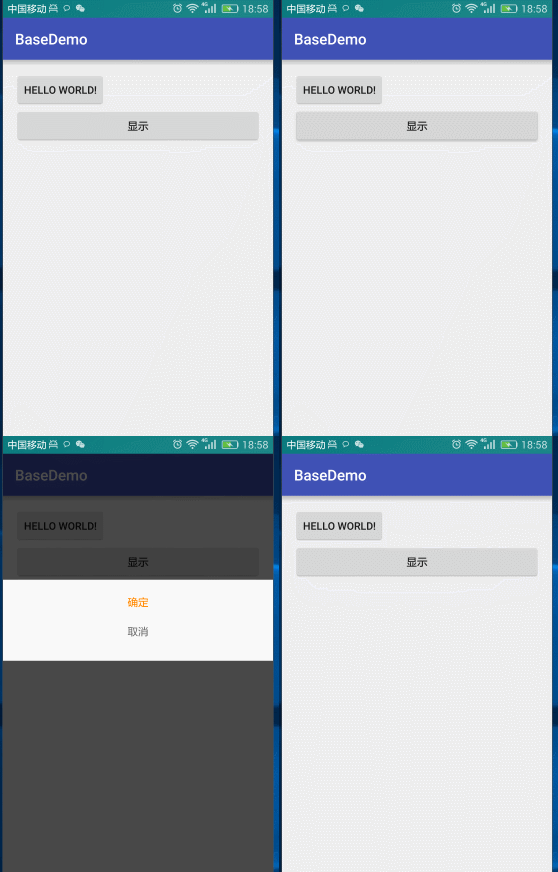
<?xml version="1.0" encoding="utf-8"?>
<LinearLayout xmlns:android="http://schemas.android.com/apk/res/android"
    android:layout_width="match_parent"
    android:layout_height="wrap_content"
    android:orientation="vertical"
    android:background="#ffffff"
    android:padding="20dp" >

    <TextView
        android:layout_width="match_parent"
        android:layout_height="wrap_content"
        android:clickable="true"
        android:gravity="center"
        android:textColor="@android:color/holo_orange_dark"
        android:text="確定" />

    <TextView
        android:layout_marginTop="20dp"
        android:layout_width="match_parent"
        android:layout_height="wrap_content"
        android:layout_marginBottom="10dp"
        android:clickable="true"
        android:gravity="center"
        android:text="取消" />

</LinearLayout>
public class MyPopupWindow extends PopupWindow {
在styles.xml自定義樣式,動畫
<style name="MyPopupWindow">

        <item name="android:windowEnterAnimation">@anim/pop_in</item>
        <item name="android:windowExitAnimation">@anim/pop_out</item>
    </style>
pop_in
<?xml version="1.0" encoding="utf-8"?>
<set xmlns:android="http://schemas.android.com/apk/res/android">

    <!-- 平移
    <translate
         android:duration="5000"
         android:fromXDelta="100%"

         android:toXDelta="0"/>
         -->

    <scale
        android:fromXScale="0"
        android:fromYScale="0"
        android:pivotX="50%"
        android:pivotY="50%"
        android:toXScale="0.8"
        android:toYScale="0.5"
        android:duration="200"/>

    <!--
fromXScale
fromYScale
起始時X,Y座標,

pivotX
pivotY

動畫起始位置,相對於屏幕的百分比,兩個都為50%表示動畫從屏幕中間開始

toXScale
toYScale
動畫最終縮放的倍數, 1.0為正常大小,大於1.0放大

duration
動畫持續時間


 -->

    <!--透明度-->
    <alpha
        android:duration="200"
        android:fromAlpha="0.0"

        android:toAlpha="1.0"/>


</set>
pop_out
<?xml version="1.0" encoding="utf-8"?>
<set xmlns:android="http://schemas.android.com/apk/res/android">

   <!-- <translate
        android:duration="5000"
        android:fromXDelta="0"

        android:toXDelta="100%"/>-->

    <scale
        android:fromXScale="0.8"
        android:fromYScale="0.5"
        android:pivotX="50%"
        android:pivotY="50%"
        android:toXScale="0"
        android:toYScale="0"
        android:duration="200"/>


    <alpha
        android:duration="200"
        android:fromAlpha="1.0"

        android:toAlpha="0.0"/>

</set>
 super(context);

        this.mContext=context;
        //打氣筒
        mInflater = (LayoutInflater) context.getSystemService(Context.LAYOUT_INFLATER_SERVICE);


        //打氣

        mContentView = mInflater.inflate(R.layout.layout_dialog,null);

        //設置View
        setContentView(mContentView);


        //設置寬與高
        setWidth(WindowManager.LayoutParams.MATCH_PARENT);

        setHeight(WindowManager.LayoutParams.WRAP_CONTENT);


        /**
         * 設置進出動畫
         */
        setAnimationStyle(R.style.MyPopupWindow);


        /**
         * 設置背景只有設置了這個才可以點擊外邊和BACK消失
         */
        setBackgroundDrawable(new ColorDrawable());


        /**
         * 設置可以獲取集點
         */
        setFocusable(true);

        /**
         * 設置點擊外邊可以消失
         */
        setOutsideTouchable(true);

        /**
         *設置可以觸摸
         */
        setTouchable(true);


        /**
         * 設置點擊外部可以消失
         */

        setTouchInterceptor(new View.OnTouchListener() {
            @Override
            public boolean onTouch(View v, MotionEvent event) {

                /**
                 * 判斷是不是點擊了外部
                 */
                if(event.getAction()==MotionEvent.ACTION_OUTSIDE){
                    return true;
                }
                //不是點擊外部
                return false;
            }
        });
public void displayDialog(View view){

        MyPopupWindow myPopupWindow = new MyPopupWindow(this);

        myPopupWindow.showAsDropDown(mBtnDispaly,0,0);
        lightOff();


        /**
         * 消失時屏幕變亮
         */
        myPopupWindow.setOnDismissListener(new PopupWindow.OnDismissListener() {
            @Override
            public void onDismiss() {
                WindowManager.LayoutParams layoutParams = getWindow().getAttributes();

                layoutParams.alpha=1.0f;

                getWindow().setAttributes(layoutParams);
            }
        });
    }

    /**
     * 顯示時屏幕變暗
     */
    private void lightOff() {

        WindowManager.LayoutParams layoutParams = getWindow().getAttributes();

        layoutParams.alpha=0.3f;

        getWindow().setAttributes(layoutParams);

    }
package liu.basedemo.view;

import android.content.Context;
import android.graphics.drawable.ColorDrawable;
import android.view.LayoutInflater;
import android.view.MotionEvent;
import android.view.View;
import android.view.WindowManager;
import android.widget.PopupWindow;

import liu.basedemo.R;


/**
 * 學習PopupWindow
 * Created by 劉楠 on 2016/8/1 0001.17:42
 */
public class MyPopupWindow extends PopupWindow {

    Context mContext;
    private  LayoutInflater mInflater;
    private  View mContentView;


    public MyPopupWindow(Context context) {
        super(context);

        this.mContext=context;
        //打氣筒
        mInflater = (LayoutInflater) context.getSystemService(Context.LAYOUT_INFLATER_SERVICE);


        //打氣

        mContentView = mInflater.inflate(R.layout.layout_dialog,null);

        //設置View
        setContentView(mContentView);


        //設置寬與高
        setWidth(WindowManager.LayoutParams.MATCH_PARENT);

        setHeight(WindowManager.LayoutParams.WRAP_CONTENT);


        /**
         * 設置進出動畫
         */
        setAnimationStyle(R.style.MyPopupWindow);


        /**
         * 設置背景只有設置了這個才可以點擊外邊和BACK消失
         */
        setBackgroundDrawable(new ColorDrawable());


        /**
         * 設置可以獲取集點
         */
        setFocusable(true);

        /**
         * 設置點擊外邊可以消失
         */
        setOutsideTouchable(true);

        /**
         *設置可以觸摸
         */
        setTouchable(true);


        /**
         * 設置點擊外部可以消失
         */

        setTouchInterceptor(new View.OnTouchListener() {
            @Override
            public boolean onTouch(View v, MotionEvent event) {

                /**
                 * 判斷是不是點擊了外部
                 */
                if(event.getAction()==MotionEvent.ACTION_OUTSIDE){
                    return true;
                }
                //不是點擊外部
                return false;
            }
        });


        /**
         * 初始化View與監聽器
         */
        initView();

        initListener();
    }


    private void initView() {

    }

    private void initListener() {

    }


}
 自定義ZXing二維碼掃描界面並解決取景框拉伸等問題,zxing拉伸
自定義ZXing二維碼掃描界面並解決取景框拉伸等問題,zxing拉伸先看效果 掃描內容是下面這張,二維碼是用zxing庫生成的 由於改了好
 Android中自定義視圖View之---進階篇(Canvas的使用)
Android中自定義視圖View之---進階篇(Canvas的使用) 一、前言 那麼今天,我們繼續來看一篇關於Android中的UI篇,如何自定義視圖View的進階篇,
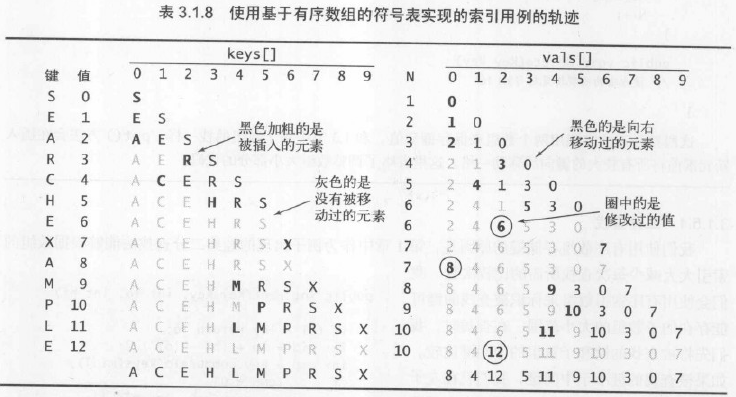 算法—8.有序數組中的二分查找,算法數組二分
算法—8.有序數組中的二分查找,算法數組二分 1.具體算法 /** * 算法3.2 二分查找(基於有序數組) * Created by huazhou on 201
 Binder中的asInterface解析,binderasinterface
Binder中的asInterface解析,binderasinterface在使用AIDL通信的時候,在Stub類中都會生成一個asInterface函數,以《Andr