編輯:關於Android編程
這是在了解下拉刷新功能原理下的產物,下拉刷新可以說是國產APP裡面必有的功能,連Google都為此出了SwipeRefreshLayout,一種MD風格的下拉刷新。
不過,MD風格在國內似乎很是艱難,不單單是國內系統主流仍是4.4的原因,也有用戶習慣的問題,扯的有點多了,在看了許多博客之後,我突然想寫一個能仿照 SwipeRefreshLayout 的兼容所有控件的下拉刷新,不單單只是 ListView,希望它也可以包容普通的View和ScrollView,經過兩天的奮斗,終於搞定了,因為我的目的只是想要下拉刷新,所以功能很少,不過,如果能把下拉刷新搞定了,其它的功能,就可以慢慢堆砌起來了。
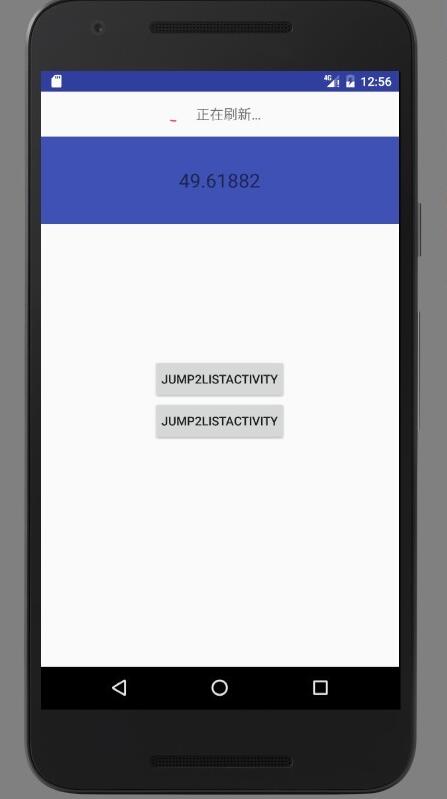
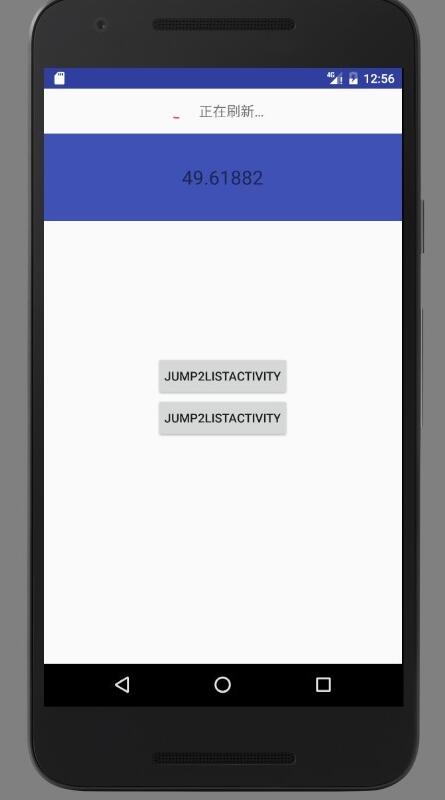
新系統的原因,無法給出合適的gif,只能截圖了:
第一張圖片展示的是TextView:
第二章圖片展示的是ListView:
第三章圖片展示的是ScrollView:
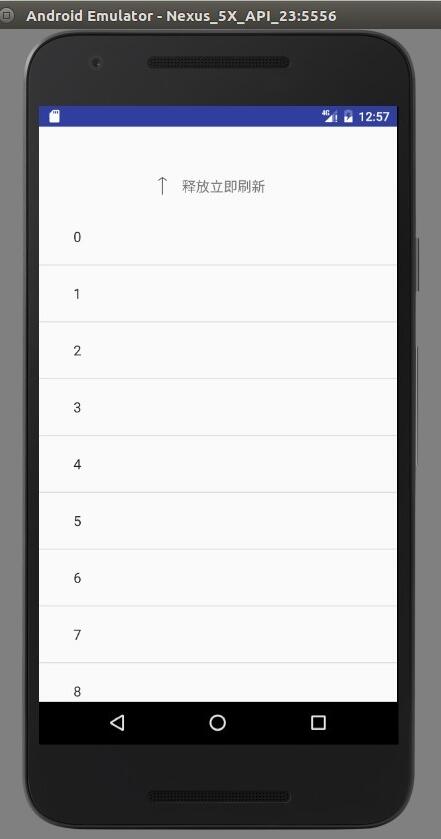
基本上這就是我測試的成功的控件,兼容普通的View是最簡單的,復雜一點的就是ListView和ScrollView。
思路:我的思路和大部分博客都是一樣的,自定義一個ViewGroup,然後將包含的要拖拽的控件的Touch事件交給 RefreshableView 處理,動態改變 headView 的 marginTop 的值,以上。當然,這其中會有一些細節要注意,比如 onTouch 方法的返回值的處理,還有子 View 的 MarginTop 值的處理。
源碼
先是headView的布局文件:
<?xml version="1.0" encoding="utf-8"?>
<LinearLayout xmlns:android="http://schemas.android.com/apk/res/android"
 android:layout_width="match_parent"
 android:layout_height="wrap_content"
 android:gravity="center"
 android:orientation="horizontal">


 <ImageView
 android:id="@+id/imageView_down"
 android:layout_width="14dp"
 android:layout_height="24dp"
 android:padding="2dp"
 android:src="@drawable/svg_down" />

 <ProgressBar
 android:visibility="gone"
 android:id="@+id/progressBar"

 android:layout_width="20dp"
 android:layout_height="20dp"
 android:progressDrawable="@drawable/progressBar" />

 <TextView
 android:padding="15dp"
 android:id="@+id/textView"
 android:layout_width="wrap_content"
 android:layout_height="wrap_content"
 android:text="@string/pull_to_refresh"
 android:textSize="16sp" />

</LinearLayout>
接下來就是至關重要的類 RefreshableView:
package com.pull2refresh;

import android.animation.ObjectAnimator;
import android.animation.ValueAnimator;
import android.annotation.TargetApi;
import android.content.Context;
import android.os.Build;
import android.util.AttributeSet;
import android.util.Log;
import android.view.LayoutInflater;
import android.view.MotionEvent;
import android.view.View;
import android.view.ViewConfiguration;
import android.view.ViewGroup;
import android.view.animation.RotateAnimation;
import android.widget.ImageView;
import android.widget.LinearLayout;
import android.widget.ProgressBar;
import android.widget.TextView;

import shike.xianrou.com.pull2refresh.R;

/**
 * Created by cjh on 16-9-6.
 */
public class RefreshableView extends LinearLayout implements View.OnTouchListener {

 private static final String TAG = "RefreshableView";

 private static final int REFRESHING = 0;//正在刷新
 private static final int ORIGINAL = REFRESHING + 1;//初始狀態
 private static final int RELEASE_TO_REFRESHING = ORIGINAL + 1;//釋放即將刷新的狀態

 private int current_status = ORIGINAL;//當前最新狀態

 private LinearLayout headView;//刷新layout
 private TextView textView;//刷新layout中的文字提示
 private ImageView imageView;//刷新layout中的箭頭
 private ProgressBar progressBar;//刷新layout中的進度條

 private View view;//手指控制的下拉的View

 private int hideHeight;//刷新layout要隱藏的高度

 private boolean isablePull;//是否可以下拉,例如當 current_status = REFRESHIING 時是不可以下拉拖拽的

 private float yDown;//手指按下的坐標

 private int touchSlop = ViewConfiguration.get(getContext()).getScaledTouchSlop();//界限值,防止手指誤觸,過於靈敏

 private boolean firstLayout = true;//第一次調用onLayout的時候置為false

 private int maxMarginTop;//刷新Layout能拉下的最大距離

 private MarginLayoutParams marginLayoutParams;//刷新layout的MarginLayoutParams

 private String pull_to_refresh = "下拉可以刷新";

 private String release_to_refresh = "釋放立即刷新";

 private String refreshing = "正在刷新…";


 private int original_margin = 0;//針對下拉的View存在MarginTop這中特殊值的處理

 public interface PullToRefreshListener {

 void onRefresh();
 }

 private PullToRefreshListener pullToRefreshListener;

 public void addPullToRefreshListener(PullToRefreshListener pullToRefreshListener) {
 this.pullToRefreshListener = pullToRefreshListener;
 }

 public RefreshableView(Context context) {
 super(context);
 init();
 }

 public RefreshableView(Context context, AttributeSet attrs) {
 super(context, attrs);
 init();
 }

 public RefreshableView(Context context, AttributeSet attrs, int defStyleAttr) {
 super(context, attrs, defStyleAttr);
 init();
 }

 @TargetApi(Build.VERSION_CODES.LOLLIPOP)
 public RefreshableView(Context context, AttributeSet attrs, int defStyleAttr, int defStyleRes) {
 super(context, attrs, defStyleAttr, defStyleRes);
 init();
 }

 private void init() {
 headView = (LinearLayout) LayoutInflater.from(getContext()).inflate(R.layout.refresh_layout, null, true);
 imageView = (ImageView) headView.findViewById(R.id.imageView_down);
 progressBar = (ProgressBar) headView.findViewById(R.id.progressBar);
 textView = (TextView) headView.findViewById(R.id.textView);
 progressBar.setVisibility(View.GONE);
 setOrientation(VERTICAL);
 addView(headView, 0);
 }

 @Override
 protected void onLayout(boolean changed, int l, int t, int r, int b) {
 super.onLayout(changed, l, t, r, b);
 Log.d(TAG, "onlayout");
 if (changed && firstLayout) {
  //將View的Touch時間的處理交給RefreshableView去處理
  view = getChildAt(1);
  view.setOnTouchListener(this);

  //刷新layout的 marginTop 的最大值設為刷新頭的高度
  maxMarginTop = headView.getHeight();

  //要將控件完全隱藏起來,那麼隱藏的高度就設置為控件的高度
  hideHeight = -headView.getHeight();
  marginLayoutParams = (MarginLayoutParams) headView.getLayoutParams();
  marginLayoutParams.topMargin = hideHeight;
  headView.setLayoutParams(marginLayoutParams);

  //這裡必須將firstLayout設置為false,否則在處理Touch是件的過程中,headView在怎麼調用setLayoutParams都會被置為初始的隱藏狀態
  firstLayout = false;

  //如果子View是一個ViewGroup 那麼就需要計算出子View的MarginTop的值,因為如果MarginTop不為0,那麼子View的Y軸坐標和父View的坐標是不一樣的
  if (view instanceof ViewGroup) {
  int[] childLocations = new int[2];
  int[] viewLocations = new int[2];
  view.getLocationOnScreen(viewLocations);
  ((ViewGroup) view).getChildAt(0).getLocationOnScreen(childLocations);
  original_margin = childLocations[1] - viewLocations[1];
  Log.d(TAG, "onLayout viewLocations[1] " + viewLocations[1]);
  Log.d(TAG, "onLayout locations[1] " + childLocations[1]);
  Log.d(TAG, "onLayout original_margin " + original_margin);
  }
 }
 }

 @Override
 public boolean onTouch(View view, MotionEvent motionEvent) {
 if (pullToRefreshListener != null) {
  isAblePull();
  if (isablePull) {
  switch (motionEvent.getAction()) {
   case MotionEvent.ACTION_DOWN:
   yDown = motionEvent.getRawY();
   break;

   case MotionEvent.ACTION_MOVE:
   float yMove = motionEvent.getRawY();
   float distance = yMove - yDown;

   //如果手勢是向上的,並且手勢在Y軸的移動距離小於界限值,那麼就不處理
   if (distance < 0 || Math.abs(distance) < touchSlop)
    return false;

   //MarginTop的距離是手勢距離的1/2,形成費力延遲的效果
   marginLayoutParams.topMargin = (int) (distance / 2 + hideHeight);
   Log.d(TAG, "topMargin " + marginLayoutParams.topMargin);

   //如果大於最大的MarginTop的值的時候,就將值置為 maxMarginTop
   if (marginLayoutParams.topMargin >= maxMarginTop)
    marginLayoutParams.topMargin = maxMarginTop;


   if (marginLayoutParams.topMargin >= 0) {
    //當刷新頭完全顯示的時候,改變狀態,置為 釋放刷新的狀態
    if (current_status != RELEASE_TO_REFRESHING) {
    rotate(0, 180);
    textView.setText(release_to_refresh);
    }
    current_status = RELEASE_TO_REFRESHING;
   } else {
    //否則就置為初始狀態
    if (current_status != ORIGINAL) {
    rotate(180, 360);
    textView.setText(pull_to_refresh);
    }
    current_status = ORIGINAL;

   }
   headView.setLayoutParams(marginLayoutParams);
   break;

   case MotionEvent.ACTION_CANCEL:
   case MotionEvent.ACTION_UP:
   float yUp = motionEvent.getRawY();
   float dis = yUp - yDown;
   if (dis > 0 && Math.abs(dis) > touchSlop)
    switch (current_status) {
    //釋放刷新
    case RELEASE_TO_REFRESHING:
     animateMarginTop(marginLayoutParams.topMargin, 0);
     imageView.clearAnimation();
     imageView.setVisibility(View.GONE);
     progressBar.setVisibility(View.VISIBLE);
     textView.setText(refreshing);
     pullToRefreshListener.onRefresh();
     break;

    //初始化
    case ORIGINAL:
     reset();
     //從當前的MarginTop的值,轉變到隱藏所需的 MarginTop
     animateMarginTop(marginLayoutParams.topMargin, hideHeight);
     break;
    }
   else
    return false;

   break;
  }
  return true;
  }
 }
 return false;
 }

 /**
 * 判斷是否可以下拉
 *
 * @return
 */
 public boolean isAblePull() {
 //統一判斷,其實主要是對於view是普通View的判斷
 if (current_status != REFRESHING)
  isablePull = true;
 else
  isablePull = false;

 if (view instanceof ViewGroup) {
  isablePull = false;
  View childView = ((ViewGroup) view).getChildAt(0);
  int[] viewLocations = new int[2];
  int[] childViewLocations = new int[2];
  view.getLocationOnScreen(viewLocations);
  childView.getLocationOnScreen(childViewLocations);

  //這一步中的 original_margin 至關重要,就是用來兼容 子View 有MarginTop屬性的值,當childView 的Y軸坐標 和 計算出了 Margin 值後的父View坐標相等時,說明此時處於可下拉的狀態
  if (viewLocations[1] + original_margin == childViewLocations[1])
  isablePull = true;
  else
  isablePull = false;
 }

 return isablePull;
 }

 private void rotate(int from, int to) {
 RotateAnimation rotateAnimation = new RotateAnimation(from, to, imageView.getWidth() / 2, imageView.getHeight() / 2);
 rotateAnimation.setDuration(100);
 rotateAnimation.setFillAfter(true);
 imageView.startAnimation(rotateAnimation);
 }

 private void animateMarginTop(int from, int to) {
 ObjectAnimator objectAnimator = ObjectAnimator.ofInt(headView, "cjh", from, to);
 objectAnimator.setDuration(300);
 objectAnimator.addUpdateListener(new ValueAnimator.AnimatorUpdateListener() {
  @Override
  public void onAnimationUpdate(ValueAnimator valueAnimator) {
  int margin = (int) valueAnimator.getAnimatedValue();
  marginLayoutParams.topMargin = margin;
  headView.setLayoutParams(marginLayoutParams);
  }
 });
 objectAnimator.start();
 }

 public void complete() {
 animateMarginTop(0, hideHeight);
 reset();
 }

 private void reset() {
 rotate(180, 360);
 textView.setText(pull_to_refresh);
 imageView.setVisibility(View.VISIBLE);
 progressBar.setVisibility(View.GONE);
 }

}
使用:
 <com.pull2refresh.RefreshableView
 android:id="@+id/refreshableView"
 android:layout_width="match_parent"
 android:layout_height="wrap_content"
 android:gravity="center">

 <com.pull2refresh.MTextView
  android:id="@+id/mTextView"
  android:layout_width="match_parent"
  android:layout_height="100dp"
  android:background="@color/colorPrimary"
  android:gravity="center"
  android:text="Hello World!"
  android:textSize="22sp" />

 </com.pull2refresh.RefreshableView>
...
 refreshableView.addPullToRefreshListener(new RefreshableView.PullToRefreshListener() {
  @Override
  public void onRefresh() {
  setData();
  }
 });
...
 private void setData() {
 ObjectAnimator objectAnimator = ObjectAnimator.ofFloat(textView, "text", 1f, 100f);
 objectAnimator.setDuration(3000);
 objectAnimator.addUpdateListener(new ValueAnimator.AnimatorUpdateListener() {
  @Override
  public void onAnimationUpdate(ValueAnimator valueAnimator) {
  textView.setText((Float) valueAnimator.getAnimatedValue());
  }
 });
 objectAnimator.addListener(new Animator.AnimatorListener() {
  @Override
  public void onAnimationStart(Animator animator) {

  }

  @Override
  public void onAnimationEnd(Animator animator) {
  refreshableView.complete();
  }

  @Override
  public void onAnimationCancel(Animator animator) {

  }

  @Override
  public void onAnimationRepeat(Animator animator) {

  }
 });
 objectAnimator.start();
 }
在我自定義的 RefreshableView 中,如果不設置下拉的監聽,就沒有下拉的效果,也就是不支持下拉
源碼下載:Android下拉刷新控件
以上就是本文的全部內容,希望對大家的學習有所幫助,也希望大家多多支持本站。
 使用android.support.v8.renderscript制作的特效
https://github.com/daimajia/AndroidViewHover import android.support.v8.renderscrip
 Android-線程更新UI的幾個方式
如圖,Android上新開的線程如想更新UI,需要重新跳到主線程中才能操作,以下是老外給出的幾種方案,大家多多學習下.private void loadIcon() {
 Android Fragment 嵌套使用報錯
在新的SDK每次創建activity時,會自動生成 public static class PlaceholderFragment extends Fragment f
 Android控件之ListView
在android開發中ListView是比較常用的組件,它以列表的形式展示具體內容,並且能夠根據數據的長度自適應顯示。列表的顯示需要三個元素:1.ListVeiw 用來展