編輯:關於Android編程
最近在做上傳文件的服務,簡單看了網上的教程。結合實踐共享出代碼。
由於網上的大多數沒有服務端的代碼,這可不行呀,沒服務端怎麼調試呢。
Ok,先上代碼。
Android 上傳比較簡單,主要用到的是 HttpURLConnection 類,然後加一個進度條組件。
private ProgressBar mPgBar;
class UploadTask extends AsyncTask<Object,Integer,Void>{
  private DataOutputStream outputStream = null;
  private String fileName;
  private String uri;
  private String mLineEnd = "\r\n";
  private String mTwoHyphens = "--";
  private String boundary = "*****";
  File uploadFile ;
  long mTtotalSize ; // Get size of file, bytes
  public UploadTask(String fileName,String uri){
   this.fileName = fileName;
   this.uri = uri;
   uploadFile= new File(fileName);
    mTtotalSize = uploadFile.length();
  }

  /**
   * 開始上傳文件
   * @param objects
   * @return
   */
  @Override
  protected Void doInBackground(Object... objects) {
   long length = 0;
   int mBytesRead, mbytesAvailable, mBufferSize;
   byte[] buffer;
   int maxBufferSize = 256 * 1024;// 256KB
   try{

    FileInputStream fileInputStream = new FileInputStream(new File(fileName));

    URL url = new URL(uri);

    HttpURLConnection con = (HttpURLConnection) url.openConnection();

    //如果有必要則可以設置Cookie
//    conn.setRequestProperty("Cookie","JSESSIONID="+cookie);

    // Set size of every block for post

    con.setChunkedStreamingMode(256 * 1024);// 256KB

    // Allow Inputs & Outputs
    con.setDoInput(true);
    con.setDoOutput(true);
    con.setUseCaches(false);

    // Enable POST method
    con.setRequestMethod("POST");
    con.setRequestProperty("Connection", "Keep-Alive");
    con.setRequestProperty("Charset", "UTF-8");
    con.setRequestProperty("Content-Type",
      "multipart/form-data;boundary=" + boundary);

    outputStream = new DataOutputStream(
      con.getOutputStream());
    outputStream.writeBytes(mTwoHyphens + boundary + mLineEnd);
    outputStream.writeBytes("Content-Disposition: form-data; name=\"file\"; filename=\"" + fileName + "\"" + mLineEnd);
    outputStream.writeBytes("Content-Type:application/octet-stream \r\n");
    outputStream.writeBytes(mLineEnd);

    mbytesAvailable = fileInputStream.available();
    mBufferSize = Math.min(mbytesAvailable, maxBufferSize);
    buffer = new byte[mBufferSize];

    // Read file
    mBytesRead = fileInputStream.read(buffer, 0, mBufferSize);

    while (mBytesRead > 0) {
     outputStream.write(buffer, 0, mBufferSize);
     length += mBufferSize;

     publishProgress((int) ((length * 100) / mTtotalSize));

     mbytesAvailable = fileInputStream.available();

     mBufferSize = Math.min(mbytesAvailable, maxBufferSize);

     mBytesRead = fileInputStream.read(buffer, 0, mBufferSize);
    }
    outputStream.writeBytes(mLineEnd);
    outputStream.writeBytes(mTwoHyphens + boundary + mTwoHyphens
      + mLineEnd);
    publishProgress(100);

    // Responses from the server (code and message)
    int serverResponseCode = con.getResponseCode();
    String serverResponseMessage = con.getResponseMessage();
    fileInputStream.close();
    outputStream.flush();
    outputStream.close();

   } catch (Exception ex) {
    ex.printStackTrace();
    Log.v(TAG,"uploadError");
   }
   return null;
  }

  @Override
  protected void onProgressUpdate(Integer... progress) {
   mPgBar.setProgress(progress[0]);
  }
 }
主要流程為繼承AsyncTask,然後使用HttpURLConnection 去上傳文件。代碼比較簡單,就不一一講解了。
其中要注意的是需要在
復制代碼 代碼如下:outputStream.writeBytes("Content-Disposition: form-data; name=\"file\"; filename=\"" + fileName + "\"" + mLineEnd);
將name 設置為web 請求的參數名,由於我的服務端是將文件設置為file參數,所以我可以直接填file .所以大家可以根據實際情況作相應修改。
那麼接著上服務端代碼,服務端主要使用status 2框架作請求。那麼我們就需要進行封裝。
//上傳文件集合
 private List<File> file;
 //上傳文件名集合
 private List<String> fileFileName;
 //上傳文件內容類型集合
 private List<String> fileContentType;

 public List<File> getFile() {
  return file;
 }

 public void setFile(List<File> file) {
  this.file = file;
 }

 public List<String> getFileFileName() {
  return fileFileName;
 }

 public void setFileFileName(List<String> fileFileName) {
  this.fileFileName = fileFileName;
 }

 public List<String> getFileContentType() {
  return fileContentType;
 }

 public void setFileContentType(List<String> fileContentType) {
  this.fileContentType = fileContentType;
 }
采用了多文件上傳的方法,定義了List 集合。
那麼處理文件上傳的action ,由於是測試方法。這裡就定義為testUpload
public String testUpload()throws Exception{
  System.out.println("success");
  uploadFile(0);
  return SUCCESS;
 }
到這裡就已經才不多完成動作了,現在需要開始寫上傳的方法 uploadFile(int index),由於定義file 為多文件上傳,而我們上傳只上傳了一個文件,所以這裡參數為0
/**
  * 上傳功能
  * @param i
  * @return
  * @throws FileNotFoundException
  * @throws IOException
  */
 private String uploadFile(int i) throws FileNotFoundException, IOException {

  try {
   InputStream in = new FileInputStream(file.get(i));

   //String dir = ServletActionContext.getRequest().getRealPath(UPLOADDIR);

   String dir = "D://UploadData/";

   File uploadFile = new File(dir,StringUtils.getUUID()+getFile( this.getFileFileName().get(i)));

   OutputStream out = new FileOutputStream(uploadFile);

   byte[] buffer = new byte[1024 * 1024];

   int length;
   while ((length = in.read(buffer)) > 0) {
    out.write(buffer, 0, length);
   }

   in.close();
   out.close();
   //然後進行計算
   return uploadFile.getAbsolutePath();
  } catch (FileNotFoundException ex) {
   ex.printStackTrace();
  } catch (IOException ex) {
   ex.printStackTrace();
  }
  return null;
 }
上面方法為將緩存區域的文件 然後搞到了D://UploadData/ 文件中,然後以自己的格式進行命名,這裡我使用了電腦的UUID和文件名進行組合,確保我復制過來的文件不重復。
最後上傳成功之後返回文件的真實地址。
ok,寫到這裡上傳文件的功能基本上做完了。最後只剩下配置action 動作。
ok,我們打開status.xml 文件進行配置
<!-- 系統常量定義,定義上傳文件字符集編碼 -->
 <constant name="struts.i18n.encoding" value="utf-8"></constant>
 <!-- 系統常量定義,定義上傳文件零時存放路徑 -->
 <constant name="struts.multipart.saveDir" value="c:\tmp\"></constant>
 <constant name="struts.multipart.maxSize" value="10000000" />
這裡主要定義上傳文件的臨時存放位置,然後大小限制。
大家可以根據實際情況進行配置。
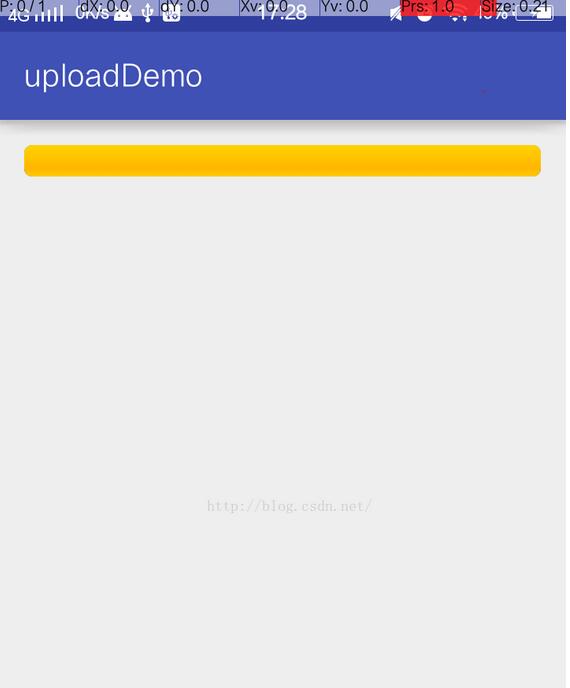
最後上傳一張效果圖。
以上就是本文的全部內容,希望對大家的學習有所幫助,也希望大家多多支持本站。
 合理收集Android用戶個人信息分析實戰
前言作為一名Android開發者,經常會接到項目經理提出的收集用戶信息的需求,而且對於普通開發者來說,也需要收集一些真實用戶的信息來輔助開發或者進行優化。在這裡簡單的記錄
 Android實現單選與多選對話框的代碼
android開發中實現單選與多選對話框的代碼非常簡單,具體代碼如下所示:public void myClick(View view) { // 單選對話框 //si
 Android 離線緩存的快速實現
離線緩存是指在有網絡的狀態下將從服務器獲取的網絡數據,如Json 數據緩存到本地,在斷網的狀態下啟動APP時讀取本地緩存數據顯示在界面上,常用的APP(網易新聞、知乎等等
 Android Studio查看Android 5.x源碼的步驟詳解
關於Android Studio的好處我就不用說了,下面兩點就足矣讓你轉投Android Studio了: 1、Andro