編輯:關於Android編程
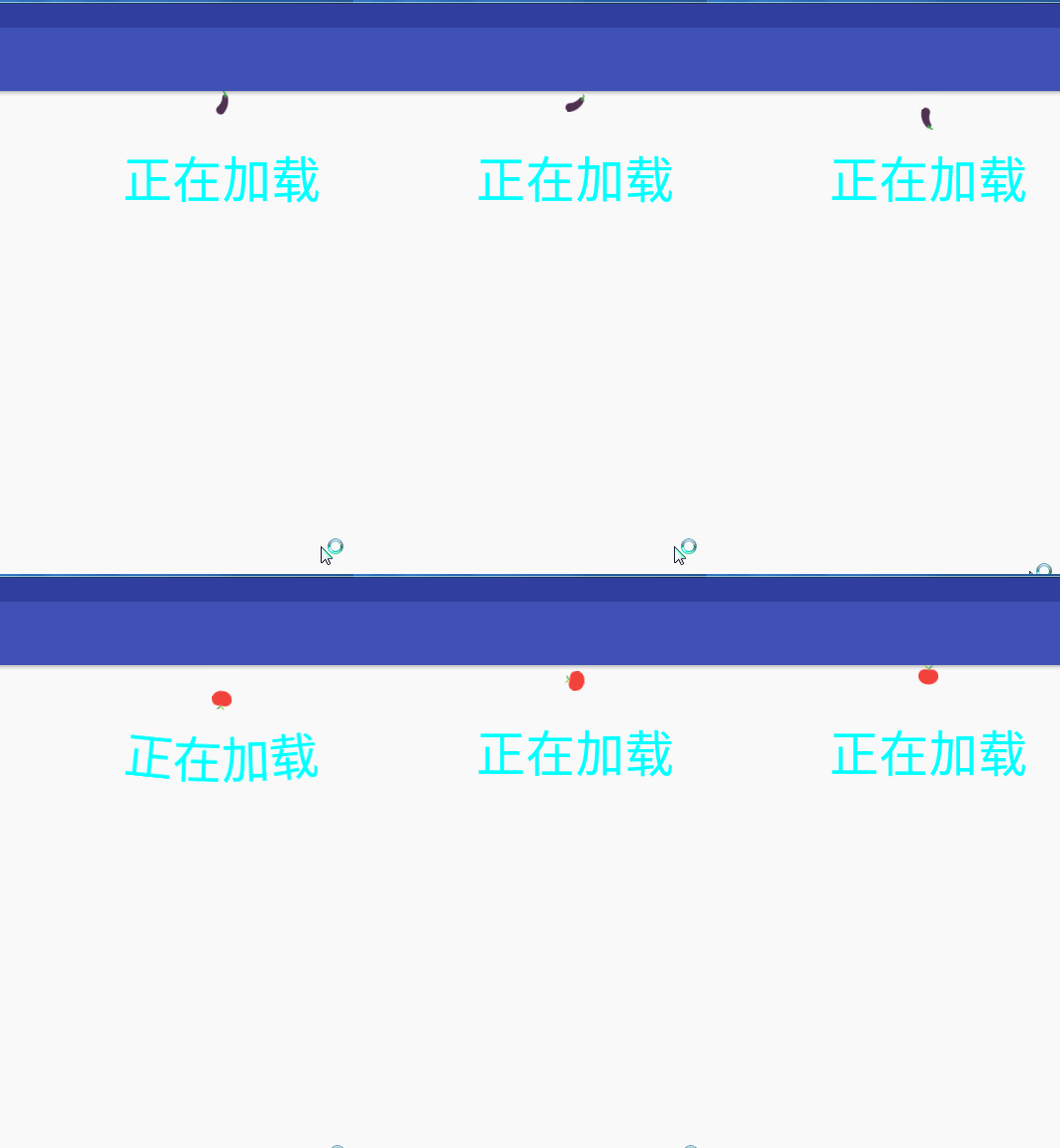
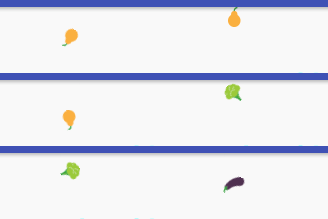
效果:
需要知識:
1. 二次貝塞爾曲線
2. 動畫知識
3. 基礎自定義view知識
先來解釋下什麼叫阻尼運動
阻尼振動是指,由於振動系統受到摩擦和介質阻力或其他能耗而使振幅隨時間逐漸衰減的振動,又稱減幅振動、衰減振動。[1] 不論是彈簧振子還是單擺由於外界的摩擦和介質阻力總是存在,在振動過程中要不斷克服外界阻力做功,消耗能量,振幅就會逐漸減小,經過一段時間,振動就會完全停下來。這種振幅隨時間減小的振動稱為阻尼振動.因為振幅與振動的能量有關,阻尼振動也就是能量不斷減少的振動.阻尼振動是非簡諧運動.阻尼振動系統屬於耗散系統。這裡的阻尼是指任何振動系統在振動中,由於外界作用或系統本身固有的原因引起的振動幅度逐漸下降的特性,以及此一特性的量化表征。
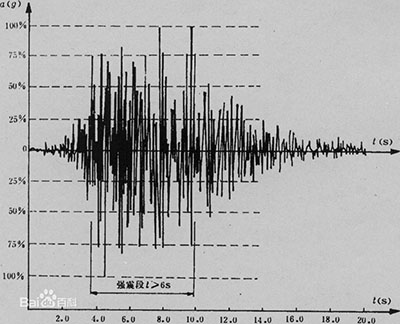
本例中文字部分凹陷就是這種效果,當然這篇文章知識帶你簡單的使用.
跳動的水果效果實現
剖析:從上面的效果圖中很面就是從頂端向下掉落然後再向上 期間旋轉即可.
那麼我們首先自定義一個view繼承FrameLayout
public class My extends FrameLayout {
public My(Context context) {
super(context);
}
public My(Context context, AttributeSet attrs) {
super(context, attrs);
}
}
需要素材如下三張圖片:


也許有人會問我看到你效果圖到頂部或者底部就變成向上或者向下了.你三張夠嗎?
答:到頂部或者底部旋轉180度即可
我們現在自定義中定義幾個變量
//用於記錄當前圖片使用數組中的哪張
int indexImgFlag = 0;
//下沉圖片 前面三個圖片的id
int allImgDown [] = {R.mipmap.p2,R.mipmap.p4,R.mipmap.p6,R.mipmap.p8};
//動畫效果一次下沉或上彈的時間 animationDuration*2=一次完整動畫時間
int animationDuration = 1000;
//彈起來的圖片
ImageView iv;
//圖片下沉高度(即從最高點到最低點的距離)
int downHeight = 2;
//掉下去的動畫
private Animation translateDown;
//彈起動畫
private Animation translateUp;
//旋轉動畫
private ObjectAnimator rotation;
我們再來看看初始化動畫的方法(此方法使用了遞歸思想,實現無限播放動畫,大家可以看看哪裡不理解)
//初始化彈跳動畫
public void MyAnmation(){
//下沉效果動畫
translateDown = new TranslateAnimation(
Animation.RELATIVE_TO_SELF,0,Animation.RELATIVE_TO_SELF,0,
Animation.RELATIVE_TO_SELF,0,Animation.RELATIVE_TO_SELF,downHeight);
translateDown.setDuration(animationDuration);
//設置一個插值器 動畫將會播放越來越快 模擬重力
translateDown.setInterpolator(new AccelerateInterpolator());
//上彈動畫
translateUp = new TranslateAnimation(
Animation.RELATIVE_TO_SELF,0,Animation.RELATIVE_TO_SELF,0,
Animation.RELATIVE_TO_SELF,downHeight,Animation.RELATIVE_TO_SELF,0
);
translateUp.setDuration(animationDuration);
////設置一個插值器 動畫將會播放越來越慢 模擬反重力
translateUp.setInterpolator(new DecelerateInterpolator());
//當下沉動畫完成時播放啟動上彈
translateDown.setAnimationListener(new Animation.AnimationListener() {
@Override
public void onAnimationStart(Animation animation) {
iv.setImageResource(allImgDown[indexImgFlag]);
rotation = ObjectAnimator.ofFloat(iv, "rotation", 180f, 360f);
rotation.setDuration(1000);
rotation.start();
}
@Override
public void onAnimationEnd(Animation animation) {
iv.startAnimation(translateUp);
}
@Override
public void onAnimationRepeat(Animation animation) {
}
});
//當上移動畫完成時 播放下移動畫
translateUp.setAnimationListener(new Animation.AnimationListener() {
@Override
public void onAnimationStart(Animation animation) {
indexImgFlag = 1+indexImgFlag>=allImgDown.length?0:1+indexImgFlag;
iv.setImageResource(allImgDown[indexImgFlag]);
rotation = ObjectAnimator.ofFloat(iv, "rotation", 0.0f, 180f);
rotation.setDuration(1000);
rotation.start();
}
@Override
public void onAnimationEnd(Animation animation) {
//遞歸
iv.startAnimation(translateDown);
}
@Override
public void onAnimationRepeat(Animation animation) {
}
});
}
以上代碼知識:
插值器:會讓一個動畫在播放時在某一時間段加快動畫或者減慢
//設置一個插值器 動畫將會播放越來越快 模擬重力
1.translateDown.setInterpolator(new AccelerateInterpolator());
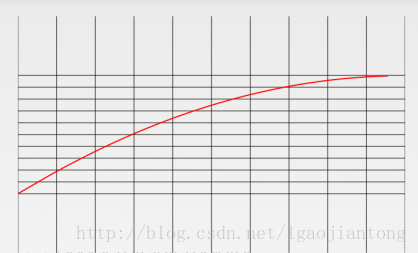
這個插值器 速率表示圖:
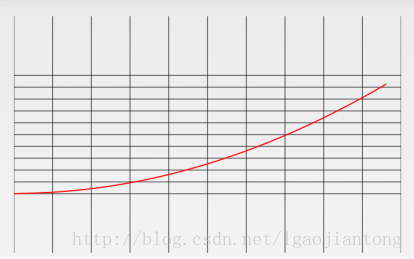
可以從斜率看到使用此插值器 動畫將越來越快.意義在於模仿下落時重力的影響
////設置一個插值器 動畫將會播放越來越慢 模擬反重力
2. translateUp.setInterpolator(new DecelerateInterpolator());
速率圖:
最後我們初始化下圖片控件到我們的自定義view
private void init() {
//初始化彈跳圖片 控件
iv = new ImageView(getContext());
ViewGroup.LayoutParams params = new ViewGroup.LayoutParams(
ViewGroup.LayoutParams.WRAP_CONTENT,
ViewGroup.LayoutParams.WRAP_CONTENT);
iv.setLayoutParams(params);
iv.setImageResource(allImgDown[0]);
this.addView(iv);
iv.measure(0,0);
iv.getViewTreeObserver().addOnGlobalLayoutListener(new ViewTreeObserver.OnGlobalLayoutListener() {
@Override
public void onGlobalLayout() {
if (!flagMeure)
{
flagMeure =true;
//由於畫文字是由基准線開始
path.moveTo(iv.getX()-textWidth/2+iv.getWidth()/2, textHeight+iv.getHeight()+downHeight*iv.getHeight());
//計算最大彈力
maxElasticFactor = (float) (textHeight / elastic);
//初始化貝塞爾曲線
path.rQuadTo(textWidth / 2, 0, textWidth, 0);
//初始化上彈和下沉動畫
MyAnmation();
iv.startAnimation(translateDown);
}
}
});
}
上面的知識:
1. iv.measure(0,0);主動通知系統去測量此控件 不然iv.getwidth = 0;
//下面這個是同理 等iv測量完時回調 不然iv.getwidth = 0;
2. iv.getViewTreeObserver().addOnGlobalLayoutListener(new ViewTreeObserver.OnGlobalLayoutListener(){
…
}
原因:TextView tv = new TextView() 或者 LayoutInflat 填充布局都是
異步所以你在new出來或者填充時直接獲取自然返回0
到現在為止你只需要在自定義view 的onSizeChanged回調方法中調用init()即可看到動畫的彈動
@Override
protected void onSizeChanged(int w, int h, int oldw, int oldh) {
super.onSizeChanged(w, h, oldw, oldh);
init();
}
此方法會在onmesure方法執行完成後回調 這樣你就可以在此方法獲得自定義view的寬高了
效果圖:
畫文字成u形
首先你得知道如下知識
貝塞爾曲線:具體學習
這裡我們用到2此貝塞爾曲線
我們看看大概是什麼叫2次貝塞爾曲線
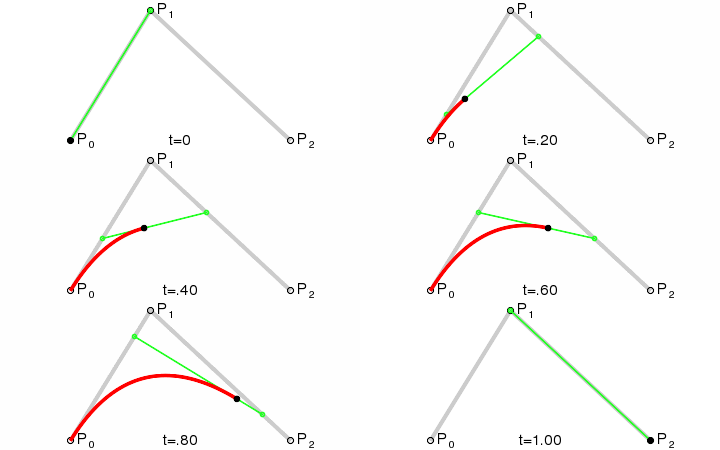
我們看看 三個點 p0 p1 p2 我們 把p0 稱為 開始點 p1 為控制點 p2 結束點,那麼可以用貝塞爾公式畫出如圖曲線
這裡大家沒必要深究怎麼畫出來. 也不需要你懂 這個要數學基礎的
那麼我們在安卓中怎麼畫呢?
Path path = new Path();
//p0的x y坐標
path.moveTo(p0.x,y);
path.rQuadTo(p1.x,p1.y,p2.x,p2.y);
這就是API調用方法是不是很簡單?那麼你又會問那麼怎麼畫出來呢?
很簡單在 dispatchDraw方法 或者onDraw中 調用
@Override
protected void dispatchDraw(Canvas canvas) {
super.dispatchDraw(canvas);
canvas.drawPath(path,paint);
}
那麼你畫出來的效果應該和在Ps用鋼筆畫出來的差不多 ps中鋼筆工具就是二次貝塞爾曲線
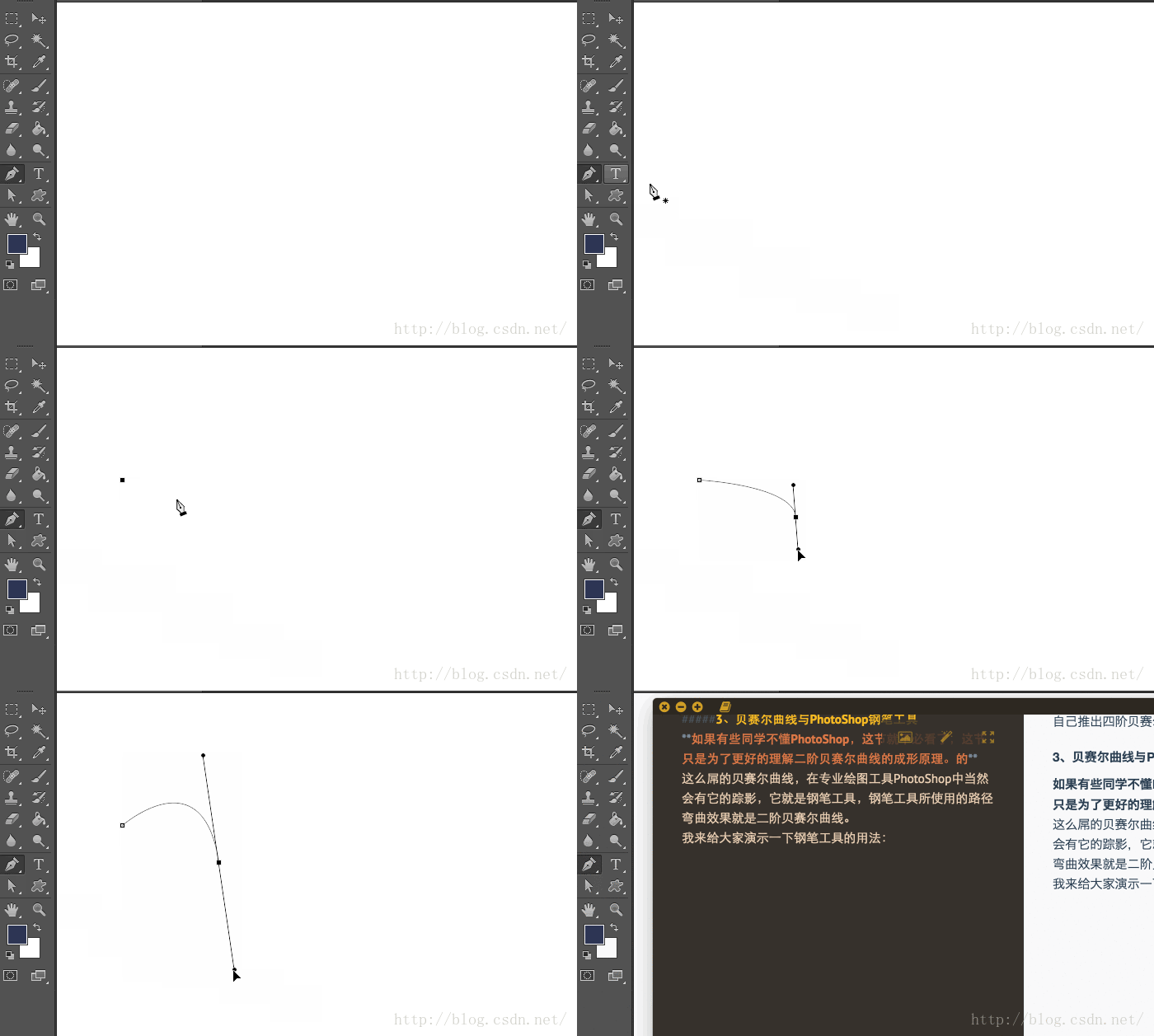
(借用下圖片)
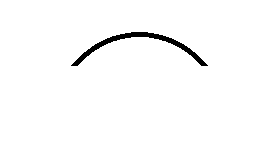
如果你的三個點的位置如剛開的圖片 p0 p1 p2 (p1在p0右上方並且 p1在p2左上方)一樣那麼在屏幕中的顯示效果如下
這裡隨擴張下dispatchDraw和ondraw的區別
如果你的自定義view 是繼承view 那麼 會先調用 ondraw->>dispatchDraw
如果你的自定義view 是繼承viewgroup那麼會跳過ondraw方法直接調用dispathchDraw這裡特別注意!!我們這個案例中繼承的是FrameLayout, 而frameLayout又是繼承自viewgroup所以….
那麼我們回到主題 如何畫一個U形文字?簡單就是說按照我們畫出來的曲線在上面寫字 如: 文字是”CSDN開源中國” 如何讓這幾個字貼著我們的曲線寫出來?
這裡介紹一個API
canvas.drawTextOnPath()

第一個參數:文字 類型為字符串
第二個參數:路徑 也就是我們前面的二次貝塞爾曲線
第三個參數:沿著路徑文字開始的位置 說白了偏移量
第四個參數:貼著路徑的高度的偏移量
hOffset:
The distance along the path to add to the text's starting position
vOffset:
The distance above(-) or below(+) the path to position the text
//ok我們看看他可以畫出什麼樣子的文字
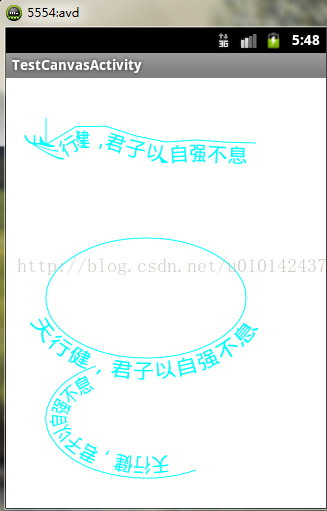
這種看大家對貝塞爾曲線的理解,你理解的越深那麼你可以畫出的圖像越多,當然不一定要用貝塞爾曲線
確定貝塞爾曲線的起點
我們在回過頭來看看我們的效果圖
我們可以看到文字應該是在iv(彈跳的圖片中央位置且正好在 iv彈到底部的位置)
這裡我們先補充知識在考慮計算
我們來學習一下文字的測量我們來看幅圖
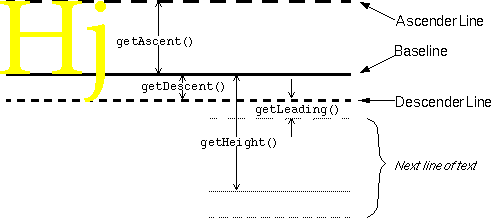
我們調用畫文字的API時
canvas.drawTextOnPath或者canvas.drawText 是從基准線開始畫的也就是說途中的baseline開始畫.
如:
canvas.drawText(“FMY”,0,0,paint);
那麼你將看不到文字 只能在屏幕看到文字底部如下圖:
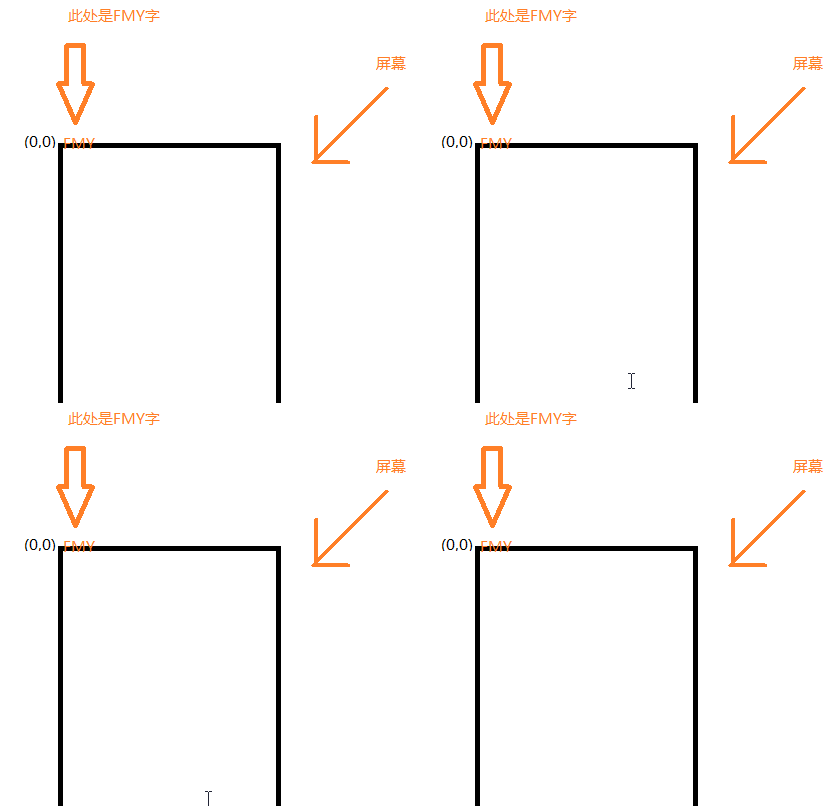
另一個同理API drawTextOnPath 也是
再看看幾個簡單的API
1 . paint.measureText(“FMY”);返回在此畫筆paint下寫FMY文字的寬度
下面的API會把文字的距離左邊left 上邊top 右邊right 底部的bottom的值寫入此矩形 那麼
rect.right-rect.left=文字寬度
rect.bottom-rect.top=文字高度
//矩形
Rect rect = new Rect();
//將文字畫入矩形目的是為了測量高度
paint.getTextBounds(printText, 0, printText.length(), rect);
那麼請看:
private void init() {
//初始化彈跳圖片 控件
iv = new ImageView(getContext());
ViewGroup.LayoutParams params = new ViewGroup.LayoutParams(
ViewGroup.LayoutParams.WRAP_CONTENT,
ViewGroup.LayoutParams.WRAP_CONTENT);
iv.setLayoutParams(params);
iv.setImageResource(allImgDown[0]);
this.addView(iv);
//畫筆的初始化
paint = new Paint();
paint.setStrokeWidth(1);
paint.setColor(Color.CYAN);
paint.setStyle(Paint.Style.FILL);
paint.setTextSize(50);
paint.setAntiAlias(true);
//矩形
Rect rect = new Rect();
//將文字畫入矩形目的是為了測量高度
paint.getTextBounds(printText, 0, printText.length(), rect);
//文本寬度
textWidth = paint.measureText(printText);
//獲得文字高度
textHeight = rect.bottom - rect.top;
//初始化路徑
path = new Path();
iv.setX(getWidth()/2);
iv.measure(0,0);
iv.getViewTreeObserver().addOnGlobalLayoutListener(new ViewTreeObserver.OnGlobalLayoutListener() {
@Override
public void onGlobalLayout() {
if (!flagMeure)
{
flagMeure =true;
//由於畫文字是由基准線開始
path.moveTo(iv.getX()-textWidth/2+iv.getWidth()/2, textHeight+iv.getHeight()+downHeight*iv.getHeight());
//計算最大彈力
maxElasticFactor = (float) (textHeight / elastic);
//初始化貝塞爾曲線
path.rQuadTo(textWidth / 2, 0, textWidth, 0);
//初始化上彈和下沉動畫
MyAnmation();
iv.startAnimation(translateDown);
}
}
});
}
我們現在寫一個類當iv圖片(彈跳圖)碰到文字頂部時設置一個監聽器 時間正好是彈圖向上到頂部的時間 期間不斷讓文字凹陷在恢復正常
//用於播放文字下沉和上浮動畫傳入的數值必須是 圖片下沉和上升的一次時間
public void initAnimation(int duration){
//這裡為什maxElasticFactor/4 好看...另一個同理 這個數值大家自行調整
ValueAnimator animator = ValueAnimator.ofFloat(maxElasticFactor/4, (float) (maxElasticFactor / 1.5),0);
animator.setDuration(duration/2);
animator.addUpdateListener(new ValueAnimator.AnimatorUpdateListener() {
@Override
public void onAnimationUpdate(ValueAnimator animation) {
calc();//重新畫路徑
nowElasticFactor= (float) animation.getAnimatedValue();
postInvalidate();
}
});
animator.start();
}
再來一個重新繪畫路徑計算的方法
public void calc(){
//重置路徑
path.reset();
//由於畫文字是由基准線開始
path.moveTo(iv.getX()-textWidth/2+iv.getWidth()/2, textHeight+iv.getHeight()+downHeight*iv.getHeight());
//畫二次貝塞爾曲線
path.rQuadTo(textWidth / 2, nowElasticFactor, textWidth, 0);
}
好了到這裡我們看看完整源碼吧:
package com.example.administrator.myapplication;
import android.animation.ObjectAnimator;
import android.animation.ValueAnimator;
import android.content.Context;
import android.graphics.Canvas;
import android.graphics.Color;
import android.graphics.Paint;
import android.graphics.Path;
import android.graphics.Rect;
import android.util.AttributeSet;
import android.view.ViewGroup;
import android.view.ViewTreeObserver;
import android.view.animation.AccelerateInterpolator;
import android.view.animation.Animation;
import android.view.animation.DecelerateInterpolator;
import android.view.animation.TranslateAnimation;
import android.widget.FrameLayout;
import android.widget.ImageView;
public class My extends FrameLayout {
//畫筆
private Paint paint;
//路徑
private Path path;
//要輸入的文本
private String printText = "正在加載";
//文本寬
private float textWidth;
//文本高
private float textHeight;
//測量文字寬高的時候使用的矩形
private Rect rect;
//最大彈力系數
private float elastic = 1.5f;
//最大彈力
private float maxElasticFactor;
//當前彈力
private float nowElasticFactor;
//用於記錄當前圖片使用數組中的哪張
int indexImgFlag = 0;
//下沉圖片
int allImgDown [] = {R.mipmap.p2,R.mipmap.p4,R.mipmap.p6,R.mipmap.p8};
//動畫效果一次下沉或上彈的時間 animationDuration*2=一次完整動畫時間
int animationDuration = 1000;
//彈起來的圖片
ImageView iv;
//圖片下沉高度(即從最高點到最低點的距離)
int downHeight = 2;
private Animation translateDown;
private Animation translateUp;
private ObjectAnimator rotation;
public My(Context context) {
super(context);
}
public My(Context context, AttributeSet attrs) {
super(context, attrs);
}
@Override
protected void dispatchDraw(Canvas canvas) {
super.dispatchDraw(canvas);
canvas.drawTextOnPath(printText, path, 0, 0, paint);
}
//用於播放文字下沉和上浮動畫傳入的數值必須是 圖片下沉和上升的一次時間
public void initAnimation(int duration){
//這裡為什maxElasticFactor/4為什麼
ValueAnimator animator = ValueAnimator.ofFloat(maxElasticFactor/4, (float) (maxElasticFactor / 1.5),0);
animator.setDuration(duration/2);
animator.addUpdateListener(new ValueAnimator.AnimatorUpdateListener() {
@Override
public void onAnimationUpdate(ValueAnimator animation) {
calc();
nowElasticFactor= (float) animation.getAnimatedValue();
postInvalidate();
}
});
animator.start();
}
public void calc(){
//重置路徑
path.reset();
//由於畫文字是由基准線開始
path.moveTo(iv.getX()-textWidth/2+iv.getWidth()/2, textHeight+iv.getHeight()+downHeight*iv.getHeight());
//畫二次貝塞爾曲線
path.rQuadTo(textWidth / 2, nowElasticFactor, textWidth, 0);
}
//初始化彈跳動畫
public void MyAnmation(){
//下沉效果動畫
translateDown = new TranslateAnimation(
Animation.RELATIVE_TO_SELF,0,Animation.RELATIVE_TO_SELF,0,
Animation.RELATIVE_TO_SELF,0,Animation.RELATIVE_TO_SELF,downHeight);
translateDown.setDuration(animationDuration);
//設置一個插值器 動畫將會播放越來越快 模擬重力
translateDown.setInterpolator(new AccelerateInterpolator());
//上彈動畫
translateUp = new TranslateAnimation(
Animation.RELATIVE_TO_SELF,0,Animation.RELATIVE_TO_SELF,0,
Animation.RELATIVE_TO_SELF,downHeight,Animation.RELATIVE_TO_SELF,0
);
translateUp.setDuration(animationDuration);
////設置一個插值器 動畫將會播放越來越慢 模擬反重力
translateUp.setInterpolator(new DecelerateInterpolator());
//當下沉動畫完成時播放啟動上彈
translateDown.setAnimationListener(new Animation.AnimationListener() {
@Override
public void onAnimationStart(Animation animation) {
iv.setImageResource(allImgDown[indexImgFlag]);
rotation = ObjectAnimator.ofFloat(iv, "rotation", 180f, 360f);
rotation.setDuration(1000);
rotation.start();
}
@Override
public void onAnimationEnd(Animation animation) {
iv.startAnimation(translateUp);
initAnimation(animationDuration);
}
@Override
public void onAnimationRepeat(Animation animation) {
}
});
//當上移動畫完成時 播放下移動畫
translateUp.setAnimationListener(new Animation.AnimationListener() {
@Override
public void onAnimationStart(Animation animation) {
indexImgFlag = 1+indexImgFlag>=allImgDown.length?0:1+indexImgFlag;
iv.setImageResource(allImgDown[indexImgFlag]);
rotation = ObjectAnimator.ofFloat(iv, "rotation", 0.0f, 180f);
rotation.setDuration(1000);
rotation.start();
}
@Override
public void onAnimationEnd(Animation animation) {
//遞歸
iv.startAnimation(translateDown);
}
@Override
public void onAnimationRepeat(Animation animation) {
}
});
}
boolean flagMeure;
@Override
protected void onSizeChanged(int w, int h, int oldw, int oldh) {
super.onSizeChanged(w, h, oldw, oldh);
init();
}
private void init() {
//初始化彈跳圖片 控件
iv = new ImageView(getContext());
ViewGroup.LayoutParams params = new ViewGroup.LayoutParams(
ViewGroup.LayoutParams.WRAP_CONTENT,
ViewGroup.LayoutParams.WRAP_CONTENT);
iv.setLayoutParams(params);
iv.setImageResource(allImgDown[0]);
this.addView(iv);
//畫筆的初始化
paint = new Paint();
paint.setStrokeWidth(1);
paint.setColor(Color.CYAN);
paint.setStyle(Paint.Style.FILL);
paint.setTextSize(50);
paint.setAntiAlias(true);
//矩形
rect = new Rect();
//將文字畫入矩形目的是為了測量高度
paint.getTextBounds(printText, 0, printText.length(), rect);
//文本寬度
textWidth = paint.measureText(printText);
//獲得文字高度
textHeight = rect.bottom - rect.top;
//初始化路徑
path = new Path();
iv.setX(getWidth()/2);
iv.measure(0,0);
iv.getViewTreeObserver().addOnGlobalLayoutListener(new ViewTreeObserver.OnGlobalLayoutListener() {
@Override
public void onGlobalLayout() {
if (!flagMeure)
{
flagMeure =true;
//由於畫文字是由基准線開始
path.moveTo(iv.getX()-textWidth/2+iv.getWidth()/2, textHeight+iv.getHeight()+downHeight*iv.getHeight());
//計算最大彈力
maxElasticFactor = (float) (textHeight / elastic);
//初始化貝塞爾曲線
path.rQuadTo(textWidth / 2, 0, textWidth, 0);
//初始化上彈和下沉動畫
MyAnmation();
iv.startAnimation(translateDown);
}
}
});
}
}
小人奉上源碼一封供大家 參考github源碼下載地址
以上所述是小編給大家介紹的Android自定義view實現阻尼效果的加載動畫,希望對大家有所幫助,如果大家有任何疑問請給我留言,小編會及時回復大家的。在此也非常感謝大家對本站網站的支持!
 Android中FoldingLayout折疊布局的用法及實戰全攻略
一、概述無意中翻到的FoldingLayout的介紹的博客,以及github地址。感覺很nice呀,於是花了點時間研究以及編寫,本篇博客將帶大家從最基本的原理分析,一步一
 適配器模式在android中使用
適配器模式(Adapter):適配器模式是一種行為模式,它可以把一個類的接口轉換成為另一個所期待的另一種接口,這樣可以使原本因接口無法在一起工作的兩個類能夠在一起工作了。
 Android群英傳知識點回顧——第十章:Android性能優化
知識點目錄 10.1 布局優化 10.1.1 Android UI渲染機制 10.1.2 避免Overdraw 10.1.3 優化布局層級 10.1.4 避免嵌套過多無用
 Android AIDL——進程通信機制詳解
Android AIDL, Android進程機制通信機制,這裡就整理下AIDL 的知識,幫助大家學習理解此部分知識!什麼是 AIDLAIDL 全稱 Andr