編輯:關於Android編程
先看看效果圖:
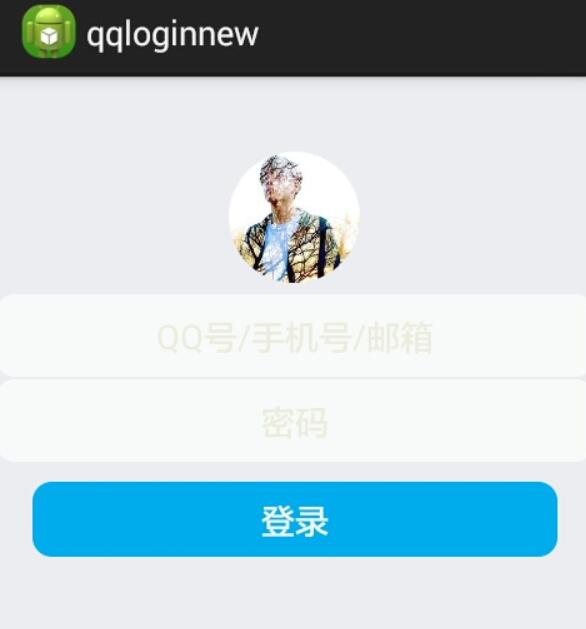
首先過程中碰到的幾個問題:
1、對 EditText 進行自定義背景
2、運行時自動 EditText 自動獲得焦點
3、在獲得焦點時即清空 hint ,而不是輸入後清空
4、清空按鈕的出現時機(在得到焦點並且有輸入內容時)
--- 這些問題都有一一解決 ---
以下是代碼:
布局 fragment_main(問題2)
<!-- android:focusable="true"
   android:focusableInTouchMode="true"
   把EditText默認的行為截斷了! -->
<RelativeLayout xmlns:android="http://schemas.android.com/apk/res/android"
  xmlns:tools="http://schemas.android.com/tools"
  android:layout_width="match_parent"
  android:layout_height="match_parent"
  android:background="#ECEDF1"
  android:focusable="true"
  android:focusableInTouchMode="true"
  tools:context="com.dragon.android.qqlogin.MainActivity$PlaceholderFragment" >

  <ImageView
    android:id="@+id/imageView1"
    android:layout_width="70dp"
    android:layout_height="70dp"
    android:layout_centerHorizontal="true"
    android:layout_marginBottom="5dp"
    android:layout_marginTop="40dp"
    android:src="@drawable/a" />

  <EditText
    android:id="@+id/editText1"
    android:layout_width="match_parent"
    android:layout_height="wrap_content"
    android:layout_below="@id/imageView1"
    android:ems="10"
    android:background="@drawable/bg_edittext"
    android:inputType="textPersonName"
    android:gravity="center"
    android:textColor="#6A6A6C"
    android:hint="@string/inaccount"
    android:textColorHint="#ECEDDD">
  </EditText>

  <EditText
    android:id="@+id/editText2"
    android:layout_width="match_parent"
    android:layout_height="wrap_content"
    android:layout_below="@id/editText1"
    android:ems="10"
    android:background="@drawable/bg_edittext"
    android:inputType="textPassword"
    android:gravity="center"
    android:textColor="#6A6A6C"
    android:hint="@string/inpwd"
    android:textColorHint="#ECEDDD" >
  </EditText>

  <Button
    android:id="@+id/button1"
    android:layout_width="match_parent"
    android:layout_height="40dp"
    android:layout_below="@id/editText2"
    android:layout_marginLeft="20dp"
    android:layout_marginRight="20dp"
    android:layout_marginTop="10dp"
    android:background="@drawable/bg_button"
    android:text="@string/button"
    android:gravity="center"
    android:textColor="#F9FAFB" />

  <LinearLayout
    android:layout_width="match_parent"
    android:layout_height="wrap_content"
    android:layout_alignParentBottom="true"
    android:padding="10dp" >

    <TextView
      android:id="@+id/textView2"
      android:layout_width="wrap_content"
      android:layout_height="wrap_content"
      android:gravity="center"
      android:text="@string/faillogin"
      android:textColor="#0EB1EF" />

    <TextView
      android:id="@+id/textView3"
      android:layout_width="match_parent"
      android:layout_height="wrap_content"
      android:gravity="right"
      android:text="@string/regist"
      android:textColor="#0EB1EF" />
  </LinearLayout>

  <Button
    android:id="@+id/button2"
    android:layout_width="16dp"
    android:layout_height="16dp"
    android:layout_alignTop="@id/editText1"
    android:layout_marginTop="15dp"
    android:layout_alignParentRight="true"
    android:layout_marginRight="10dp"
    android:background="@drawable/clear"
    android:visibility="invisible" />

  <Button
    android:id="@+id/button3"
    android:layout_width="16dp"
    android:layout_height="16dp"
    android:layout_alignTop="@id/editText2"
    android:layout_marginTop="15dp"
    android:layout_alignLeft="@+id/button2"
    android:background="@drawable/clear"
    android:visibility="invisible" />

</RelativeLayout>
Button 和 EditText 的背景(問題1)
1.bg_button
<?xml version="1.0" encoding="utf-8"?>
<shape xmlns:android="http://schemas.android.com/apk/res/android" >

  <stroke android:width="1px" android:color="#00ACED" />

  <solid android:color="#00ACED" />

  <corners android:radius="10dp" />

</shape>
2.bg_edittext
<?xml version="1.0" encoding="utf-8"?>
<shape xmlns:android="http://schemas.android.com/apk/res/android" >

  <stroke android:width="1px" android:color="#ECEDF1" />

  <solid android:color="#F9FAFB" />

  <corners android:radius="10dp" />

  <padding
    android:top="10dp"
    android:bottom="10dp"/>

</shape>
3.strings
<?xml version="1.0" encoding="utf-8"?>
<resources>

  <string name="app_name">qqloginnew</string>
  <string name="action_settings">Settings</string>
  <string name="button">登錄</string>
  <string name="faillogin">無法登錄?</string>
  <string name="regist">新用戶注冊</string>
  <string name="inaccount">QQ號/手機號/郵箱</string>
  <string name="inpwd">密碼</string>
  <string name="sucess">登錄成功</string>

</resources>
MainActivity (問題3、4.....)
package com.dragon.android.qqloginnew;

import android.app.Activity;
import android.os.Bundle;
import android.text.Editable;
import android.text.TextWatcher;
import android.view.View;
import android.view.View.OnClickListener;
import android.view.View.OnFocusChangeListener;
import android.widget.Button;
import android.widget.EditText;

public class MainActivity extends Activity {
  private EditText editText1;
  private EditText editText2;
  // private Button button;
  private Button clearButton1;
  private Button clearButton2;

  // 得到strings中的屬性
  // private String string2 = getResources().getString(R.string.inaccount);

  @Override
  protected void onCreate(Bundle savedInstanceState) {
    super.onCreate(savedInstanceState);
    setContentView(R.layout.fragment_main);

    editText1 = (EditText) findViewById(R.id.editText1);
    editText2 = (EditText) findViewById(R.id.editText2);

    // button = (Button) findViewById(R.id.button1);
    clearButton1 = (Button) findViewById(R.id.button2);
    clearButton2 = (Button) findViewById(R.id.button3);

    // 對EditText進行焦點變更監聽
    editText1.setOnFocusChangeListener(new EditTextListener(clearButton1));
    editText2.setOnFocusChangeListener(new EditTextListener(clearButton2));

    // 對清空按鈕進行點擊監聽
    clearButton1.setOnClickListener(new ClearButtonListener());
    clearButton2.setOnClickListener(new ClearButtonListener());

    // 對EditText進行編輯監聽
    editText1.addTextChangedListener(new MyEditTextWatcher(editText1));
    editText2.addTextChangedListener(new MyEditTextWatcher(editText2));
  }

  /**
   * 對EditText的內容進行實時監控
   *
   * @author Auser
   *
   */
  class MyEditTextWatcher implements TextWatcher {
    private CharSequence temp;
    private EditText editText;

    public MyEditTextWatcher(EditText editText) {
      this.editText = editText;
    }

    @Override
    // int start開始的位置, int count被改變的舊內容數, int after改變後的內容數量
    public void beforeTextChanged(CharSequence s, int start, int count,
        int after) {
      // 這裡的s表示改變之前的內容,通常start和count組合,可以在s中讀取本次改變字段中被改變的內容。而after表示改變後新的內容的數量。
    }

    @Override
    // int start開始的位置, int before改變前的內容數量, int count新增量
    public void onTextChanged(CharSequence s, int start, int before,
        int count) {
      // 這裡的s表示改變之後的內容,通常start和count組合,可以在s中讀取本次改變字段中新的內容。而before表示被改變的內容的數量。
      temp = s;
    }

    @Override
    // 表示最終內容
    public void afterTextChanged(Editable s) {
      if (temp.length() > 0) {
        // 設置清空按鈕為可見
        if (editText == editText1) {
          clearButton1.setVisibility(View.VISIBLE);
        } else if (editText == editText2) {
          clearButton2.setVisibility(View.VISIBLE);
        }
      } else {
        // 設置清空按鈕不可見
        if (editText == editText1) {
          clearButton1.setVisibility(View.INVISIBLE);
        } else if (editText == editText2) {
          clearButton2.setVisibility(View.INVISIBLE);
        }
      }
    }
  }

  /**
   * 清空按鈕點擊事件
   *
   * @author
   *
   */
  class ClearButtonListener implements OnClickListener {

    @Override
    public void onClick(View view) {
      if (view == clearButton1) {
        editText1.setText("");
      } else if (view == clearButton2) {
        editText2.setText("");
      }
    }
  }

  /**
   * 焦點變更事件
   *
   * @author Auser
   *
   */
  class EditTextListener implements OnFocusChangeListener {
    private Button clear;

    public EditTextListener(Button clear) {
      this.clear = clear;
    }

    @Override
    public void onFocusChange(View v, boolean hasFocus) {
      EditText textView = (EditText) v;
      String hint;
      if (hasFocus) {
        // 當獲取焦點時如果內容不為空則清空按鈕可見
        if (!textView.getText().toString().equals("")) {
          clear.setVisibility(View.VISIBLE);
        }
        // if (textView == editText2) {
        // // 設置輸入格式為不可見的密碼格式
        // textView.setInputType(InputType.TYPE_CLASS_TEXT
        // | InputType.TYPE_TEXT_VARIATION_PASSWORD);
        // }
        hint = textView.getHint().toString();
        // 給TextView添加額外的數據
        textView.setTag(hint);
        textView.setHint("");
      } else {
        // 當失去焦點時清空按鈕不可見
        clear.setVisibility(View.INVISIBLE);
        // if (textView == editText2) {
        // // 設置輸入格式為可見的密碼格式
        // textView.setInputType(InputType.TYPE_CLASS_TEXT
        // | InputType.TYPE_TEXT_VARIATION_VISIBLE_PASSWORD);
        // }
        // 取出之前添加的額外數據
        hint = textView.getTag().toString();
        textView.setHint(hint);
      }
    }
  }
}
以上就是本文的全部內容,希望對大家的學習有所幫助,也希望大家多多支持本站。
 淺析安卓(Android)的性能優化
Android性能的優化主要分為兩點1、布局優化2、內存優化布局優化首先來看一下布局優化,系統在渲染UI的時候會消耗大量的資源,所以,對布局的優化就顯得尤為重要避免Ove
 基於Android的mvc、mvp以及mvvm架構分析(上)
前言:工欲善其事,必先利其器,工作一段時間後,對於以上十個字的感觸是最深的。剛參加工作的時候,並沒有對於要做的事情有著自己的理解,經常是上面分配了工作,自己就乖乖地跑去做
 Android PopupWindow使用示例
示例效果如下: MainActivity.xml package sn.qdj.popupwindowdemo; import android.su
 Android自定義View實現縱向跑馬燈效果詳解
首先看看效果圖(錄制的gif有點卡,真實的效果還是很流暢的)實現思路通過上面的gif圖可以得出結論,其實它就是同時繪制兩條文本信息,然後通過動畫不斷的改變兩條文本信息距離