編輯:關於Android編程
public BitmapShader(Bitmap bitmap,Shader.TileMode tileX,Shader.TileMode tileY)
調用這個類來產生一個畫有一個位圖的渲染器(Shader)。
bitmap:在渲染器內使用的位圖
(1)tileX:The tiling mode for x to draw the bitmap in. 在位圖上X方向花磚模式
(2)tileY:The tiling mode for y to draw the bitmap in. 在位圖上Y方向花磚模式
TileMode:(一共有三種)
(1)CLAMP:如果渲染器超出原始邊界范圍,會復制范圍內邊緣染色。
(2)REPEAT:橫向和縱向的重復渲染器圖片,平鋪。
(3)MIRROR:橫向和縱向的重復渲染器圖片,這個和REPEAT 重復方式不一樣,他是以鏡像方式平鋪。
還是不太明白?那看一下效果圖吧!
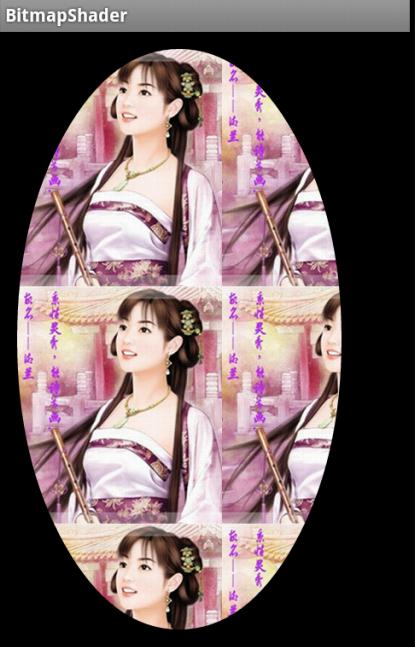
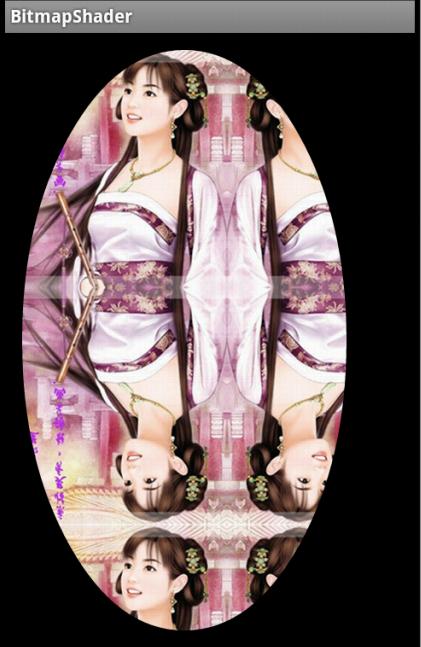
對於我們的圓角,以及圓形,我們設置的模式都是CLAMP ,但是你會不會會有一個疑問:
view的寬或者高大於我們的bitmap寬或者高豈不是會拉伸?
嗯,我們會為BitmapShader設置一個matrix,去適當的放大或者縮小圖片,不會讓“ view的寬或者高大於我們的bitmap寬或者高 ”此條件成立的。
到此我們的原理基本介紹完畢了,拿到drawable轉化為bitmap,然後直接初始化BitmapShader,畫筆設置Shader,最後在onDraw裡面進行畫圓就行了。
基本用法及實例
首先就來看看利用BitmapShader實現的圓形或者圓角。
我們這裡直接繼承ImageView,這樣大家設置圖片的代碼會比較熟悉;但是我們需要支持兩種模式,那麼就需要自定義屬性了:
1、自定義屬性
values/attr.xml
<?xml version="1.0" encoding="utf-8"?>
<resources>

 <attr name="borderRadius" format="dimension" />
 <attr name="type">
  <enum name="circle" value="0" />
  <enum name="round" value="1" />
 </attr>


 <declare-styleable name="RoundImageView">
  <attr name="borderRadius" />
  <attr name="type" />
 </declare-styleable>

</resources>
我們定義了一個枚舉和一個圓角的大小borderRadius。
2、獲取自定義屬性
public class RoundImageView extends ImageView
{

 /**
  * 圖片的類型,圓形or圓角
  */
 private int type;
 private static final int TYPE_CIRCLE = 0;
 private static final int TYPE_ROUND = 1;

 /**
  * 圓角大小的默認值
  */
 private static final int BODER_RADIUS_DEFAULT = 10;
 /**
  * 圓角的大小
  */
 private int mBorderRadius;

 /**
  * 繪圖的Paint
  */
 private Paint mBitmapPaint;
 /**
  * 圓角的半徑
  */
 private int mRadius;
 /**
  * 3x3 矩陣,主要用於縮小放大
  */
 private Matrix mMatrix;
 /**
  * 渲染圖像,使用圖像為繪制圖形著色
  */
 private BitmapShader mBitmapShader;
 /**
  * view的寬度
  */
 private int mWidth;
 private RectF mRoundRect;

 public RoundImageView(Context context, AttributeSet attrs)
 {
  super(context, attrs);
  mMatrix = new Matrix();
  mBitmapPaint = new Paint();
  mBitmapPaint.setAntiAlias(true);

  TypedArray a = context.obtainStyledAttributes(attrs,
    R.styleable.RoundImageView);

  mBorderRadius = a.getDimensionPixelSize(
    R.styleable.RoundImageView_borderRadius, (int) TypedValue
      .applyDimension(TypedValue.COMPLEX_UNIT_DIP,
        BODER_RADIUS_DEFAULT, getResources()
          .getDisplayMetrics()));// 默認為10dp
  type = a.getInt(R.styleable.RoundImageView_type, TYPE_CIRCLE);// 默認為Circle

  a.recycle();
 }
可以看到我們的一些成員變量,基本都加了注釋;然後在構造方法中獲取了我們的自定義屬性,以及部分變量的初始化。
3、onMeasure
@Override
 protected void onMeasure(int widthMeasureSpec, int heightMeasureSpec)
 {
  Log.e("TAG", "onMeasure");
  super.onMeasure(widthMeasureSpec, heightMeasureSpec);

  /**
   * 如果類型是圓形,則強制改變view的寬高一致,以小值為准
   */
  if (type == TYPE_CIRCLE)
  {
   mWidth = Math.min(getMeasuredWidth(), getMeasuredHeight());
   mRadius = mWidth / 2;
   setMeasuredDimension(mWidth, mWidth);
  }

 }
我們復寫了onMeasure方法,主要用於當設置類型為圓形時,我們強制讓view的寬和高一致。
接下來只剩下設置BitmapShader和繪制了
4、設置BitmapShader
/**
  * 初始化BitmapShader
  */
 private void setUpShader()
 {
  Drawable drawable = getDrawable();
  if (drawable == null)
  {
   return;
  }

  Bitmap bmp = drawableToBitamp(drawable);
  // 將bmp作為著色器,就是在指定區域內繪制bmp
  mBitmapShader = new BitmapShader(bmp, TileMode.CLAMP, TileMode.CLAMP);
  float scale = 1.0f;
  if (type == TYPE_CIRCLE)
  {
   // 拿到bitmap寬或高的小值
   int bSize = Math.min(bmp.getWidth(), bmp.getHeight());
   scale = mWidth * 1.0f / bSize;

  } else if (type == TYPE_ROUND)
  {
   // 如果圖片的寬或者高與view的寬高不匹配,計算出需要縮放的比例;縮放後的圖片的寬高,一定要大於我們view的寬高;所以我們這裡取大值;
   scale = Math.max(getWidth() * 1.0f / bmp.getWidth(), getHeight()
     * 1.0f / bmp.getHeight());
  }
  // shader的變換矩陣,我們這裡主要用於放大或者縮小
  mMatrix.setScale(scale, scale);
  // 設置變換矩陣
  mBitmapShader.setLocalMatrix(mMatrix);
  // 設置shader
  mBitmapPaint.setShader(mBitmapShader);
 }
在setUpShader中,首先對drawable轉化為我們的bitmap;
然後初始化
mBitmapShader = new BitmapShader(bmp, TileMode.CLAMP, TileMode.CLAMP);
接下來,根據類型以及bitmap和view的寬高,計算scale;
關於scale的計算:
(1)圓形時:取bitmap的寬或者高的小值作為基准,如果采用大值,縮放後肯定不能填滿我們的圓形區域。然後,view的mWidth/bSize ; 得到的就是scale。
(2)圓角時:因為設計到寬/高比例,我們分別getWidth() * 1.0f / bmp.getWidth() 和 getHeight() * 1.0f / bmp.getHeight() ;最終取大值,因為我們要讓最終縮放完成的圖片一定要大於我們的view的區域,有點類似centerCrop;
(3)比如:view的寬高為10*20;圖片的寬高為5*100 ; 最終我們應該按照寬的比例放大,而不是按照高的比例縮小;因為我們需要讓縮放後的圖片,自定大於我們的view寬高,並保證原圖比例。
有了scale,就可以設置給我們的matrix;
然後使用mBitmapShader.setLocalMatrix(mMatrix);
最後將bitmapShader設置給paint。
關於drawable轉bitmap的代碼:
/**
  * drawable轉bitmap
  *
  * @param drawable
  * @return
  */
 private Bitmap drawableToBitamp(Drawable drawable)
 {
  if (drawable instanceof BitmapDrawable)
  {
   BitmapDrawable bd = (BitmapDrawable) drawable;
   return bd.getBitmap();
  }
  int w = drawable.getIntrinsicWidth();
  int h = drawable.getIntrinsicHeight();
  Bitmap bitmap = Bitmap.createBitmap(w, h, Bitmap.Config.ARGB_8888);
  Canvas canvas = new Canvas(bitmap);
  drawable.setBounds(0, 0, w, h);
  drawable.draw(canvas);
  return bitmap;
 }
最後我們會在onDraw裡面調用setUpShader(),然後進行繪制。
5、繪制
到此,就剩下最後一步繪制了,因為我們的范圍,以及縮放都完成了,所以真的只剩下繪制了。
@Override
 protected void onDraw(Canvas canvas)
 {
  if (getDrawable() == null)
  {
   return;
  }
  setUpShader();

  if (type == TYPE_ROUND)
  {
   canvas.drawRoundRect(mRoundRect, mBorderRadius, mBorderRadius,
     mBitmapPaint);
  } else
  {
   canvas.drawCircle(mRadius, mRadius, mRadius, mBitmapPaint);
   // drawSomeThing(canvas);
  }
 }

 @Override
 protected void onSizeChanged(int w, int h, int oldw, int oldh)
 {
  super.onSizeChanged(w, h, oldw, oldh);
  // 圓角圖片的范圍
  if (type == TYPE_ROUND)
   mRoundRect = new RectF(0, 0, getWidth(), getHeight());
 }
繪制就很簡單了,畫個圓,圓角矩形什麼的。圓角矩形的限定范圍mRoundRect在onSizeChanged裡面進行了初始化。
6、狀態的存儲與恢復
當然了,如果內存不足,而恰好我們的Activity置於後台,不幸被重啟,或者用戶旋轉屏幕造成Activity重啟,我們的View應該也能盡可能的去保存自己的屬性。
狀態保存什麼用處呢?比如,現在一個的圓角大小是10dp,用戶點擊後變成50dp;當用戶旋轉以後,或者長時間置於後台以後,返回我們的Activity應該還是50dp;
我們簡單的存儲一下,當前的type以及mBorderRadius
private static final String STATE_INSTANCE = "state_instance";
 private static final String STATE_TYPE = "state_type";
 private static final String STATE_BORDER_RADIUS = "state_border_radius";

 @Override
 protected Parcelable onSaveInstanceState()
 {
  Bundle bundle = new Bundle();
  bundle.putParcelable(STATE_INSTANCE, super.onSaveInstanceState());
  bundle.putInt(STATE_TYPE, type);
  bundle.putInt(STATE_BORDER_RADIUS, mBorderRadius);
  return bundle;
 }

 @Override
 protected void onRestoreInstanceState(Parcelable state)
 {
  if (state instanceof Bundle)
  {
   Bundle bundle = (Bundle) state;
   super.onRestoreInstanceState(((Bundle) state)
     .getParcelable(STATE_INSTANCE));
   this.type = bundle.getInt(STATE_TYPE);
   this.mBorderRadius = bundle.getInt(STATE_BORDER_RADIUS);
  } else
  {
   super.onRestoreInstanceState(state);
  }

 }
代碼比較簡單。我們文章中的demo中,第一個,第四個是可以點擊的,點擊後會發生變化,你可以點擊後,然後旋轉屏幕進行測試。
同時我們也對外公布了兩個方法,用於動態修改圓角大小和type
public void setBorderRadius(int borderRadius)
 {
  int pxVal = dp2px(borderRadius);
  if (this.mBorderRadius != pxVal)
  {
   this.mBorderRadius = pxVal;
   invalidate();
  }
 }

 public void setType(int type)
 {
  if (this.type != type)
  {
   this.type = type;
   if (this.type != TYPE_ROUND && this.type != TYPE_CIRCLE)
   {
    this.type = TYPE_CIRCLE;
   }
   requestLayout();
  }

 }

 public int dp2px(int dpVal)
 {
  return (int) TypedValue.applyDimension(TypedValue.COMPLEX_UNIT_DIP,
    dpVal, getResources().getDisplayMetrics());
 }
最後貼一下我們的布局文件和MainActivity。
6、調用
布局文件:
<ScrollView xmlns:android="http://schemas.android.com/apk/res/android"
 xmlns:tools="http://schemas.android.com/tools"
 xmlns:zhy="http://schemas.android.com/apk/res/com.zhy.variousshapeimageview"
 android:layout_width="match_parent"
 android:layout_height="wrap_content" >

 <LinearLayout
  android:layout_width="match_parent"
  android:layout_height="match_parent"
  android:orientation="vertical" >

  <com.zhy.view.RoundImageView
   android:id="@+id/id_qiqiu"
   android:layout_width="wrap_content"
   android:layout_height="wrap_content"
   android:layout_margin="10dp"
   android:src="@drawable/qiqiu" >
  </com.zhy.view.RoundImageView>

  <com.zhy.view.RoundImageView
   android:layout_width="200dp"
   android:layout_height="200dp"
   android:layout_margin="10dp"
   android:src="@drawable/aa" >
  </com.zhy.view.RoundImageView>

  <com.zhy.view.RoundImageView
   android:layout_width="wrap_content"
   android:layout_height="wrap_content"
   android:layout_margin="10dp"
   android:src="@drawable/icon" >
  </com.zhy.view.RoundImageView>

  <com.zhy.view.RoundImageView
   android:id="@+id/id_meinv"
   android:layout_width="wrap_content"
   android:layout_height="wrap_content"
   android:layout_margin="10dp"
   android:src="@drawable/aa"
   zhy:borderRadius="20dp"
   zhy:type="round" >
  </com.zhy.view.RoundImageView>

  <com.zhy.view.RoundImageView
   android:layout_width="wrap_content"
   android:layout_height="wrap_content"
   android:layout_margin="10dp"
   android:src="@drawable/icon"
   zhy:borderRadius="40dp"
   zhy:type="round" >
  </com.zhy.view.RoundImageView>

  <com.zhy.view.RoundImageView
   android:layout_width="wrap_content"
   android:layout_height="wrap_content"
   android:layout_margin="10dp"
   android:src="@drawable/qiqiu"
   zhy:borderRadius="60dp"
   zhy:type="round" >
  </com.zhy.view.RoundImageView>
 </LinearLayout>

</ScrollView>
沒撒,ScrollView裡面一個線性布局,裡面一堆RoundImageView。
MainActivity
package com.zhy.variousshapeimageview;

import android.app.Activity;
import android.os.Bundle;
import android.view.View;
import android.view.View.OnClickListener;

import com.zhy.view.RoundImageView;

public class MainActivity extends Activity
{
 private RoundImageView mQiQiu;
 private RoundImageView mMeiNv ;

 @Override
 protected void onCreate(Bundle savedInstanceState)
 {
  super.onCreate(savedInstanceState);
  setContentView(R.layout.activity_main);

  mQiQiu = (RoundImageView) findViewById(R.id.id_qiqiu);
  mMeiNv = (RoundImageView) findViewById(R.id.id_meinv);

  mQiQiu.setOnClickListener(new OnClickListener()
  {
   @Override
   public void onClick(View v)
   {
    mQiQiu.setType(RoundImageView.TYPE_ROUND);
   }
  });

  mMeiNv.setOnClickListener(new OnClickListener()
  {

   @Override
   public void onClick(View v)
   {
    mMeiNv.setBorderRadius(90);
   }
  });
 }

}
最後的效果圖:

 Android-PullToRefresh下拉刷新庫基本用法
PullToRefresh是一套實現非常好的下拉刷新庫,它支持: ListView ExpandableListView GridView WebView ScrollV
 RxJava(RxAndroid)線程切換機制
自從項目中使用RxJava以來,可以很方便的切換線程。至於是怎麼實現的,一直沒有深入的研究過!本篇文章就是分析RxJava的線程模型。 RxJava基本使用 先上一個
 【Android】掌握自定義LayoutManager(一) 系列開篇 常見誤區、問題、注意事項,常用API。
概述這篇文章是深入掌握自定義LayoutManager系列的開篇,是一份總結報告。部分內容不屬於引言、過於深入,用作系列後續文章的參考,以及浏覽完後的復習之用。本文內容涉
 Android Mediaplayer本地音樂播放器(綁定服務)
本文章介紹MediaPlayer本地音樂播放器,而當應用程序不再位於前台且沒有正在使用它的活動時,為了確保音頻繼續播放,我們需要建立一個服務Service。 Activi