編輯:關於Android編程
先來看看效果圖
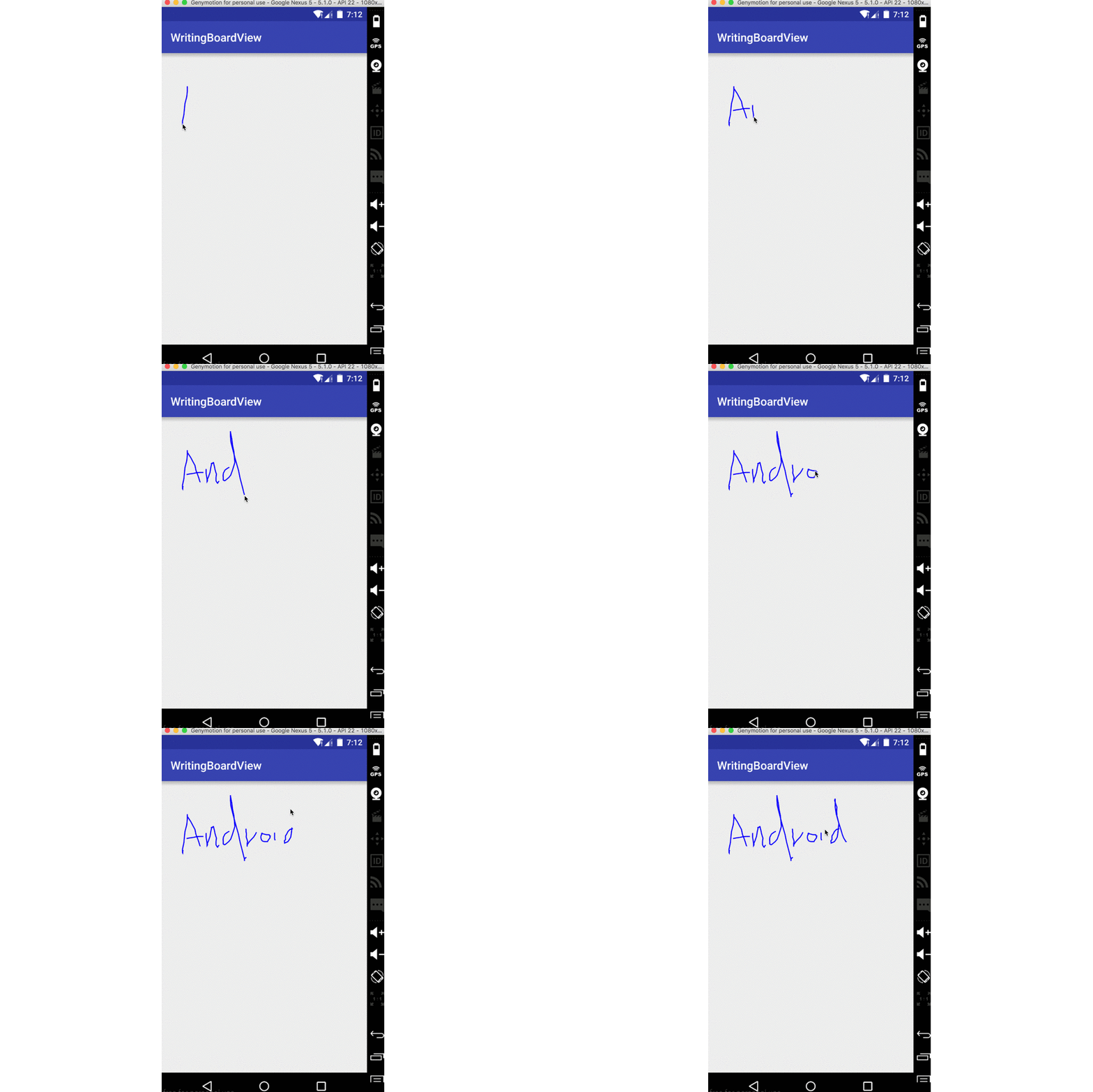
就是簡單的根據手指寫下的軌跡去畫出內容
一、實現
之前一篇文章裡提到了android官方給出的自定義控件需要考慮以下幾點:
創建View
處理View的布局
繪制View
與用戶進行交互
優化已定義的View
就按照這個步驟來完成今天的自定義控件
1、創建View
上篇提到創建View這一步的時候要考慮的就是很簡單的自定義屬性的聲明、使用。
今天的控件可以有一些什麼自定義屬性呢?要實現寫字板,其實就是三個東西:寫字板的顏色、筆的顏色、筆的粗細。所以接下來自定義屬性。
<?xml version="1.0" encoding="utf-8"?>
<resources>

  <declare-styleable name="WritingBoardView">
    <attr name="boardBackground" format="color"></attr> <!--畫板顏色-->
    <attr name="paintColor" format="color"></attr> <!--畫筆顏色-->
    <attr name="paintWidth" format="dimension"></attr> <!--畫筆寬度-->
  </declare-styleable>
</resources>
定義了就是為了要使用
<?xml version="1.0" encoding="utf-8"?>
<RelativeLayout xmlns:android="http://schemas.android.com/apk/res/android"
  xmlns:tools="http://schemas.android.com/tools"
  android:layout_width="match_parent"
  android:layout_height="match_parent"
  xmlns:custom="http://schemas.android.com/apk/res-auto"
  android:paddingBottom="@dimen/activity_vertical_margin"
  android:paddingLeft="@dimen/activity_horizontal_margin"
  android:paddingRight="@dimen/activity_horizontal_margin"
  android:paddingTop="@dimen/activity_vertical_margin"
  tools:context="com.qiangyu.test.writingboardview.MainActivity">

  <com.qiangyu.test.writingboardview.view.WritingBoardView
    android:layout_width="match_parent"
    android:layout_height="match_parent"
    custom:paintColor="@color/colorAccent"
    custom:boardBackground="@color/colorPrimary"
    custom:paintWidth="3dp"/>
</RelativeLayout>
簡單的設置了boardBackground、paintWidth和paintColor屬性
使用這裡只需要注意命名空間,android提供給我們的用android,我們可以自定義我們屬性的命名空間
寫法為:xmlns:你取的名=”http://schemas.android.com/apk/res-auto”,這裡的res-auto可以換成你控件的包名
在XML布局文件中設置的屬性要在自定義屬性中獲取到,所以我們必須實現帶有Context, AttributeSet的構造方法
  private int mBoardBackground;//畫板顏色
  private int mPaintColor;//畫筆顏色
  private int mPaintWidth;//畫筆寬度
  private Path mPath;
  private Paint mPaint;//畫筆

  public WritingBoardView(Context context) {
    this(context,null);
  }

  public WritingBoardView(Context context, AttributeSet attrs) {
    this(context, attrs,0);
  }

  public WritingBoardView(Context context, AttributeSet attrs, int defStyleAttr) {
    super(context, attrs, defStyleAttr);
    init(context,attrs);
  }


 private void init(Context context,AttributeSet attrs) {
    TypedArray a = context.obtainStyledAttributes(attrs,R.styleable.WritingBoardView);
    mBoardBackground =  a.getColor(R.styleable.WritingBoardView_boardBackground,Color.WHITE);
    mPaintColor =  a.getColor(R.styleable.WritingBoardView_paintColor,Color.BLUE);
    mPaintWidth = a.getDimensionPixelSize(R.styleable.WritingBoardView_paintWidth,
        (int) TypedValue.applyDimension(TypedValue.COMPLEX_UNIT_DIP,5,getResources().getDisplayMetrics()));
    a.recycle();
    mPaint = new Paint();
    mPath = new Path();
    setBackgroundColor(mBoardBackground);
    mPaint.setColor(mPaintColor);
    mPaint.setStrokeWidth(mPaintWidth);
    mPaint.setStyle(Paint.Style.STROKE);
    mPaint.setAntiAlias(true);
  }
上面代碼確保了每個構造方法最終都調用了第三個構造方法裡的init(context,attrs) 方法來獲取自定義屬性和初始化一些信息
通過固定的寫法、簡單的獲取到自定義屬性,並且給當前view設置背景、為Paint設置了樣式和顏色。完成寫字板很重要的就是這裡的Path類。
先來介紹一下Path類
看構造方法的注釋
/**
 * The Path class encapsulates compound (multiple contour) geometric paths
 * consisting of straight line segments, quadratic curves, and cubic curves.
 * It can be drawn with canvas.drawPath(path, paint), either filled or stroked
 * (based on the paint's Style), or it can be used for clipping or to draw
 * text on a path.
 */
public class Path {

  ...

}
大體就是說Path封裝了由了直線和各種曲線組成幾何圖形信息。我們可以調用canvas通過drawPath方法來畫一些東西。
我們最終的draw就是需要用到drawPath
Path裡包含了很多設置幾何圖形的方法如addRect、addArc。
今天重點說用到的兩個方法:
 /**
   * Set the beginning of the next contour to the point (x,y).
   *
   * @param x The x-coordinate of the start of a new contour
   * @param y The y-coordinate of the start of a new contour
   */
  public void moveTo(float x, float y) {
    native_moveTo(mNativePath, x, y);
  }
moveTo方法就是設置下一個連線或者圖形最開始的位置。
/**
   * Add a line from the last point to the specified point (x,y).
   * If no moveTo() call has been made for this contour, the first point is
   * automatically set to (0,0).
   *
   * @param x The x-coordinate of the end of a line
   * @param y The y-coordinate of the end of a line
   */
  public void lineTo(float x, float y) {
    isSimplePath = false;
    native_lineTo(mNativePath, x, y);
  }
lineTo方法簡單的添加一條上一個點到當前點的線。
有了這兩個方法我們就可以實線寫字板了
2、處理View的布局
由於這個自定義控件本身就需要一塊內容當寫字板,所以就不用特別的布局處理了,只是在mode為UNSPECIFIED的時候可能會導致布局顯示不出來。
在這裡就不進行特殊處理了。
3、繪制View、與用戶進行交互
由於該控件本身就需要交互才產生效果,所以之前的兩步放在一起考慮了。
上面說到過Canvas有一個drawPath方法。drawPath最後繪制出來什麼樣其實是看Path裡包含的信息。
我們要實現實時顯示手寫的內容,只需要在滑動的時候獲取的坐標通過Path的lineTo方法將線一點一點的連起來。
當手指抬起再落下的時候應該又是一條新的線,所以在落下的時候我們需要調用moveTo方法來為下一條軌跡設置一個起點。
 @Override
  public boolean onTouchEvent(MotionEvent event) {
    float touchX = event.getX();
    float touchY = event.getY();
    switch (event.getAction()){
      case MotionEvent.ACTION_DOWN:
        mPath.moveTo(touchX,touchY);//重新設置即將出現的線的起點
        break;
      case MotionEvent.ACTION_MOVE:
        mPath.lineTo(touchX,touchY);//連線
        break;
      case MotionEvent.ACTION_UP:
        break;
    }
    invalidate();//通知系統重繪
    return true;//要處理當前事件
  }
在onTouch中return true表示要處理當前事件。並且在每一次操作調用invalidate來繪制界面,我們的onDraw 方法只需要簡單的調用drawPath就可以了
 @Override
  protected void onDraw(Canvas canvas) {
    super.onDraw(canvas);
    canvas.drawPath(mPath,mPaint);
  }
總結
其實就是通過手指的觸摸事件來控制軌跡的改變,按照固定的模式,一個簡單的自定義控件就大功告成啦!
一個簡單的寫字板就基本完成了,當然你感興趣可以擴展一下,加上在運行時改變畫筆的顏色、畫板的顏色。添加字體擦除去的功能。
 Android中AlertDialog各種對話框的用法實例詳解
目標效果: 程序運行,顯示圖一的幾個按鈕,點擊按鈕分別顯示圖二到圖六的對話框,點擊對話框的某一項或者按鈕,也會顯示相應的吐司輸出。1.activity_
 Android開發之DatePicker控件與TimePicker控件
DatePicker控件繼承自FrameLayout類,日期選擇控件的主要功能是向用戶提供包含年、月、日的日期數據並允許用戶對其修改。TimePicker控件繼承自Fra
 Android 3D emulation 架構理解
Android Emulator 給用戶提供 GPU on 選項,意思是利用 Host ( 就是運行 Emulator 的PC機) 的 GPU. 當然PC機必須把 Op
 monkeyrunner 腳本錄制實例詳解
monkeyrunner腳本錄制1.在窗口輸入 monkeyrunner monkey_recorder.py 調用錄制腳本工具2.在窗口輸入 monkeyr