編輯:關於Android編程
Android動畫的一個實戰內容,從屏幕底部滑動彈出PopupWindow。 相信這種效果大家在很多APP上都遇到過,比如需要拍照或者從SD卡選擇圖片,再比如需要分享某些東西時,大多會采用這麼一種效果:

那這種效果如何實現呢?
我們仿寫一個這種效果的實例吧:
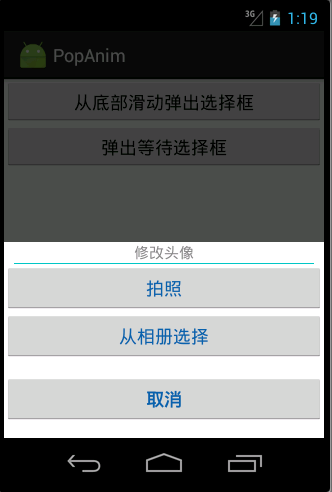
1)我們首先定義一下,彈出窗口的頁面布局組件:take_photo_pop.xml
<?xml version="1.0" encoding="utf-8"?>
<RelativeLayout xmlns:android="http://schemas.android.com/apk/res/android"
  android:layout_width="fill_parent"
  android:layout_height="wrap_content"
  android:gravity="center_horizontal"
  android:orientation="vertical">

  <LinearLayout
    android:id="@+id/pop_layout"
    android:layout_width="fill_parent"
    android:layout_height="wrap_content"
    android:background="#ffffff"
    android:layout_alignParentBottom="true"
    android:gravity="center_horizontal"
    android:orientation="vertical">

    <TextView
      android:layout_width="fill_parent"
      android:layout_height="wrap_content"
      android:clickable="false"
      android:gravity="center"
      android:text="修改頭像"
      android:textColor="#8a8a8a"
      android:textSize="15sp" />

    <View
      android:layout_width="fill_parent"
      android:layout_height="0.1dp"
      android:layout_marginLeft="10dp"
      android:layout_marginRight="10dp"
      android:background="#00c7c0" />

    <Button
      android:id="@+id/btn_take_photo"
      android:layout_width="fill_parent"
      android:layout_height="wrap_content"
      android:text="拍照"
      android:textColor="#0e61aa"
      android:textSize="18sp" />

    <Button
      android:id="@+id/btn_pick_photo"
      android:layout_width="fill_parent"
      android:layout_height="wrap_content"
      android:text="從相冊選擇"
      android:textColor="#0e61aa"
      android:textSize="18sp" />

    <Button
      android:id="@+id/btn_cancel"
      android:layout_width="fill_parent"
      android:layout_height="wrap_content"
      android:layout_marginBottom="15dip"
      android:layout_marginTop="15dip"
      android:text="取消"
      android:textColor="#0e61aa"
      android:textSize="18sp"
      android:text />
  </LinearLayout>

</RelativeLayout>
2)現在定義動畫,要知道該Popupwindow出現時是從頁面底部向上滑動,消失時是從上向下滑動消失,,所以我們需要定義兩個動畫文件:
退出動畫pop_exit_anim.xml
<?xml version="1.0" encoding="utf-8"?>
<set xmlns:android="http://schemas.android.com/apk/res/android">
  <translate
    android:duration="200"
    android:fromYDelta="0"
    android:toYDelta="50%p" />
  <alpha
    android:duration="200"
    android:fromAlpha="1.0"
    android:toAlpha="0.0" />
</set>
顯示動畫pop_enter_anim.xml
<?xml version="1.0" encoding="utf-8"?>
<set xmlns:android="http://schemas.android.com/apk/res/android">

  <translate
    android:duration="200"
    android:fromYDelta="100%p"
    android:toYDelta="0" />
  <alpha
    android:duration="200"
    android:fromAlpha="0.0"
    android:toAlpha="1.0" />
</set>
關於這兩個動畫,此處不再多做解析,讀過我之前博文的都應該知道啦,很簡單的,若是看不懂?請點擊此文上方的鏈接學習之。
3)自定義彈出框Popupwindow:
import android.content.Context;
import android.graphics.drawable.ColorDrawable;
import android.view.LayoutInflater;
import android.view.MotionEvent;
import android.view.View;
import android.widget.Button;
import android.widget.PopupWindow;
import android.widget.RelativeLayout;

public class TakePhotoPopWin extends PopupWindow {

  private Context mContext;

  private View view;

  private Button btn_take_photo, btn_pick_photo, btn_cancel;


  public TakePhotoPopWin(Context mContext, View.OnClickListener itemsOnClick) {

    this.view = LayoutInflater.from(mContext).inflate(R.layout.take_photo_pop, null);

    btn_take_photo = (Button) view.findViewById(R.id.btn_take_photo);
    btn_pick_photo = (Button) view.findViewById(R.id.btn_pick_photo);
    btn_cancel = (Button) view.findViewById(R.id.btn_cancel);
    // 取消按鈕
    btn_cancel.setOnClickListener(new View.OnClickListener() {

      public void onClick(View v) {
        // 銷毀彈出框
        dismiss();
      }
    });
    // 設置按鈕監聽
    btn_pick_photo.setOnClickListener(itemsOnClick);
    btn_take_photo.setOnClickListener(itemsOnClick);

    // 設置外部可點擊
    this.setOutsideTouchable(true);
    // mMenuView添加OnTouchListener監聽判斷獲取觸屏位置如果在選擇框外面則銷毀彈出框
    this.view.setOnTouchListener(new View.OnTouchListener() {

      public boolean onTouch(View v, MotionEvent event) {

        int height = view.findViewById(R.id.pop_layout).getTop();

        int y = (int) event.getY();
        if (event.getAction() == MotionEvent.ACTION_UP) {
          if (y < height) {
            dismiss();
          }
        }
        return true;
      }
    });


    /* 設置彈出窗口特征 */
    // 設置視圖
    this.setContentView(this.view);
    // 設置彈出窗體的寬和高
    this.setHeight(RelativeLayout.LayoutParams.MATCH_PARENT);
    this.setWidth(RelativeLayout.LayoutParams.MATCH_PARENT);

    // 設置彈出窗體可點擊
    this.setFocusable(true);

    // 實例化一個ColorDrawable顏色為半透明
    ColorDrawable dw = new ColorDrawable(0xb0000000);
    // 設置彈出窗體的背景
    this.setBackgroundDrawable(dw);

    // 設置彈出窗體顯示時的動畫,從底部向上彈出
    this.setAnimationStyle(R.style.take_photo_anim);

  }
}
定義要彈出的組件TakePhotoPopWin,它繼承自PopupWindow,具體如何實現的,我備注信息很詳細了。 有一個地方要提醒的是,就是最後要設置彈出窗體的顯示動畫,this.setAnimationStyle(R.style.take_photo_anim); 這是必不可少的,只有加上了它,才能應用動畫效果!
看下take_photo_anim style的定義:
<style name="take_photo_anim" parent="android:Animation">
    <item name="android:windowEnterAnimation">@anim/pop_enter_anim</item>
    <item name="android:windowExitAnimation">@anim/pop_exit_anim</item>
</style>
就這麼幾步,一個可以從屏幕底部滑動彈出的組件
public void showPopFormBottom(View view) {
  TakePhotoPopWin takePhotoPopWin = new TakePhotoPopWin(this, onClickListener);
  //showAtLocation(View parent, int gravity, int x, int y)
  takePhotoPopWin.showAtLocation(findViewById(R.id.main_view), Gravity.CENTER, 0, 0);
}

private View.OnClickListener onClickListener = new View.OnClickListener() {
  @Override
  public void onClick(View v) {

    switch (v.getId()) {
      case R.id.btn_take_photo:
        System.out.println("btn_take_photo");
        break;
      case R.id.btn_pick_photo:
        System.out.println("btn_pick_photo");
        break;
    }
  }
};
這下子,效果就和我一開始傳的圖一致啦!有木有學會了呢!?
拓展:
玩過APP的大家都知道,在你進入新頁面或者注冊登錄啥的時候,都會彈出一個等待的框框,表示網絡請求中,你需要耐心等待下,比如微信的等待請求框效果如下:
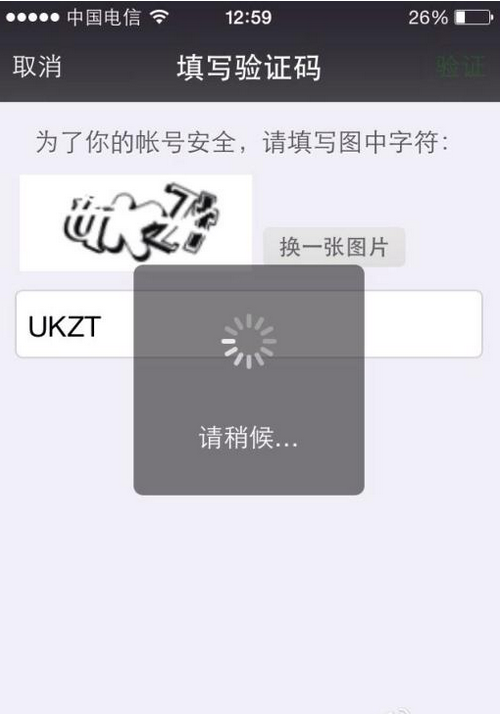
這裡面其中也有個地方用到了動畫,那就是不停旋轉的那個小圖標,它其實用的就是旋轉動畫!
關於如何實現這麼樣一個旋轉等待框,我以前寫過一篇介紹的文章,可查看: 《Android自定義ProgressDialog進度等待框》
 Android activity四大啟動模式詳解
Activity中四大啟動模式 在AndroidManifest.xml中 ,有一個默認的activity 在它裡面可以設置activity啟動模式, android
 理解Volley -- Android 學習之路
介紹Android中的網絡請求一般就是兩種 HttpURLConnection 和HttpClient,不論是哪一種在使用的時候都是經過一系列的封裝 很繁瑣有沒有,而Go
 百度有錢花怎麼分期 百度有錢花怎麼還款詳細介紹
百度有錢花是百度金融旗下的消費金融品牌,是面向大眾的個人消費金融權益平台,打造創新消費信貸模式,目前已經在多個產業進行探索和布局,其教育信貸業務開通了遠程異
 Cocos移植到Android的一些問題-中文亂碼問題
Android平台版本和設備碎片化很嚴重,因此從Win32平台移植到Android平台會有很多問題,下面是我們歸納的從Win32平台移植到Android平台遇到的一些問題
 android Unable toexecute dex: method ID not in [0, 0xffff]: 65536問題
作為一名Android開發者,相信你對Android方法數不能超過65K