編輯:關於Android編程
本課程將帶領大家通過自定義控件實現QQ5.0側滑菜單,課程將循序漸進,首先實現最普通的側滑菜單,然後引入屬性動畫與拖動菜單效果相結合,最終實現QQ5.0側滑菜單效果。通過本課程大家會對側滑菜單有更深層次的了解,通過自定義控件和屬性動畫打造千變萬化的側滑菜單效果
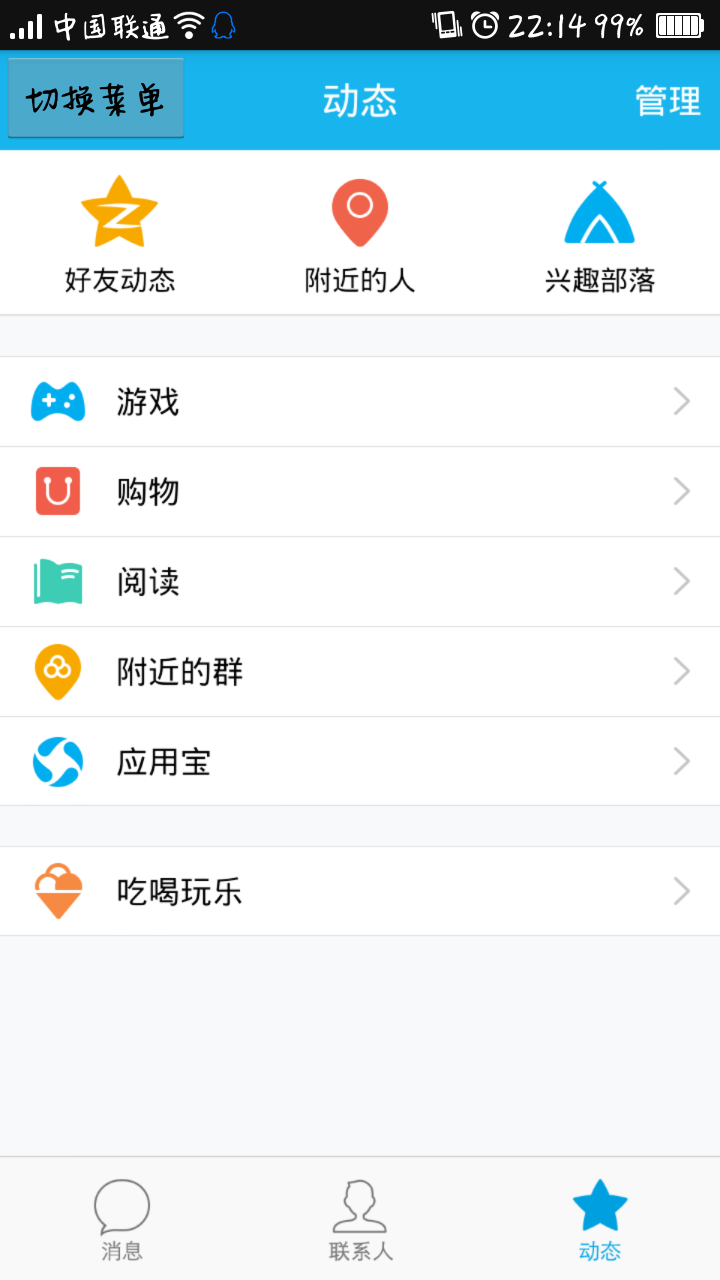
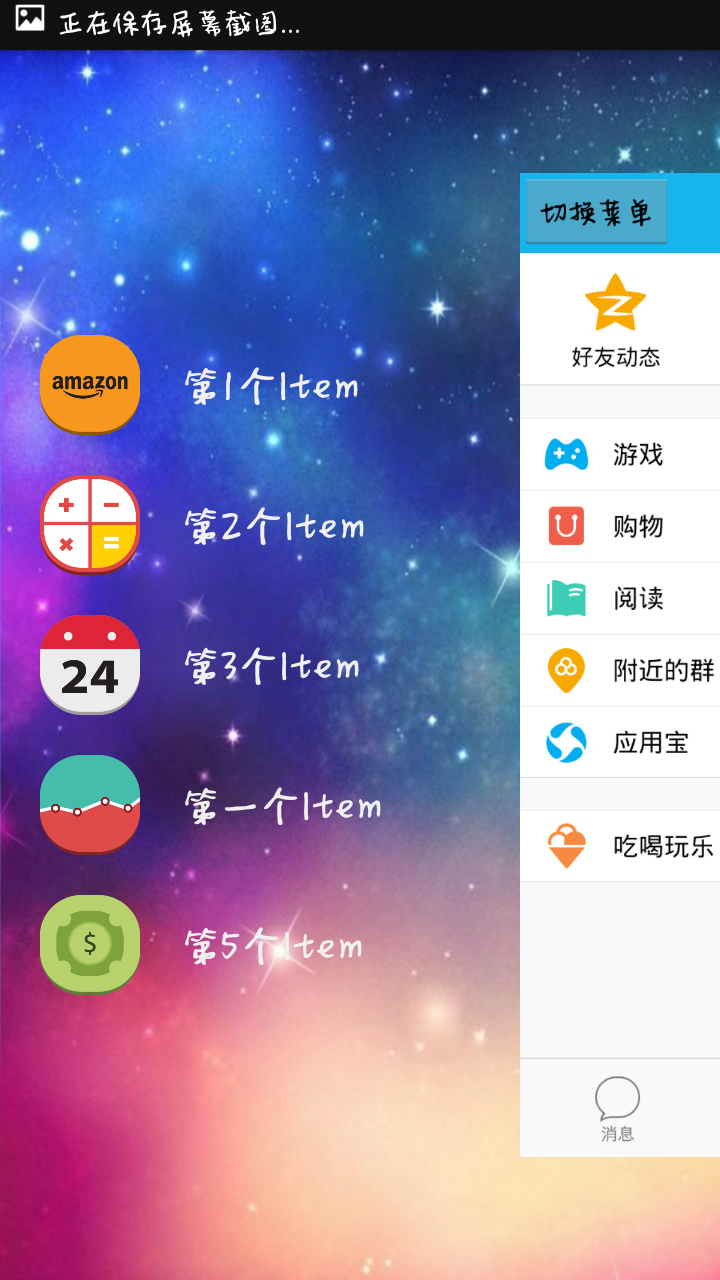
效果圖如下所示:
package com.example;
import android.os.Bundle;
import android.support.v7.app.ActionBarActivity;
import android.view.View;
public class MainActivity extends ActionBarActivity {
  private SlidingMenu mMenu;
  @Override
  protected void onCreate(Bundle savedInstanceState) {
    super.onCreate(savedInstanceState);
    setContentView(R.layout.activity_main);
    mMenu = (SlidingMenu) findViewById(R.id.id_menu);
  }
  public void toggleMenu(View view)
  {
    mMenu.toggle();
  }
}
package com.example;
import android.app.Activity;
import android.content.Context;
import android.graphics.Bitmap;
import android.graphics.Rect;
import android.util.DisplayMetrics;
import android.view.View;
import android.view.WindowManager;
/**
 * Created by tuhao-pc on 2015/12/28.
 * 獲取屏幕相關的輔助類
 */
public class ScreenUtils {
  private ScreenUtils() {
  }
  /**
   *獲取屏幕的高度
   * @param context
   * @return
   */
  public static int getScreenWidth(Context context){
    WindowManager wm = (WindowManager) context.getSystemService(Context.WINDOW_SERVICE);
    DisplayMetrics outMetrics = new DisplayMetrics();
    wm.getDefaultDisplay().getMetrics(outMetrics);
    return outMetrics.widthPixels;
  }
  /**
   * 獲取屏幕的高度
   * @param context
   * @return
   */
  public static int getScreenHeight(Context context){
    WindowManager wm = (WindowManager) context.getSystemService(Context.WINDOW_SERVICE);
    DisplayMetrics outMetrics = new DisplayMetrics();
    wm.getDefaultDisplay().getMetrics(outMetrics);
    return outMetrics.heightPixels;
  }
  /**
   * 獲取手機狀態欄的狀態
   * @param context
   * @return
   */
  public static int getStatusHeight(Context context){
    int statusHeight = -1;
    Class<?> clazz = null;
    try {
      clazz = Class.forName("com.android.internal.R$dimen");
      Object object = clazz.newInstance();
      int height = Integer.parseInt(clazz.getField("status_bar_height").get(object).toString());
      statusHeight = context.getResources().getDimensionPixelSize(height);
    } catch (ClassNotFoundException e) {
      e.printStackTrace();
    } catch (NoSuchFieldException e) {
      e.printStackTrace();
    } catch (InstantiationException e) {
      e.printStackTrace();
    } catch (IllegalAccessException e) {
      e.printStackTrace();
    }
    return statusHeight;
  }
  /**
   * 獲取當前屏幕截圖,包含狀態欄
   *
   * @param activity
   * @return
   */
  public static Bitmap snapShotWithStatusBar(Activity activity)
  {
    View view = activity.getWindow().getDecorView();
    view.setDrawingCacheEnabled(true);
    view.buildDrawingCache();
    Bitmap bmp = view.getDrawingCache();
    int width = getScreenWidth(activity);
    int height = getScreenHeight(activity);
    Bitmap bp = null;
    bp = Bitmap.createBitmap(bmp, 0, 0, width, height);
    view.destroyDrawingCache();
    return bp;
  }
  /**
   * 獲取當前屏幕截圖,不包含狀態欄
   *
   * @param activity
   * @return
   */
  public static Bitmap snapShotWithoutStatusBar(Activity activity)
  {
    View view = activity.getWindow().getDecorView();
    view.setDrawingCacheEnabled(true);
    view.buildDrawingCache();
    Bitmap bmp = view.getDrawingCache();
    Rect frame = new Rect();
    activity.getWindow().getDecorView().getWindowVisibleDisplayFrame(frame);
    int statusBarHeight = frame.top;
    int width = getScreenWidth(activity);
    int height = getScreenHeight(activity);
    Bitmap bp = null;
    bp = Bitmap.createBitmap(bmp, 0, statusBarHeight, width, height
        - statusBarHeight);
    view.destroyDrawingCache();
    return bp;
  }
}
package com.example;
import android.content.Context;
import android.content.res.TypedArray;
import android.util.AttributeSet;
import android.util.TypedValue;
import android.view.MotionEvent;
import android.view.ViewGroup;
import android.widget.HorizontalScrollView;
import android.widget.LinearLayout;
import com.nineoldandroids.view.ViewHelper;
/**
 * Created by tuhao-pc on 2015/12/28.
 */
public class SlidingMenu extends HorizontalScrollView{
  private int mScreenWidth;
  private int mMenuRightPadding;
  private int mMenuWidth;
  private int mHalfMenuWidth;
  private boolean isOpen;
  private boolean once;
  private ViewGroup mMenu;
  private ViewGroup mContent;
  public SlidingMenu(Context context) {
    this(context,null);
  }
  public SlidingMenu(Context context, AttributeSet attrs) {
    this(context, attrs, 0);
  }
  public SlidingMenu(Context context, AttributeSet attrs, int defStyleAttr) {
    super(context, attrs, defStyleAttr);
    mScreenWidth = ScreenUtils.getScreenWidth(context);
    TypedArray a = context.getTheme().obtainStyledAttributes(attrs,R.styleable.SlidingMenu,defStyleAttr,0);
    int count = a.getIndexCount();
    for(int i = 0;i < count;i++){
      int attr = a.getIndex(i);
      switch (attr){
        case R.styleable.SlidingMenu_rightPadding:{
//          默認是50
          mMenuRightPadding = a.getDimensionPixelSize(attr, (int) TypedValue.applyDimension(TypedValue.COMPLEX_UNIT_DIP,50f,getResources().getDisplayMetrics()));
          break;
        }
      }
    }
    a.recycle();
  }
  @Override
  protected void onMeasure(int widthMeasureSpec, int heightMeasureSpec) {
    /**
     * 顯示設置一個寬度
     */
    if(!once){
      LinearLayout wrapper = (LinearLayout) getChildAt(0);
      mMenu = (ViewGroup) wrapper.getChildAt(0);
      mContent = (ViewGroup) wrapper.getChildAt(1);
      mMenuWidth = mScreenWidth - mMenuRightPadding;
      mHalfMenuWidth = mMenuWidth/2;
      mMenu.getLayoutParams().width = mMenuWidth;
      mContent.getLayoutParams().width = mScreenWidth;
    }
    super.onMeasure(widthMeasureSpec, heightMeasureSpec);
  }
  @Override
  protected void onLayout(boolean changed, int l, int t, int r, int b) {
    super.onLayout(changed, l, t, r, b);
    if(changed) {
//      將菜單隱藏
      this.scrollTo(mMenuWidth, 0);
      once = true;
    }
  }
  @Override
  public boolean onTouchEvent(MotionEvent ev) {
    int action = ev.getAction();
    switch (action){
      // Up時,進行判斷,如果顯示區域大於菜單寬度一半則完全顯示,否則隱藏
      case MotionEvent.ACTION_UP:{
        int scrollX = getScrollX();
        if(scrollX > mHalfMenuWidth){
          this.smoothScrollTo(mMenuWidth,0);
          isOpen = false;
        }
        else{
          this.smoothScrollTo(0,0);
          isOpen = true;
        }
        return true;
      }
    }
    return super.onTouchEvent(ev);
  }
  /**
   * 打開菜單
   */
  public void openMenu()
  {
    if (isOpen)
      return;
    this.smoothScrollTo(0, 0);
    isOpen = true;
  }
  /**
   * 關閉菜單
   */
  public void closeMenu()
  {
    if (isOpen)
    {
      this.smoothScrollTo(mMenuWidth, 0);
      isOpen = false;
    }
  }
  /**
   * 切換菜單狀態
   */
  public void toggle()
  {
    if (isOpen)
    {
      closeMenu();
    } else
    {
      openMenu();
    }
  }
  @Override
  protected void onScrollChanged(int l, int t, int oldl, int oldt)
  {
    super.onScrollChanged(l, t, oldl, oldt);
    float scale = l * 1.0f / mMenuWidth;
    float leftScale = 1 - 0.3f * scale;
    float rightScale = 0.8f + scale * 0.2f;
    ViewHelper.setScaleX(mMenu, leftScale);
    ViewHelper.setScaleY(mMenu, leftScale);
    ViewHelper.setAlpha(mMenu, 0.6f + 0.4f * (1 - scale));
    ViewHelper.setTranslationX(mMenu, mMenuWidth * scale * 0.7f);
    ViewHelper.setPivotX(mContent, 0);
    ViewHelper.setPivotY(mContent, mContent.getHeight() / 2);
    ViewHelper.setScaleX(mContent, rightScale);
    ViewHelper.setScaleY(mContent, rightScale);
  }
}
布局文件和資源文件(xml)
<?xml version="1.0" encoding="utf-8"?>
<LinearLayout
  xmlns:android="http://schemas.android.com/apk/res/android"
  xmlns:tu = "http://schemas.android.com/apk/res-auto"
  android:layout_width="match_parent"
  android:layout_height="match_parent">
  <com.example.SlidingMenu
    android:id="@+id/id_menu"
    android:layout_width="match_parent"
    android:layout_height="match_parent"
    android:background="@mipmap/img_frame_background"
    tu:rightPadding="20dp">
    <LinearLayout
      android:layout_width="wrap_content"
      android:layout_height="fill_parent"
      android:orientation="horizontal" >
      <include layout="@layout/layout_menu" />
      <LinearLayout
        android:layout_width="fill_parent"
        android:layout_height="fill_parent"
        android:background="@mipmap/qq" >
        <Button
          android:layout_width="wrap_content"
          android:layout_height="wrap_content"
          android:onClick="toggleMenu"
          android:text="切換菜單" />
      </LinearLayout>
    </LinearLayout>
  </com.example.SlidingMenu>
</LinearLayout>
<?xml version="1.0" encoding="utf-8"?>
<RelativeLayout xmlns:android="http://schemas.android.com/apk/res/android"
  android:layout_width="match_parent"
  android:layout_height="match_parent"
  android:background="#0000" >
  <LinearLayout
    android:layout_width="match_parent"
    android:layout_height="wrap_content"
    android:layout_centerVertical="true"
    android:orientation="vertical" >
    <RelativeLayout
      android:layout_width="match_parent"
      android:layout_height="wrap_content" >
      <ImageView
        android:id="@+id/one"
        android:layout_width="50dp"
        android:layout_height="50dp"
        android:layout_centerVertical="true"
        android:layout_marginLeft="20dp"
        android:layout_marginTop="20dp"
        android:src="@mipmap/img_1" />
      <TextView
        android:layout_width="fill_parent"
        android:layout_height="wrap_content"
        android:layout_centerVertical="true"
        android:layout_marginLeft="20dp"
        android:layout_toRightOf="@id/one"
        android:text="第1個Item"
        android:textColor="#f0f0f0"
        android:textSize="20sp" />
    </RelativeLayout>
    <RelativeLayout
      android:layout_width="match_parent"
      android:layout_height="wrap_content" >
      <ImageView
        android:id="@+id/two"
        android:layout_width="50dp"
        android:layout_height="50dp"
        android:layout_centerVertical="true"
        android:layout_marginLeft="20dp"
        android:layout_marginTop="20dp"
        android:src="@mipmap/img_2" />
      <TextView
        android:layout_width="fill_parent"
        android:layout_height="wrap_content"
        android:layout_centerVertical="true"
        android:layout_marginLeft="20dp"
        android:layout_toRightOf="@id/two"
        android:text="第2個Item"
        android:textColor="#f0f0f0"
        android:textSize="20sp" />
    </RelativeLayout>
    <RelativeLayout
      android:layout_width="match_parent"
      android:layout_height="wrap_content" >
      <ImageView
        android:id="@+id/three"
        android:layout_width="50dp"
        android:layout_height="50dp"
        android:layout_centerVertical="true"
        android:layout_marginLeft="20dp"
        android:layout_marginTop="20dp"
        android:src="@mipmap/img_3" />
      <TextView
        android:layout_width="fill_parent"
        android:layout_height="wrap_content"
        android:layout_centerVertical="true"
        android:layout_marginLeft="20dp"
        android:layout_toRightOf="@id/three"
        android:text="第3個Item"
        android:textColor="#f0f0f0"
        android:textSize="20sp" />
    </RelativeLayout>
    <RelativeLayout
      android:layout_width="match_parent"
      android:layout_height="wrap_content" >
      <ImageView
        android:id="@+id/four"
        android:layout_width="50dp"
        android:layout_height="50dp"
        android:layout_centerVertical="true"
        android:layout_marginLeft="20dp"
        android:layout_marginTop="20dp"
        android:src="@mipmap/img_4" />
      <TextView
        android:layout_width="fill_parent"
        android:layout_height="wrap_content"
        android:layout_centerVertical="true"
        android:layout_marginLeft="20dp"
        android:layout_toRightOf="@id/four"
        android:text="第一個Item"
        android:textColor="#f0f0f0"
        android:textSize="20sp" />
    </RelativeLayout>
    <RelativeLayout
      android:layout_width="match_parent"
      android:layout_height="wrap_content" >
      <ImageView
        android:id="@+id/five"
        android:layout_width="50dp"
        android:layout_height="50dp"
        android:layout_centerVertical="true"
        android:layout_marginLeft="20dp"
        android:layout_marginTop="20dp"
        android:src="@mipmap/img_5" />
      <TextView
        android:layout_width="fill_parent"
        android:layout_height="wrap_content"
        android:layout_centerVertical="true"
        android:layout_marginLeft="20dp"
        android:layout_toRightOf="@id/five"
        android:text="第5個Item"
        android:textColor="#f0f0f0"
        android:textSize="20sp" />
    </RelativeLayout>
  </LinearLayout>
</RelativeLayout>
 Android 下拉刷新上拉加載效果功能,使用開源項目android-pulltorefresh實現
應用場景: 在App開發中,對於信息的獲取與演示,不可能全部將其獲取與演示,為了在用戶使用中,給予用戶以友好、方便的用戶體驗,以滑動、下拉的效果動態加載數據的要求就會出
 Android網絡編程之獲取網絡上的XML
Android網絡編程之獲取網絡上的XML 請尊重他人的勞動成果,轉載請注明出處:Android網絡編程之獲取網絡上的XML 為要獲取網絡上的XML所以需要
 Android 使用NineOldAndroids實現絢麗的ListView左右滑動刪除Item效果
今天還是給大家帶來自定義控件的編寫,自定義一個ListView的左右滑動刪除Item的效果,這個效果之前已經實現過了,有興趣的可以看下Android 使用S
 Andromeda是什麼 谷歌仙女座系統介紹
近幾個月傳出了谷歌正在加速整合Android和Chrome OS的消息,新操作系統定名Andromeda(仙女座)。外媒給出的最新進展是,目前已經有兩家型硬