編輯:關於Android編程
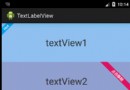
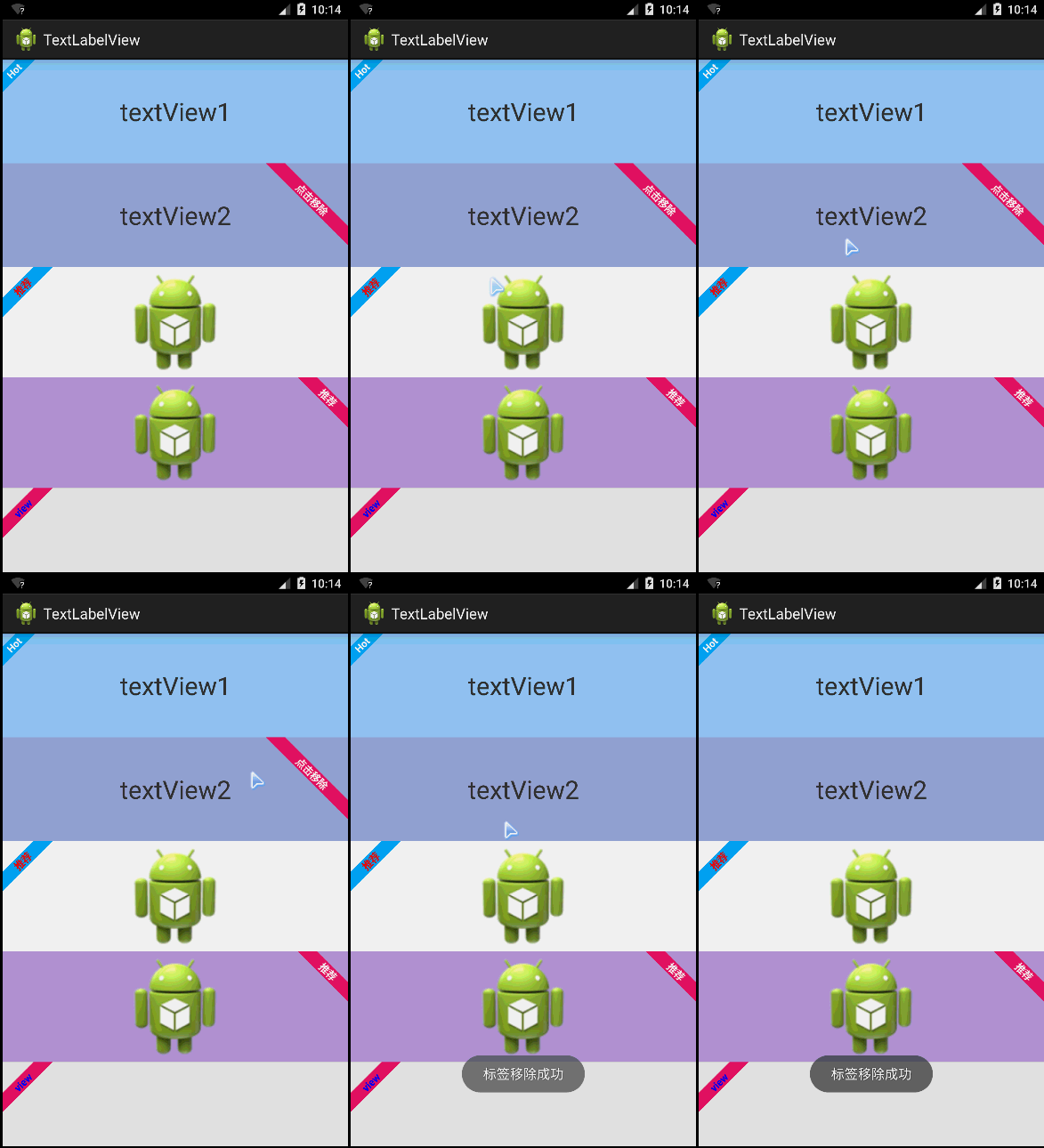
先給大家展示下效果圖,看看是不是在你的意料之中哈。
LabelView是在github上一個開源的標簽庫。其項目主頁是:https://github.com/linger1216//labelview
LabelView為一個TextView,ImageView或者為ListView中適配器getView返回的View,增加一個左上角或者右上角的標簽
這種需求設計在商城類APP、電商類APP中比較常用,這些APP展示的商品,通常會增加一些促銷或者該類商品的特征。
LabelView集成自Android TextView,可以像使用Android TextView一樣使用LabelView,LabelView使用簡單,如代碼所示:
布局代碼:
<LinearLayout xmlns:android="http://schemas.android.com/apk/res/android"
   xmlns:tools="http://schemas.android.com/tools"
   android:layout_width="match_parent"
   android:layout_height="match_parent"
   android:orientation="vertical"
   tools:context="com.zzw.textlabelview.MainActivity" >
   <TextView
     android:id="@+id/textView"
     android:layout_width="match_parent"
     android:layout_height="wrap_content"
     android:layout_weight=""
     android:background="#CAF"
     android:gravity="center"
     android:text="textView"
     android:textSize="sp" />
   <TextView
     android:id="@+id/textView"
     android:layout_width="match_parent"
     android:layout_height="wrap_content"
     android:layout_weight=""
     android:background="#FADA"
     android:gravity="center"
     android:text="textView"
     android:textSize="sp" />
   <ImageView
     android:id="@+id/imageView"
     android:layout_width="match_parent"
     android:layout_height="wrap_content"
     android:layout_weight=""
     android:src="@drawable/ic_launcher" />
   <ImageView
     android:id="@+id/imageView"
     android:layout_width="match_parent"
     android:layout_height="wrap_content"
     android:layout_weight=""
     android:background="#BDDB"
     android:src="@drawable/ic_launcher" />
  <View
     android:id="@+id/view"
     android:layout_width="match_parent"
     android:layout_height="dip"
     android:background="#eee" >
   </View>
 </LinearLayout>
JAVA代碼:
 package com.zzw.textlabelview;
 import com.lid.lib.LabelView;
 import com.lid.lib.LabelView.Gravity;
 import android.app.Activity;
 import android.graphics.Color;
 import android.os.Bundle;
 import android.view.View;
 import android.view.View.OnClickListener;
 import android.widget.Toast;
 public class MainActivity extends Activity {
   @Override
   protected void onCreate(Bundle savedInstanceState) {
     super.onCreate(savedInstanceState);
     setContentView(R.layout.activity_main);
     //為TextView左上角添加一個標簽
     LabelView label = new LabelView(this);
     label.setText("Hot");
     label.setBackgroundColor(xffaf);
     label.setTargetView(findViewById(R.id.textView), , Gravity.LEFT_TOP);
     //為TextView右上角添加一個標簽,點擊標簽移除
     final LabelView label = new LabelView(this);
     label.setText("點擊移除");
     label.setBackgroundColor(xffEE);
     label.setTargetView(findViewById(R.id.textView), ,
         Gravity.RIGHT_TOP);
     findViewById(R.id.textView).setOnClickListener(new OnClickListener() {
       @Override
       public void onClick(View v) {
         label.remove();
         Toast.makeText(getApplicationContext(), "標簽移除成功", ).show();
       }
     });
     //為ImageView添加一個左上角標簽,並且自定義標簽字顏色
     LabelView label = new LabelView(this);
     label.setText("推薦");
     label.setTextColor(Color.RED);
     label.setBackgroundColor(xffaf);
     label.setTargetView(findViewById(R.id.imageView), ,
         Gravity.LEFT_TOP);
     //為IamgeView添加一個右上角標簽
     LabelView label = new LabelView(this);
     label.setText("推薦");
     label.setBackgroundColor(xffEE);
     label.setTargetView(findViewById(R.id.imageView), ,
         Gravity.RIGHT_TOP);
     //為一個View添加一個左上角標簽(ListView用)
     LabelView label = new LabelView(this);
     label.setText("view");
     label.setTextColor(Color.BLUE);
     label.setBackgroundColor(xffEE);
     label.setTargetView(findViewById(R.id.view), , Gravity.LEFT_TOP);
   }
 }
以上內容是本文給大家分享的開源電商app常用標簽"hot"之第三方開源LabelView,希望大家喜歡。
 探究drawable圖片的加載原理和縮放規律
前言Android的源碼公開策略豐富了手持設備的多樣性,但隨之而來的卻是較為嚴重的”碎片化”——版本繁多、尺寸多樣、功能定
 Android 安卓手機還有必要清內存嗎?
安卓手機自誕生之日起無論多大運存,似乎清內存都是安卓用戶一個必不可少的動作,發展至今安卓系統版本幾經迭代、手機運存不斷飙升,軟硬件都有了翻天覆地的變化,那
 Android微信Tinker熱更新詳細使用
先看一下效果圖Tinker已知問題由於原理與系統限制,Tinker有以下已知問題: Tinker不支持修改AndroidManifest.xml,Tinker不支持新增
 Android Studio使用
在Eclipse完成上一個APP,決定轉到Studio2.0來。 這次主要進行的設置是 1、代碼區背景顏色的更改 2、注釋、代碼自動補全快捷鍵設定 3、工具欄自定
 第四部分:UI開發常用控件(TextView、Button、EditText、ImageView、ProgressBar、AlertDialog、ProgressDialog)
1.TextView Textview在之前的學習中用到過好多