編輯:關於Android編程
本文實例講述了Android中Matrix用法。分享給大家供大家參考,具體如下:
Matrix ,中文裡叫矩陣,高等數學裡有介紹,在圖像處理方面,主要是用於平面的縮放、平移、旋轉等操作。
首先介紹一下矩陣運算。加法和減法就不用說了,對應位相加就好。圖像處理,主要用到的是乘法 。下面是一個乘法的公式:
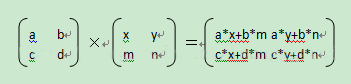
在 Android 裡面, Matrix 由 9 個 float 值構成,是一個 3*3 的矩陣。如下圖:
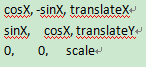
解釋一下,上面的sinX 和cosX ,表示旋轉角度的cos 值和sin值,注意,旋轉角度是按順時針方向計算的。 translateX 和 translateY 表示 x 和 y 的平移量。 scale 是縮放的比例, 1 是不變, 2 是表示縮放 1/2 。
Matrix的操作,總共分為translate(平移),rotate(旋轉),scale(縮放)和skew(傾斜)四種,每一種變換在Android的API裡都提供了set, post和pre三種操作方式,除了translate,其他三種操作都可以指定中心點。
set是直接設置Matrix的值,每次set一次,整個Matrix的數組都會變掉。
post是後乘,當前的矩陣乘以參數給出的矩陣。可以連續多次使用post,來完成所需的整個變換。例如,要將一個圖片旋轉30度,然後平移到(100,100)的地方,那麼可以這樣做:Matrix m = new Matrix(); m.postRotate(30 ); m.postTranslate(100 , 100 ); 這樣就達到了想要的效果。
pre是前乘,參數給出的矩陣乘以當前的矩陣。所以操作是在當前矩陣的最前面發生的。例如上面的例子,如果用pre的話,就要這樣:Matrix m = new Matrix(); m.setTranslate(100 , 100 ); m.preRotate(30 );
旋轉、縮放和傾斜都可以圍繞一個中心點來進行,如果不指定,默認情況下,是圍繞(0,0)點來進行。
特別注意:
Matrix的操作,總共分為translate(平移),rotate(旋轉),scale(縮放)和skew(傾斜)四種,每一種變換在Android的API裡都提供了set, post和pre三種操作方式,除了translate,其他三種操作都可以指定中心點。
set是直接設置Matrix的值,每次set一次,整個Matrix的數組都會變掉。
post是後乘,當前的矩陣乘以參數給出的矩陣。可以連續多次使用post,來完成所需的整個變換。
鏡面效果:

倒影效果:

圖片的合成(水印):

不多說了,直接上代碼了。
MainActivity.java裡的主要代碼如下:
package net.loonggg.testmatrix;
import android.app.Activity;
import android.graphics.Bitmap;
import android.graphics.BitmapFactory;
import android.graphics.Canvas;
import android.graphics.Color;
import android.graphics.Matrix;
import android.graphics.Paint;
import android.graphics.PorterDuff.Mode;
import android.graphics.PorterDuffXfermode;
import android.os.Bundle;
import android.view.Window;
import android.widget.ImageView;
public class MainActivity extends Activity {
  private ImageView iv1, iv2;
  private Canvas canvas;
  private Paint paint;
  @Override
  protected void onCreate(Bundle savedInstanceState) {
    super.onCreate(savedInstanceState);
    requestWindowFeature(Window.FEATURE_NO_TITLE);
    setContentView(R.layout.activity_main);
    iv1 = (ImageView) findViewById(R.id.iv1);
    iv2 = (ImageView) findViewById(R.id.iv2);
    Bitmap bitmap1 = BitmapFactory.decodeResource(getResources(),
        R.drawable.weibo);
    Bitmap updateBitmap = Bitmap.createBitmap(bitmap1.getWidth() * 2,
        bitmap1.getHeight() * 2, bitmap1.getConfig());
    canvas = new Canvas(updateBitmap);
    paint = new Paint();
    paint.setColor(Color.BLACK);
    Matrix matrix = new Matrix();
    // setMirrorOne(bitmap1, matrix);
    // setInvertedImage(bitmap1, matrix);
    // setBaseChange(matrix);
    canvas.drawBitmap(bitmap1, matrix, paint);
    setImageSynthesis(matrix);
    iv1.setImageBitmap(bitmap1);
    iv2.setImageBitmap(updateBitmap);
  }
  /**
   * 還有一些基本變化
   */
  private void setBaseChange(Matrix matrix) {
    // matrix.setRotate(60);// 這是旋轉多少度
    // matrix.setRotate(degrees, px, py);//這個方法是以哪個點為中心進行旋轉多少度
    // matrix.setSkew(kx, ky);//設置傾斜,以x軸傾斜,還是y軸
    // 傾斜x和y軸,以(100,100)為中心。
    // matrix.postSkew(0 .2f, 0 .2f, 100 , 100 );
    // matrix.setScale(0.5f, 1);//縮放寬度變為原來的一半,高度不變
  }
  /**
   * 設置倒影效果
   *
   * @param bitmap1
   * @param matrix
   */
  private void setInvertedImage(Bitmap bitmap1, Matrix matrix) {
    matrix.setScale(1, -1);
    matrix.postTranslate(0, bitmap1.getHeight());
  }
  /**
   * 設置鏡面效果方法一
   *
   * @param bitmap1
   * @param matrix
   */
  private void setMirrorOne(Bitmap bitmap1, Matrix matrix) {
    matrix.setTranslate(bitmap1.getWidth(), 0);// 這個是移動
    matrix.preScale(-1, 1);
  }
  // ---------------------------------------------------------
  /**
   * 解釋:鏡面效果方法一和二的區別:
   * 不知道大家看沒看出來,其實這兩種方法的效果是一樣的,只不過是設置步驟不一樣,post是後乘,當前的矩陣乘以參數給出的矩陣
   * 。可以連續多次使用post,來完成所需的整個變換。 pre是前乘,參數給出的矩陣乘以當前的矩陣。所以操作是在當前矩陣的最前面發生的。
   * 可以連續多次使用post
   * ,來完成所需的整個變換,但是不可以連續使用set來完成矩陣的整個變換,為什麼呢?set是直接設置Matrix的值,每次set一次
   * ,整個Matrix的數組都會變掉,第一次可以使用set,之後的變換必須換成post或者pre,也可以一直用post也行
   */
  // ---------------------------------------------------------
  /**
   * 設置鏡面效果方法二
   *
   * @param bitmap1
   * @param matrix
   */
  private void setMirrorTwo(Bitmap bitmap1, Matrix matrix) {
    matrix.setScale(-1, 1);
    matrix.postTranslate(bitmap1.getWidth(), 0);
  }
  /**
   * 設置圖片的合成
   *
   * @param matrix
   */
  private void setImageSynthesis(Matrix matrix) {
    Bitmap bitmap2 = BitmapFactory.decodeResource(getResources(),
        R.drawable.ic_launcher);
    // 設置圖片合成時的各種模式
    paint.setXfermode(new PorterDuffXfermode(Mode.DARKEN));
    // 圖片的合成很簡單,就是再以bitmap2為基圖往目標圖片上畫一次
    canvas.drawBitmap(bitmap2, matrix, paint);
  }
}
布局文件的代碼如下:
<LinearLayout xmlns:android="http://schemas.android.com/apk/res/android"
  xmlns:tools="http://schemas.android.com/tools"
  android:layout_width="match_parent"
  android:layout_height="match_parent"
  android:orientation="vertical"
  tools:context=".MainActivity" >
  <ImageView
    android:id="@+id/iv1"
    android:layout_width="wrap_content"
    android:layout_height="wrap_content" />
  <ImageView
    android:id="@+id/iv2"
    android:layout_width="wrap_content"
    android:layout_height="wrap_content" />
</LinearLayout>
希望本文所述對大家Android程序設計有所幫助。
 Android簡易實戰教程--第二十話《通過廣播接收者,對撥打電話外加ip號》
沒睡著覺,起來更篇文章吧哈哈!首先祝賀李宗偉擊敗我丹,雖然我是支持我丹的,但是他也不容易哈哈,值得尊敬的人!切入正題:這一篇來介紹個自定義廣播接收者。通常我們在外撥電話的
 談談Android 6.0 的動態權限管理
1.前言大家都知道Android 6.0的新特性之一就是應用權限的管理。也就是說凡是涉及用戶隱私的權限,用戶可以自己去設置管理了。然而在6.0以前,我們安裝一款APP是默
 混合開發的大趨勢之一React Native TextInput (文本輸入)
TextInput TextInput是允許用戶輸入文本的基礎組件。 他有一些屬性可以來幫助我們處理業務邏輯諸如onChangeText onSubmitEditing
 Android 有道詞典的簡單實現方法介紹
首先看程序界面如下!1、布局文件:復制代碼 代碼如下:<AbsoluteLayout xmlns:android=http://schemas.android.co