編輯:關於Android編程
前言:從開始接觸rn到現在終於能寫出點東西了,的確得為自己好好地點個贊 ,不管咋樣,學習還是得繼續啊,廢話少說了,在rn中我們也需要對屏幕進行適配,但是rn中的適配貌似比android原生容易很多(不得佩服facebook那些大神哈,對android原生控件封裝的太屌!)。
我們先看看rn中的屏幕適配(作為一個android程序員去做rn確實比ios程序員考慮的東西多一點點哈,嘻嘻~~):
結合android的一些適配經驗,我在rn中也封裝了一個工具類
ScreenUtils.js:
/**
 * 屏幕工具類
 * ui設計基准,iphone 6
 * width:750
 * height:1334
 */
var ReactNative = require('react-native');
var Dimensions = require('Dimensions');
export var screenW = Dimensions.get('window').width;
export var screenH = Dimensions.get('window').height;
var fontScale = ReactNative.PixelRatio.getFontScale();
export var pixelRatio = ReactNative.PixelRatio.get();
const r2=2;
const w2 = 750/r2;``
const h2 = 1334/r2;
/**
 * 設置text為sp
 * @param size  sp
 * @returns {Number} dp
 */
export const DEFAULT_DENSITY=2;
export function setSpText(size:Number) {
    var scaleWidth = screenW / w2;
    var scaleHeight = screenH / h2;
    var scale = Math.min(scaleWidth, scaleHeight);
    size = Math.round((size * scale + 0.5) * pixelRatio / fontScale);
    return size;
}
/**
 * 屏幕適配,縮放size
 * @param size
 * @returns {Number}
 * @constructor
 */
export function scaleSize(size:Number) {
    var scaleWidth = screenW / w2;
    var scaleHeight = screenH / h2;
    var scale = Math.min(scaleWidth, scaleHeight);
    size = Math.round((size * scale + 0.5));
    return size/DEFAULT_DENSITY;
}
搞過rn的童鞋知道,rn中直接寫寬高都是dp的,所以我們要以一個美工設計的ui基准來計算我們的寬高,數學不好哈,不過大概是這樣的:
我們先定義好ui的設計基准:
/**
 * 屏幕工具類
 * ui設計基准,iphone 6
 * width:750
 * height:1334
 */
var ReactNative = require('react-native');
var Dimensions = require('Dimensions');
export var screenW = Dimensions.get('window').width;
export var screenH = Dimensions.get('window').height;
var fontScale = ReactNative.PixelRatio.getFontScale();
export var pixelRatio = ReactNative.PixelRatio.get();
const r2=2;
const w2 = 750/r2;``
const h2 = 1334/r2;
/**
 * 設置text為sp
 * @param size  sp
 * @returns {Number} dp
 */
export const DEFAULT_DENSITY=2;
然後獲取到我們自己手機的屏幕寬高,生成一個百分比,然後算出在iphone6上的100px,在我們手機上是多少px,最後轉換成dp設置在在我們布局的style中:
const styles = StyleSheet.create({
    container: {
        backgroundColor: 'white',
        justifyContent: 'space-between',
        flexDirection: 'row',
        paddingTop: ScreenUtils.scaleSize(22),
        paddingBottom: ScreenUtils.scaleSize(22),
        paddingRight: ScreenUtils.scaleSize(12),
        paddingLeft: ScreenUtils.scaleSize(12),
        alignItems: 'center'
    },
});
好啦~!!,rn上的適配就完啦,是不是soeasy呢???
但是在android原生中,我們寫布局大多數都是在xml中寫的,所以我們在寫布局的時候,壓根就不知道我要運行在什麼手機上,所以android官方建議我們使用dp啊,然後建很多layout文件啊,很多value文件啊,是的!我個人也是比較推崇官方的做法的,效率高,清晰明了,好啦!!除了android官方說的那種方法,我們是否也可以像rn一樣運行後再重新算出百分比,然後再布局呢?答案是肯定的,因為rn就是一個例子,它也是對原生控件封裝過的,所以才能用js輕易控制,在此之前鴻洋大神也對百分比布局做了封裝,也對齊做了很詳細的解析了,先貼上大神的博客鏈接:
好啦!我們今天要做的也就是在百分比布局的基礎上簡單封裝下,然後使得其能夠像rn一樣,直接寫上美工標的px就能完美適配大部分手機了。
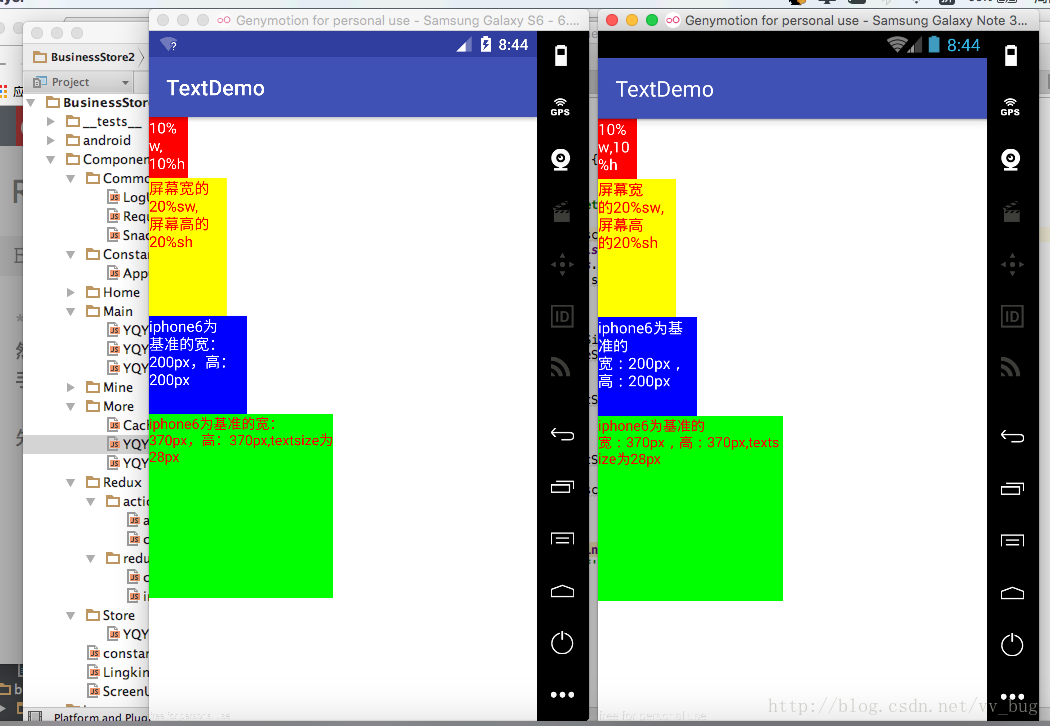
先上張運行好的效果圖(效果還是很不錯的!):
布局文件:
先走一遍百分比布,看它到底是咋實現適配的(以下是來自鴻洋大神封裝過後的代碼,我就直接拿走解析了,嘻嘻!!):
PercentLinearLayout.java:
package com.yasin.px_percent_layout;

import android.app.Activity;
import android.content.Context;
import android.content.res.TypedArray;
import android.util.AttributeSet;
import android.util.DisplayMetrics;
import android.view.ViewGroup;
import android.view.WindowManager;
import android.widget.LinearLayout;
import android.widget.ScrollView;

public class PercentLinearLayout extends LinearLayout {

    private static final String TAG = "PercentLinearLayout";
    private PercentLayoutHelper mPercentLayoutHelper;

    public PercentLinearLayout(Context context, AttributeSet attrs) {
        super(context, attrs);

        mPercentLayoutHelper = new PercentLayoutHelper(this);
    }


    @Override
    protected void onMeasure(int widthMeasureSpec, int heightMeasureSpec) {

        int heightSize = MeasureSpec.getSize(heightMeasureSpec);
        int heightMode = MeasureSpec.getMode(heightMeasureSpec);
        int tmpHeightMeasureSpec = MeasureSpec.makeMeasureSpec(heightSize, heightMode);

        int widthSize = MeasureSpec.getSize(widthMeasureSpec);
        int widthMode = MeasureSpec.getMode(widthMeasureSpec);
        int tmpWidthMeasureSpec = MeasureSpec.makeMeasureSpec(widthSize, widthMode);

        //fixed scrollview height problems
        if (heightMode == MeasureSpec.UNSPECIFIED && getParent() != null && (getParent() instanceof ScrollView)) {
            int baseHeight = 0;
            Context context = getContext();
            if (context instanceof Activity) {
                Activity act = (Activity) context;
                int measuredHeight = act.findViewById(android.R.id.content).getMeasuredHeight();
                baseHeight = measuredHeight;
            } else {
                baseHeight = getScreenHeight();
            }
            tmpHeightMeasureSpec = MeasureSpec.makeMeasureSpec(baseHeight, heightMode);
        }

        mPercentLayoutHelper.adjustChildren(tmpWidthMeasureSpec, tmpHeightMeasureSpec);
        super.onMeasure(widthMeasureSpec, heightMeasureSpec);
        if (mPercentLayoutHelper.handleMeasuredStateTooSmall()) {
            super.onMeasure(widthMeasureSpec, heightMeasureSpec);
        }
    }

    private int getScreenHeight() {
        WindowManager wm = (WindowManager) getContext().getSystemService(Context.WINDOW_SERVICE);
        DisplayMetrics outMetrics = new DisplayMetrics();
        wm.getDefaultDisplay().getMetrics(outMetrics);
        return outMetrics.heightPixels;
    }

    @Override
    protected void onLayout(boolean changed, int l, int t, int r, int b) {
        super.onLayout(changed, l, t, r, b);
        mPercentLayoutHelper.restoreOriginalParams();
    }

    @Override
    public LayoutParams generateLayoutParams(AttributeSet attrs) {
        return new LayoutParams(getContext(), attrs);
    }


    public static class LayoutParams extends LinearLayout.LayoutParams
            implements PercentLayoutHelper.PercentLayoutParams {
        private PercentLayoutHelper.PercentLayoutInfo mPercentLayoutInfo;

        public LayoutParams(Context c, AttributeSet attrs) {
            super(c, attrs);
            mPercentLayoutInfo = PercentLayoutHelper.getPercentLayoutInfo(c, attrs);
        }

        @Override
        public PercentLayoutHelper.PercentLayoutInfo getPercentLayoutInfo() {
            return mPercentLayoutInfo;
        }

        @Override
        protected void setBaseAttributes(TypedArray a, int widthAttr, int heightAttr) {
            PercentLayoutHelper.fetchWidthAndHeight(this, a, widthAttr, heightAttr);
        }

        public LayoutParams(int width, int height) {
            super(width, height);
        }


        public LayoutParams(ViewGroup.LayoutParams source) {
            super(source);
        }

        public LayoutParams(MarginLayoutParams source) {
            super(source);
        }

    }

}
代碼不要太簡單哈,就在構造方法中創建了一個mPercentLayoutHelper:
 public PercentLinearLayout(Context context, AttributeSet attrs) {
        super(context, attrs);

        mPercentLayoutHelper = new PercentLayoutHelper(this);
    }
我們待會再來說這個PercentLayoutHelper,
然後就是創建了一個自己的LayoutParams:
public static class LayoutParams extends LinearLayout.LayoutParams
            implements PercentLayoutHelper.PercentLayoutParams {
        private PercentLayoutHelper.PercentLayoutInfo mPercentLayoutInfo;

        public LayoutParams(Context c, AttributeSet attrs) {
            super(c, attrs);
            mPercentLayoutInfo = PercentLayoutHelper.getPercentLayoutInfo(c, attrs);
        }

        @Override
        public PercentLayoutHelper.PercentLayoutInfo getPercentLayoutInfo() {
            return mPercentLayoutInfo;
        }

        @Override
        protected void setBaseAttributes(TypedArray a, int widthAttr, int heightAttr) {
            PercentLayoutHelper.fetchWidthAndHeight(this, a, widthAttr, heightAttr);
        }

        public LayoutParams(int width, int height) {
            super(width, height);
        }


        public LayoutParams(ViewGroup.LayoutParams source) {
            super(source);
        }

        public LayoutParams(MarginLayoutParams source) {
            super(source);
        }

    }
其中也咩有啥代碼,創建了一個PercentLayoutInfo。
然後核心代碼就是onMeasure方法裡面了:
mPercentLayoutHelper.adjustChildren(tmpWidthMeasureSpec, tmpHeightMeasureSpec);
核心也就這一句。
終結下來就是:
1、先獲取到我們在布局文件中定義的屬性:
 app:layout_widthPercent="10%w"
 app:layout_heightPercent="10%h"
 .......
2、然後把獲取到的屬性封裝進一個叫PercentLayoutInfo的類中:
public LayoutParams(Context c, AttributeSet attrs) {
            super(c, attrs);
            mPercentLayoutInfo = PercentLayoutHelper.getPercentLayoutInfo(c, attrs);
        }
3、在onMeasure方法中根據傳進的屬性對子控件進行重置大小:
@Override
    protected void onMeasure(int widthMeasureSpec, int heightMeasureSpec) {

        int heightSize = MeasureSpec.getSize(heightMeasureSpec);
        int heightMode = MeasureSpec.getMode(heightMeasureSpec);
        int tmpHeightMeasureSpec = MeasureSpec.makeMeasureSpec(heightSize, heightMode);

        int widthSize = MeasureSpec.getSize(widthMeasureSpec);
        int widthMode = MeasureSpec.getMode(widthMeasureSpec);
        int tmpWidthMeasureSpec = MeasureSpec.makeMeasureSpec(widthSize, widthMode);

        //fixed scrollview height problems
        if (heightMode == MeasureSpec.UNSPECIFIED && getParent() != null && (getParent() instanceof ScrollView)) {
            int baseHeight = 0;
            Context context = getContext();
            if (context instanceof Activity) {
                Activity act = (Activity) context;
                int measuredHeight = act.findViewById(android.R.id.content).getMeasuredHeight();
                baseHeight = measuredHeight;
            } else {
                baseHeight = getScreenHeight();
            }
            tmpHeightMeasureSpec = MeasureSpec.makeMeasureSpec(baseHeight, heightMode);
        }

        mPercentLayoutHelper.adjustChildren(tmpWidthMeasureSpec, tmpHeightMeasureSpec);
        super.onMeasure(widthMeasureSpec, hei }
    }
看完是不是覺得很簡單呢? 是的,本來就不難哈,我們接著往下看:
先看看它是咋拿到我們在布局文件中寫的屬性的(怎麼封裝):
public static PercentLayoutInfo getPercentLayoutInfo(Context context,
                                                         AttributeSet attrs) {
        PercentLayoutInfo info = null;
        TypedArray array = context.obtainStyledAttributes(attrs, R.styleable.PercentLayout_Layout);

        info = setWidthAndHeightVal(array, info);

        info = setMarginRelatedVal(array, info);

        info = setTextSizeSupportVal(array, info);

        info = setMinMaxWidthHeightRelatedVal(array, info);

        info = setPaddingRelatedVal(array, info);


        array.recycle();

        if (Log.isLoggable(TAG, Log.DEBUG)) {
            Log.d(TAG, "constructed: " + info);
        }
        return info;
    }
獲取TypedArray數組中的數據(我們就只看setWidthAndHeightVal代碼了):
private static PercentLayoutInfo setWidthAndHeightVal(TypedArray array, PercentLayoutInfo info) {
        PercentLayoutInfo.PercentVal percentVal = getPercentVal(array, R.styleable.PercentLayout_Layout_layout_widthPercent, true);
        if (percentVal != null) {
            if (Log.isLoggable(TAG, Log.VERBOSE)) {
                Log.v(TAG, "percent width: " + percentVal.percent);
            }
            info = checkForInfoExists(info);
            info.widthPercent = percentVal;
        }
        percentVal = getPercentVal(array, R.styleable.PercentLayout_Layout_layout_heightPercent, false);

        if (percentVal != null) {
            if (Log.isLoggable(TAG, Log.VERBOSE)) {
                Log.v(TAG, "percent height: " + percentVal.percent);
            }
            info = checkForInfoExists(info);
            info.heightPercent = percentVal;
        }

        return info;
    }
獲取到heightPercent跟widthPercent信息然後賦給info對象,沒啥好看的,重點看看咋獲取到的widthPercent信息:
private static PercentLayoutInfo.PercentVal getPercentVal(TypedArray array, int index, boolean baseWidth) {
        String sizeStr = array.getString(index);
        PercentLayoutInfo.PercentVal percentVal = getPercentVal(sizeStr, baseWidth);
        return percentVal;
    }
也沒啥看的(繼續往下走):
 private static PercentLayoutInfo.PercentVal getPercentVal(String percentStr, boolean isOnWidth) {
        //valid param
        if (percentStr == null) {
            return null;
        }
        Pattern p = Pattern.compile(REGEX_PERCENT);
        Matcher matcher = p.matcher(percentStr);
        if (TextUtils.isEmpty(percentStr) ||
                (!matcher.matches() && !(percentStr.toLowerCase().endsWith("px")))) {
            throw new RuntimeException("the value of layout_xxxPercent invalid! ==>" + percentStr);
        }
        String floatVal;
        String lastAlpha;
        float percent;
        int len = percentStr.length();
        if (matcher.matches()) {
            //extract the float value
            floatVal = matcher.group(1);
            lastAlpha = percentStr.substring(len - 1);
            percent = Float.parseFloat(floatVal) / 100f;
        } else {
            //extract the float value
            floatVal = percentStr.substring(0, percentStr.indexOf("px"));
            lastAlpha = percentStr.substring(len - 1);
            percent = Float.parseFloat(floatVal);
        }

        PercentLayoutInfo.PercentVal percentVal = new PercentLayoutInfo.PercentVal();
        percentVal.percent = percent;
        if (percentStr.endsWith(PercentLayoutInfo.BASEMODE.SW)) {
            percentVal.basemode = PercentLayoutInfo.BASEMODE.BASE_SCREEN_WIDTH;
        } else if (percentStr.endsWith(PercentLayoutInfo.BASEMODE.SH)) {
            percentVal.basemode = PercentLayoutInfo.BASEMODE.BASE_SCREEN_HEIGHT;
        } else if (percentStr.endsWith(PercentLayoutInfo.BASEMODE.PERCENT)) {
            if (isOnWidth) {
                percentVal.basemode = PercentLayoutInfo.BASEMODE.BASE_WIDTH;
            } else {
                percentVal.basemode = PercentLayoutInfo.BASEMODE.BASE_HEIGHT;
            }
        } else if (percentStr.endsWith(PercentLayoutInfo.BASEMODE.W)) {
            percentVal.basemode = PercentLayoutInfo.BASEMODE.BASE_WIDTH;
        } else if (percentStr.endsWith(PercentLayoutInfo.BASEMODE.H)) {
            percentVal.basemode = PercentLayoutInfo.BASEMODE.BASE_HEIGHT;
        } else if (percentStr.endsWith(PercentLayoutInfo.BASEMODE.PX)) {
            percentVal.basemode = PercentLayoutInfo.BASEMODE.ABSOLUTE_PX;
        } else {
            throw new IllegalArgumentException("the " + percentStr + " must be endWith [%|w|h|sw|sh]");
        }

        return percentVal;
    }
好啦,終於看到核心代碼了,不做太多解釋,相信都看得懂,簡單來說就是獲取到我們設置的值,然後判斷我們設置的值屬於哪種類型:
類型有:
 private enum BASEMODE {

            BASE_WIDTH, BASE_HEIGHT, BASE_SCREEN_WIDTH, BASE_SCREEN_HEIGHT, ABSOLUTE_PX;

            /**
             * width_parent
             */
            public static final String PERCENT = "%";
            /**
             * width_parent
             */
            public static final String W = "w";
            /**
             * height_parent
             */
            public static final String H = "h";
            /**
             * width_screen
             */
            public static final String SW = "sw";
            /**
             * height_screen
             */
            public static final String SH = "sh";
            /**
             * absolute px
             */
            public static final String PX = "px";
        }
就是我們布局中寫的:
app:layout_widthPercent="10%w"
            app:layout_heightPercent="10%h"
            app:layout_widthPercent="20%sw"
            app:layout_heightPercent="20%sh"
            app:layout_widthPercent="200px"
            app:layout_heightPercent="200px"
小伙伴是不是看懂了呢? 比如20%sw,就是把20跟sw取出來,然後封裝進類中。
好啦,我們已經拿到我們在布局中設置的屬性了,然後我們就得根據我們設置的值重新賦給子控件了。
在onMeasure中我們找到adjustChildren方法:
/**
     * Iterates over children and changes their width and height to one calculated from percentage
     * values.
     *
     * @param widthMeasureSpec  Width MeasureSpec of the parent ViewGroup.
     * @param heightMeasureSpec Height MeasureSpec of the parent ViewGroup.
     */
    public void adjustChildren(int widthMeasureSpec, int heightMeasureSpec) {
        if (Log.isLoggable(TAG, Log.DEBUG)) {
            Log.d(TAG, "adjustChildren: " + mHost + " widthMeasureSpec: "
                    + View.MeasureSpec.toString(widthMeasureSpec) + " heightMeasureSpec: "
                    + View.MeasureSpec.toString(heightMeasureSpec));
        }
        int widthHint = View.MeasureSpec.getSize(widthMeasureSpec);
        int heightHint = View.MeasureSpec.getSize(heightMeasureSpec);

        if (Log.isLoggable(TAG, Log.DEBUG))
            Log.d(TAG, "widthHint = " + widthHint + " , heightHint = " + heightHint);

        for (int i = 0, N = mHost.getChildCount(); i < N; i++) {
            View view = mHost.getChildAt(i);
            ViewGroup.LayoutParams params = view.getLayoutParams();

            if (Log.isLoggable(TAG, Log.DEBUG)) {
                Log.d(TAG, "should adjust " + view + " " + params);
            }

            if (params instanceof PercentLayoutParams) {
                PercentLayoutInfo info =
                        ((PercentLayoutParams) params).getPercentLayoutInfo();
                if (Log.isLoggable(TAG, Log.DEBUG)) {
                    Log.d(TAG, "using " + info);
                }
                if (info != null) {
                    supportTextSize(widthHint, heightHint, view, info);
                    supportPadding(widthHint, heightHint, view, info);
                    supportMinOrMaxDimesion(widthHint, heightHint, view, info);

                    if (params instanceof ViewGroup.MarginLayoutParams) {
                        info.fillMarginLayoutParams((ViewGroup.MarginLayoutParams) params,
                                widthHint, heightHint);
                    } else {
                        info.fillLayoutParams(params, widthHint, heightHint);
                    }
                }
            }
        }
    }
遍歷我們的子控件,然後根據我們上面獲取到的info類,進行重新布局:
if (info != null) {
                    supportTextSize(widthHint, heightHint, view, info);
                    supportPadding(widthHint, heightHint, view, info);
                    supportMinOrMaxDimesion(widthHint, heightHint, view, info);

                    if (params instanceof ViewGroup.MarginLayoutParams) {
                        info.fillMarginLayoutParams((ViewGroup.MarginLayoutParams) params,
                                widthHint, heightHint);
                    } else {
                        info.fillLayoutParams(params, widthHint, heightHint);
                    }
                }
demo中我們看到了:
我們有設置一個app:layout_textSizePercent:
看到這我們找到一個方法,沒錯!也就是這裡對textview設置的size大小的:
supportTextSize(widthHint, heightHint, view, info);
我們往下走:
 private void supportTextSize(int widthHint, int heightHint, View view, PercentLayoutInfo info) {
        //textsize percent support

        PercentLayoutInfo.PercentVal textSizePercent = info.textSizePercent;
        if (textSizePercent == null) return;
        float textSize;
        int base = getBaseByModeAndVal(widthHint, heightHint, textSizePercent.basemode);
        if (textSizePercent.basemode == PercentLayoutInfo.BASEMODE.ABSOLUTE_PX) {
            textSize = ViewUtils.scaleTextValue(mHost.getContext(), textSizePercent.percent);
        } else {
            textSize = (int) (base * textSizePercent.percent);
        }
        //Button 和 EditText 是TextView的子類
        if (view instanceof TextView) {
            ((TextView) view).setTextSize(TypedValue.COMPLEX_UNIT_PX, textSize);
        }
    }
這裡如果我們是直接設置的px的話(如:app:layout_textSizePercent=”28px”),我們就需要根據ui基准,然後算出在我們手機上應該顯示多少:
int base = getBaseByModeAndVal(widthHint, heightHint, textSizePercent.basemode);
        if (textSizePercent.basemode == PercentLayoutInfo.BASEMODE.ABSOLUTE_PX) {
            textSize = ViewUtils.scaleTextValue(mHost.getContext(), textSizePercent.percent);
        } else {
            textSize = (int) (base * textSizePercent.percent);
        }
如果是直接設置的20%w,20%h,20%sh這樣的值的話,我們就需要用父布局的寬、高、屏幕寬、高乘一個我們設置進去的百分比進行計算了:
textSize = (int) (base * textSizePercent.percent);
好啦!!!剩下的幾個方法也都差不多,我就不一一講了哈:
if (info != null) {
                    supportTextSize(widthHint, heightHint, view, info);
                    supportPadding(widthHint, heightHint, view, info);
                    supportMinOrMaxDimesion(widthHint, heightHint, view, info);

                    if (params instanceof ViewGroup.MarginLayoutParams) {
                        info.fillMarginLayoutParams((ViewGroup.MarginLayoutParams) params,
                                widthHint, heightHint);
                    } else {
                        info.fillLayoutParams(params, widthHint, heightHint);
                    }
                }
嗯嗯~! 我們的百分比跟px布局差不多就講完啦~, 下面看看咋使用它哈:
如果要直接使用px布局的話(不用px布局可不需要做第一步與第二步):
1、在項目的manifest文件中定義好ui設計的基准(如iphone6):
2、在app中的application文件中,初始化布局:
package com.example.leo.textdemo;

import android.app.Application;
import android.content.Context;

import com.yasin.px_percent_layout.utils.PxAppConfig;

/**
 * Created by leo on 17/2/9.
 */

public class BaseApplication extends Application {
    @Override
    protected void attachBaseContext(Context base) {
        super.attachBaseContext(base);
        PxAppConfig.init(base);
    }
}
然後我們就可以在布局文件中用起來了:
好啦!!!文章有點長哈,最後附上項目的git鏈接:
https://github.com/913453448/PercentLayoutDemo
 Android基礎:HelloWorld之Toast用法
一:看程序 二:改布局: 1:在res資源下面,找到layout,打開activity_main.xml 在Graphical Layout視圖下面,可以自定義
 Android開發之監聽手機來電
TelephonyManager是一個管理手機通話狀態、電話網絡信息的服務類,該類提供了大量的getXxx(),方法獲取電話網絡的相關信息。關於TelephonyMana
 Android 組件Gallery和GridView示例講解
Android Gallery和GridView組件:Gallery 畫廊Gallery是一個內部元素可以水平滾動,並且可以把當前選擇的子元素定位在它中心的布局組件。我們
 Android Api Component---翻譯Fragment組件(一)
Fragment代表了在Activity中的一種或者一部分行為,你可以在單個的activity中連接多個fragment來構建一個多面板的UI,並且在多個activit