編輯:關於Android編程
前言:因為要做一個設置開機畫面的功能,主要是讓用戶可以設置自己的開機畫面,應用層需要做讓用戶選擇開機畫面圖片的功能。所以需要做一個簡單的圖片浏覽選擇程序。最後選用Gallery作為基本控件。加入了一些炫一點的元素,做成3D滑動效果。下面是Demo例子截圖:
效果網上已經很多人做出來了,只是這次需要用到,所以自己也實踐了一下(這裡例子我也是根據網上一些資料編寫)。特下面針對一些關鍵代碼進行簡要說明,需要做這方面東西的朋友可以看看。這篇文章是實用性文章,理論分析不多。
下面說下具體的類作用:
public class MainActivity extends Activity {

	DisplayImageOptions options;

	private ImageLoader imageLoader;

	private FancyCoverFlow fancyCoverFlow;

	private List filmList;

	private ImageAdapter adapter;


	private int cur_index = 0;
	private int count_drawble;
	private static int MSG_UPDATE = 1;
	// 定時任務
	private ScheduledExecutorService scheduledExecutorService;

	// 通過handler來更新主界面
	private Handler handler = new Handler() {

		public void handleMessage(Message msg) {
			if (msg.what == MSG_UPDATE) {
				fancyCoverFlow.setSelection(cur_index);
			}
		}
	};

	public void onCreate(Bundle savedInstanceState) {
		super.onCreate(savedInstanceState);
		setContentView(R.layout.activity_main);
		filmList = FilmInfoTest.getfilmInfo();
		Log.i("INFO", filmList.size()+"條目數");
		// 配置option
		options = new DisplayImageOptions.Builder()
				.showStubImage(R.drawable.logo)
				.showImageForEmptyUri(R.drawable.logo)
				.showImageOnFail(R.drawable.ic_error).cacheInMemory(true)
				.cacheOnDisc(true).bitmapConfig(Bitmap.Config.RGB_565).build();

		imageLoader = ImageLoader.getInstance();

		adapter = new ImageAdapter(this, filmList, options, imageLoader);

		fancyCoverFlow = (FancyCoverFlow) findViewById(R.id.fancyCoverFlow);

		// item之間的間隙可以近似認為是imageview的寬度與縮放比例的乘積的一半
		fancyCoverFlow.setSpacing(-180);
		fancyCoverFlow.setAdapter(adapter);
		fancyCoverFlow.setSelection(1002);
//		fancyCoverFlow.setActionDistance(10);

		fancyCoverFlow.setOnItemSelectedListener(new OnItemSelectedListener() {

			@Override
			public void onItemSelected(AdapterView parent, View view,
					int position, long id) {
				cur_index = position;
			}

			@Override
			public void onNothingSelected(AdapterView parent) {
			}
		});

		// 點擊事件
		fancyCoverFlow.setOnItemClickListener(new OnItemClickListener() {

			@Override
			public void onItemClick(AdapterView parent, View view,
					int position, long id) {
				// TODO Auto-generated method stub
				Toast.makeText(MainActivity.this,
						filmList.get(position % filmList.size()).getFilmName(),
						0).show();
			}
		});

//		// 開啟自動輪播
//		count_drawble = adapter.getCount();
//		startPlay();
	}

	/**
	 * 開始輪播圖切換
	 */
	private void startPlay() {
		scheduledExecutorService = Executors.newSingleThreadScheduledExecutor();
		scheduledExecutorService.scheduleAtFixedRate(new AutoPlayTask(), 1, 4,
				TimeUnit.SECONDS);
	}

	/**
	 * 停止輪播圖切換
	 */
	private void stopPlay() {
		scheduledExecutorService.shutdown();
	}

	/**
	 * 執行輪播圖切換任務
	 *
	 */
	private class AutoPlayTask implements Runnable {

		@Override
		public void run() {

//			cur_index = cur_index % count_drawble; // 圖片區間[0,count_drawable)
//			Message msg = handler.obtainMessage(MSG_UPDATE);
//			handler.sendMessage(msg);
//			cur_index++;
		}

	}

	@Override
	protected void onStop() {
		imageLoader.stop();
		super.onStop();
	}
這裡我主要是用本地資源進行測試了一下,設置了倒影等等,當然,你也可以改為xml布局設置圖片的
public class ImageAdapter extends FancyCoverFlowAdapter {
	private Context context;
	private List filmList;
//	private ImageLoader imageLoader;
//	private DisplayImageOptions options;

	public ImageAdapter(Context context, List filmList,
			DisplayImageOptions options, ImageLoader imageLoader) {
		this.context = context;
		this.filmList = filmList;
//		this.options = options;
//		this.imageLoader = imageLoader;
	}

	@Override
	public int getCount() {
		// TODO Auto-generated method stub
		return Integer.MAX_VALUE;
	}

	@Override
	public Object getItem(int position) {
		// TODO Auto-generated method stub
		return filmList.get(position);
//		return position;
	}

	@Override
	public long getItemId(int position) {
		// TODO Auto-generated method stub
		return position % filmList.size();
//		return position;
	}

	@Override
	public View getCoverFlowItem(int position, View reusableView,
			ViewGroup parent) {
		ImageView imageView = (ImageView) reusableView;

		if (imageView == null) {
			imageView = new ImageView(context);
		}
		Resources re = context.getResources();
		InputStream is = re.openRawResource(filmList.get(position%filmList.size()).getRs());
//		InputStream is = re.openRawResource(mImagesId[position%mImagesId.length]);
		BitmapDrawable mapdraw = new BitmapDrawable(is);
		Bitmap bitmap = mapdraw.getBitmap();

		imageView.setImageBitmap(BitmapUtil.createReflectedBitmap(bitmap));
//		imageView.setImageBitmap(bitmap);

		// ps.電影海報寬高比例一般為3:4
		imageView.setLayoutParams(new Gallery.LayoutParams(410, 713));

//		// 異步加載圖片
//		imageLoader.displayImage(filmList.get(position % filmList.size())
//				.getFilmImageLink(), imageView, options);
		imageView.setScaleType(ScaleType.CENTER_CROP);
		return imageView;
	}

	  public Integer[] getImagesId(){
          return mImagesId;
      }

      public void setImagesId(Integer[] mImagesId){
          this.mImagesId = mImagesId;
      }

	 private Integer mImagesId[] = {
             R.drawable.ic_1,
             R.drawable.ic_3,
             R.drawable.ic_2,
             R.drawable.ic_4,
             R.drawable.ic_5
     };
縮放,還有透明,等等都在這裡設置
public class FancyCoverFlow extends Gallery {

	public static final int ACTION_DISTANCE_AUTO = Integer.MAX_VALUE;

	/**
	 * 圖片向上突出,可以通過代碼控制,也可以在xml上控制
	 */
	public static final float SCALEDOWN_GRAVITY_TOP = 0.0f;
	/**
	 * 圖片中間突出
	 */
	public static final float SCALEDOWN_GRAVITY_CENTER = 0.5f;
	/**
	 * 圖片向下突出
	 */
	public static final float SCALEDOWN_GRAVITY_BOTTOM = 1.0f;

	private float reflectionRatio = 0.3f;

	private int reflectionGap = 4;

	private boolean reflectionEnabled = false;

	private float unselectedAlpha;

	private Camera transformationCamera;

	private int maxRotation = 0;

	private float unselectedScale;

	private float scaleDownGravity = SCALEDOWN_GRAVITY_CENTER;

	private int actionDistance;

	private float unselectedSaturation;

	public FancyCoverFlow(Context context) {
		super(context);
		this.initialize();
	}

	public FancyCoverFlow(Context context, AttributeSet attrs) {
		super(context, attrs);
		this.initialize();
		this.applyXmlAttributes(attrs);
	}

	@SuppressLint("NewApi")
	public FancyCoverFlow(Context context, AttributeSet attrs, int defStyle) {
		super(context, attrs, defStyle);
		if (Build.VERSION.SDK_INT >= 11) {
			this.setLayerType(LAYER_TYPE_SOFTWARE, null);
		}
		this.initialize();
		this.applyXmlAttributes(attrs);
	}

	private void initialize() {
		this.transformationCamera = new Camera();
		this.setSpacing(0);
	}

	private void applyXmlAttributes(AttributeSet attrs) {
		TypedArray a = getContext().obtainStyledAttributes(attrs,
				R.styleable.FancyCoverFlow);

		this.actionDistance = a
				.getInteger(R.styleable.FancyCoverFlow_actionDistance,
						ACTION_DISTANCE_AUTO);
		this.scaleDownGravity = a.getFloat(
				R.styleable.FancyCoverFlow_scaleDownGravity, 0.5f);
		this.maxRotation = a.getInteger(R.styleable.FancyCoverFlow_maxRotation,
				0);
		this.unselectedAlpha = a.getFloat(
				R.styleable.FancyCoverFlow_unselectedAlpha, 0.5f);
		this.unselectedSaturation = a.getFloat(
				R.styleable.FancyCoverFlow_unselectedSaturation, 0.0f);
		this.unselectedScale = a.getFloat(
				R.styleable.FancyCoverFlow_unselectedScale, 0.75f);
	}

	public float getReflectionRatio() {
		return reflectionRatio;
	}

	public void setReflectionRatio(float reflectionRatio) {
		if (reflectionRatio <= 0 || reflectionRatio > 0.5f) {
			throw new IllegalArgumentException(
					"reflectionRatio may only be in the interval (0, 0.5]");
		}

		this.reflectionRatio = reflectionRatio;

		if (this.getAdapter() != null) {
			((FancyCoverFlowAdapter) this.getAdapter()).notifyDataSetChanged();
		}
	}

	public int getReflectionGap() {
		return reflectionGap;
	}

	public void setReflectionGap(int reflectionGap) {
		this.reflectionGap = reflectionGap;

		if (this.getAdapter() != null) {
			((FancyCoverFlowAdapter) this.getAdapter()).notifyDataSetChanged();
		}
	}

	public boolean isReflectionEnabled() {
		return reflectionEnabled;
	}

	public void setReflectionEnabled(boolean reflectionEnabled) {
		this.reflectionEnabled = reflectionEnabled;
		if (this.getAdapter() != null) {
			((FancyCoverFlowAdapter) this.getAdapter()).notifyDataSetChanged();
		}
	}

	@Override
	public void setAdapter(SpinnerAdapter adapter) {
		if (!(adapter instanceof FancyCoverFlowAdapter)) {
			throw new ClassCastException(FancyCoverFlow.class.getSimpleName()
					+ " only works in conjunction with a "
					+ FancyCoverFlowAdapter.class.getSimpleName());
		}

		super.setAdapter(adapter);
	}

	public int getMaxRotation() {
		return maxRotation;
	}

	public void setMaxRotation(int maxRotation) {
		this.maxRotation = maxRotation;
	}

	public float getUnselectedAlpha() {
		return this.unselectedAlpha;
	}

	public float getUnselectedScale() {
		return unselectedScale;
	}

	public void setUnselectedScale(float unselectedScale) {
		this.unselectedScale = unselectedScale;
	}

	public float getScaleDownGravity() {
		return scaleDownGravity;
	}

	public void setScaleDownGravity(float scaleDownGravity) {
		this.scaleDownGravity = scaleDownGravity;
	}

	public int getActionDistance() {
		return actionDistance;
	}

	public void setActionDistance(int actionDistance) {
		this.actionDistance = actionDistance;
	}

	@Override
	public void setUnselectedAlpha(float unselectedAlpha) {
		super.setUnselectedAlpha(unselectedAlpha);
		this.unselectedAlpha = unselectedAlpha;
	}

	public float getUnselectedSaturation() {
		return unselectedSaturation;
	}

	public void setUnselectedSaturation(float unselectedSaturation) {
		this.unselectedSaturation = unselectedSaturation;
	}

	public int preLeftOffset = 0;
	public int count = 0;
	public boolean isPlayDraw = true;

	@Override
	protected boolean getChildStaticTransformation(View child, Transformation t) {
		FancyCoverFlowItemWrapper item = (FancyCoverFlowItemWrapper) child;

		preLeftOffset = getChildAt(0).getLeft();

		if (android.os.Build.VERSION.SDK_INT >= 16) {
			item.postInvalidate();
		}

		final int coverFlowWidth = this.getWidth();
		final int coverFlowCenter = coverFlowWidth / 2;
		final int childWidth = item.getWidth();
		final int childHeight = item.getHeight();
		final int childCenter = item.getLeft() + childWidth / 2;

		final int actionDistance = (this.actionDistance == ACTION_DISTANCE_AUTO) ? (int) ((coverFlowWidth + childWidth) / 2.0f)
				: this.actionDistance;

		float effectsAmount = Math.min(
				1.0f,
				Math.max(-1.0f, (1.0f / actionDistance)
						* (childCenter - coverFlowCenter)));

		t.clear();
		t.setTransformationType(Transformation.TYPE_BOTH);

		if (this.unselectedAlpha != 1) {
			final float alphaAmount = (this.unselectedAlpha - 1)
					* Math.abs(effectsAmount) + 1;
			t.setAlpha(alphaAmount);
		}

		if (this.unselectedSaturation != 1) {
			// Pass over saturation to the wrapper.
			final float saturationAmount = (this.unselectedSaturation - 1)
					* Math.abs(effectsAmount) + 1;
			item.setSaturation(saturationAmount);
		}

		final Matrix imageMatrix = t.getMatrix();

		// 旋轉角度不為0則開始圖片旋轉.
		if (this.maxRotation != 0) {
			final int rotationAngle = (int) (-effectsAmount * this.maxRotation);
			this.transformationCamera.save();
			this.transformationCamera.rotateY(rotationAngle);
			this.transformationCamera.getMatrix(imageMatrix);
			this.transformationCamera.restore();
		}

		// 縮放.
		if (this.unselectedScale != 1) {
			final float zoomAmount = 1f / 2f * (1 - Math.abs(effectsAmount))
					* (1 - Math.abs(effectsAmount))
					* (1 - Math.abs(effectsAmount)) + 0.5f;
			final float translateX = childWidth / 2.0f;
			final float translateY = childHeight * this.scaleDownGravity;
			imageMatrix.preTranslate(-translateX, -translateY);
			imageMatrix.postScale(zoomAmount, zoomAmount);
			imageMatrix.postTranslate(translateX, translateY);

			if (effectsAmount != 0) {

				double point = 0.4;
				double translateFactor = (-1f / (point * point)
						* (Math.abs(effectsAmount) - point)
						* (Math.abs(effectsAmount) - point) + 1)
						* (effectsAmount > 0 ? 1 : -1);

				imageMatrix
						.postTranslate(
								(float) (ViewUtil.Dp2Px(getContext(), 25) * translateFactor),
								0);

			}

		}

		return true;
	}

	// 繪制順序,先從左到中間,再從右到中間
	@Override
	protected int getChildDrawingOrder(int childCount, int i) {

		int selectedIndex = getSelectedItemPosition()
				- getFirstVisiblePosition();

		if (i < selectedIndex) {
			return i;
		} else if (i >= selectedIndex) {
			return childCount - 1 - i + selectedIndex;
		} else {
			return i;
		}
	}

	private boolean isTouchAble = true;

	public void disableTouch() {
		isTouchAble = false;
	}

	public void enableTouch() {
		isTouchAble = true;
	}

	public boolean isTouchAble() {
		return isTouchAble;
	}

	@Override
	public boolean onTouchEvent(MotionEvent event) {
		count = 0;
		for (int i = 0; i < getChildCount(); i++) {
			getChildAt(i).invalidate();
		}

		if (isTouchAble) {
			return super.onTouchEvent(event);
		} else {
			return false;
		}
	}

	@Override
	public boolean onInterceptTouchEvent(MotionEvent event) {
		if (isTouchAble) {
			return super.onInterceptTouchEvent(event);
		} else {
			return true;
		}
	}

	//
	// @Override
	// public boolean onSingleTapUp(MotionEvent e) {
	// return false;
	// }

	// 使快速滑動失效
	@Override
	public boolean onFling(MotionEvent e1, MotionEvent e2, float velocityX,
			float velocityY) {
		return false;
	}
reflectionGap 處理圖片和倒影之間的間距。
/**
 * grallery 倒影放大操作類
 */
public class MyImgView {

	/**
	 * 添加倒影,原理,先翻轉圖片,由上到下放大透明度
	 *
	 * @param originalImage
	 * @return
	 */
	public static Bitmap createReflectedImage(Bitmap originalImage) {
		// The gap we want between the reflection and the original image
		final int reflectionGap = 4;

		int width = originalImage.getWidth();
		int height = originalImage.getHeight();

		// This will not scale but will flip on the Y axis
		Matrix matrix = new Matrix();
		matrix.preScale(1, -1);

		// Create a Bitmap with the flip matrix applied to it.
		// We only want the bottom half of the image
		Bitmap reflectionImage = Bitmap.createBitmap(originalImage, 0,
				height / 2, width, height / 2, matrix, false);

		// Create a new bitmap with same width but taller to fit reflection
		Bitmap bitmapWithReflection = Bitmap.createBitmap(width,
				(height + height /4), Config.ARGB_8888);

		// Create a new Canvas with the bitmap that's big enough for
		// the image plus gap plus reflection
		Canvas canvas = new Canvas(bitmapWithReflection);
		// Draw in the original image
		canvas.drawBitmap(originalImage, 0, 0, null);
		// Draw in the gap
		Paint defaultPaint = new Paint();
		canvas.drawRect(0, height, width, height + reflectionGap, defaultPaint);
		// Draw in the reflection
		canvas.drawBitmap(reflectionImage, 0, height + reflectionGap, null);

		// Create a shader that is a linear gradient that covers the reflection
		Paint paint = new Paint();
		LinearGradient shader = new LinearGradient(0,
				originalImage.getHeight(), 0, bitmapWithReflection.getHeight()
				+ reflectionGap, 0x70ffffff, 0x00ffffff, TileMode.CLAMP);
		// Set the paint to use this shader (linear gradient)
		paint.setShader(shader);
		// Set the Transfer mode to be porter duff and destination in 倒影底部顏色深淺變化
		paint.setXfermode(new PorterDuffXfermode(Mode.DST_IN));
		// Draw a rectangle using the paint with our linear gradient
		canvas.drawRect(0, height, width, bitmapWithReflection.getHeight()
				+ reflectionGap, paint);

		return bitmapWithReflection;
	}
	//drawable 類型轉化為bitmap
	public static Bitmap drawableToBitmap(Drawable drawable) {

		Bitmap bitmap = Bitmap
				.createBitmap(
						drawable.getIntrinsicWidth(),
						drawable.getIntrinsicHeight(),
						drawable.getOpacity() != PixelFormat.OPAQUE ? Bitmap.Config.ARGB_8888
								: Bitmap.Config.RGB_565);
		Canvas canvas = new Canvas(bitmap);
		// canvas.setBitmap(bitmap);
		drawable.setBounds(0, 0, drawable.getIntrinsicWidth(), drawable
				.getIntrinsicHeight());
		drawable.draw(canvas);
		return bitmap;
	}
 解決Fedora14下eclipse進行android開發,ibus提示沒有輸入窗口的方法詳解
好不容易搭建好了開發環境,可是不管怎麼按Ctr + space,ibus就是不彈出來。用鼠標點吧,上面提示沒有輸入窗口。真是操蛋!google了一圈也沒有解決辦法,我是第
 Android 知識要點整理(12)----Animation(動畫)
動畫分類Android動畫有3類:幀動畫、視圖動畫、屬性動畫。幀動畫和視圖動畫又統稱為補間動畫。Android 3.0(API LEVEL 11)開始支持屬性動畫。幀動畫
 Android仿新浪微博啟動界面或登陸界面(1)
本文為大家分享了Android模仿新浪微博啟動界面&登陸界面的具體實現代碼,供大家參考,具體內容如下啟動界面主要有兩個功能:1.加載啟動動畫2.判斷網絡,有者直接進入登陸
 OPENGL---Ps 徑向模糊算法(glsl)
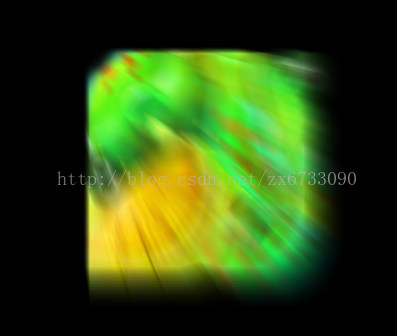
功能本人之前也介紹過,但是這裡轉載,是因為這個版本是Opengl實現的,大家可以看一下,也可以順便學習一下Opengl。Opengl 實現徑向模糊,可用於實現放射性效果: