編輯:關於Android編程
之前博客中,介紹過使用谷歌提供的鍵盤的一些api,可以很好地自定義鍵盤,這個有一個局限性,只能占滿屏幕,無法做到只能占一部分的需求鍵盤,如下圖我平板中的鍵盤需求:(由於公司保密需要,所以比較恐怖一點,嘿嘿)
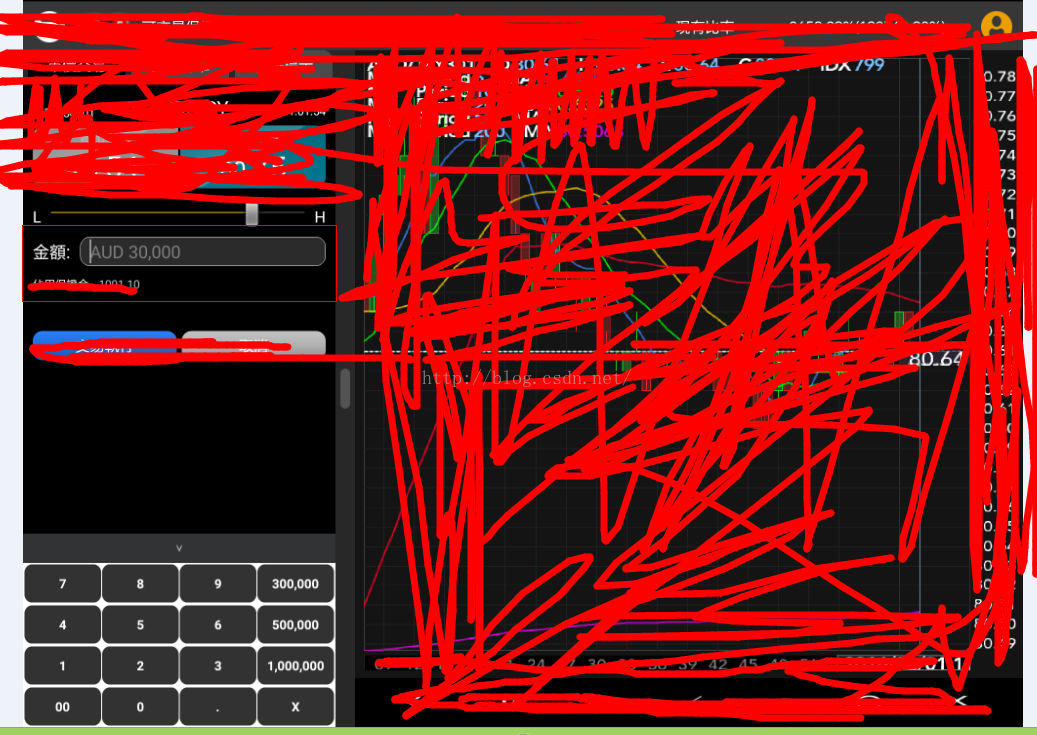
類似於上方的左下角的一小塊鍵盤,這就不能使用系統自帶的一些鍵盤api,需要自己寫布局,並且對輸入的金額進行位數的限制,以及一些欄位輸入的整數和小數位的控制,整體的實現步驟如下;
1.點擊某個edittext,彈出下方的鍵盤(也就是使用popuwindow的方式),需要監聽edittext獲得焦點以及點擊的事件,還需要隱藏掉系統自帶的鍵盤,如下:
limitEditText = (EditText) fragmentLayout.findViewById(R.id.ordertrade_limit_price);


		//禁止系統鍵盤彈出
		MainActionUtilHelper.hideSoftInputMethod(limitEditText, getActivity());
		digit = allone.verbank.apad.client.util.InstrumentUtil.getDigitByInstrument(instName);

		limitEditText.setOnFocusChangeListener(new android.view.View.OnFocusChangeListener() {
			@Override
			public void onFocusChange(View v, boolean hasFocus) {
				if (hasFocus) {
					if (popupMenu != null) {
						popupMenu.destroyPopupMenu();
					}
					popupMenu = PopupMenuFactory.createPopupWindowKeyBoard(getActivity(), limitEditText, order_amount_layout,
							IPopupMenu.MENU_TYPE_JPY, digit == 2, digit);
					popupMenu.showPopupMenu();

					popupMenu.createPupupWindow().setOnDismissListener(new PopupWindow.OnDismissListener() {

						@Override
						public void onDismiss() {

						}
					});
				} else {
					// 此處為失去焦點時的處理內容
				}
			}
		});

		//監聽彈出數字鍵盤
		limitEditText.setOnClickListener(new OnClickListener() {

			@Override
			public void onClick(View vi) {

				if (popupMenu != null) {
					popupMenu.destroyPopupMenu();
				}
				// 浮出菜單
				popupMenu = PopupMenuFactory.createPopupWindowKeyBoard(getActivity(), limitEditText, order_amount_layout,
						IPopupMenu.MENU_TYPE_JPY, digit == 2, digit);
				popupMenu.showPopupMenu();

				popupMenu.createPupupWindow().setOnDismissListener(new PopupWindow.OnDismissListener() {

					@Override
					public void onDismiss() {

					}
				});
			}
		});
		//======================================================================================
(2)隱藏系統自帶的鍵盤,方法如下,需要傳入activity和edittext控件,如下代碼:
/**
	 * 隱藏系統鍵盤
	 *
	 * @param ed
	 * @author qiulinhe
	 * @createTime 2016年5月31日 下午1:50:33
	 */
	public static void hideSoftInputMethod(EditText ed, Activity activity) {
		activity.getWindow().setSoftInputMode(WindowManager.LayoutParams.SOFT_INPUT_STATE_ALWAYS_HIDDEN);

		int currentVersion = android.os.Build.VERSION.SDK_INT;
		String methodName = null;
		if (currentVersion >= 16) {
			// 4.2
			methodName = "setShowSoftInputOnFocus";
		} else if (currentVersion >= 14) {
			// 4.0
			methodName = "setSoftInputShownOnFocus";
		}

		if (methodName == null) {
			ed.setInputType(InputType.TYPE_NULL);
		} else {
			Class cls = EditText.class;
			Method setShowSoftInputOnFocus;
			try {
				setShowSoftInputOnFocus = cls.getMethod(methodName, boolean.class);
				setShowSoftInputOnFocus.setAccessible(true);
				setShowSoftInputOnFocus.invoke(ed, false);
			} catch (NoSuchMethodException e) {
				ed.setInputType(InputType.TYPE_NULL);
				e.printStackTrace();
			} catch (IllegalAccessException e) {
				e.printStackTrace();
			} catch (IllegalArgumentException e) {
				e.printStackTrace();
			} catch (InvocationTargetException e) {
				e.printStackTrace();
			}
		}
	}
2.寫好popuwindow的xml布局文件,也就是你需要呈現的鍵盤布局,xml文件如下:
package allone.verbank.apad.client.component.menu.impl;

import allone.verbank.apad.client.R;
import allone.verbank.apad.client.component.menu.IPopupMenu;
import allone.verbank.apad.client.util.SharepreferencesUtilSystemSettings;
import android.app.Activity;
import android.graphics.drawable.ColorDrawable;
import android.view.Gravity;
import android.view.MotionEvent;
import android.view.View;
import android.view.View.OnClickListener;
import android.view.ViewGroup.LayoutParams;
import android.widget.Button;
import android.widget.EditText;
import android.widget.PopupWindow;
import android.widget.TextView;
import android.widget.Toast;

/**
 * 數字鍵盤,點擊edittext控件,下方彈出鍵盤
 *
 * @author qiulinhe
 * @createTime 2016年5月31日 上午10:33:20
 */
public class DigitKeyboardPopupMenu implements IPopupMenu {

	private boolean isJPY;
	private int digit;

	//=============鍵盤數字初始化============
	private TextView hide_keyboard;//隱藏鍵盤
	private Button seven, eight, nine, first_selfdefine;//鍵盤的第一行
	private Button four, five, six, second_selfdefine;//鍵盤的第一行
	private Button one, two, three, three_selfdefine;//鍵盤的第一行
	private Button double_zero, zero, donte, delete_btn;//鍵盤的第一行

	private StringBuffer inputStringAdd = new StringBuffer();//用來存放輸入數字的sb

	//==========================================

	private PopupWindow popupMenu;
	private Activity activity;
	private EditText sourceEditView;//輸入的edittext,彈出鍵盤
	private View keylinearlayout;//為了計算鍵盤的尺寸,傳入布局

	private int keyboardType;//鍵盤類型

	public DigitKeyboardPopupMenu(Activity activity, View sourceEditView, View sourLayout, int keyboardType, boolean ifJPY,
			int instrumentdigit) {
		this.activity = activity;
		this.sourceEditView = (EditText) sourceEditView;
		this.keylinearlayout = sourLayout;
		this.keyboardType = keyboardType;

		this.isJPY = ifJPY;
		this.digit = instrumentdigit;

		initComponent();
	}

	private void initComponent() {
		//當從鍵盤切換到另一個鍵盤,重新回來,需要獲得原來的已經輸入的字符串
		inputStringAdd.append(sourceEditView.getText().toString());

		View view = activity.getLayoutInflater().inflate(R.layout.small_keyboard, null);

		// 創建彈出窗口
		// 窗口內容為layoutLeft,裡面包含一個ListView
		// 窗口寬度跟tvLeft一樣
		popupMenu = new PopupWindow(view, keylinearlayout.getWidth(), LayoutParams.WRAP_CONTENT);

		ColorDrawable cd = new ColorDrawable(R.color.white);
		popupMenu.setBackgroundDrawable(cd);
		popupMenu.setAnimationStyle(R.style.AnimBottom);
		popupMenu.update();
		popupMenu.setInputMethodMode(PopupWindow.INPUT_METHOD_NEEDED);
		popupMenu.setTouchable(true); // 設置popupwindow可點擊
		popupMenu.setOutsideTouchable(true); // 設置popupwindow外部可點擊
		popupMenu.setFocusable(true); // 獲取焦點

		popupMenu.setTouchInterceptor(new View.OnTouchListener() {

			@Override
			public boolean onTouch(View v, MotionEvent event) {
				// 如果點擊了popupwindow的外部,popupwindow也會消失
				if (event.getAction() == MotionEvent.ACTION_OUTSIDE) {
					popupMenu.dismiss();
					return true;
				}
				return false;
			}
		});

		//初始化鍵盤上的數字
		initALLDig(view);
	}

	@Override
	public PopupWindow createPupupWindow() {
		return popupMenu;
	}

	@Override
	public void showPopupMenu() {
		if (popupMenu != null && popupMenu.isShowing()) {
			popupMenu.dismiss();
		} else {
			//popupMenu.showAsDropDown(sourceEditView);

			popupMenu.showAtLocation(keylinearlayout, Gravity.BOTTOM | Gravity.LEFT, 0, 0); //設置layout在PopupWindow中顯示的位置
			// popupMenu.showAsDropDown(sourceView,
			// Math.round(sourceView.getX()),
			// (int) (sourceView.getY()));
		}
	}

	@Override
	public void destroyPopupMenu() {

	}

	/**
	 * 初始化鍵盤上的所有數字,進行監聽處理
	 *
	 * @param view
	 * @author qiulinhe
	 * @createTime 2016年5月31日 下午2:24:34
	 */
	private void initALLDig(View view) {
		// 自定義輸入金額key,2015年12月21日14:28:06:當用戶點擊自定義金額,清除掉之前的內容,輸入自定義金額

		final String selfdig20 = SharepreferencesUtilSystemSettings.getValue(activity, "amount2", "200,000");
		final String selfdig50 = SharepreferencesUtilSystemSettings.getValue(activity, "amount5", "500,000");
		final String selfdig100 = SharepreferencesUtilSystemSettings.getValue(activity, "amount10", "1,000,000");

		//=====================第一行,隱藏鍵盤的按鈕===============================
		hide_keyboard = (TextView) view.findViewById(R.id.hide_keyboard);
		hide_keyboard.setOnClickListener(new OnClickListener() {

			@Override
			public void onClick(View arg0) {
				popupMenu.dismiss();
			}
		});

		//=================第二行,7,8,9,第一個自定義金額=======================
		seven = (Button) view.findViewById(R.id.seven);
		seven.setOnClickListener(new OnClickListener() {

			@Override
			public void onClick(View arg0) {
				//追加數字
				inputAppendData(seven);
			}

		});
		eight = (Button) view.findViewById(R.id.eight);
		eight.setOnClickListener(new OnClickListener() {

			@Override
			public void onClick(View arg0) {
				//追加數字
				inputAppendData(eight);
			}
		});
		nine = (Button) view.findViewById(R.id.nine);
		nine.setOnClickListener(new OnClickListener() {

			@Override
			public void onClick(View arg0) {
				//追加數字
				inputAppendData(nine);
			}
		});
		first_selfdefine = (Button) view.findViewById(R.id.first_selfdefine);
		first_selfdefine.setText(selfdig20);
		first_selfdefine.setOnClickListener(new OnClickListener() {

			@Override
			public void onClick(View arg0) {

				//如果是輸入為小數位,禁止自定義金額點擊
				if (keyboardType == IPopupMenu.MENU_TYPE_JPY) {

				} else {
					String dValue = selfdig20;
					dValue = dValue.replace(",", "");
					selfDefAppendData(dValue);
				}

			}
		});

		//=================第二行4,5,6,第二個自定義金額=======================
		four = (Button) view.findViewById(R.id.four);
		four.setOnClickListener(new OnClickListener() {

			@Override
			public void onClick(View arg0) {
				//追加數字
				inputAppendData(four);

			}
		});
		five = (Button) view.findViewById(R.id.five);
		five.setOnClickListener(new OnClickListener() {

			@Override
			public void onClick(View arg0) {
				//追加數字
				inputAppendData(five);
			}
		});
		six = (Button) view.findViewById(R.id.six);
		six.setOnClickListener(new OnClickListener() {

			@Override
			public void onClick(View arg0) {
				//追加數字
				inputAppendData(six);
			}
		});
		second_selfdefine = (Button) view.findViewById(R.id.second_selfdefine);
		second_selfdefine.setText(selfdig50);
		second_selfdefine.setOnClickListener(new OnClickListener() {

			@Override
			public void onClick(View arg0) {

				//如果是輸入為小數位,禁止自定義金額點擊
				if (keyboardType == IPopupMenu.MENU_TYPE_JPY) {

				} else {
					String dValue = selfdig50;
					dValue = dValue.replace(",", "");

					selfDefAppendData(dValue);
				}

			}
		});

		//=================第二行1,2,3,第三個自定義金額=======================

		one = (Button) view.findViewById(R.id.one);
		one.setOnClickListener(new OnClickListener() {

			@Override
			public void onClick(View arg0) {

				//追加數字
				inputAppendData(one);

			}
		});
		two = (Button) view.findViewById(R.id.two);
		two.setOnClickListener(new OnClickListener() {

			@Override
			public void onClick(View arg0) {
				//追加數字
				inputAppendData(two);
			}
		});
		three = (Button) view.findViewById(R.id.three);
		three.setOnClickListener(new OnClickListener() {

			@Override
			public void onClick(View arg0) {
				//追加數字
				inputAppendData(three);

			}
		});
		three_selfdefine = (Button) view.findViewById(R.id.three_selfdefine);
		three_selfdefine.setText(selfdig100);
		three_selfdefine.setOnClickListener(new OnClickListener() {

			@Override
			public void onClick(View arg0) {

				//如果是輸入為小數位,禁止自定義金額點擊
				if (keyboardType == IPopupMenu.MENU_TYPE_JPY) {

				} else {
					String dValue = selfdig100;
					dValue = dValue.replace(",", "");

					selfDefAppendData(dValue);
				}
			}
		});

		//=================第二行00,0,.,第四個自定義金額=======================
		double_zero = (Button) view.findViewById(R.id.double_zero);
		double_zero.setOnClickListener(new OnClickListener() {

			@Override
			public void onClick(View arg0) {
				//追加數字
				inputAppendData(double_zero);

			}
		});
		zero = (Button) view.findViewById(R.id.zero);
		zero.setOnClickListener(new OnClickListener() {

			@Override
			public void onClick(View arg0) {
				//追加數字
				inputAppendData(zero);
			}
		});
		donte = (Button) view.findViewById(R.id.donte);
		donte.setOnClickListener(new OnClickListener() {

			@Override
			public void onClick(View arg0) {
				//當鍵盤為輸入金額的時候,小數點不能點擊
				if (keyboardType == IPopupMenu.MENU_TYPE_AMOUNT) {
					donte.setEnabled(false);
				} else {
					//如果已經有有一個小數點,則不能再點擊
					if (sourceEditView.getText().toString().contains(".")) {
						donte.setEnabled(false);
					} else {
						//追加數字,只能有一個小數點
						inputAppendData(donte);
					}

				}
			}
		});
		delete_btn = (Button) view.findViewById(R.id.delete_btn);
		delete_btn.setOnClickListener(new OnClickListener() {

			@Override
			public void onClick(View arg0) {
				//刪除功能
				deleteAppendData();
			}
		});

	}

	/**
	 * 點擊數字,進行追加
	 *
	 * @author qiulinhe
	 * @createTime 2016年5月31日 下午2:59:29
	 */
	private void inputAppendData(Button digBtn) {

		//當鍵盤為輸入金額的時候,小數點不能點擊,且只能輸入7位數,不能輸入小數
		if (keyboardType == IPopupMenu.MENU_TYPE_AMOUNT) {
			String oldValue = inputStringAdd.toString().trim();
			String newValue = digBtn.getText().toString().trim();//千分位格式化

			String dValue = oldValue + newValue;
			if (!dValue.equals("") && dValue.length() > 7) {
				Toast.makeText(activity, activity.getString(R.string.customdialogpricemodify_onlyseven), Toast.LENGTH_SHORT)
						.show();
			} else {
				inputStringAdd.append(digBtn.getText().toString().trim());
				sourceEditView.setText(inputStringAdd.toString().trim());

				//設置光標位於最後一位
				sourceEditView.setSelection(sourceEditView.getText().length());
			}

		} else if (keyboardType == IPopupMenu.MENU_TYPE_JPY) {//當商品含有JPY的,輸入的數值:整數位最多為3位,小數位最多為2位

			sourceEditView.setText(inputStringAdd.append(ifJPYReturnData(digBtn)));
			//設置光標位於最後一位
			sourceEditView.setSelection(sourceEditView.getText().length());

		}

	}

	/**
	 * 如果是JPY的,進行判斷,返回數據
	 *
	 * @param digBtn
	 * @author qiulinhe
	 * @createTime 2016年6月1日 上午10:45:19
	 */
	private String ifJPYReturnData(Button digBtn) {
		String oriValue = inputStringAdd.toString().trim();
		StringBuffer sb = new StringBuffer(oriValue);
		sb.append(digBtn.getText().toString().trim());
		String newValue = sb.toString();
		String[] newValueVec = newValue.split("\\.");
		if (newValueVec.length == 2) {
			double number = Double.parseDouble(newValueVec[0]);
			boolean numberflag = true;
			if (isJPY) {
				numberflag = ((number - 999 > 0.000001) ? false : true);
			} else {
				numberflag = ((number - 99 > 0.000001) ? false : true);
			}

			boolean digitflag = true;
			try {
				String digitNumber = newValueVec[1];
				digitflag = digitNumber.toCharArray().length > digit ? false : true;
			} catch (Exception ex) {
				digitflag = false;
			}
			if (numberflag && digitflag) {
				return digBtn.getText().toString().trim();
			} else {
				return "";
			}
		} else {
			double value = Double.parseDouble(newValue);
			if (isJPY) {
				return value > 999 ? "" : digBtn.getText().toString().trim();
			} else {
				return value > 99 ? "" : digBtn.getText().toString().trim();
			}
		}
	}

	/**
	 * 刪除功能
	 *
	 * @author qiulinhe
	 * @createTime 2016年5月31日 下午3:03:03
	 */
	private void deleteAppendData() {

		//當鍵盤為輸入金額的時候,小數點不能點擊,且只能輸入7位數,不能輸入小數
		if (keyboardType == IPopupMenu.MENU_TYPE_AMOUNT) {
			String dValue = sourceEditView.getText().toString();

			//格式化之後重新賦值
			inputStringAdd.setLength(0);
			inputStringAdd.append(dValue);

			if (inputStringAdd.length() - 1 >= 0) {

				inputStringAdd.delete(inputStringAdd.length() - 1, inputStringAdd.length());
				sourceEditView.setText(inputStringAdd.toString().trim());

				sourceEditView.setSelection(sourceEditView.getText().length());
			}
		} else {
			if (inputStringAdd.length() - 1 >= 0) {

				inputStringAdd.delete(inputStringAdd.length() - 1, inputStringAdd.length());
				sourceEditView.setText(inputStringAdd.toString().trim());

				sourceEditView.setSelection(sourceEditView.getText().length());
			}
		}

	}

	/**
	 * 自定義金額,輸入自定義金額時,將原來的界面清空,填入自定義金額
	 *
	 * @author qiulinhe
	 * @createTime 2016年5月31日 下午3:04:02
	 */
	private void selfDefAppendData(String selfData) {

		inputStringAdd.replace(0, inputStringAdd.length(), selfData);
		sourceEditView.setText(inputStringAdd.toString().trim());

		sourceEditView.setSelection(sourceEditView.getText().length());

	}
}
 Android文件夾管理器源碼實現
一、資源管理器介紹現在在一些移動終端上面都會有自帶的資源管理器,其實其並非是Android系統自帶,而是手機產商與app開發商的合作而導致融合,借助第三方的開發軟件預裝在
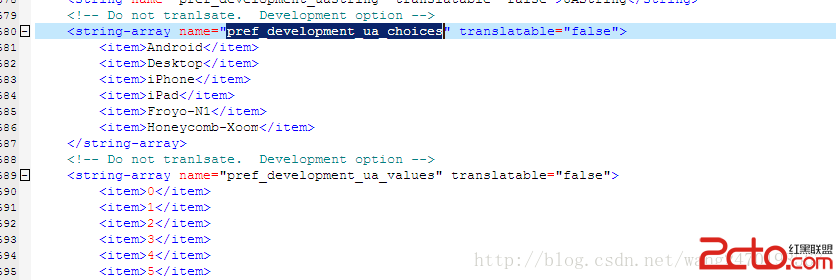 android4.4 Browser 浏覽器模式選項 默認值修改
修改文件路徑 android4.4\packages\apps\Browser\src\com\android\browser\BrowserSettings.java
 詳解Android App中的AsyncTask異步任務執行方式
基本概念AsyncTask:異步任務,從字面上來說,就是在我們的UI主線程運行的時候,異步的完成一些操作。AsyncTask允許我們的執行一個異步的任務在後台。我們可以將
 Android圖片的拖拽與縮放
Android圖片的拖拽與縮放2014年5月9日 我們在使用應用當中經常需要浏覽圖片,比如在微信當中,點擊圖片之後可以對圖片進行縮放。 本博客介紹如何對圖片進行拖拽和縮