編輯:關於Android編程
gridview作為android開發中常用的組件,其功能十分強大。但是,我們有時候有很多特殊的需求,需要在其基礎上進行改造。有時候會有移動gridView中item位置的需求,這個網上已經有很多例子,博主就不在描述。今天博主講的是移動gridView中item中的內容。博主沒看過網上那些移動item位置的demo,不知道其原理是不是和博主想的一樣。博主思考過,似乎博主的這種實現原理似乎也可以用作實現移動item位置。而之前博主百思不得其解的小米手機的桌面的自定義亂序排放,似乎也可以用這個原理去實現。好了,廢話不多說,先上效果圖
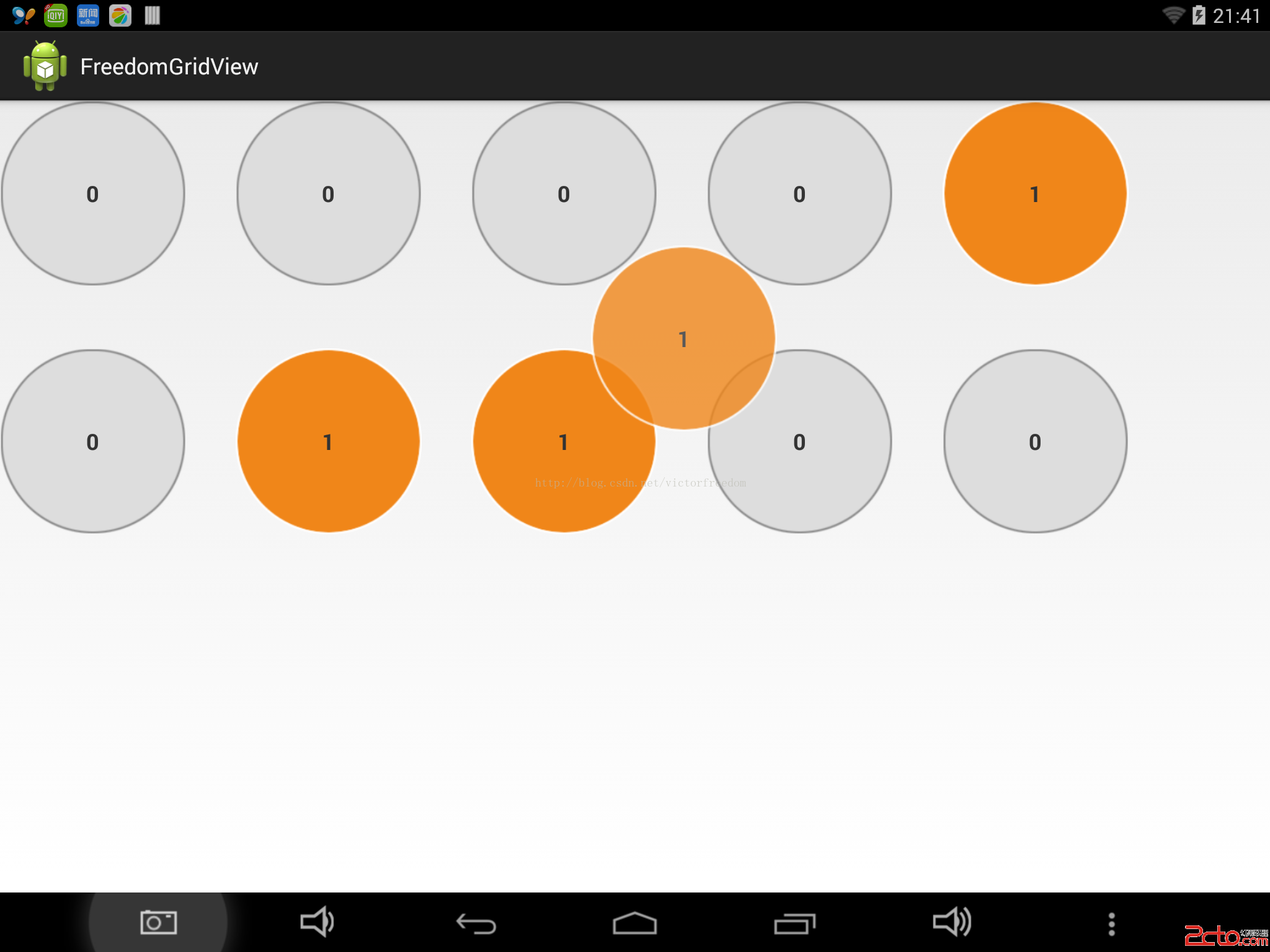
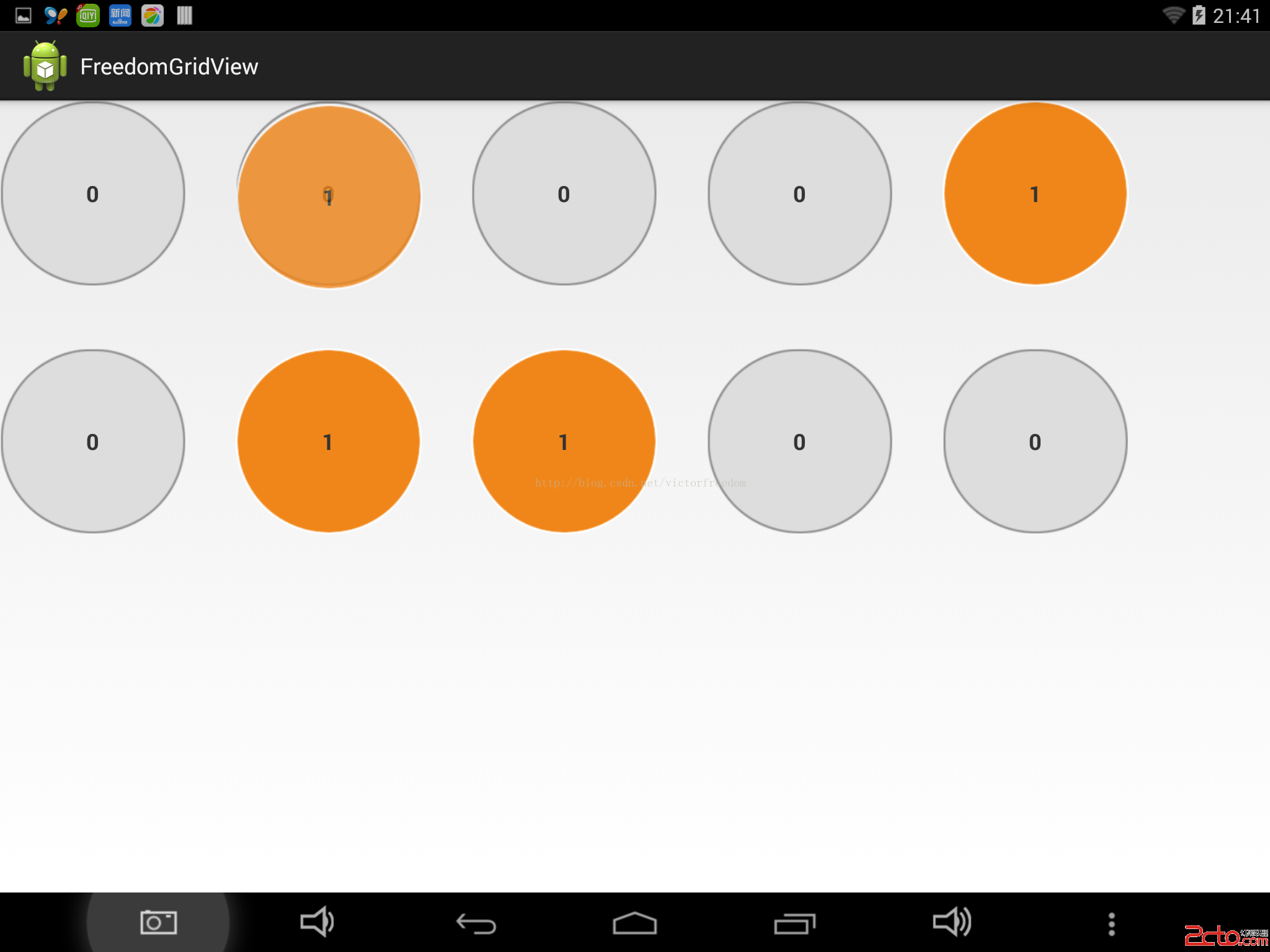
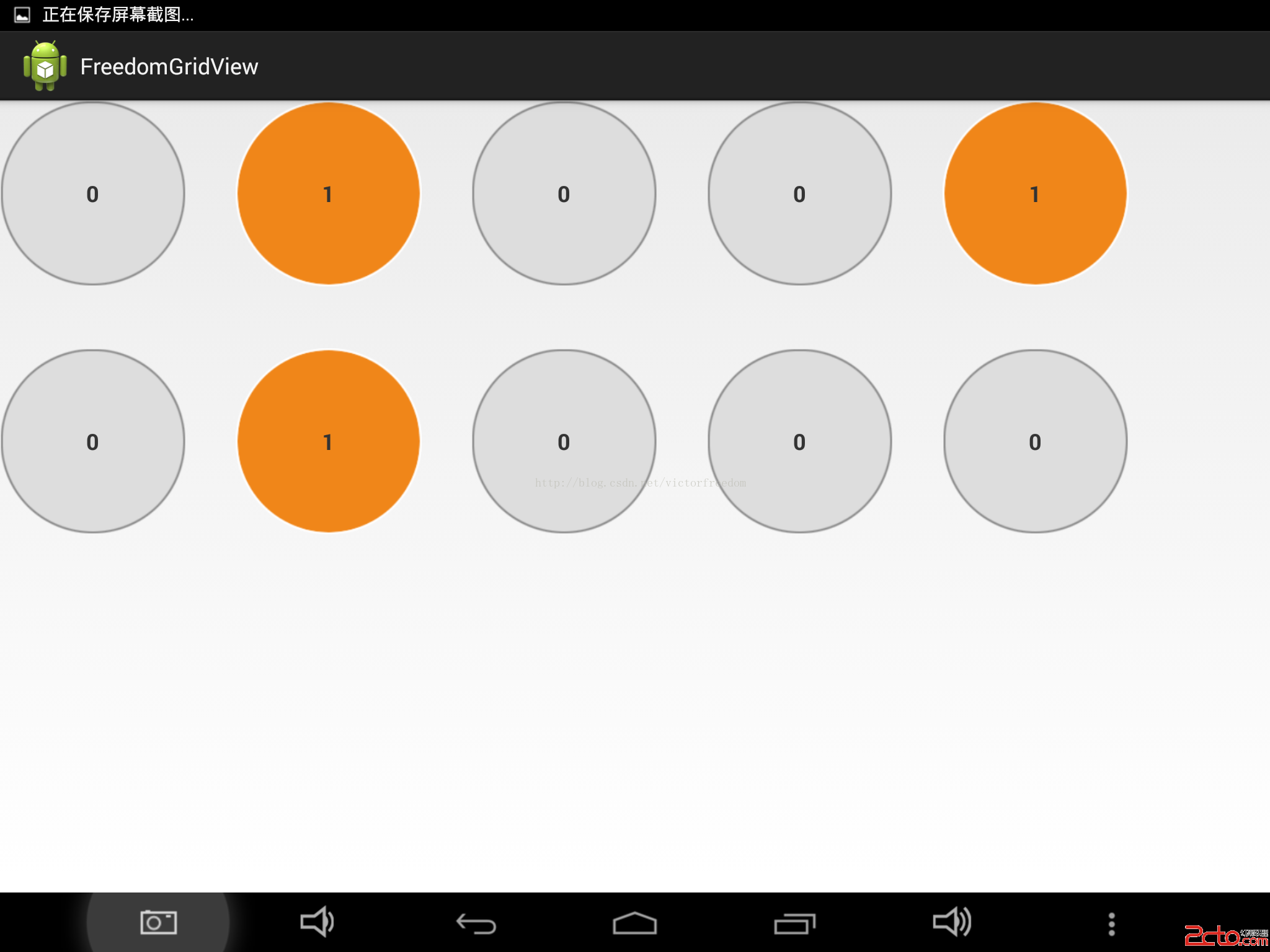
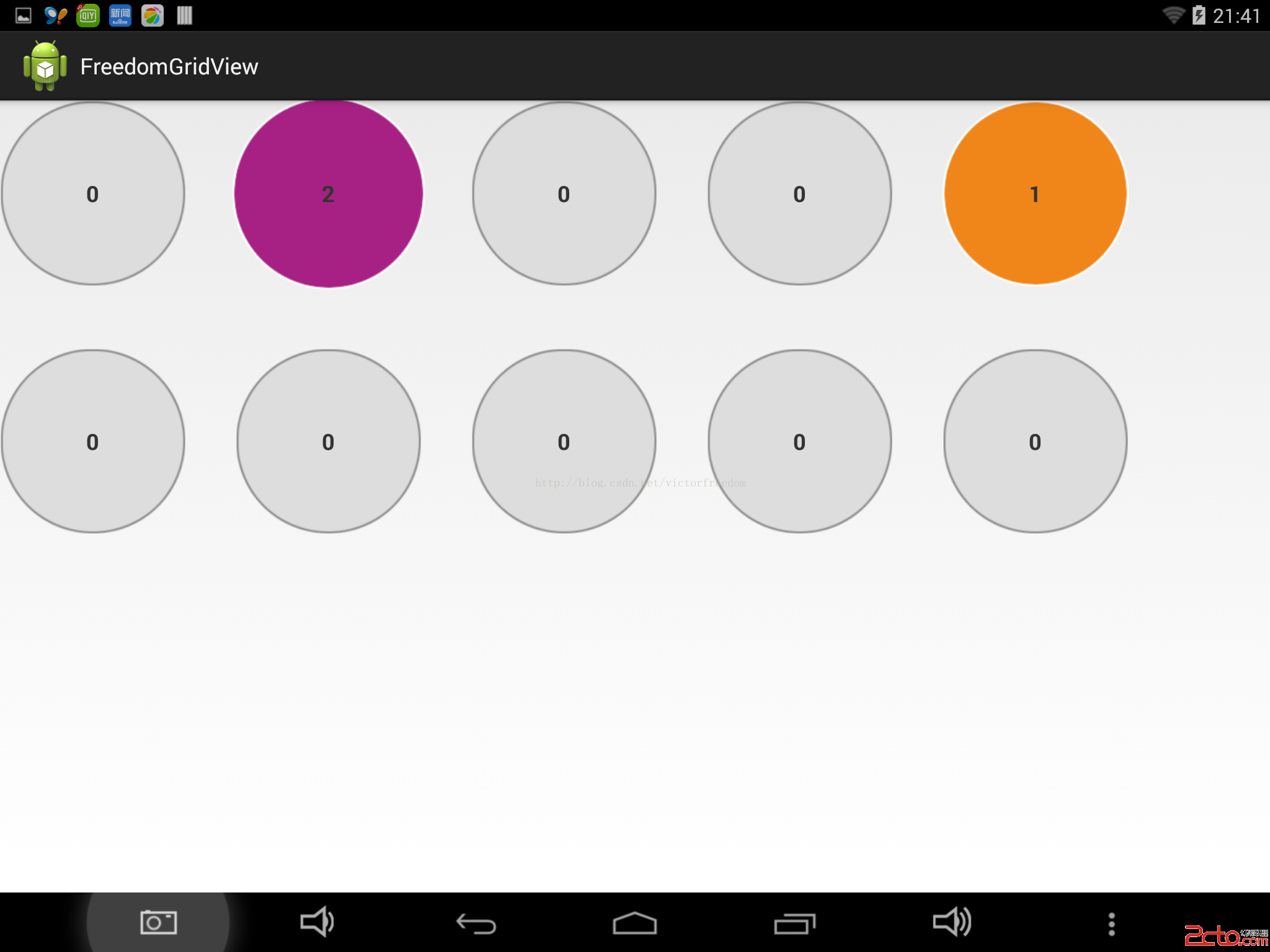
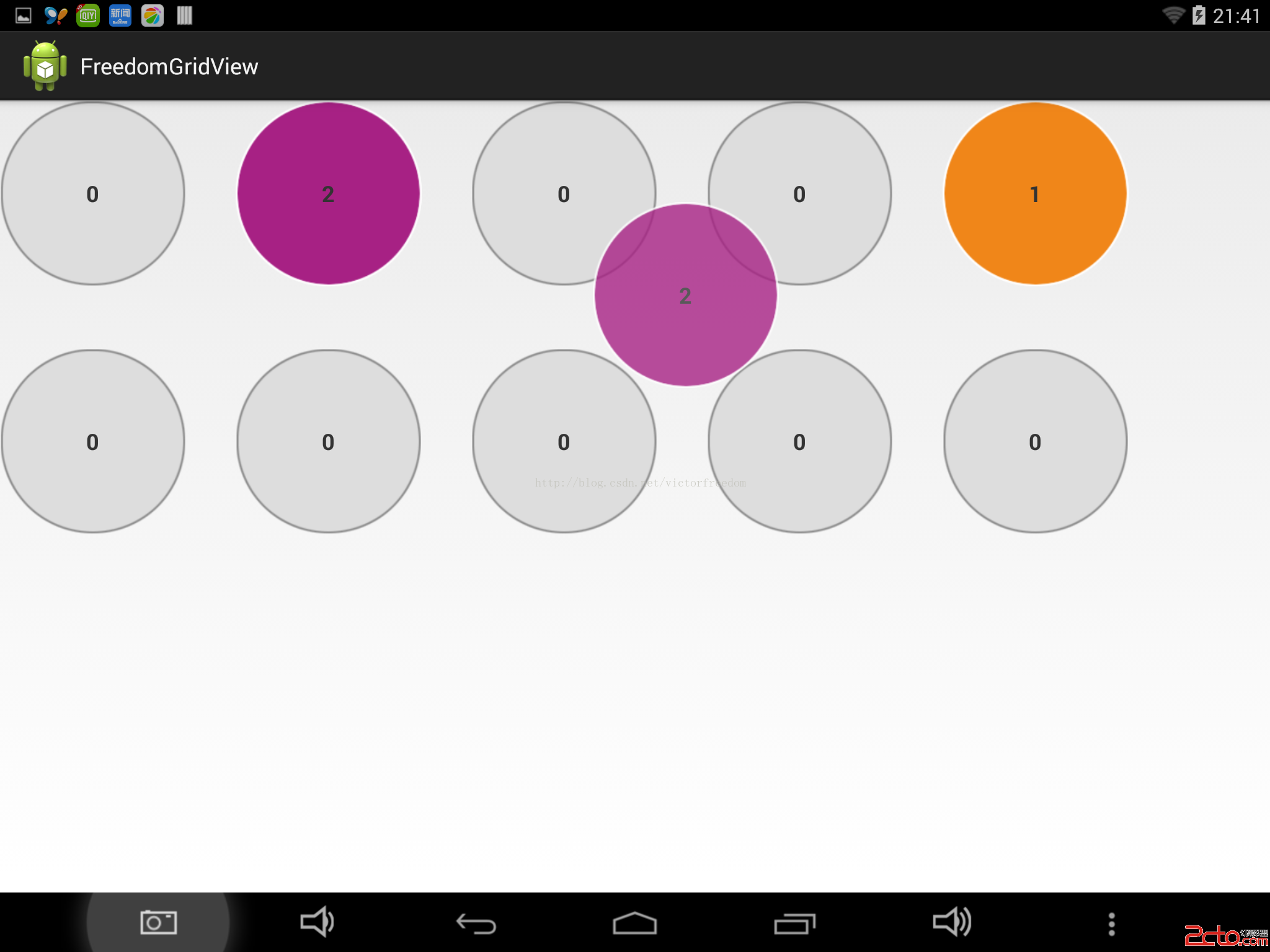
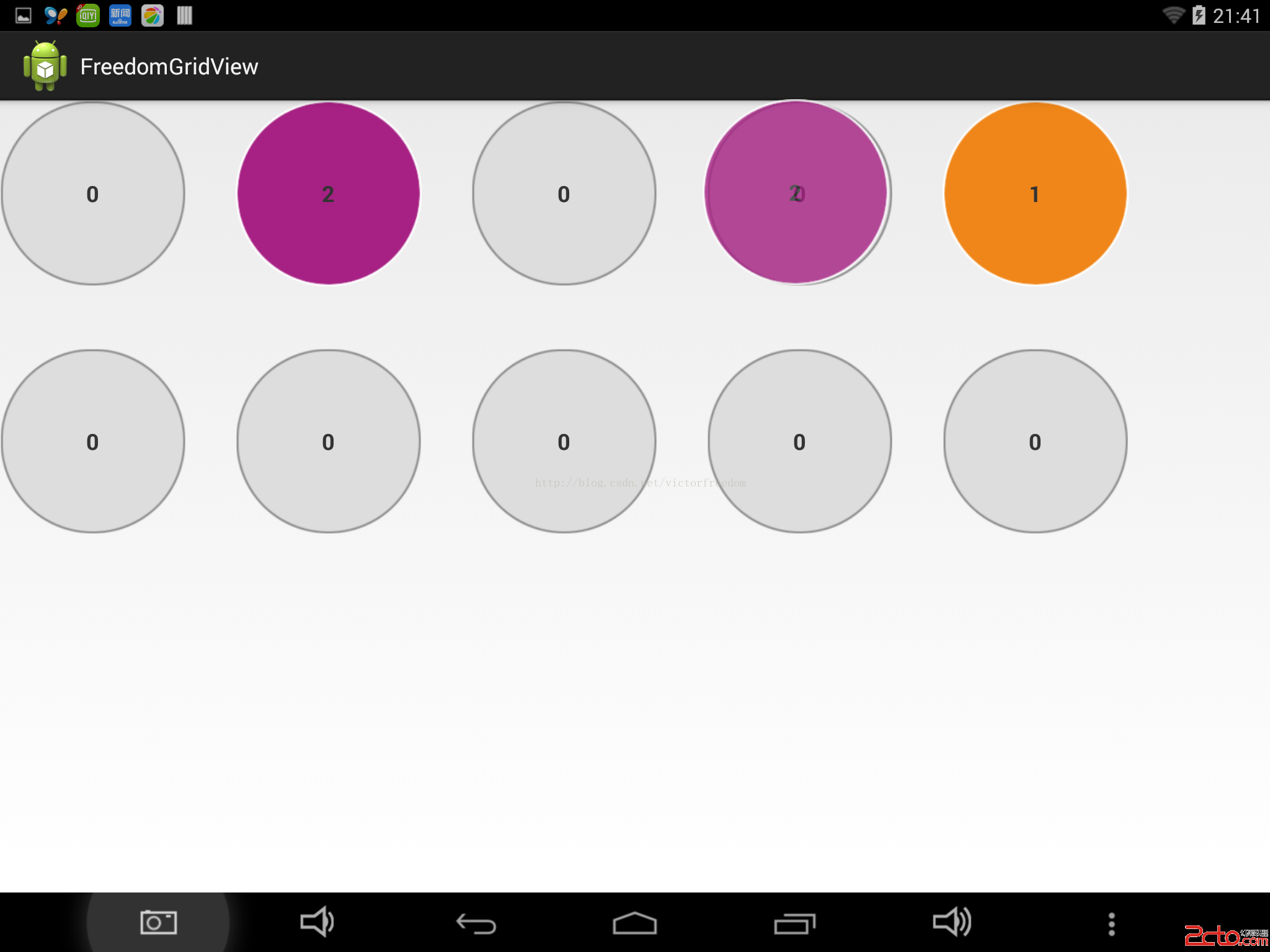
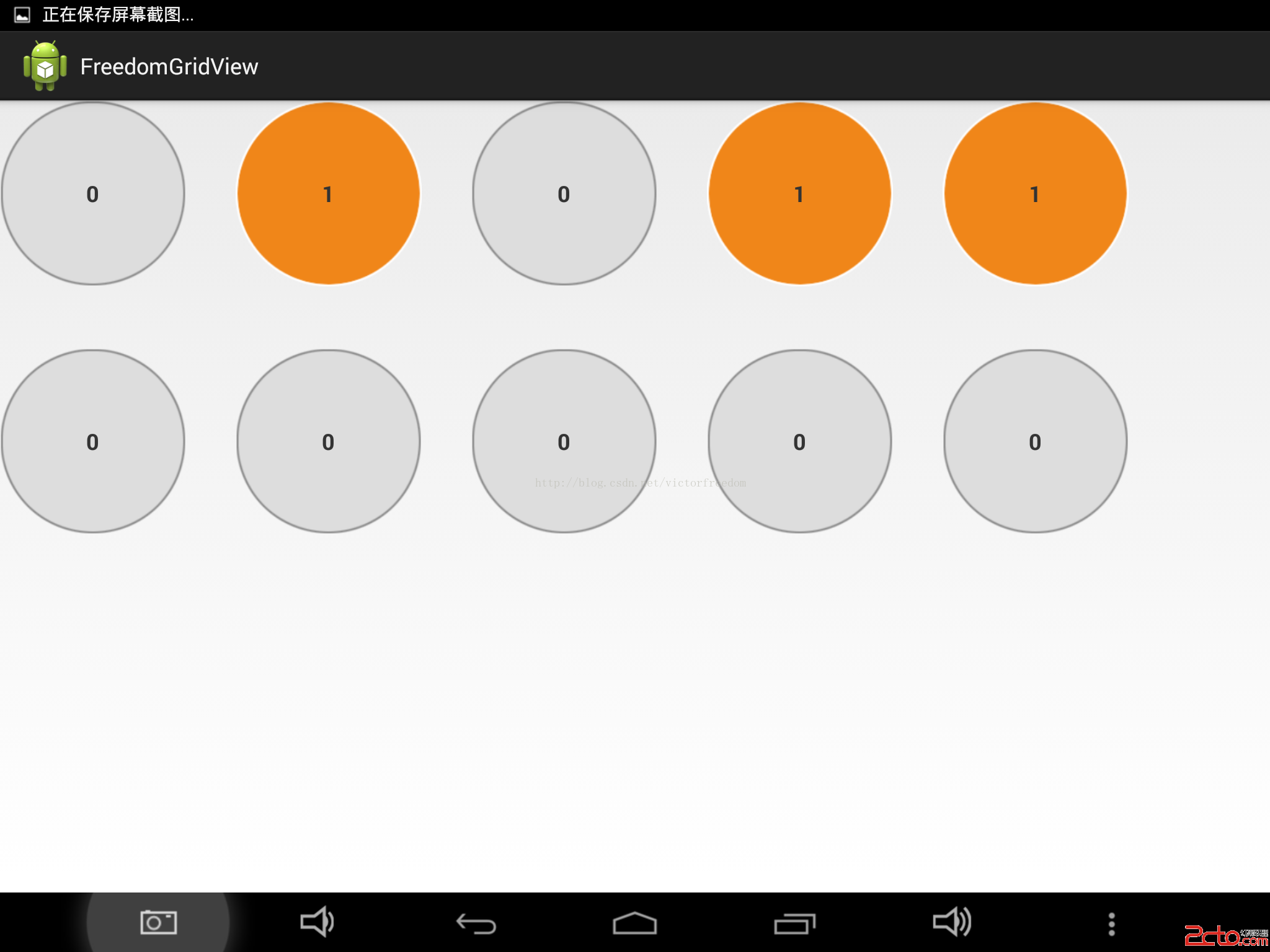
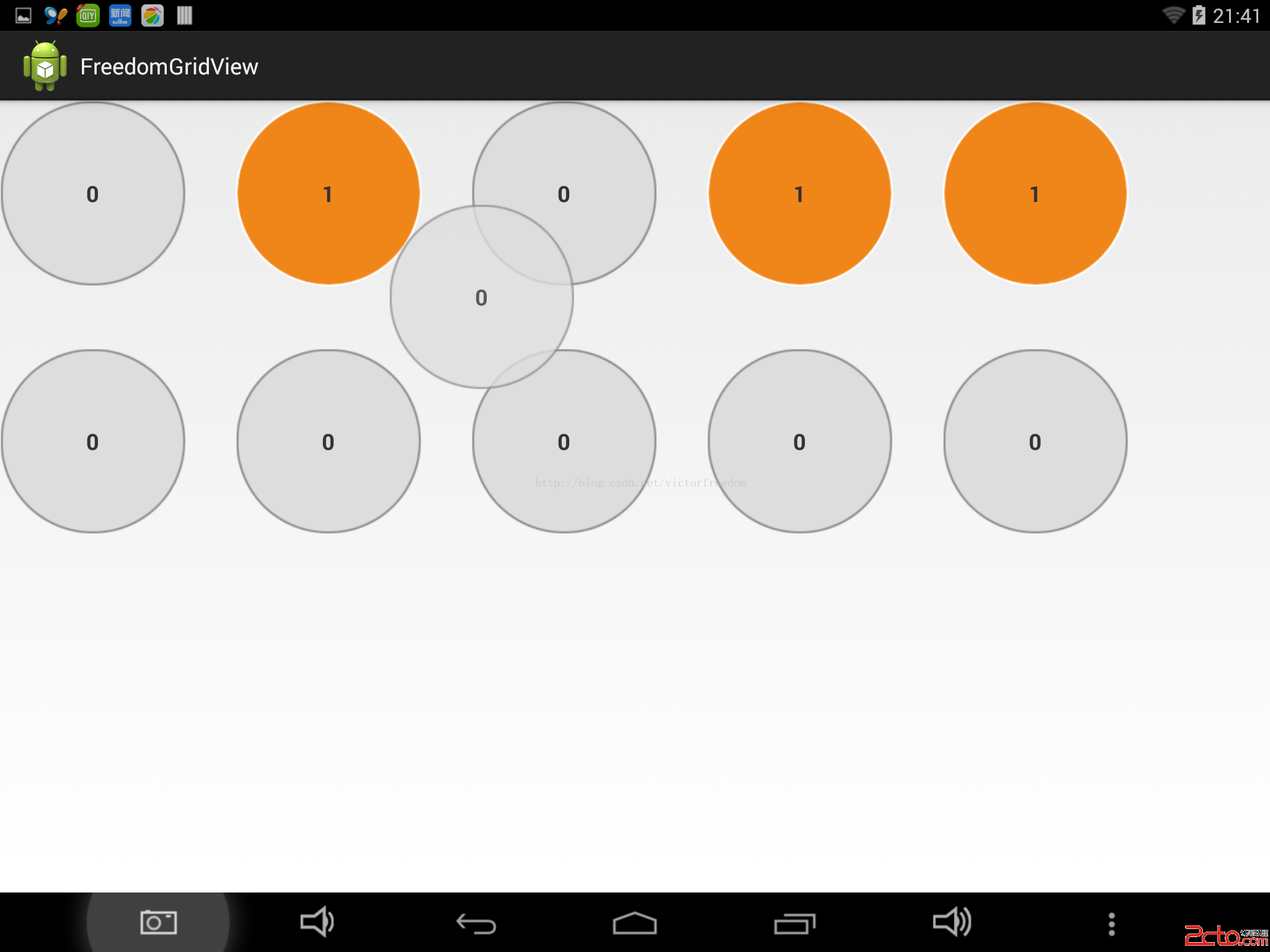
這裡博主就以數字為內容來演示,不同的數字item的背景顏色不同來區分,長按住一個item後可以移動,每次移動,移動的item減1,移動到的item加1。效果還可以吧。好了,上代碼,大家一起學習。了解其實現原理的同學完全可以自己修改代碼開發可移動item的gridView
完整項目下載地址:www.2cto.com
(最近網絡不給力,github上傳有問題,等明天最後一篇自定義view專題講解完了,再將所有項目一起上傳吧,不介意那點分的同學可以先下載)
package com.freedom.gridview;

import android.annotation.SuppressLint;
import android.content.Context;
import android.graphics.Bitmap;
import android.graphics.PixelFormat;
import android.util.AttributeSet;
import android.view.Gravity;
import android.view.MotionEvent;
import android.view.View;
import android.view.ViewConfiguration;
import android.view.ViewGroup;
import android.view.WindowManager;
import android.view.animation.AnimationUtils;
import android.widget.AdapterView;
import android.widget.GridView;
import android.widget.ImageView;
import android.widget.Toast;

import com.freedom.gridview.adapter.GridViewAdapter;
import com.freedom.gridview.bean.Data;

/**
 * @ClassName: FreedomGridView
 * @author victor_freedom (x_freedom_reddevil@126.com)
 * @createddate 2015-1-4 下午10:25:52
 * @Description: 可移動item內容的gridView
 */
@SuppressLint(NewApi)
public class FreedomGridView extends GridView {

	// 是否在移動中
	private boolean isMove = false;
	// 是否是第一次移動
	private boolean isFirst = true;
	// 是否是長按
	private boolean isLongClick = false;
	// 圖形
	private Bitmap bitmap;
	// 移動的視圖
	private ImageView moveView = null;
	// 偏移量
	private int offsetX, offsetY;
	// 在屏幕中觸摸的位置
	private int touchPositionInScreen;
	// 移動的目的位置
	private int moveToPosition;
	// 在ITEM中觸摸的坐標
	private int touchPositionInItemX, touchPositionInItemY;
	// 移動速度
	private int scaledTouchSlop;
	// 移動過程中,上下邊距判定自動滑動距離
	private int upScrollBounce;
	private int downScrollBounce;
	// 窗體管理者,用於添加視圖
	private WindowManager windowManager = null;
	private WindowManager.LayoutParams layoutParams = null;
	private GridViewAdapter adapter;

	public FreedomGridView(Context context) {
		super(context);
		scaledTouchSlop = ViewConfiguration.get(context).getScaledTouchSlop();
	}

	public FreedomGridView(Context context, AttributeSet attrs) {
		super(context, attrs);
	}

	public FreedomGridView(Context context, AttributeSet attrs, int defStyle) {
		super(context, attrs, defStyle);
	}

	/**
	 * 長按判定
	 */
	private Runnable longPressRun = new Runnable() {
		@Override
		public void run() {
			isLongClick = true;
		}
	};

	/**
	 * @Title: contains
	 * @Description: 判斷是否觸摸坐標是否在視圖裡面
	 * @param v
	 * @param xInView
	 * @param yInView
	 * @return
	 * @throws
	 */
	private boolean contains(View v, int xInView, int yInView) {
		if (v instanceof ImageView) {
			return ((ImageView) v).getDrawable().getBounds()
					.contains(xInView, yInView);
		}
		return v.getBackground().getBounds().contains(xInView, yInView);
	}

	@Override
	public boolean onTouchEvent(MotionEvent ev) {
		// 拿到適配器
		if (null == adapter || adapter.isEmpty()) {
			adapter = (GridViewAdapter) getAdapter();
		}
		switch (ev.getAction()) {
		case MotionEvent.ACTION_DOWN:
			// 拿到相對於觸摸視圖的坐標
			int x = (int) ev.getX();
			int y = (int) ev.getY();
			// 拿到觸摸位置
			touchPositionInScreen = moveToPosition = this.pointToPosition(x, y);

			// 判斷位置是否有效
			if (moveToPosition == AdapterView.INVALID_POSITION) {
				break;
			}

			// 拿到當前觸摸的可見item
			ViewGroup itemView = (ViewGroup) this.getChildAt(moveToPosition
					- this.getFirstVisiblePosition());
			// 拿到點擊位置相對於ITEM視圖的偏移量
			touchPositionInItemY = y - itemView.getTop();
			touchPositionInItemX = x - itemView.getLeft();

			// 拿到item視圖裡面的控件
			View view = itemView.findViewById(R.id.desk_back);
			// 判斷點擊位置是否在視圖裡面
			if (this.contains(view, touchPositionInItemX, touchPositionInItemX)) {
				try {
					int[] locationInScreen = new int[2];
					view.getLocationOnScreen(locationInScreen);
				} catch (NullPointerException e) {
					break;
				}
			}
			// 移動視圖時候的偏移量
			this.offsetX = (int) (ev.getRawX() - x);
			this.offsetY = (int) (ev.getRawY() - y);

			// 獲取觸發當拖動視圖到最頂端或者最底端自動滾動視圖的邊距
			upScrollBounce = Math.min(y - scaledTouchSlop, getHeight() / 3);
			downScrollBounce = Math.max(y + scaledTouchSlop,
					getHeight() * 2 / 3);
			itemView.setDrawingCacheEnabled(true);
			// 拿item視圖的bitmap
			bitmap = Bitmap.createBitmap(itemView.getDrawingCache());
			itemView.destroyDrawingCache();
			postDelayed(longPressRun, 1000);
			break;
		case MotionEvent.ACTION_MOVE:
			if (isLongClick) {
				int mx = (int) ev.getX();
				int my = (int) ev.getY();
				// 第一次移動,創建移動視圖
				if (isFirst)
					initWindowManager(bitmap, mx, my);
				onMove(mx, my);
				// 移除之前的runable
				removeCallbacks(longPressRun);
				return true;
			}
			break;
		case MotionEvent.ACTION_UP:
			int upY = (int) ev.getY();
			int upX = (int) ev.getX();
			if (isMove && isLongClick) {
				stopMove();
				completeMove(upX, upY);
				isMove = false;
				isLongClick = false;
				break;
			}
			removeCallbacks(longPressRun);
		}
		return super.onTouchEvent(ev);
	}

	/**
	 * @Title: initWindowManager
	 * @Description: 創建移動視圖
	 * @param bm
	 * @param x
	 * @param y
	 * @throws
	 */
	public void initWindowManager(Bitmap bm, int x, int y) {
		stopMove();
		isFirst = false;
		layoutParams = new WindowManager.LayoutParams();
		layoutParams.gravity = Gravity.TOP | Gravity.LEFT;
		layoutParams.horizontalMargin = layoutParams.verticalMargin = 0;
		layoutParams.x = x - touchPositionInItemX + offsetX;
		layoutParams.y = y - touchPositionInItemY + offsetY;
		layoutParams.width = WindowManager.LayoutParams.WRAP_CONTENT;
		layoutParams.height = WindowManager.LayoutParams.WRAP_CONTENT;
		layoutParams.flags = WindowManager.LayoutParams.FLAG_NOT_FOCUSABLE
				| WindowManager.LayoutParams.FLAG_NOT_TOUCHABLE
				| WindowManager.LayoutParams.FLAG_KEEP_SCREEN_ON
				| WindowManager.LayoutParams.FLAG_LAYOUT_NO_LIMITS;
		layoutParams.format = PixelFormat.TRANSLUCENT;
		layoutParams.windowAnimations = 0;
		windowManager = (WindowManager) this.getContext().getSystemService(
				window);

		ImageView moveViewTemp = new ImageView(getContext());
		moveViewTemp.setImageBitmap(bm);

		windowManager = (WindowManager) this.getContext().getSystemService(
				window);
		windowManager.addView(moveViewTemp, layoutParams);
		moveView = moveViewTemp;

	}

	/**
	 * @Title: stopMove
	 * @Description: 停止移動
	 * @throws
	 */
	public void stopMove() {
		if (moveView != null) {
			windowManager.removeView(moveView);
			moveView = null;
		}
	}

	/**
	 * @Title: onMove
	 * @Description: 視圖移動的時候觸發的方法
	 * @param x
	 * @param y
	 * @throws
	 */
	public void onMove(int x, int y) {
		isMove = true;
		// 避免拖動到無效區域
		int tempPosition = this.pointToPosition(x, y);
		if (tempPosition != FreedomGridView.INVALID_POSITION) {
			this.moveToPosition = tempPosition;
		}

		// 移動的時候更新視圖位置
		if (moveView != null) {
			layoutParams.alpha = 0.8f;
			layoutParams.y = y - touchPositionInItemY + offsetY;
			layoutParams.x = x - touchPositionInItemX + offsetX;
			windowManager.updateViewLayout(moveView, layoutParams);
		}

		int scrollHeight = 0;
		if (y < upScrollBounce) {
			scrollHeight = 30;
		} else if (y > downScrollBounce) {
			scrollHeight = -30;
		}
		// 觸發自動滾動
		if (scrollHeight != 0) {
			smoothScrollToPositionFromTop(moveToPosition,
					getChildAt(moveToPosition - getFirstVisiblePosition())
							.getTop() + scrollHeight, 1);
		}
	}

	/**
	 * @Title: completeMove
	 * @Description: 移動完成時
	 * @param x
	 * @param y
	 * @throws
	 */
	public void completeMove(int x, int y) {
		isFirst = true;
		// 拿到停止的位置
		int tempPosition = this.pointToPosition(x, y);
		if (tempPosition != FreedomGridView.INVALID_POSITION) {
			this.moveToPosition = tempPosition;
		}

		if (y < getChildAt(0).getTop()) {
			return;
		} else if (y > getChildAt(getChildCount() - 1).getBottom()) {
			moveToPosition = getAdapter().getCount() - 1;
			return;
		} else {
			// 如果在有效位置
			if (moveToPosition >= 0 && moveToPosition < getAdapter().getCount()) {

				ViewGroup itemView = (ViewGroup) this.getChildAt(moveToPosition
						- this.getFirstVisiblePosition());
				if (itemView != null) {

					ImageView imaveView = (ImageView) itemView
							.findViewById(R.id.desk_back);
					// 判斷是否移入了有效視圖裡面
					boolean isIn = this.contains(imaveView,
							x - itemView.getLeft(), y - itemView.getTop());

					// 如果已經移入了,並且不是觸摸時的起始位置
					if (isIn) {
						if (moveToPosition != touchPositionInScreen) {
							itemView.startAnimation(AnimationUtils
									.loadAnimation(getContext(),
											R.anim.desk_scale));
							Data touchData = ((Data) adapter
									.getItem(touchPositionInScreen));
							if (touchData.getNum() == 0) {
								Toast.makeText(getContext(), 數目為0不可變化,
										Toast.LENGTH_SHORT).show();
								return;
							}

							Data toData = (Data) adapter
									.getItem(moveToPosition);
							if (toData.getNum() == 2) {
								Toast.makeText(getContext(), 數目為2不可變化,
										Toast.LENGTH_SHORT).show();
								return;
							}

							touchData.setNum(touchData.getNum() - 1);
							toData.setNum(toData.getNum() + 1);
							adapter.notifyDataSetChanged();
						}
					}
				}
			}
		}
	}

}
 Android-Universal-Image-Loader (圖片異步加載緩存庫)對Bitmap的優化處理
前言:前面兩篇分別介紹了:Android-Universal-Image-Loader (圖片異步加載緩存庫)的使用配置Android-Universal-Image-L
 Android開發之創建可點擊的Button實現方法
本文實例講述了Android創建可點擊的Button實現方法。分享給大家供大家參考,具體如下:感覺到自己有必要學習下手機開發方面的知識,不論是為了以後的工作需求還是目前的
 Android NDK開發技術與技巧總結與心得
一、JNI到底是干嘛用的百度都能查到的官方解釋我就不多說了。我自己的理解是兩方面,一方面主要用於各種復雜算法的執行,C的效率高自不必說,更重要的是so的破解難度要遠遠大於
 Android筆記之:App調試的幾個命令的實踐與分析
在Android的應用開發中,我們會用到各種代碼調試;其實在Android的開發之後,我們可能會碰到一些隨機的問題,如cpu過高,內存洩露等,我們無法簡單的進行代碼調試,