編輯:關於Android編程
/**
*
*/
package com.kince.progressrectangle;

import android.content.Context;
import android.graphics.Canvas;
import android.graphics.Color;
import android.graphics.Paint;
import android.graphics.RectF;
import android.graphics.Paint.Style;
import android.os.Handler;
import android.os.Message;
import android.util.AttributeSet;
import android.util.Log;
import android.view.View;

/**
* @author kince
* @category 仿solo桌面內存清理效果
* @since 2014.7.30
* @version 1.0.0
* {@link }
*
*/
public class ProgressRectangle extends View {

     // Sizes (with defaults)
     private int layout_height = 0;
     private int layout_width = 0;
     // Colors (with defaults)
     private int bgColor = Color.TRANSPARENT;
     private int progressColor = 0xFF339933;
     // Paints
     private Paint progressPaint = new Paint();
     private Paint bgPaint = new Paint();
     private Paint titlePaint = new Paint();
     private Paint usePaint = new Paint();
     // Rectangles
     private RectF rectBgBounds = new RectF();
     private RectF rectProgressBounds = new RectF();

     int progress = 100;
     boolean isProgress;

     private Handler spinHandler = new Handler() {
          /**
          * This is the code that will increment the progress variable and so
          * spin the wheel
          */
          @Override
          public void handleMessage(Message msg) {
               invalidate();

               // super.handleMessage(msg);
          }
     };

     /**
     * @param context
     */
     public ProgressRectangle(Context context) {
          super(context);
          // TODO Auto-generated constructor stub
     }

     /**
     * @param context
     * @param attrs
     */
     public ProgressRectangle(Context context, AttributeSet attrs) {
          super(context, attrs);
          // TODO Auto-generated constructor stub
     }

     /**
     * @param context
     * @param attrs
     * @param defStyleAttr
     */
     public ProgressRectangle(Context context, AttributeSet attrs,
               int defStyleAttr) {
          super(context, attrs, defStyleAttr);
          // TODO Auto-generated constructor stub
     }

     @Override
     protected void onSizeChanged(int w, int h, int oldw, int oldh) {
          // TODO Auto-generated method stub
          super.onSizeChanged(w, h, oldw, oldh);
          // Share the dimensions
          layout_width = w;
          Log.i(layout_width, layout_width + );

          layout_height = h;
          Log.i(layout_height, layout_height + );
          setupBounds();
          setupPaints();
          invalidate();

     }

     private void setupPaints() {
          // TODO Auto-generated method stub
          bgPaint.setColor(bgColor);
          bgPaint.setAntiAlias(true);
          bgPaint.setStyle(Style.FILL);

          progressPaint.setColor(progressColor);
          progressPaint.setAntiAlias(true);
          progressPaint.setStyle(Style.FILL);

          titlePaint.setColor(Color.WHITE);
          titlePaint.setTextSize(20);
          titlePaint.setAntiAlias(true);
          titlePaint.setStyle(Style.FILL);

          usePaint.setColor(Color.WHITE);
          usePaint.setAntiAlias(true);
          usePaint.setTextSize(30);
          usePaint.setStyle(Style.FILL);

     }

     private void setupBounds() {
          // TODO Auto-generated method stub
          int width = getWidth(); // this.getLayoutParams().width;
          Log.i(width, width + );
          int height = getHeight(); // this.getLayoutParams().height;
          Log.i(height, height + );
          rectBgBounds = new RectF(0, 0, width, height);
     }

     @Override
     protected void onDraw(Canvas canvas) {
          // TODO Auto-generated method stub
          super.onDraw(canvas);

          canvas.drawRect(rectBgBounds, bgPaint);

          Log.i(progress, progress + );
          rectProgressBounds = new RectF(0, 0, progress, layout_height);
          canvas.drawRect(rectProgressBounds, progressPaint);
          canvas.drawText(使用內存, 25, 25, titlePaint);
          canvas.drawText(progress + M + /1024M, 25, 60, usePaint);

     }

     /**
     * Increment the progress by 1 (of 100)
     */
     public void incrementProgress() {
          isProgress = true;
          progress++;
          if (progress > 200)
               progress = 100;
          // setText(Math.round(((float) progress / 360) * 100) + %);
          spinHandler.sendEmptyMessage(0);
     }

     /**
     * Increment the progress by 1 (of 100)
     */
     public void unIncrementProgress() {
          isProgress = true;
          progress--;
          if (progress < 1)
               progress = 100;
          // setText(Math.round(((float) progress / 360) * 100) + %);
          spinHandler.sendEmptyMessage(0);
     }

     /**
     * Set the progress to a specific value
     */
     public void setProgress(int i) {

          progress = i;
          spinHandler.sendEmptyMessage(0);
     }

}
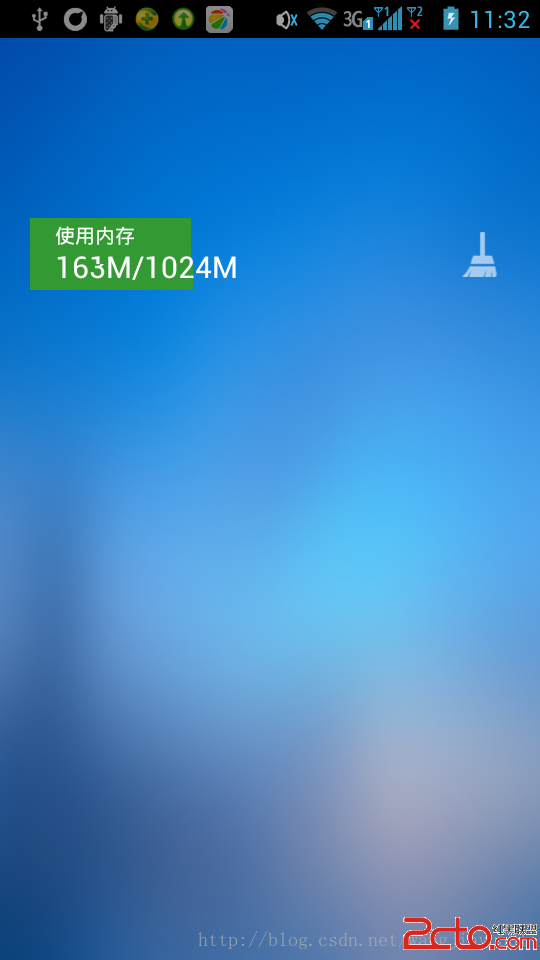
實現思路也是很簡單的,就是在onDraw()方法裡面繪制進度條的背景以及進度,進度的參數是傳遞進來的數值。Activity的代碼如下:
package com.kince.progressrectangle;

import android.app.Activity;
import android.os.Bundle;
import android.util.Log;
import android.view.View;
import android.view.View.OnClickListener;
import android.widget.Button;

public class RecActivity extends Activity {

     boolean running;
     int progress = 0;
     ProgressRectangle progressRectangle;

     @Override
     protected void onCreate(Bundle savedInstanceState) {
          // TODO Auto-generated method stub
          super.onCreate(savedInstanceState);
          setContentView(R.layout.activity_rec);

          progressRectangle=(ProgressRectangle) findViewById(R.id.progressBar);
          final Runnable r = new Runnable() {
                    public void run() {
                         running = true;
                         while(progress<100) {
                              progressRectangle.incrementProgress();
                              progress++;
                              try {
                                   Thread.sleep(15);
                              } catch (InterruptedException e) {
                                   // TODO Auto-generated catch block
                                   e.printStackTrace();
                              }
                         }
                         while(progress>0) {
                              progressRectangle.unIncrementProgress();
                              progress--;
                              try {
                                   Thread.sleep(15);
                              } catch (InterruptedException e) {
                                   // TODO Auto-generated catch block
                                   e.printStackTrace();
                              }
                         }

                         running = false;
                    }
             };

          Button increment = (Button) findViewById(R.id.btn_increment);
        increment.setOnClickListener(new OnClickListener() {
               public void onClick(View v) {
                    if(!running) {
                         progress = 0;
                         Thread s = new Thread(r);
                         s.start();
                    }
               }
        });
     }
}
效果如下:
 Android XML數據的三種解析方式
本篇文章包含以下內容: XML數據的Dom解析 XML數據的Sax解析&n
 必須懂的Intent Filter匹配規則
Intent簡介Android中提供了Intent機制來協助應用間的交互與通訊,Intent負責對應用中一次操作的動作、動作涉及數據、附加數據進行描述,Android則根
 Android屏幕適配全攻略
Android屏幕適配出現的原因在我們學習如何進行屏幕適配之前,我們需要先了解下為什麼Android需要進行屏幕適配。由於Android系統的開放性,任何用戶、開發者、O
 android圖片處理之讓圖片一直勻速旋轉
本文是在我的文章android圖片處理,讓圖片變成圓形 的基礎上繼續寫的,可以去看看,直接看也沒關系,也能看懂 1、首先在res文件夾下創建一個名字為anim的