編輯:關於Android編程
ToggleButton開關狀態按鈕控件使用方法,具體內容如下
一、簡介
1、

2、ToggleButton類結構
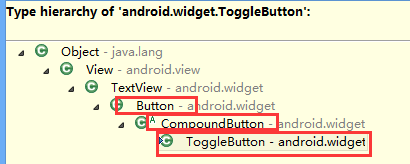
父類是CompoundButton,引包的時候注意下
二、ToggleButton開關狀態按鈕控件使用方法
1、新建ToggleButton控件及對象
private ToggleButton toggleButton1;
toggleButton1=(ToggleButton) findViewById(R.id.toggleButton1);
2、設置setOnCheckedChangeListener方法
toggleButton1.setOnCheckedChangeListener(new OnCheckedChangeListener() {})
3、根據是否checked方法實現操作
if(isChecked){//開
  linearLayout1.setOrientation(LinearLayout.VERTICAL);
}
else{//關
  linearLayout1.setOrientation(LinearLayout.HORIZONTAL);
}
三、代碼實例
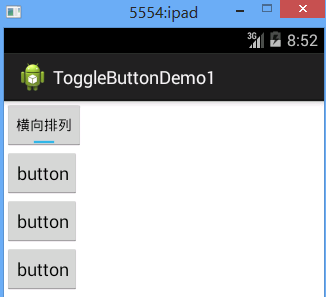
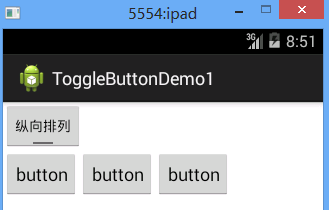
1、效果圖:
開狀態
關狀態
2、代碼:
fry.Activity01
package fry;

import com.example.ToggleButtonDemo1.R;

import android.app.Activity;
import android.os.Bundle;
import android.widget.CompoundButton;
import android.widget.CompoundButton.OnCheckedChangeListener;
import android.widget.LinearLayout;
import android.widget.ToggleButton;

public class Activity01 extends Activity{
  private LinearLayout linearLayout1;
  private ToggleButton toggleButton1;


  @Override
  protected void onCreate(Bundle savedInstanceState) {
    // TODO Auto-generated method stub
    super.onCreate(savedInstanceState);
    setContentView(R.layout.activity01);

    linearLayout1=(LinearLayout) findViewById(R.id.linearLayout1);
    toggleButton1=(ToggleButton) findViewById(R.id.toggleButton1);
    /*
     * ToggleButton開關狀態按鈕控件使用方法
     * 1、新建ToggleButton控件及對象
     * 2、設置setOnCheckedChangeListener方法
     * 3、根據是否checked方法實現操作
     *
     */
    toggleButton1.setOnCheckedChangeListener(new OnCheckedChangeListener() {

      @Override
      public void onCheckedChanged(CompoundButton buttonView, boolean isChecked) {
        // TODO Auto-generated method stub
        if(isChecked){//開
          linearLayout1.setOrientation(LinearLayout.VERTICAL);
        }
        else{//關
          linearLayout1.setOrientation(LinearLayout.HORIZONTAL);
        }
      }
    });

  }
}
/ToggleButtonDemo1/res/layout/activity01.xml
<?xml version="1.0" encoding="utf-8"?>
<LinearLayout xmlns:android="http://schemas.android.com/apk/res/android"
  android:layout_width="match_parent"
  android:layout_height="match_parent"
  android:orientation="vertical" >

  <ToggleButton
    android:id="@+id/toggleButton1"
    android:layout_width="wrap_content"
    android:layout_height="wrap_content"
    android:checked="true"
    android:textOn="橫向排列"
    android:textOff="縱向排列"
    />
  <LinearLayout
    android:id="@+id/linearLayout1"
    android:layout_width="wrap_content"
    android:layout_height="wrap_content"
    android:orientation="vertical"
    >
    <Button
      android:layout_width="wrap_content"
      android:layout_height="wrap_content"
      android:text="button"
      />
    <Button
      android:layout_width="wrap_content"
      android:layout_height="wrap_content"
      android:text="button"
      />
    <Button
      android:layout_width="wrap_content"
      android:layout_height="wrap_content"
      android:text="button"
      />
  </LinearLayout>

</LinearLayout>
四、獲得
1、
android:checked="true"
設置ToggleButton 狀態
2、
android:textOn="橫向排列"
設置ToggleButton打開文本
3、
toggleButton1.setOnCheckedChangeListener(new OnCheckedChangeListener() {})
設置ToggleButton的setOnCheckedChangeListener方法
4、
if(isChecked)
判斷ToggleButton狀態開關
以上就是本文的全部內容,希望對大家的學習有所幫助,也希望大家多多支持本站。
 Android應用Preference相關及源碼淺析(Preference組件家族篇)
1 前言前一篇(點我閱讀前一篇《Android應用Preference相關及源碼淺析(SharePreferences篇)》)我們討論分析使用了Android的Share
 android studio最基本的知識一
最近看到身邊的很多android開發程序員都在使用android studio,於是自己也下了個嘗試怎麼使用。其實這個開發工具在2013年我就知道了,那時由於自己太懶了,
 自定義菜單收起展開動畫
最近需求sama聯合美工娘娘又改了界面,整體的界面是華麗了不少,但是大神何必為難弱智兒童的我呢,下面先看看新界面~ 很經典的菜單設計,不過畢竟是版
 開發Android硬件抽象層代碼
1、開發Android硬件抽象層代碼 ~/android-2.3_r1/hardware/libhardware ----include