

編輯:Android 技術基礎
TabHost 的作用類似桌面應用程式裡的「分頁」或「選項卡」:點一下標籤,下方內容就跟著換。Android 提供兩種實作路徑,一種是讓 Activity 繼承 TabActivity,另一種則完全用版面配置檔搞定。
getTabHost() 取得 TabHost 物件,各分頁的內容在版面配置檔中定義。TabWidget 的 id 必須是 @android:id/tabs,FrameLayout 的 id 必須是 @android:id/tabcontent。開啟 res/layout/activity_main.xml。內容區用 FrameLayout 疊放三個 LinearLayout,每個 LinearLayout 就是一個分頁的內容:
<?xml version="1.0" encoding="utf-8"?>
<FrameLayout xmlns:android="https://schemas.android.com/apk/res/android"
    android:orientation="vertical"
    android:layout_width="match_parent"
    android:layout_height="match_parent">

    <!-- 分頁一:文字新聞 -->
    <LinearLayout android:id="@+id/txtnews"
        android:layout_width="match_parent"
        android:layout_height="match_parent"
        android:gravity="center_horizontal"
        android:orientation="vertical">

        <RatingBar
            android:id="@+id/ratingBar"
            android:layout_width="wrap_content"
            android:layout_height="wrap_content" />
    </LinearLayout>

    <!-- 分頁二:圖片新聞 -->
    <LinearLayout android:id="@+id/photonews"
        android:layout_width="match_parent"
        android:layout_height="match_parent"
        android:gravity="center_horizontal"
        android:orientation="vertical">

        <AnalogClock android:id="@+id/clock"
            android:layout_width="wrap_content"
            android:layout_height="wrap_content" />
    </LinearLayout>

    <!-- 分頁三:視頻新聞 -->
    <LinearLayout android:id="@+id/videonews"
        android:layout_width="match_parent"
        android:layout_height="match_parent"
        android:gravity="center_horizontal"
        android:orientation="vertical">

        <ToggleButton
            android:id="@+id/toggleButton"
            android:layout_width="wrap_content"
            android:layout_height="wrap_content"
            android:text="ToggleButton" />
    </LinearLayout>
</FrameLayout>
public class MainActivity extends TabActivity {

    private TabHost tabNews;

    @Override
    public void onCreate(Bundle savedInstanceState) {
        super.onCreate(savedInstanceState);

        // 取得 TabActivity 內建的 TabHost
        tabNews = this.getTabHost();

        // inflate 的意思,通俗地說就是把 XML 定義的版面找出來並掛上去
        LayoutInflater.from(this).inflate(
                R.layout.activity_main, tabNews.getTabContentView(), true);

        // 分頁一
        tabNews.addTab(tabNews.newTabSpec("firsttab")
                .setIndicator("文本新聞", getResources().getDrawable(R.drawable.ic_launcher))
                .setContent(R.id.txtnews));

        // 分頁二
        tabNews.addTab(tabNews.newTabSpec("secondtab")
                .setIndicator("圖片新聞", getResources().getDrawable(R.drawable.ic_launcher))
                .setContent(R.id.photonews));

        // 分頁三
        tabNews.addTab(tabNews.newTabSpec("thirdtab")
                .setIndicator("視頻新聞", getResources().getDrawable(R.drawable.ic_launcher))
                .setContent(R.id.videonews));
    }
}
這串程式碼在做的事情可以拆成三層來理解:newTabSpec() 建立一個分頁規格並命名,setIndicator() 設定標籤上的文字與圖示,setContent() 則指定這個分頁要顯示哪個 View——傳入的是版面配置中某個元件的 id,TabHost 會把它從 FrameLayout 裡搬到自己的內容區。順序不能顛倒,因為 indicator 與 content 都必須掛在同一個 TabSpec 上。
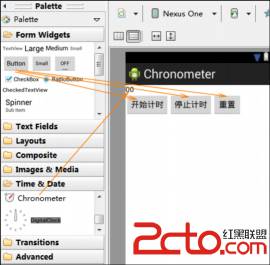
點選上方標籤,下方內容便在評分星等、時鐘與切換按鈕之間切換。


TabActivity 與 TabHost 在後續版本中已被標記為 deprecated,原因是 TabActivity 這種「Activity 裡塞 Activity」的設計與後來的 Fragment 架構不合。新專案若要達成分頁效果,建議改用 ViewPager(或 ViewPager2)搭配 TabLayout,以 Fragment 作為每一頁的內容單元;這樣做不僅符合現代 Android 的แนวคิด,也能在旋轉螢幕與生命週期管理上少踩很多坑。
 第88章:系統服務之 NOTIFICATION_SERVICE——發送狀態欄通知(從零開始學 Android)
所謂 Notification(通知),就是在系統狀態欄(一般來說 Android 手機的狀態欄在頂部,而非底部,這點要特別留意)放上一個圖示,並附上一條可選的提示文字,
 攔截簡訊廣播:SMSBroadcastReceiver 實作與版本限制(從零開始學 Android)
「開放永遠是雙刃劍」——這句話用在簡訊上格外貼切。Android 早期版本允許 App 攔截簡訊廣播,這個能力讓自動填入驗證碼、行動通知等應用得以實現,但同時也是垃圾訊息
 Android 教學:用 ImageView 做一個可翻頁的圖片瀏覽器
圖片在 App 裡幾乎是必需品,而承載它的基本控件就是 ImageView。本章做一個小圖片瀏覽器:一張圖片加上「上一幅/下一幅」兩個圖像按鈕,點擊即可翻頁。 一、
 Android Service 入門:線程概念與生命週期
線程與 Service 的關係 學習 Service 前,先釐清幾個常見概念:程式是靜態的指令集合,進程是執行中的程式,線程則是進程中的執行單元。Service 是 An