

編輯:Android 程式設計入門
只要你想載入的網頁裡用到了 JavaScript,就必須先替 WebView 打開 JavaScript 的執行開關。預設情況下 WebView 是不執行腳本的,這也是很多新手發現「按鈕顯示出來了、點下去卻毫無反應」的根本原因。開啟之後,你還可以自行註冊橋接介面,讓 App 端的程式碼與網頁端的 JavaScript 彼此呼叫。
先透過 getSettings() 取得 WebSettings 物件,再呼叫 setJavaScriptEnabled():
WebView myWebView = (WebView) findViewById(R.id.webview);
WebSettings webSettings = myWebView.getSettings();
webSettings.setJavaScriptEnabled(true);
如果你本來就是為自己的 App 專門撰寫配套的網頁,那麼在 JS 與原生程式碼之間打通一條通道會非常實用。舉例來說,你可以讓網頁直接呼叫原生方法彈出一個自訂對話框,取代 JavaScript 原本的 alert()。
從 JELLY_BEAN(API 16)開始,只有被 @JavascriptInterface 註解標註過的 public 方法才會開放給 JavaScript 呼叫,這是出於安全考量的必要限制。
此外還有兩個容易踩到的細節:
先定義一個負責承接呼叫的類別:
/**
 * 自訂的 Android 程式碼與 JavaScript 程式碼之間的橋梁類別
 */
public class WebAppInterface {
    Context mContext;

    /** 建立介面實例並帶入 Context */
    WebAppInterface(Context c) {
        mContext = c;
    }

    /** 由網頁觸發,跳出一個 Toast */
    // 若 targetSdkVersion >= 17,必須加上這個註解
    @JavascriptInterface
    public void showToast(String toast) {
        Toast.makeText(mContext, toast, Toast.LENGTH_LONG).show();
    }
}
接著把這個物件註冊到 WebView,並取一個別名:
WebView webView = (WebView) findViewById(R.id.webview);
webView.addJavascriptInterface(new WebAppInterface(this), "Android");
這裡產生的介面名稱就是 Android。此後 WebView 中運行的腳本,只要透過這個名字就能呼叫 showToast():
<input type="button" value="Say hello" onClick="showAndroidToast('Hello Android!')" />
<script type="text/javascript">
function showAndroidToast(toast) {
    Android.showToast(toast);
}
</script>
這個問題曾經讓我卡了很久:網頁裡的按鈕明明正常顯示,點下去卻什麼都不彈。原因不是 JS 沒被執行,而是沒有設定 chrome handler——WebView 需要一個 WebChromeClient 才有辦法處理 JavaScript 的對話框、標題、載入進度與 favicon。
// 若不設定這個,JS 的 alert / confirm / prompt 會完全沒有反應
myWebView.setWebChromeClient(new WebChromeClient() {
    @Override
    public boolean onJsAlert(WebView view, String url, String message, JsResult result) {
        return super.onJsAlert(view, url, message, result);
    }
});
另一個同時期遇到的「假故障」是:呼叫原生方法的按鈕也沒彈出 Toast。最後發現只是把別名的大小寫寫錯了。這類錯誤很容易被忽略,但仍值得引以為戒。
這個方向反而簡單得多,一行就够了:
myWebView.loadUrl("javascript:myFunction()");
其中 myFunction() 就是網頁中定義的函式。
如果目標函式帶有參數,拼接字串時要特別小心引號。例如網頁中定義:
function writeLine(string) {
    console.log("Write a new Line"); // 除錯訊息
    document.getElementById("content").innerHTML += string + "<br />";
}
對應的 HTML 段落為:
<p id="content"></p>
要在原生端把一個名為 name 的字串傳進去,寫法如下:
myWebView.loadUrl("javascript:writeLine('" + name + "')");
雙引號內的函式名稱千萬不能拼錯,這是另一個常見的低級失誤。
做了一個小程式來驗證上述所有環節:
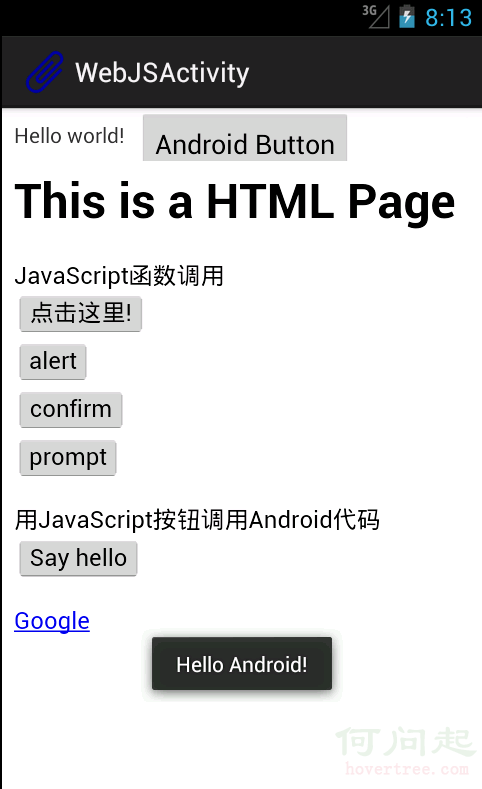
畫面由上而下包含一個 TextView、一個 Button,其餘空間整塊交給 WebView。WebView 載入的是放在 assets 資料夾中的本地 HTML 檔。網頁前四顆按鈕分別呼叫不同的 JavaScript 函式,示範 alert、confirm、prompt 等對話框;Say hello 按鈕則反向呼叫原生方法彈出 Toast。
為了證明 Android 也能主動驅動 JS,最上方的 Android Button 效果等同網頁中的「點擊這裡」。

Activity 程式碼:
package com.example.hellowebjs;

import android.annotation.SuppressLint;
import android.app.Activity;
import android.content.Context;
import android.os.Bundle;
import android.view.View;
import android.webkit.JavascriptInterface;
import android.webkit.JsResult;
import android.webkit.WebChromeClient;
import android.webkit.WebSettings;
import android.webkit.WebView;
import android.webkit.WebViewClient;
import android.widget.Button;
import android.widget.Toast;

public class WebJSActivity extends Activity {

    private WebView myWebView = null;
    private Button myButton = null;

    @SuppressLint("SetJavaScriptEnabled")
    @Override
    public void onCreate(Bundle savedInstanceState) {
        super.onCreate(savedInstanceState);
        setContentView(R.layout.activity_web_js);

        myWebView = (WebView) findViewById(R.id.myWebView);

        WebSettings webSettings = myWebView.getSettings();
        webSettings.setJavaScriptEnabled(true);            // 啟用 JavaScript
        webSettings.setDefaultTextEncodingName("GBK");     // 避免中文亂碼

        // 讓網頁留在 WebView 內開啟,不跳去系統瀏覽器
        myWebView.setWebViewClient(new WebViewClient());

        // 不設定這個,JS 對話框不會顯示
        myWebView.setWebChromeClient(new WebChromeClient() {
            @Override
            public boolean onJsAlert(WebView view, String url, String message, JsResult result) {
                return super.onJsAlert(view, url, message, result);
            }
        });

        // 註冊橋梁物件,別名為 myInterfaceName
        myWebView.addJavascriptInterface(new WebAppInterface(this), "myInterfaceName");

        myWebView.loadUrl("file:///android_asset/sample.html");

        // 由 Android 端主動呼叫 JS
        myButton = (Button) findViewById(R.id.button1);
        myButton.setOnClickListener(new View.OnClickListener() {
            @Override
            public void onClick(View v) {
                myWebView.loadUrl("javascript:myFunction()");
            }
        });
    }

    /** Android 與 JavaScript 之間的橋梁類別 */
    public class WebAppInterface {
        Context mContext;

        WebAppInterface(Context c) {
            mContext = c;
        }

        @JavascriptInterface
        public void showToast(String toast) {
            Toast.makeText(mContext, toast, Toast.LENGTH_LONG).show();
        }
    }
}
HTML 檔:
<html>
<head>
<h1>This is a HTML Page</h1>
<script type="text/javascript">
function myFunction() {
    alert("Hello World!");
}
function onAlert() {
    console.log("onAlert method");
    alert("This is a alert sample from html");
}
function onConfirm() {
    console.log("onConfirm method");
    var b = confirm("are you sure to login?");
    alert("your choice is " + b);
}
function onPrompt() {
    console.log("onPrompt method");
    var b = prompt("please input your password", "aaa");
    alert("your input is " + b);
}
// 呼叫綁定的 Java 物件,也就是反向驅動 Android 程式碼
function showAndroidToast(toast) {
    console.log("showAndroidToast method");
    // 此處名稱必須與 addJavascriptInterface 傳入的一致,且大小寫正確
    myInterfaceName.showToast(toast);
}
</script>
</head>
<body>
<p>
JavaScript 函式呼叫 <br />
<button onclick="myFunction()">點擊這裡!</button> <br />
<input type="button" value="alert" onclick="onAlert()" /> <br />
<input type="button" value="confirm" onclick="onConfirm()" /> <br />
<input type="button" value="prompt" onclick="onPrompt()" /> <br />
</p>
<p>
用 JavaScript 按鈕呼叫 Android 程式碼 <br />
<input type="button" value="Say hello" onClick="showAndroidToast('Hello Android!')" />
</p>
</body>
</html>
版面配置檔:
<RelativeLayout xmlns:android="https://schemas.android.com/apk/res/android"
    xmlns:tools="https://schemas.android.com/tools"
    android:id="@+id/myRelativeLayout"
    android:layout_width="match_parent"
    android:layout_height="match_parent">

    <TextView android:id="@+id/textView1"
        android:layout_width="wrap_content"
        android:layout_height="wrap_content"
        android:padding="@dimen/padding_medium"
        android:text="@string/hello_world"
        tools:context=".WebJSActivity" />

    <Button android:id="@+id/button1"
        android:layout_width="wrap_content"
        android:layout_height="wrap_content"
        android:layout_toRightOf="@id/textView1"
        android:text="@string/btn1_text" />

    <WebView android:id="@+id/myWebView"
        android:layout_width="fill_parent"
        android:layout_height="fill_parent"
        android:layout_below="@id/textView1" />
</RelativeLayout>
把這件事拆成四步就不容易出錯:開啟 JavaScript、註冊橋梁物件並加上 @JavascriptInterface、設定 WebChromeClient 接手對話框、最後再透過 loadUrl("javascript:...") 反向呼叫。別名大小寫與引號拼接則是最常讓人白忙一場的兩個細節。
 一個 Demo 徹底搞懂 Android 觸摸事件的分發機制
本文對應的 demo 專案:https://github.com/absfree/TouchDispatch 一、觸摸動作與事件序列 觸摸事件的動作 觸摸動作共三種:A
 Android ListView 實作(一):ArrayAdapter 純文字列表
ArrayAdapter 是最簡單的 Adapter,適合只需要顯示一串文字的場景,例如設定選項、簡易選單。它也是理解 ListView「資料 + Adapter + 檢
 Android 按鈕事件綁定的五種常見寫法
在 Android 開發中,按鈕事件綁定有多種寫法。不同寫法適合不同場景,理解各自的特性有助於組織更清晰的程式結構。一、匿名內部類匿名內部類是最常見的事件監聽寫法,適合只
 Android 內核驅動模組開發除錯筆記
在 Android 系統中,內核驅動模組是理解系統底層運作的重要起點。透過簡單的虛擬驅動範例,可以認識 proc、devfs 與 sysfs 等檔案系統接口,以及內核模組