

編輯:Android 開發實例
只要列表裡的圖片來自網路,就該用非同步載入。理由很直接:讓使用者盯著空白框等圖片載完,是種刑罰。下面把整個實作拆成四個部分,並說明其中幾個非做不可的細節。
package cn.wangmeng.test;

import java.io.IOException;
import java.io.InputStream;
import java.lang.ref.SoftReference;
import java.net.MalformedURLException;
import java.net.URL;
import java.util.HashMap;

import android.graphics.drawable.Drawable;
import android.os.Handler;
import android.os.Message;

public class AsyncImageLoader {
    private HashMap<String, SoftReference<Drawable>> imageCache;

    public AsyncImageLoader() {
        imageCache = new HashMap<String, SoftReference<Drawable>>();
    }

    public Drawable loadDrawable(final String imageUrl, final ImageCallback imageCallback) {
        // 先看有沒有命中快取
        if (imageCache.containsKey(imageUrl)) {
            SoftReference<Drawable> softReference = imageCache.get(imageUrl);
            Drawable drawable = softReference.get();
            if (drawable != null) {
                return drawable;
            }
        }

        final Handler handler = new Handler() {
            public void handleMessage(Message message) {
                imageCallback.imageLoaded((Drawable) message.obj, imageUrl);
            }
        };

        new Thread() {
            @Override
            public void run() {
                Drawable drawable = loadImageFromUrl(imageUrl);
                imageCache.put(imageUrl, new SoftReference<Drawable>(drawable));
                Message message = handler.obtainMessage(0, drawable);
                handler.sendMessage(message);
            }
        }.start();

        return null;
    }

    public static Drawable loadImageFromUrl(String url) {
        URL m;
        InputStream i = null;
        try {
            m = new URL(url);
            i = (InputStream) m.getContent();
        } catch (MalformedURLException e1) {
            e1.printStackTrace();
        } catch (IOException e) {
            e.printStackTrace();
        }
        Drawable d = Drawable.createFromStream(i, "src");
        return d;
    }

    public interface ImageCallback {
        public void imageLoaded(Drawable imageDrawable, String imageUrl);
    }
}
這裡有三個設計決定值得說明:
用 SoftReference 而非直接存 Drawable。軟引用的語意是「我需要時給我,記憶體不夠時你可以回收」,正好符合圖片快取的特性——有就重用,沒有就重下,不必怕把記憶體吃乾。
用 Handler 而非直接更新 UI。背景執行緒不能碰介面,所以透過 Handler 把結果拋回主執行緒,再觸發 callback。
回傳值可能是 null。loadDrawable 在快取未命中時立刻回傳 null,讓 getView 不要等——先把佔位圖放上去,圖片好了再補。這是列表捲動順不順的關鍵。
package cn.wangmeng.test;

public class ImageAndText {
    private String imageUrl;
    private String text;

    public ImageAndText(String imageUrl, String text) {
        this.imageUrl = imageUrl;
        this.text = text;
    }

    public String getImageUrl() {
        return imageUrl;
    }

    public String getText() {
        return text;
    }
}package cn.wangmeng.test;
import android.view.View;
import android.widget.ImageView;
import android.widget.TextView;
public class ViewCache {
private View baseView;
private TextView textView;
private ImageView imageView;
public ViewCache(View baseView) {
this.baseView = baseView;
}
public TextView getTextView() {
if (textView == null) {
textView = (TextView) baseView.findViewById(R.id.text);
}
return textView;
}
public ImageView getImageView() {
if (imageView == null) {
imageView = (ImageView) baseView.findViewById(R.id.image);
}
return imageView;
}
}findViewById 要在整棵視圖樹裡搜尋,列表捲動時每幀呼叫好幾次的成本相當可觀。把結果快在 tag 裡,等於把這筆成本攤提掉。
package cn.wangmeng.test;

import java.util.List;

import cn.wangmeng.test.AsyncImageLoader.ImageCallback;
import android.app.Activity;
import android.graphics.drawable.Drawable;
import android.view.LayoutInflater;
import android.view.View;
import android.view.ViewGroup;
import android.widget.ArrayAdapter;
import android.widget.ImageView;
import android.widget.ListView;
import android.widget.TextView;

public class ImageAndTextListAdapter extends ArrayAdapter<ImageAndText> {
    private ListView listView;
    private AsyncImageLoader asyncImageLoader;

    public ImageAndTextListAdapter(Activity activity, List<ImageAndText> imageAndTexts,
                                   ListView listView) {
        super(activity, 0, imageAndTexts);
        this.listView = listView;
        asyncImageLoader = new AsyncImageLoader();
    }

    public View getView(int position, View convertView, ViewGroup parent) {
        Activity activity = (Activity) getContext();

        // 視圖複用
        View rowView = convertView;
        ViewCache viewCache;
        if (rowView == null) {
            LayoutInflater inflater = activity.getLayoutInflater();
            rowView = inflater.inflate(R.layout.image_and_text_row, null);
            viewCache = new ViewCache(rowView);
            rowView.setTag(viewCache);
        } else {
            viewCache = (ViewCache) rowView.getTag();
        }

        ImageAndText imageAndText = getItem(position);

        // 載入圖片並設定到 ImageView
        String imageUrl = imageAndText.getImageUrl();
        ImageView imageView = viewCache.getImageView();
        imageView.setTag(imageUrl);

        Drawable cachedImage = asyncImageLoader.loadDrawable(imageUrl, new ImageCallback() {
            public void imageLoaded(Drawable imageDrawable, String imageUrl) {
                ImageView imageViewByTag = (ImageView) listView.findViewWithTag(imageUrl);
                if (imageViewByTag != null) {
                    imageViewByTag.setImageDrawable(imageDrawable);
                }
            }
        });

        if (cachedImage == null) {
            imageView.setImageResource(R.drawable.default_image);
        } else {
            imageView.setImageDrawable(cachedImage);
        }

        // 設定文字
        TextView textView = viewCache.getTextView();
        textView.setText(imageAndText.getText());

        return rowView;
    }
}
這段程式碼裡藏著三個必須理解的做法:
1. setTag(imageUrl) 的用途。這是整個實作最容易忽略卻最關鍵的一行。因為 getView 會被反覆呼叫、convertView 會被重用,當圖片下載完回來時,那個 ImageView 可能早就被拿去顯示別筆資料了。用 imageUrl 當標記,callback 裡再以 findViewWithTag 找回「現在正在顯示這張圖的那個 ImageView」,就能避免圖文錯位——症狀就是列表滑一滑,圖片全亂了。
2. 一定要放佔位圖。快取未命中時設 default_image,讓使用者知道「這裡會有東西」,而不是盯著一片空白猜是不是壞了。
3. convertView 為空的判斷。只在真的需要 inflate 時才 inflate,這是 ListView 效能的基本功。
<?xml version="1.0" encoding="utf-8"?>
<LinearLayout xmlns:android="https://schemas.android.com/apk/res/android"
    android:orientation="horizontal"
    android:layout_width="fill_parent"
    android:layout_height="wrap_content">
    <ImageView
        android:id="@+id/image"
        android:layout_width="wrap_content"
        android:layout_height="wrap_content" />
    <TextView
        android:id="@+id/text"
        android:layout_width="wrap_content"
        android:layout_height="wrap_content"/>
</LinearLayout>
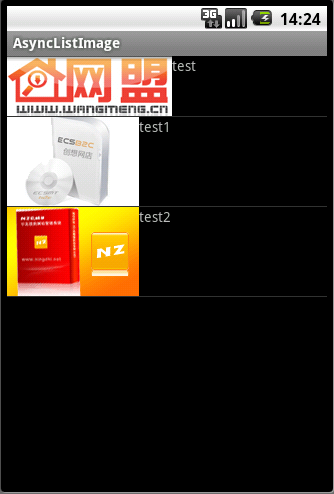
執行結果:
這個實作教學價值很高,但若要上 production,還有幾處值得補強:
一是取消機制。目前每個 item 都開一條新 Thread,快速捲動時會產生大量做白工的請求。實務上會改用固定大小的執行緒池,並在下次 getView 時取消已被回收的任務。
二是記憶體等級的取樣。圖片應該依 ImageView 的實際顯示尺寸降採樣,而不是原圖直接塞進去。
三是現成方案。Glide、Picasso、Fresco 這些庫已經把上述所有問題(含快取分層、請求去重、生命週期綁定)處理完畢,新專案沒必要重造輪子。讀懂這份實作,是為了在 library 出問題時知道該往哪裡查。
 Android 圖片色彩處理實作:用 ColorMatrix 做紅綠藍、飽和度與透明度調整
想做出像美圖秀秀那樣的照片調整功能嗎?其實原理比想像中單純——核心就是一個 ColorMatrix,搭配 SeekBar 讓使用者拖著調。一、效果預覽處理之前:處理之後:
 Android 自動亮度調節全流程拆解:從 Settings 到 PowerManager
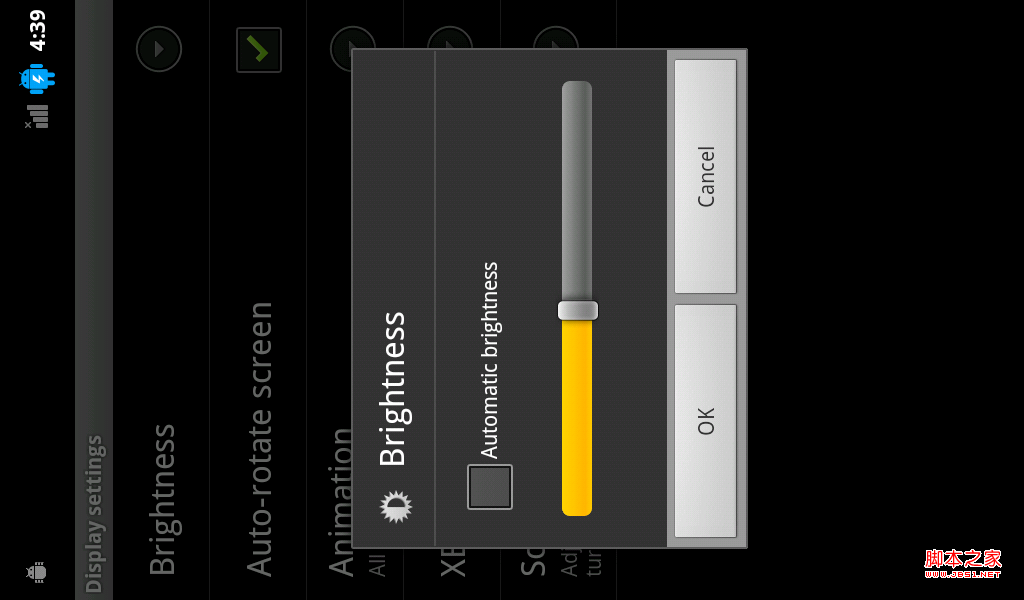
手機能隨著環境光線自動調亮或調暗螢幕,靠的是 LIGHT 光線感應器。這條鏈路從設定界面一路延伸到系統服務,中間繞了不少彎,下面把整個流程理一遍。 一、從設定界面入手
 Android異步加載網絡圖片並雙緩存到本地的實現方法
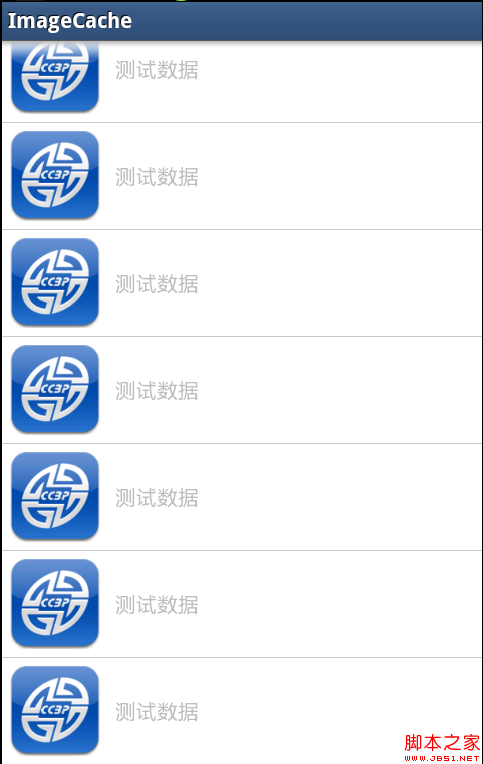
在 Android 項目裡加載網絡圖片是家常便飯,但如果每次顯示都要重新訪問網絡,不僅浪費流量,圖片佔用的內存也不小,一旦圖片過多又不及時釋放,內存溢出幾乎是必然。針對這
 Android MediaPlayer(多媒體播放):音訊與影片控制入門
Android 提供了許多方法來控制播放的音訊/影片檔案與串流,其中主要的一種是透過名為 MediaPlayer 的類別。 MediaPlayer 類別讓 Android