

編輯:Android 開發實例
上一篇談了 Gallery 的基礎用法,這次把它跟 ImageSwitcher 組合起來,做出一個真正好用的看圖畫面。
為什麼要兩個控件一起用?因為 Gallery 的強項是「橫向捲動選取」,但它的圖片尺寸受 LayoutParams 限制,很難做到全螢幕鋪滿;ImageSwitcher 則擅長「同一個位置替換內容」,並支援進出動畫。把 Gallery 當作下方的縮圖選單,ImageSwitcher 當作上方的大圖顯示區,兩者透過 OnItemSelectedListener 串起來,就是最經典的看圖 App 配置。
先看執行結果:
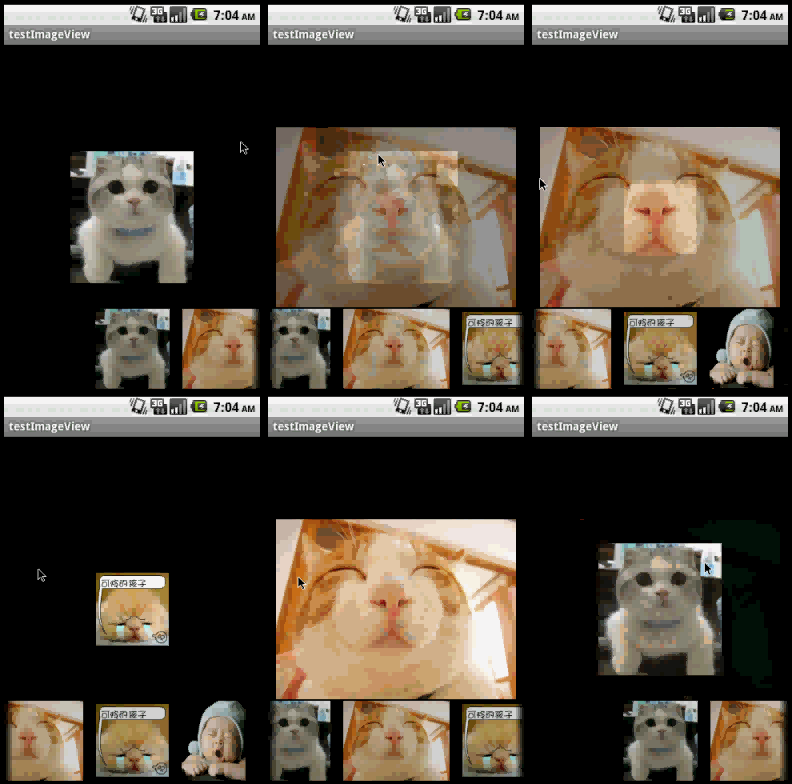
用 RelativeLayout 讓 ImageSwitcher 佔滿整個畫面,Gallery 則對齊底部、固定高度,並加半透明黑底讓它浮在大圖之上:
<?xml version="1.0" encoding="utf-8"?>
<RelativeLayout xmlns:android="https://schemas.android.com/apk/res/android"
    android:layout_width="match_parent"
    android:layout_height="match_parent">

    <ImageSwitcher android:id="@+id/switcher"
        android:layout_width="match_parent"
        android:layout_height="match_parent"/>

    <Gallery android:id="@+id/gallery"
        android:background="#55000000"
        android:layout_width="match_parent"
        android:layout_alignParentBottom="true"
        android:layout_alignParentLeft="true"
        android:gravity="center_vertical"
        android:spacing="16dp"
        android:layout_height="100dp"/>
</RelativeLayout>
package com.testImageView;

import java.lang.reflect.Field;
import java.util.ArrayList;
import android.app.Activity;
import android.content.Context;
import android.os.Bundle;
import android.view.MotionEvent;
import android.view.View;
import android.view.View.OnTouchListener;
import android.view.ViewGroup;
import android.view.animation.AnimationUtils;
import android.widget.AdapterView;
import android.widget.BaseAdapter;
import android.widget.Gallery;
import android.widget.ImageSwitcher;
import android.widget.ImageView;
import android.widget.AdapterView.OnItemSelectedListener;
import android.widget.Gallery.LayoutParams;
import android.widget.ViewSwitcher.ViewFactory;

public class testImageView extends Activity implements ViewFactory {
    private ImageSwitcher is;
    private Gallery gallery;
    private int downX, upX;
    private ArrayList<Integer> imgList = new ArrayList<Integer>();

    @Override
    protected void onCreate(Bundle savedInstanceState) {
        super.onCreate(savedInstanceState);
        setContentView(R.layout.main);

        // 以反射機制取得資源中的圖片 ID
        Field[] fields = R.drawable.class.getDeclaredFields();
        for (Field field : fields) {
            if (!"icon".equals(field.getName())) {
                int index = 0;
                try {
                    index = field.getInt(R.drawable.class);
                } catch (IllegalArgumentException e) {
                    e.printStackTrace();
                } catch (IllegalAccessException e) {
                    e.printStackTrace();
                }
                imgList.add(index);
            }
        }

        // 設定 ImageSwitcher
        is = (ImageSwitcher) findViewById(R.id.switcher);
        is.setFactory(this);
        is.setInAnimation(AnimationUtils.loadAnimation(this, android.R.anim.fade_in));
        is.setOutAnimation(AnimationUtils.loadAnimation(this, android.R.anim.fade_out));

        // 讓大圖也能用滑動切換
        is.setOnTouchListener(new OnTouchListener() {
            @Override
            public boolean onTouch(View v, MotionEvent event) {
                if (event.getAction() == MotionEvent.ACTION_DOWN) {
                    downX = (int) event.getX();
                    return true;
                } else if (event.getAction() == MotionEvent.ACTION_UP) {
                    upX = (int) event.getX();
                    int index = 0;
                    if (upX - downX > 100) {          // 由左往右滑,看前一張
                        if (gallery.getSelectedItemPosition() == 0)
                            index = gallery.getCount() - 1;
                        else
                            index = gallery.getSelectedItemPosition() - 1;
                    } else if (downX - upX > 100) {   // 由右往左滑,看下一張
                        if (gallery.getSelectedItemPosition() == (gallery.getCount() - 1))
                            index = 0;
                        else
                            index = gallery.getSelectedItemPosition() + 1;
                    }
                    // 改動 Gallery 選中項,會自動觸發 ImageSwitcher 更新
                    gallery.setSelection(index, true);
                    return true;
                }
                return false;
            }
        });

        // 設定 Gallery
        gallery = (Gallery) findViewById(R.id.gallery);
        gallery.setAdapter(new ImageAdapter(this));
        gallery.setOnItemSelectedListener(new OnItemSelectedListener() {
            @Override
            public void onItemSelected(AdapterView<?> arg0, View arg1, int position, long arg3) {
                is.setImageResource(imgList.get(position));
            }
            @Override
            public void onNothingSelected(AdapterView<?> arg0) { }
        });
    }

    // ImageSwitcher 需要 ViewFactory 產生它要切換的 View
    @Override
    public View makeView() {
        ImageView i = new ImageView(this);
        i.setBackgroundColor(0xFF000000);
        i.setScaleType(ImageView.ScaleType.CENTER);
        i.setLayoutParams(new ImageSwitcher.LayoutParams(
                LayoutParams.FILL_PARENT, LayoutParams.FILL_PARENT));
        return i;
    }

    public class ImageAdapter extends BaseAdapter {
        private Context mContext;

        public ImageAdapter(Context c) {
            mContext = c;
        }

        public int getCount() {
            return imgList.size();
        }

        public Object getItem(int position) {
            return position;
        }

        public long getItemId(int position) {
            return position;
        }

        public View getView(int position, View convertView, ViewGroup parent) {
            ImageView i = new ImageView(mContext);
            i.setImageResource(imgList.get(position));
            i.setAdjustViewBounds(true);
            i.setLayoutParams(new Gallery.LayoutParams(
                    LayoutParams.WRAP_CONTENT, LayoutParams.WRAP_CONTENT));
            return i;
        }
    }
}
ImageSwitcher 必須實作 ViewFactory。它跟 Gallery 不同,Gallery 靠 Adapter 供資料,ImageSwitcher 是靠 makeView() 產生「要被替換的那個 View」,這個方法只會被呼叫一次,之後每次 setImageResource() 都是更新同一個 ImageView 的內容。少了這一步,控件會直接是空白。
滑動手勢為何要改 Gallery 的 selection。程式中在 ImageSwitcher 上偵測到滑動後,並沒有直接呼叫 is.setImageResource(),而是去改 Gallery 的選中項。這樣做的好處是兩個控件的狀態永遠同步——大圖換了,下方縮圖的高亮框也會跟著移動,視覺上一致。若直接操作 ImageSwitcher,就會出現「大圖換了但縮圖沒動」的錯位。
100 這個門檻值是判斷手勢是否成立的像素距離,可依實際手感調整。較完善的實作還會加入時間維度來判斷 fling 速度,這裡為求簡潔只用了距離。
同樣提醒一下,Gallery 與 ImageSwitcher 皆已非官方推薦控件。若要在新專案實作相同效果,建議用 RecyclerView(橫向)搭配自訂的 ViewPager2,動畫與手勢處理都會乾淨許多。
 Android 讀取網路 JSON:從字串到可用物件的三個步驟
行動裝置上的資料多半來自網路,而網路上的資料多半是 JSON。JSON 的全名是 JavaScript Object Notation,是一種不依附任何平台的純文字資料格
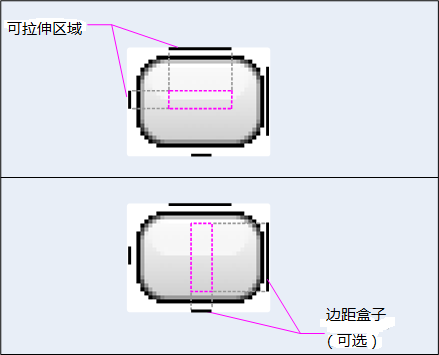 Android 自適應背景圖片的正解:NinePatch(.9.png)完整實戰
做 Android UI,幾乎每個人遲早都會撞上同一堵牆:一張背景圖怎麼才能在各種尺寸下都不變形。這篇文章把 NinePatch 從原理、製作到源碼層面的處理流程完整梳理
 Android 多語系支援:values 資料夾與語言切換
要讓 Android App 支援多國語言,最常見的方式是建立不同語言的 values 資源資料夾。這樣即使同一套程式碼,也能依裝置語言顯示不同文字。 資源資料夾命名規則
 Android 控件系列:CheckBox 建立方式、常用屬性與選中狀態監聽
CheckBox 是我們在表單類介面裡最常遇到的元件之一。本文從建立、屬性設定一路講到狀態變化的監聽寫法。 學習目標 1. 學會建立 CheckBox2. 掌握 Che