

編輯:Android 開發實例
Matrix 是 Android 做圖形變形的基礎工具,縮放與旋轉都只是它的其中兩個方法。本文用兩個層次不同的範例來說明:先做一次性變形,再做可依輸入即時調整的動態版本。
這個版本在 Activity 建立時就把圖處理好,之後不再改變:
package com.android.matrix;

import android.app.Activity;
import android.graphics.Bitmap;
import android.graphics.BitmapFactory;
import android.graphics.Matrix;
import android.graphics.drawable.BitmapDrawable;
import android.os.Bundle;
import android.view.ViewGroup.LayoutParams;
import android.widget.ImageView;
import android.widget.LinearLayout;
import android.widget.ImageView.ScaleType;

/**
 * Android 實現圖片縮放與旋轉
 */
public class MatixActivity extends Activity {

    public void onCreate(Bundle icicle) {
        super.onCreate(icicle);
        setTitle("Android實現圖片縮放與旋轉。");

        LinearLayout linLayout = new LinearLayout(this);

        // 載入要處理的圖片
        Bitmap bitmapOrg = BitmapFactory.decodeResource(getResources(), R.drawable.r);

        // 取得原圖寬高
        int width  = bitmapOrg.getWidth();
        int height = bitmapOrg.getHeight();

        // 設定目標尺寸
        int newWidth  = 200;
        int newHeight = 200;

        // 計算縮放比例:新尺寸除以原尺寸
        float scaleWidth  = ((float) newWidth) / width;
        float scaleHeight = ((float) newHeight) / height;

        // 建立操作用的 Matrix
        Matrix matrix = new Matrix();

        // 縮放
        matrix.postScale(scaleWidth, scaleHeight);

        // 旋轉 45 度
        matrix.postRotate(45);

        // 產生新圖片
        Bitmap resizedBitmap = Bitmap.createBitmap(bitmapOrg, 0, 0,
                width, height, matrix, true);

        // 轉成 Drawable,才能交給 ImageView 使用
        BitmapDrawable bmd = new BitmapDrawable(resizedBitmap);

        ImageView imageView = new ImageView(this);
        imageView.setImageDrawable(bmd);
        imageView.setScaleType(ScaleType.CENTER);

        linLayout.addView(imageView,
                new LinearLayout.LayoutParams(
                        LayoutParams.FILL_PARENT, LayoutParams.FILL_PARENT));

        setContentView(linLayout);
    }
}
這裡有個重點:postScale() 與 postRotate() 的呼叫順序會影響結果。矩陣乘法不具交換律,先縮放再旋轉與先旋轉再縮放,得到的圖會不一樣。另外,未指定中心的 postRotate() 會以原點 (0,0) 為軸心,圖片可能因此被轉出畫面。若希望繞著圖片中心旋轉,應該寫成:
matrix.postRotate(45, width / 2f, height / 2f);
下一個版本讓使用者可以用方向鍵即時放大縮小。這次不用 Matrix,而是換個更輕量的思路:直接改變 Drawable 的邊界。
程式結構如下圖:
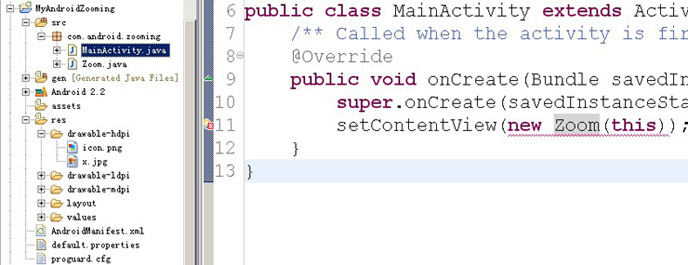
Zoom.java
package com.android.zooming;

import android.view.View;
import android.content.Context;
import android.graphics.Canvas;
import android.graphics.drawable.Drawable;
import android.view.KeyEvent;

public class Zoom extends View {

    private Drawable image;
    private int zoomControler = 20; // 控制縮放的核心變數:半寬半高

    public Zoom(Context context) {
        super(context);
        image = context.getResources().getDrawable(R.drawable.x);
        setFocusable(true); // 必須可取得焦點,才收得到按鍵事件
    }

    @Override
    protected void onDraw(Canvas canvas) {
        super.onDraw(canvas);
        // 以 View 中心為基準,用 zoomControler 撐出方形範圍
        image.setBounds((getWidth() / 2) - zoomControler,
                        (getHeight() / 2) - zoomControler,
                        (getWidth() / 2) + zoomControler,
                        (getHeight() / 2) + zoomControler);
        image.draw(canvas);
    }

    @Override
    public boolean onKeyDown(int keyCode, KeyEvent event) {
        if (keyCode == KeyEvent.KEYCODE_DPAD_UP)       // 放大
            zoomControler += 10;

        if (keyCode == KeyEvent.KEYCODE_DPAD_DOWN)     // 縮小
            zoomControler -= 10;

        if (zoomControler < 10)                        // 下限保護,避免邊界反轉
            zoomControler = 10;

        invalidate(); // 請求重繪,onDraw 才會用新尺寸再畫一次
        return true;
    }
}
上面兩個範例都以最小程式碼示範原理,實際專案還需要補上:
createBitmap() 產生的中間物件不再使用時應 recycle,並考慮用 inSampleSize 先降採樣。LayoutParams.FILL_PARENT 與 getDrawable() 在較新版本已更名,建議改用 MATCH_PARENT 與 ContextCompat.getDrawable()。SCALE_FACTOR 計算兩指距離變化,或直接使用系統的 ScaleGestureDetector 省去自幹。掌握 Matrix 的三個方法——postTranslate(移動)、postScale(縮放)、postRotate(旋轉)——再加上「呼叫順序會影響結果」這個觀念,圖片變形的需求大致都能應付。
 Android XML 靜態資源與 R.java 使用指南
Android 開發中,XML 靜態資源與 Java 程式碼經常搭配使用。XML 負責描述版面與資源,Java 負責控制邏輯,而 R.java 則是兩者之間的橋梁。R.j
 Android 實戰:手機短信驗證碼獲取與注冊全流程解析
注冊各類 App 或網站賬號時,手機短信驗證碼幾乎是標配環節。曾經只覺得「手機收驗證碼」這件事挺新奇,卻沒深究背後是怎麼實現的。如今手上的項目正好需要通過手機號注冊、並發
 Android SDK 線上更新鏡像伺服器大全與設定教學
中國科學院開源協會鏡像站位址:IPV4/IPV6: https://mirrors.opencas.cn 連接埠:80IPV4/IPV6: https://mirrors
 用 WebView 做一個極簡瀏覽器:網址列、跳轉與頁面攔截
WebView 是最快把網頁內容塞進 App 的方式。下面做一個只有網址列、跳轉鈕與網頁區的極簡瀏覽器。 一、程式碼 main.java package com.HHB