

編輯:Android 開發實例
JSON 是 JavaScript Object Notation 的縮寫,雖然源自 JavaScript 的物件語法,卻早已擺脫語言的框架,成為一門獨立、通用且人類易讀的資料交換格式。相比標籤層層包覆的 XML,JSON 更輕量、解析更快,因此在行動裝置與雲端服務的溝通裡幾乎成了標配。本章要談的,就是如何在 Android 專案中把一段 JSON 文字拆解開來,取出真正需要的欄位。
Android SDK 內建四個與 JSON 有關的類別:JSONArray、JSONObject、JSONStringer 以及 JSONTokenizer,其中又以 JSONObject 最常被使用。
動手之前,先想清楚你要什麼。以下面這段來自天氣服務的回應為例,我們真正關心的其實只有溫度:
{ "sys": { "country":"GB", "sunrise":1381107633, "sunset":1381149604 }, "weather":[ { "id":711, "main":"Smoke", "description":"smoke", "icon":"50n" } ], "main": { "temp":304.15, "pressure":1009, } }
一份 JSON 文件由幾個固定元素構成,理解它們就等於掌握了閱讀與解析的鑰匙:
| 編號 | 元素 | 說明 |
|---|---|---|
| 1 | Array([ ]) | 方括號代表陣列,用來盛放一組同類型的資料。 |
| 2 | Object({ }) | 大括號代表物件,是 JSON 最基本的結構單位。 |
| 3 | Key(鍵) | 物件中的鍵一律是字串,鍵與值配對之後才構成一個物件。 |
| 4 | Value(值) | 對應每個鍵的值,可以是字串、整數、浮點數或布林值。 |
第一步是把整段文字交給 JSONObject 的建構子,讓它成為一個可供查詢的物件:
 String in;
JSONObject reader = new JSONObject(in);
第二步才是逐層取值。由於 JSON 的結構是嵌套的,內層物件必須先用 getJSONObject() 取出,再從中讀取其欄位:
 JSONObject sys = reader.getJSONObject("sys");
country = sys.getString("country");
JSONObject main = reader.getJSONObject("main");
temperature = main.getString("temp");
getJSONObject() 回傳指定鍵所對應的物件,而 getString() 則回傳該鍵的字串值。除了這兩個方法,JSONObject 還提供了完整的型別讀取工具:
| 編號 | 方法 | 說明 |
|---|---|---|
| 1 | get(String name) | 回傳值本身,型別為 Object。 |
| 2 | getBoolean(String name) | 取得指定鍵的布林值。 |
| 3 | getDouble(String name) | 取得指定鍵的 double 數值。 |
| 4 | getInt(String name) | 取得指定鍵的整數值。 |
| 5 | getLong(String name) | 取得指定鍵的 long 數值。 |
| 6 | length() | 回傳這個物件所含鍵值對的數量。 |
| 7 | names() | 回傳一個陣列,內容是此物件所有的鍵名稱。 |
以下範例打造了一個簡易的天氣查詢程式:使用者輸入城市名稱,程式呼叫天氣 API 取得 JSON 回應,解析後把國家、溫度、濕度與氣壓顯示在畫面上。
| 步驟 | 做法 |
|---|---|
| 1 | 用 Android Studio 建立專案,命名為 JSONParser,Target SDK 與 Compile With 都選擇最新版本的 Android SDK。 |
| 2 | 在 src/MainActivity.java 中補上主要程式碼。 |
| 3 | 調整 res/layout/activity_main.xml,加入對應的元件。 |
| 4 | 在 res/values/string.xml 補齊字串資源。 |
| 5 | 新增 src/HandleJSON.java,負責抓取並解析遠端資料。 |
| 6 | 在 AndroidManifest.xml 中加上網路權限。 |
| 7 | 執行 App,選擇目標裝置並驗證結果。 |
主活動檔 src/com.yiibai.jsonparser/MainActivity.java:
 package com.example.jsonparser;
import android.os.Bundle;
import android.app.Activity;
import android.view.Menu;
import android.view.View;
import android.widget.EditText;
public class MainActivity extends Activity {
private String url1 = "https://api.openweathermap.org/data/2.5/weather?q=";
private EditText location,country,temperature,humidity,pressure;
private HandleJSON obj;
@Override protected void onCreate(Bundle savedInstanceState) {
super.onCreate(savedInstanceState);
setContentView(R.layout.activity_main);
location = (EditText)findViewById(R.id.editText1);
country = (EditText)findViewById(R.id.editText2);
temperature = (EditText)findViewById(R.id.editText3);
humidity = (EditText)findViewById(R.id.editText4);
pressure = (EditText)findViewById(R.id.editText5);
}
@Override public boolean onCreateOptionsMenu(Menu menu) {
getMenuInflater().inflate(R.menu.main, menu);
return true;
}
public void open(View view){
String url = location.getText().toString();
String finalUrl = url1 + url;
country.setText(finalUrl);
obj = new HandleJSON(finalUrl);
obj.fetchJSON();
while(obj.parsingComplete);
country.setText(obj.getCountry());
temperature.setText(obj.getTemperature());
humidity.setText(obj.getHumidity());
pressure.setText(obj.getPressure());
}
}
負責網路與解析的 src/com.yiibai.jsonparser/HandleJSON.java:
 package com.example.jsonparser;
import java.io.InputStream;
import java.net.HttpURLConnection;
import java.net.URL;
import org.json.JSONObject;
import android.annotation.SuppressLint;
public class HandleJSON {
private String country = "county";
private String temperature = "temperature";
private String humidity = "humidity";
private String pressure = "pressure";
private String urlString = null;
public volatile boolean parsingComplete = true;
public HandleJSON(String url){ this.urlString = url; }
public String getCountry(){ return country; }
public String getTemperature(){ return temperature; }
public String getHumidity(){ return humidity; }
public String getPressure(){ return pressure; }
@SuppressLint("NewApi") public void readAndParseJSON(String in) {
try {
JSONObject reader = new JSONObject(in);
JSONObject sys = reader.getJSONObject("sys");
country = sys.getString("country");
JSONObject main = reader.getJSONObject("main");
temperature = main.getString("temp");
pressure = main.getString("pressure");
humidity = main.getString("humidity");
parsingComplete = false;
} catch (Exception e) { e.printStackTrace(); }
}
public void fetchJSON(){
Thread thread = new Thread(new Runnable(){
@Override public void run() {
try {
URL url = new URL(urlString);
HttpURLConnection conn = (HttpURLConnection) url.openConnection();
conn.setReadTimeout(10000);
conn.setConnectTimeout(15000);
conn.setRequestMethod("GET");
conn.setDoInput(true);
conn.connect();
InputStream stream = conn.getInputStream();
String data = convertStreamToString(stream);
readAndParseJSON(data);
stream.close();
} catch (Exception e) { e.printStackTrace(); }
}
});
thread.start();
}
static String convertStreamToString(java.io.InputStream is) {
java.util.Scanner s = new java.util.Scanner(is).useDelimiter("A");
return s.hasNext() ? s.next() : "";
}
}
版面配置 res/layout/activity_main.xml:
 <RelativeLayout xmlns:android="https://schemas.android.com/apk/res/android"
xmlns:tools="https://schemas.android.com/tools"
android:layout_width="match_parent" android:layout_height="match_parent"
android:paddingBottom="@dimen/activity_vertical_margin"
android:paddingLeft="@dimen/activity_horizontal_margin"
android:paddingRight="@dimen/activity_horizontal_margin"
android:paddingTop="@dimen/activity_vertical_margin"
tools:context=".MainActivity" >
<TextView android:id="@+id/textView1" android:layout_width="wrap_content"
android:layout_height="wrap_content" android:layout_alignParentLeft="true"
android:layout_alignParentTop="true" android:layout_marginTop="15dp"
android:text="@string/location"
android:textAppearance="?android:attr/textAppearanceMedium" />
<EditText android:id="@+id/editText1" android:layout_width="wrap_content"
android:layout_height="wrap_content" android:layout_alignBottom="@+id/textView1"
android:layout_alignParentRight="true" android:ems="10" />
<TextView android:id="@+id/country" android:layout_width="wrap_content"
android:layout_height="wrap_content" android:layout_alignLeft="@+id/editText1"
android:layout_below="@+id/textView1" android:layout_marginTop="68dp"
android:text="@string/country"
android:textAppearance="?android:attr/textAppearanceSmall" />
<EditText android:id="@+id/editText2" android:layout_width="wrap_content"
android:layout_height="wrap_content" android:layout_alignLeft="@+id/country"
android:layout_below="@+id/country" android:ems="10" />
<TextView android:id="@+id/textView3" android:layout_width="wrap_content"
android:layout_height="wrap_content" android:layout_alignLeft="@+id/country"
android:layout_below="@+id/editText2" android:layout_marginTop="19dp"
android:text="@string/temperature"
android:textAppearance="?android:attr/textAppearanceSmall" />
<EditText android:id="@+id/editText3" android:layout_width="wrap_content"
android:layout_height="wrap_content" android:layout_alignLeft="@+id/editText2"
android:layout_below="@+id/textView3" android:ems="10" />
<TextView android:id="@+id/humidity" android:layout_width="wrap_content"
android:layout_height="wrap_content" android:layout_alignLeft="@+id/textView3"
android:layout_below="@+id/editText3" android:layout_marginTop="32dp"
android:text="@string/humidity"
android:textAppearance="?android:attr/textAppearanceSmall" />
<EditText android:id="@+id/editText4" android:layout_width="wrap_content"
android:layout_height="wrap_content" android:layout_alignLeft="@+id/editText3"
android:layout_below="@+id/humidity" android:ems="10" />
<TextView android:id="@+id/pressure" android:layout_width="wrap_content"
android:layout_height="wrap_content" android:layout_alignLeft="@+id/humidity"
android:layout_below="@+id/editText4" android:layout_marginTop="21dp"
android:text="@string/pressure"
android:textAppearance="?android:attr/textAppearanceSmall" />
<EditText android:id="@+id/editText5" android:layout_width="wrap_content"
android:layout_height="wrap_content" android:layout_alignLeft="@+id/editText4"
android:layout_below="@+id/pressure" android:ems="10" />
<Button android:id="@+id/button1" android:layout_width="wrap_content"
android:layout_height="wrap_content" android:layout_alignLeft="@+id/editText2"
android:layout_below="@+id/editText1" android:onClick="open"
android:text="@string/weather" />
</RelativeLayout>
字串資源 res/values/string.xml:
 <?xml version="1.0" encoding="utf-8"?>
<resources>
<string name="app_name">JSONParser</string>
<string name="location">Location</string>
<string name="country">Country:</string>
<string name="temperature">Temperature:</string>
<string name="humidity">Humidity:</string>
<string name="pressure">Pressure:</string>
<string name="weather">Weather</string>
</resources>
別忘了在 AndroidManifest.xml 加上 android.permission.INTERNET,否則程式一連線就會失敗。
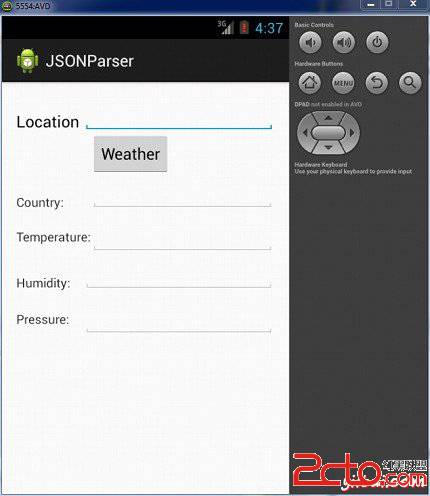
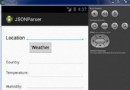
把 App 裝到 AVD 或實機上啟動,若一切設定正確,會看到如下的初始畫面:
在位置欄位輸入任意城市,這裡以紐約為例,按下 Weather 按鈕:
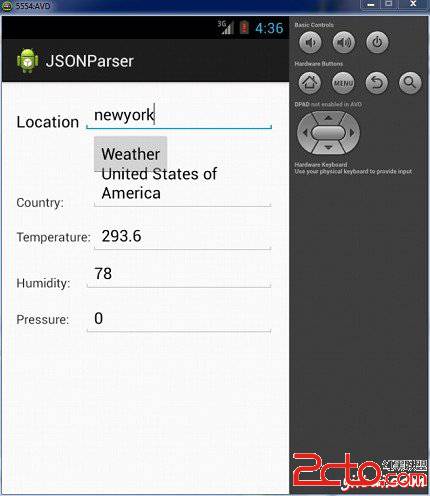
按下按鈕後,程式會向天氣服務索取 JSON 並即時解析,最後把結果填回各個欄位。
值得留意的是,這類服務回傳的溫度單位是凱氏(Kelvin)。若想让数字更符合直觉,記得自己換算攝氏:°C = K − 273.15。
 Android 編程:監聽 EditText 內容變化的方法
本文介紹如何監聽 EditText 中內容的變化,供大家參考。 我們常常需要實時監聽輸入框裡文字的變化,比如根據輸入內容動態顯示或隱藏某個按鈕。翻了很久發現 EditTe
 Android 登入頁面實作:帳密驗證與錯誤次數限制
登入頁面是許多應用的入口。它通常包含使用者名稱、密碼與登入按鈕,也需要處理錯誤次數,避免有心人士不斷嘗試。 建立輸入欄位 使用者名稱使用一般 EditText,密碼則要將
 Android JSON 解析入門
JSON 是一種輕量級的資料交換格式,常用於應用程式與伺服器之間傳輸資料。相比 XML,JSON 結構更簡潔,也更容易在 Android 中解析。本文說明 JSON 的基
 Android 仿水波紋流量球進度條控制器實作
本文要實作一個仿水波紋的流量球進度條控制器,這是 Android 上相當主流又高質感的特效,以下完整分享實作過程。 效果圖: CircleView:核心自訂 Vie