

編輯:Android 開發實例
Android 支援 Toast 與 NotificationManager 兩種通知方式。前者相當於一個會自動關閉的對話框,適合短暫的提示;後者則是在狀態列上留下一條訊息,適合需要使用者稍後回頭處理的事件。兩者都可以隨時取消。
Toast 是一個承載簡短訊息的檢視,Toast 類別負責建立與顯示它。用法極為簡單:
Toast.makeText(this, "Service destroyed…", Toast.LENGTH_LONG).show();顯示時長只有兩種選擇:LENGTH_SHORT 與 LENGTH_LONG,無法自訂秒數。另外,Toast 是建立在一個背景執行緒的訊息佇列上,因此即便你的 Activity 已經不在前景,它一樣能顯示——這也是它特別適合在 Service 中回報狀態的原因。
NotificationManager 負責通知使用者事件的發生,共提供三個公開方法:
1. cancel(int id):取消先前顯示的某一個通知。若它是短暫通知,會嘗試隱藏;若是持久通知,則從狀態列移除。
2. cancelAll():取消先前顯示的所有通知。
3. notify(int id, Notification notification):把通知持久地發送到狀態列上。
// 初始化 NotificationManager
NotificationManager nm =
    (NotificationManager) getSystemService(NOTIFICATION_SERVICE);
Notification 代表著一則通知本身,可設定的屬性如下:
· audioStreamType:聲音響起時所用的音訊流類型
· contentIntent:點擊通知項目時執行的 Intent
· contentView:通知顯示在狀態列時同時呈現的自訂檢視
· defaults:指定哪些值要採用預設
· deleteIntent:使用者清除通知時執行的 Intent
· icon:狀態列所用的圖示
· iconLevel:狀態列圖示若有多個級別,在此設定
· ledARGB:LED 燈的顏色
· ledOffMS:LED 熄滅時的閃光時間(毫秒)
· ledOnMS:LED 亮起時的閃光時間(毫秒)
· number:這則通知代表的事件數量
· sound:通知音效
· tickerText:通知顯示在狀態列時所顯示的訊息
· vibrate:震動模式
· when:通知的時間戳記
Notification 的公開方法:
describeContents():描述這個 Parcelable 封送表示中包含的特殊物件種類。
setLatestEventInfo(Context context, CharSequence contentTitle, CharSequence contentText, PendingIntent contentIntent):設定 Notification 在狀態列上的各項參數。
writeToParcel(Parcel parcel, int flags):把 notification 攤平寫入 parcel。
toString():回傳字串表示。
Notification notification = new Notification(
        R.drawable.icon, "Service started", System.currentTimeMillis());

PendingIntent contentIntent = PendingIntent.getActivity(
        this, 0, new Intent(this, Main.class), 0);

// 必須設定這個,否則會拋出例外
notification.setLatestEventInfo(this, "Test Service",
        "Service started", contentIntent);

nm.notify(R.string.hello, notification);
這段程式碼示範了三個要素:建立 Notification 時傳入圖示、ticker 文字與時間戳;用 PendingIntent.getActivity 包裝一個「點擊後要前往哪裡」的意圖;最後透過 setLatestEventInfo 把標題與內容綁上去。
PendingIntent 是這裡最需要理解的概念。它並不是當下的 Intent,而是一個「授權書」——你把未來某個時刻要執行的操作交給系統保管,等使用者真的點了通知,系統才代你執行。這也是為什麼它能安全地跨應用、跨程序觸發你自己的 Activity。
nm.cancel(R.string.hello);實務上還有一個常見做法:設定 notification.flags = Notification.FLAG_AUTO_CANCEL。加上這個旗標後,使用者一旦點擊通知,系統會自動把它從狀態列移除,省下你自己寫取消邏輯的功夫。
 Android 多語言應用:本地化字串與 values-it 資料夾怎麼用
一支上架的 App,很可能同時被台灣、日本、德國的使用者打開。要讓每個人都看得懂,App 就得依裝置的語言環境,換上對應的文字、數字與格式。這件事在 Android 裡稱
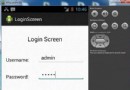 Android 登入畫面實作:表單驗證與「三次機會」的失敗鎖定機制
幾乎每一款需要使用者帳號的 App,都得先問一句「你是誰」。登入畫面看似簡單,卻同時牽涉到版面配置、輸入型別、字串比對、錯誤提示,以及最容易被忽略的一環:暴力嘗試的防堵。
 Android 網絡圖片查看顯示的實現方法
很多應用都需要從網路載入圖片並顯示。常見做法是在介面中放置輸入框、按鈕與 ImageView,當使用者輸入圖片網址並點擊按鈕後,再於背景執行緒中下載圖片資料。關鍵流程下載
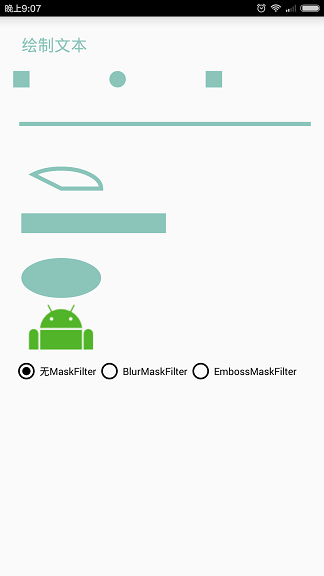 Android Canvas 繪圖透解:MaskFilter 模糊陰影與浮雕效果(附源碼)
本文聚焦一個既實用又有趣的繪圖技巧——如何借助 MaskFilter 為圖形加上模糊陰影與浮雕立體效果。先理清一個概念:Canvas 上的各種 drawXXX 方法決定了