

編輯:Android 開發實例
要在 Android 裡做「每隔幾秒換一張圖,而且每次換都用不同動畫進場」的效果,你一定會碰到 Handler 與 Message 這對搭檔。本篇先把角色關係說清楚,再進到可以跑的完整程式。
sendMessage() 把消息塞進隊列,並在 handleMessage() 裡接收處理。what 欄位通常用來標示消息類型,arg1/arg2 放整數,obj 放物件。關鍵規則只有一句:Android 只允許建立 UI 元件的線程去操作 UI。UI 線程就是 main thread,它在程式啟動時自動帶有一個 Looper 與 Message Queue。而你在 new Thread() 產生的子線程,預設並沒有 Looper,也不該直接碰任何 View。所以子線程負責「等時間、算資料」,完成後把消息丟給主線程的 Handler,由 Handler 在主線程裡更新畫面——這就是整個機制的存在理由。
另外要注意,Android 沒有所謂全域的 Message Queue,不同 APK 之間無法靠它交換訊息;某一線程隊列裡的消息,也只有該線程所屬的 Handler 能處理。
本例會輪流使用四種 Animation:
AlphaAnimation:透明度變化,0.0f 全透明、1.0f 全不透明。ScaleAnimation:尺寸伸縮,需指定 X/Y 的起訖比例與 pivot 中心點。TranslateAnimation:位置平移,指定 X/Y 的起訖位移。RotateAnimation:旋轉,指定起訖角度與旋轉中心,角度可超過 360 度。四者都有一個 setDuration(),單位是毫秒。
public class testHandler extends Activity {

    private static final int MSG_NEXT = 0x123;
    private final int[] images = {
            R.drawable.aa, R.drawable.bb, R.drawable.cc, R.drawable.dd };
    private final Animation[] animations = new Animation[4];
    private int index = 0;

    private ImageView imageView;
    private Handler handler;

    @Override
    public void onCreate(Bundle savedInstanceState) {
        super.onCreate(savedInstanceState);
        setContentView(R.layout.main);
        imageView = (ImageView) findViewById(R.id.ImageView01);

        animations[0] = new AlphaAnimation(0.1f, 1.0f);
        animations[1] = new ScaleAnimation(0f, 1.4f, 0f, 1.4f,
                Animation.RELATIVE_TO_SELF, 0.5f, Animation.RELATIVE_TO_SELF, 0.5f);
        animations[2] = new TranslateAnimation(30f, -80f, 30f, 300f);
        animations[3] = new RotateAnimation(0f, 350f,
                Animation.RELATIVE_TO_SELF, 0.5f, Animation.RELATIVE_TO_SELF, 0.5f);
        for (Animation anim : animations) {
            anim.setDuration(3000);
        }

        handler = new Handler() {
            @Override
            public void handleMessage(Message msg) {
                if (msg.what == MSG_NEXT) {
                    imageView.setImageResource(images[index]);
                    imageView.startAnimation(animations[index]);
                    index = (index + 1) % images.length;
                }
            }
        };

        new Thread(new Runnable() {
            @Override
            public void run() {
                while (!Thread.currentThread().isInterrupted()) {
                    SystemClock.sleep(4000);
                    Message msg = handler.obtainMessage(MSG_NEXT);
                    handler.sendMessage(msg);
                }
            }
        }).start();
    }
}原範例在 handleMessage 裡用 myImage[a-1] 取圖,卻又依 a 的值決定動畫,兩個索引容易對不上,且 a 的自增發生在子線程。改成在 Handler 內统一「設圖片 → 播動畫 → 索引前進」,並用 % images.length 自動回到開頭,不必再寫 if 重設。
new Message() 每輪都配置一個新物件;handler.obtainMessage() 會從系統的消息池取用回收物件,是官方建議的寫法。
Thread.interrupted() 會清掉中斷旗標,多次呼叫行為不一致。改用 Thread.currentThread().isInterrupted() 只讀不改狀態,配合 Activity 的 onDestroy() 呼叫 interrupt() 才能乾淨地結束迴圈。
@Override
protected void onDestroy() {
    handler.removeCallbacksAndMessages(null);
    super.onDestroy();
}
子線程若沒有明確終止,Activity 被銷毀後仍會持續送出消息,這是記憶體流失的常見來源。
把動畫寫進 res/anim 的 XML,再用 AnimationUtils.loadAnimation(this, R.anim.xxx) 載入,可讓動畫參數與程式碼分離,設計師也能參與調整:
<set xmlns:android="https://schemas.android.com/apk/res/android">
    <translate
        android:fromXDelta="0"
        android:toXDelta="-100"
        android:duration="300" />
</set>
本質上兩條路徑等價:程式碼建立 Animation 物件,或在事件回呼裡呼叫 view.startAnimation(animation) 觸發。差別只在參數放在哪裡維護。
 Android MediaPlayer 使用指南:播放控制、進度條與快轉倒轉
要在 App 裡播放音訊或影片,Android 提供了多種途徑,其中最直接的就是 MediaPlayer。它屬於系統內建的媒體播放服務,透過這個類別,你能以幾行程式碼完成
 Android Spinner 載入動畫實作:按鈕觸發與顯示控制
Spinner 是常見的載入提示元件,適合用在等待時間無法預估的情境。它通常只顯示轉圈動畫,不顯示百分比。 版面安排 可在版面中加入 ProgressBar,並使用 La
 自訂 View 與 invalidate:Android 手繪介面的起點
View 是 Android 幾乎所有螢幕元件的共同祖先,每個 View 都有一塊用於繪圖的畫布,而這塊畫布可以自由擴展。遊戲開發中大量使用自訂 View,正是因為它能完
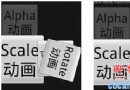 Android 四種動畫效果實作:Alpha、Scale、Translate、Rotate
main.xml:宣告四個按鈕 <?xml version=1.0 encoding=utf-8?> <AbsoluteLayout android: