

編輯:Android 開發實例
從本文開始,我們會一步步把功能列表補齊。
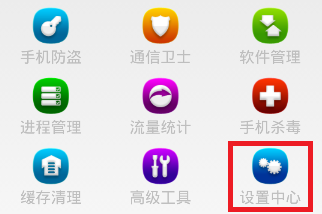
要讓九宮格中的條目可以點擊,得先註冊監聽:
// 注冊九宮格單個條目的點擊事件
gv_home.setOnItemClickListener(new OnItemClickListener() {
    // 點中列表條目索引 position
    @Override
    public void onItemClick(AdapterView<?> parent, View view,
                            int position, long id) {
        switch (position) {
            case 0:
                break;
            case 8:
                Intent intent = new Intent(getApplicationContext(),
                                           SettingActivity.class);
                startActivity(intent);
                break;
            default:
                break;
        }
    }
});
這裡以 position 分派而非 id,是因為 GridView 的 position 直接對應資料源索引,語意比 long 型別的 id 更直觀。
點擊後要跳轉到「設置中心」,所以必須新增一個 Activity:
package com.wuyudong.mobilesafe.activity;

import com.wuyudong.mobilesafe.R;

import android.app.Activity;
import android.os.Bundle;

public class SettingActivity extends Activity {
    @Override
    protected void onCreate(Bundle savedInstanceState) {
        super.onCreate(savedInstanceState);
        setContentView(R.layout.activity_setting);
    }
}
記得同步在 AndroidManifest.xml 中註冊這個 Activity,否則啟動時會直接拋出 ActivityNotFoundException。
<?xml version="1.0" encoding="utf-8"?>
<LinearLayout xmlns:android="https://schemas.android.com/apk/res/android"
    android:layout_width="match_parent"
    android:layout_height="match_parent"
    android:orientation="vertical" >

    <RelativeLayout
        android:layout_width="match_parent"
        android:layout_height="wrap_content"
        android:padding="5dp" >

        <TextView
            android:id="@+id/tv_title"
            android:layout_width="wrap_content"
            android:layout_height="wrap_content"
            android:text="自動更新設置"
            android:textColor="#000"
            android:textSize="18sp" />

        <TextView
            android:id="@+id/tv_des"
            android:layout_width="wrap_content"
            android:layout_height="wrap_content"
            android:layout_below="@id/tv_title"
            android:text="自動更新已關閉"
            android:textColor="#000"
            android:textSize="18sp" />

        <CheckBox
            android:id="@+id/cb_box"
            android:layout_width="wrap_content"
            android:layout_height="wrap_content"
            android:layout_alignParentRight="true"
            android:layout_centerVertical="true" />

        <View
            android:layout_width="match_parent"
            android:layout_height="1dp"
            android:layout_below="@id/tv_des"
            android:background="#000" />
    </RelativeLayout>

</LinearLayout>
這個布局用了相對布局而非線性布局,是因為 CheckBox 需要靠右對齊並垂直居中,同時兩行文字要上下堆疊,RelativeLayout 一次就能表達這種「部分對齊、部分依賴」的關係。
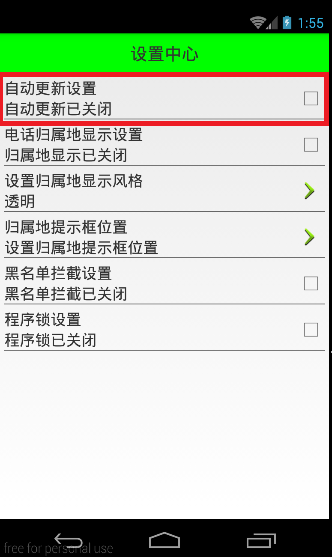
本文先完成設置中心中的單條目布局,如下圖紅框所示:
 一看就懂的 Android App 開發入門:從環境到打包的完整示範
做過手機 App 項目的人都體會過那種分裂感:前端與 iOS 那邊配合起來基本順暢,而 Android 因為機型與 ROM 五花八門,問題層出不窮。正是這種麻煩勾起了我親
 Android 仿網易客戶端頂部導航欄:滑動指示條動畫實作
本文分享一個網易客戶端首頁導航條動畫的實作,重點在於點擊某個分類後,底下的指示條(ImageView)能平滑滑動到該項目下方,同時文字顏色跟著切換。 版面結構 先來
 Android GridView 多選效果的實作教學
相簿、多附件挑選這類介面常需要「點一下就能勾選多張圖」的 GridView。Android 的 GridView 本身沒有內建的多選視覺回饋,因此實作方式是自行維護一份「
 Android 應用程式本地化實作
Android 應用程式可能會在不同語言與地區的裝置上執行。為了提升使用者體驗,應用程式應根據系統語言顯示對應的文字、數字與資源。Android 的本地化機制主要透過不同