

編輯:初階開發
遊戲開發中幾乎都會有選關頁面。要實現得快,用 ListView 就夠了;想要效果更出彩,可以選擇 Gallery 控件——它支持手指拖動、點擊選中,天生適合做橫向的關卡列表。
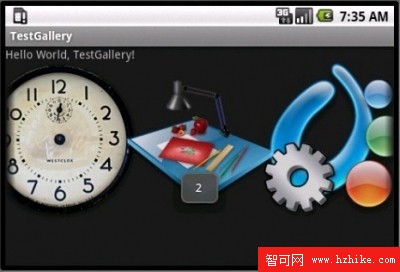
API Demo 裡對 Gallery 有很詳盡的介紹,如果不打算翻 Demo,這裡有我精簡後的完整代碼。
<?XML version="1.0" encoding="utf-8"?>
<LinearLayout xmlns:android="https://schemas.android.com/apk/res/android"
    android:orientation="vertical"
    android:layout_width="fill_parent"
    android:layout_height="fill_parent">

    <TextView
        android:layout_width="fill_parent"
        android:layout_height="wrap_content"
        android:text="@string/hello" />

    <Gallery
        android:id="@+id/Gallery01"
        android:layout_width="fill_parent"
        android:layout_height="wrap_content">
    </Gallery>

</LinearLayout>
Adapter 負責控制 Gallery 的圖片來源等數據操作。
public class ImageAdapter extends BaseAdapter {
    private Context mContext;

    private Integer[] mImageIds = {
        R.drawable.p1, R.drawable.p2, R.drawable.p3, R.drawable.p4,
        R.drawable.p5, R.drawable.p6, R.drawable.p7, R.drawable.p8
    };

    public ImageAdapter(Context c) {
        mContext = c;
    }

    public int getCount() {
        return mImageIds.length;
    }

    public Object getItem(int position) {
        return position;
    }

    public long getItemId(int position) {
        return position;
    }

    public View getView(int position, View convertView, ViewGroup parent) {
        ImageView i = new ImageView(mContext);
        i.setImageResource(mImageIds[position]);              // 設置圖片資源
        i.setLayoutParams(new Gallery.LayoutParams(192, 192)); // 設置布局尺寸
        i.setScaleType(ImageView.ScaleType.FIT_XY);           // 設置縮放方式
        return i;
    }
}
public class TestGallery extends Activity {
    @Override
    public void onCreate(Bundle savedInstanceState) {
        super.onCreate(savedInstanceState);
        setContentView(R.layout.main);

        Gallery g = (Gallery) findViewById(R.id.Gallery01);   // 獲取 Gallery 控件
        g.setAdapter(new ImageAdapter(this));                  // 綁定圖片資源

        g.setOnItemClickListener(new OnItemClickListener() {
            public void onItemClick(AdapterView parent, View v, int position, long id) {
                // 這裡只是測試,實際項目中可以跳轉到對應關卡的 Activity
                Toast.makeText(TestGallery.this, "" + position, Toast.LENGTH_SHORT).show();
            }
        });
    }
}
把 OnItemClickListener 中的 Toast 替換成跳轉邏輯,一個可用的選關界面就成型了。若想進一步美化,可以給 Adapter 加上選中態的背景切換。
 保護你的 Android 付費軟體——LVL 全攻略(一)
近來 Google 開始大力打擊 Android 軟體盜版,為開發者提供了 License Verification Library(LVL)機制,以防止軟體被盗版濫用。
 Android ListView 完整指南:三種 Adapter 與自定義列表實作
ListView 幾乎是每個 Android 開發者都會碰到的元件。它以「一項一列」的方式把資料鋪陳出來,列數會隨著資料筆數自動伸縮,不需要我們手動計算高度。本文把 Li
 如何正確讀取「未安裝」APK 的圖示與資訊
網路上關於「取得未安裝 APK 圖示」的分享很多,但大多是互相轉貼,跑起來只得到 Android 預設的小機器人。問題出在直接使用 PackageManager.ge
 用 Gallery 控件打造遊戲選關界面
遊戲開發中幾乎都會有選關頁面。要實現得快,用 ListView 就夠了;想要效果更出彩,可以選擇 Gallery 控件——它支持手指拖動、點擊選中,天生適合做橫向的關卡列