

編輯:關於 Android 程式設計
自訂 View 的繪圖能力,基本上就是 Paint(畫筆)與 Canvas(畫布)的組合。以下把兩者最常用的方法整理成一份速查表。
1. setColor():設定畫筆顏色
public void setColor(int color)
參數可直接給色值,也可用 Color 類別定義的常數:Color.BLACK(黑)、Color.BLUE(藍)、Color.CYAN(青綠)、Color.DKGRAY(灰黑)、Color.GRAY(灰)、Color.LTGRAY(淺灰)、Color.GREEN(綠)、Color.MAGENTA(紅紫)、Color.YELLOW(黃)、Color.TRANSPARENT(透明)。
2. setAlpha():設定透明度
public void setAlpha(int a)
取值範圍 0–255,數值越小越透明。
3. setStyle():設定畫筆風格
public void setStyle(Paint.Style style)
Style.FILL(實心)、Style.STROKE(空心)、Style.FILL_AND_STROKE(同時描邊與填色)。在矩形與圓形上效果最明顯。
4. setStrokeWidth():設定空心線寬
public void setStrokeWidth(float width)
5. setTextSize():設定字級
public void setTextSize(float textSize)
6. setTypeface():設定字型樣式
public void setTypeface(Typeface typeface)
可使用系統字型 Typeface.DEFAULT、DEFAULT_BOLD、MONOSPACE、SANS_SERIF、SERIF,也可載入自訂字型檔。
7. setTextScaleX():設定字寬比例
public void setTextScaleX(float scaleX)
預設為 1,大於 1 為橫向拉伸,小於 1 為橫向壓縮。
8. setARGB():一次設定透明度與顏色
public void setARGB(int a, int r, int g, int b);
四個參數範圍皆為 0–255,分別代表透明度、紅、綠、藍。
9. setUnderlineText():加上底線
public void setUnderlineText(Boolean underlinetext)
10. setTextSkewX():設定文字傾斜
public void setTextSkewX(float skewX)
正值向左傾斜,負值向右傾斜。
1. drawColor(int color):填滿整個畫布背景。
2. drawLine(float startX, float startY, float stopX, float stopY, Paint paint):繪製單一直線,參數依序為起點 x、y 與終點 x、y。
3. drawLines(float[] pts, Paint paint):繪製多條直線,每條線佔 4 個座標值。
4. drawPoint(float x, float y, Paint paint):繪製單一點。
5. drawPoints(float[] pts, Paint paint) 與 drawPoints(float[] pts, int offset, int count, Paint paint):繪製多點,每點佔 2 個值;offset 為跳過的數量,count 為實際參與繪製的數量。
6. drawRect():繪製矩形,有多種多載:
 public void drawRect(Rect rect, Paint paint)
 public void drawRect(RectF rect, Paint paint)
 public void drawRect(float left, float top, float right, float bottom, Paint paint)
7. drawRoundRect(RectF rect, float rx, float ry, Paint paint):繪製圓角矩形,rx 為 X 方向圓角半徑,ry 為 Y 方向。
8. drawCircle(float cx, float cy, float radius, Paint paint):繪製圓形,cx/cy 為圓心座標,radius 為半徑。
9. drawOval(RectF rect, Paint paint):繪製橢圓,透過指定外切矩形決定形狀。
10. drawPath(Path path, Paint paint):依路徑繪製任意多邊形。
11. drawArc(RectF oval, float startAngle, float sweepAngle, boolean useCenter, Paint p):繪製圓弧。oval 為所在橢圓,startAngle 為起始角度,sweepAngle 為掃過角度,useCenter 為 true 時會連同圓心形成扇形。
12. drawText():繪製文字,有多種多載:
 public void drawText(String text, float x, float y, Paint paint)
 public void drawText(char[] text, int index, int count, float x, float y, Paint paint)
 public void drawText(CharSequence text, int start, int end, float x, float y, Paint paint)
 public void drawText(String text, int start, int end, float x, float y, Paint paint)
注意 y 座標指的是文字基線位置,而非文字頂端,這是初學者最容易算錯的地方。index/start 為起始字元位置,count 為字元數,end 為結束位置。
13. drawBitmap(Bitmap bitmap, float left, float top, Paint paint):繪製圖片,left/top 決定左上角位置。另有可指定目標 Rect 的多載,會將圖片拉伸填滿該區域。
14. save():鎖存目前畫布的狀態(矩陣、剪裁區等),搭配 restore() 使用,才能做到「畫完就還原」。
15. clipRect():裁剪畫布的顯示範圍:
 public boolean clipRect(Rect rect)
 public boolean clipRect(float left, float top, float right, float bottom)
 public boolean clipRect(int left, int top, int right, int bottom)
16. rotate(float degrees) 與 rotate(float degrees, float px, float py):旋轉畫布,正數為順時針、負數為逆時針;px/py 為旋轉中心。
掌握這兩個類別,再搭配 Path、Matrix 與 saveLayer 等進階工具,幾乎所有自訂圖形都能畫得出來。
 開發環境大升級:從 Eclipse 搬家到 Android Studio 與 Genymotion
趁着假期把整套 Android 開發環境翻新一遍,只做兩件事:IDE 從 Eclipse 換到 Android Studio,模擬器從官方 AVD 換成 Genymoti
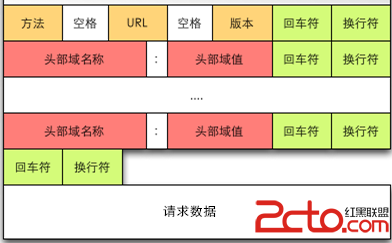 Android 網絡編程入門(一):HTTP 協議原理透解
前言 這是該系列的首篇。身為移動開發者,開發的應用難免要訪問網絡。如今已有大量開源庫讓我們輕鬆完成網絡請求,但我們仍需理解網絡訪問背後的原理,這是優秀開發者的必備素養。這
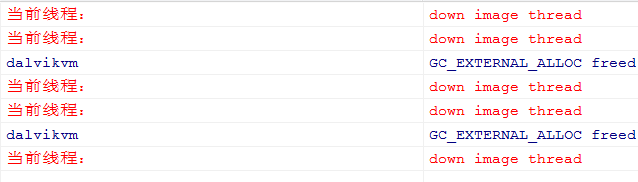 Android 多執行緒實戰:從 Handler 到 AsyncTask 與執行緒池的取捨
先釐清一個常見誤解:handler.post(r) 並不會開啟新執行緒,它只是把 Runnable 的 run() 排進訊息佇列執行,並沒有呼叫 start(),所以 r
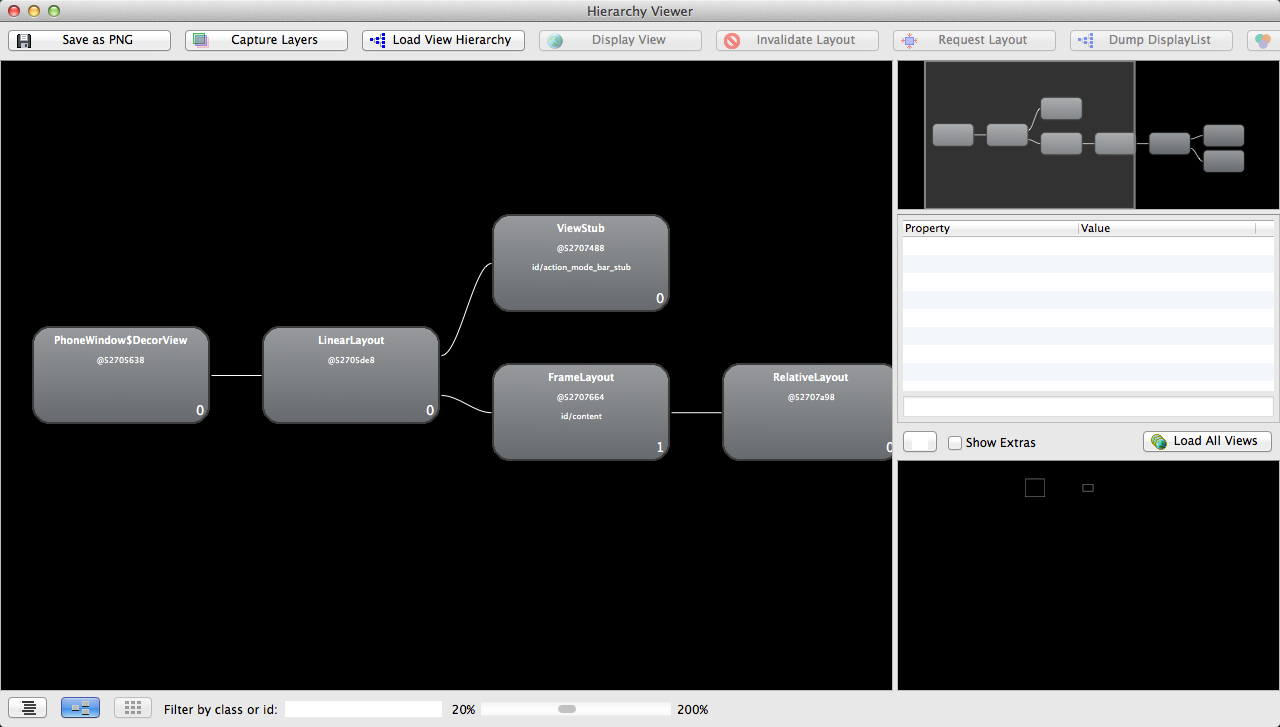 Android 布局優化實戰:include、merge 與 ViewStub
在 Android 開發中,我們最常用的布局方式莫過於 LinearLayout、RelativeLayout、FrameLayout 等,借助它們可以搭建出各式各樣的界