

編輯:關於 Android 程式設計
一、需求簡介
前陣子朋友的公司提出一個需求:實現一個可以垂直上拉下滑的View。這個View初始狀態下只有一小部分露在屏幕底部,向上拖動可以把整個View拉出來完整顯示,向下拖動又能把它重新藏回屏幕下方。
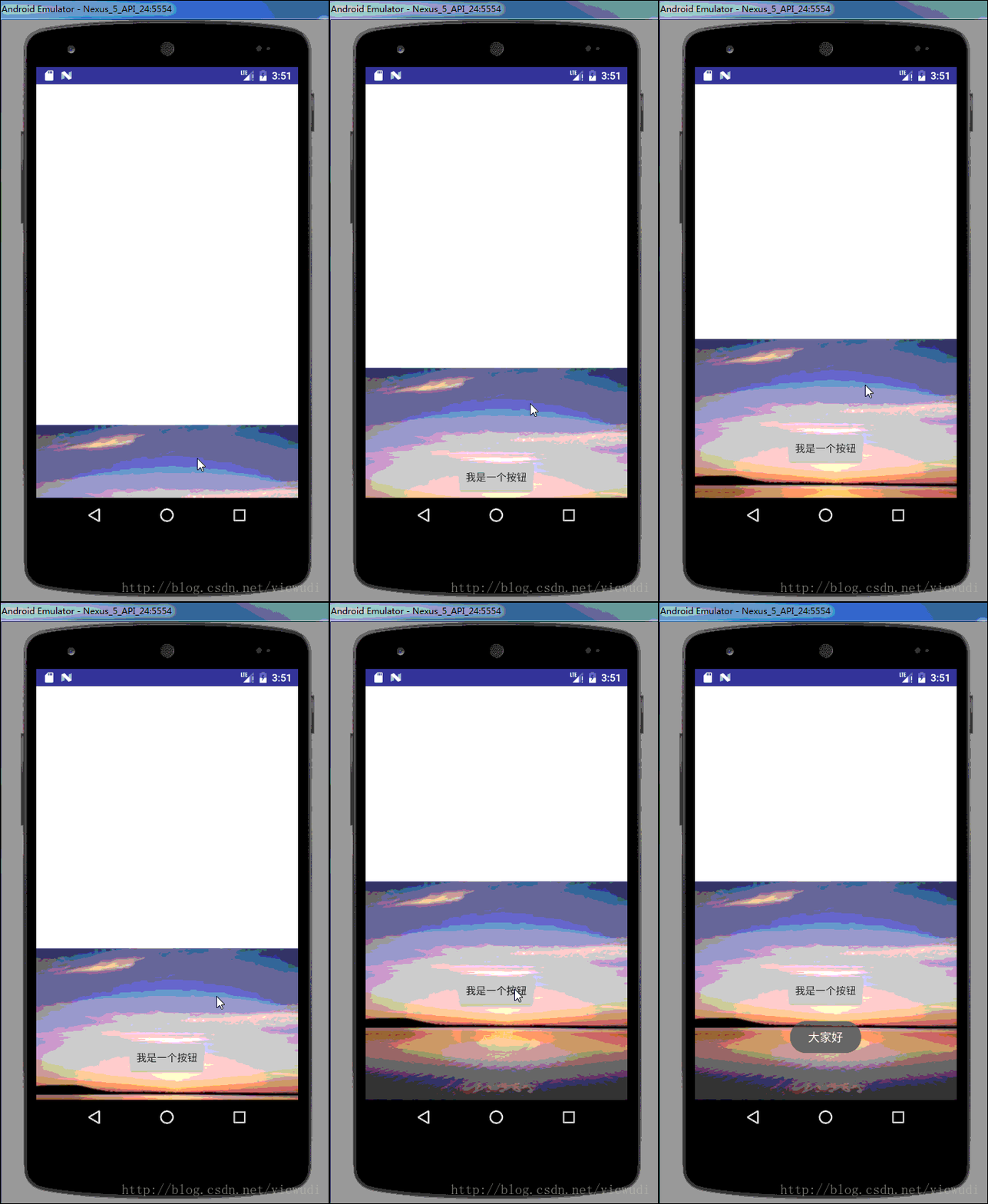
先看看最終效果。
二、實現思路
1、這種效果可以有很多種實現方式。為了讓手指鬆開時能像ViewPager那樣有一段平滑的滑動過渡,我選擇了scrollBy搭配Scroller的組合,既方便又實用。
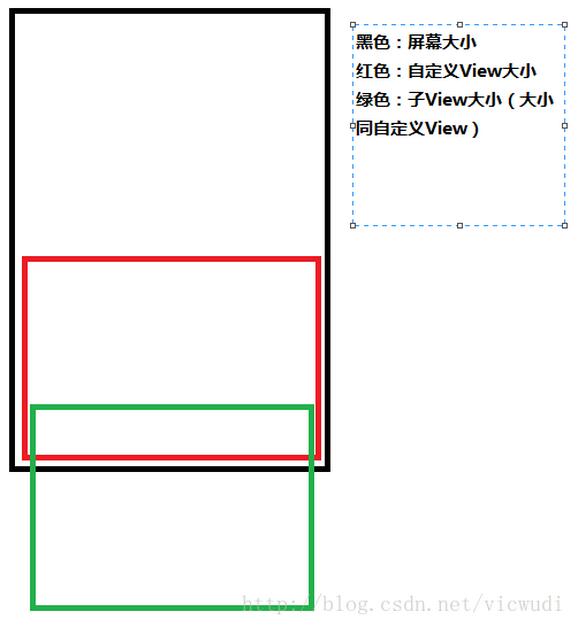
2、整個View的設計是這樣的:
(1)把子View通過layout擺放在該View下方;
(2)重寫onTouchEvent給子View加上滑動能力,並在ACTION_UP時用Scroller把子View平滑地滑到頂部或底部。
三、動手實現
1、先定義一個自定義屬性,用來表示子View初始有多少部分露在外面,也就是上圖中紅色與綠色相交的那一塊。
在res/values文件夾下創建attrs.xml文件:
attrs.xml:
<resources> <declare-styleable name="MyScrollerView"> <attr name="visibility_height" format="dimension"></attr> </declare-styleable> </resources>
在XML布局中引用該屬性:
<com.zw.myfirstapp.MyScrollerView android:layout_width="match_parent" android:layout_height="wrap_content" android:layout_alignParentBottom="true" android:background="@android:color/transparent" android:id="@+id/msv" app:visibility_height="100dp" ></com.zw.myfirstapp.MyScrollerView>
在代碼中獲取該屬性(該View命名為MyScrollerView,這裡圖方便直接繼承LinearLayout,當然繼承ViewGroup或其他布局View也都可以):
public MyScrollerView(Context context) { this(context,null); } public MyScrollerView(Context context, AttributeSet attrs) { this(context, attrs,0); } public MyScrollerView(Context context, AttributeSet attrs, int defStyleAttr) { super(context, attrs, defStyleAttr); TypedArray ta = context.obtainStyledAttributes(attrs,R.styleable.MyScrollerView); visibilityHeight = ta.getDimension(R.styleable.MyScrollerView_visibility_height,200); ta.recycle(); init(context); }
2、重寫onFinishInflate方法。之所以重寫它,是因為我希望這個View只包含一個子View,這樣就能輕鬆確定滑動高度,否則還得逐一累加多個子View的高度,反而麻煩。這個方法會在onMeasure之前被調用。
@Override protected void onFinishInflate() { super.onFinishInflate(); if(getChildCount() == 0 || getChildAt(0) == null){ throw new RuntimeException("沒有子控件!"); } if(getChildCount() > 1){ throw new RuntimeException("只能有一個子控件!"); } mChild = getChildAt(0); }
3、init方法裡做一些初始化,比如創建Scroller對象、把View背景設為透明:
private void init(Context context) { mScroller = new Scroller(context); this.setBackgroundColor(Color.TRANSPARENT); }
4、重寫onMeasure和onLayout,確定最大可滑動高度以及子View的排列位置(其實onMeasure可以不重寫,這樣寫只是個人習慣):
@Override protected void onMeasure(int widthMeasureSpec, int heightMeasureSpec) { super.onMeasure(widthMeasureSpec, heightMeasureSpec); mScrollHeight = (int) (mChild.getMeasuredHeight() - visibilityHeight); } @Override protected void onLayout(boolean changed, int l, int t, int r, int b) { super.onLayout(changed, l, t, r, b); mChild.layout(0,mScrollHeight,mChild.getMeasuredWidth(),mChild.getMeasuredHeight() + mScrollHeight); }
5、先看看幾個成員變量的含義:
/** * downY:手指按下時距離View頂部的距離 * moveY:手指在屏幕上滑動的距離(不停變化) * movedY:手指在屏幕上總共滑動的距離(為了確定手指一共滑動了多少距離,不能超過可滑動的最大距離) */ private int downY,moveY,movedY; //子View private View mChild; private Scroller mScroller; //可滑動的最大距離 private int mScrollHeight; //子View是否在頂部 private boolean isTop = false; //最初子View在View內可見的高度 private float visibilityHeight;
6、重寫onTouchEvent做滑動判斷,具體解釋都寫在註釋裡了:
@Override public boolean onTouchEvent(MotionEvent event) { switch (event.getAction()){ case MotionEvent.ACTION_DOWN: //手指按下時距離View上面的距離 downY = (int) event.getY(); //如果子View不在頂部 && 按下的位置在子View沒有顯示的位置,則不消費此次滑動事件,否則消費 if(!isTop && downY < mScrollHeight ){ return super.onTouchEvent(event); } return true; case MotionEvent.ACTION_MOVE: moveY = (int) event.getY(); //deY是滑動的距離,向上滑時deY>0 ,向下滑時deY<0 int deY = downY - moveY; //向上滑動時的處理 if(deY > 0){ //將每次滑動的距離相加,為了防止子View的滑動超過View的頂部 movedY += deY; if(movedY > mScrollHeight) movedY = mScrollHeight; if(movedY < mScrollHeight){ scrollBy(0,deY); downY = moveY; return true; } } //向下滑動時的處理,向下滑動時需要判斷子View是否在頂部,如果不在頂部則不消費此次事件 if(deY < 0 && isTop){ movedY += deY; if(movedY < 0 ) movedY = 0; if(movedY > 0){ scrollBy(0,deY); } downY = moveY; return true; } break; case MotionEvent.ACTION_UP: //手指抬起時的處理,如果向上滑動的距離超過了最大可滑動距離的1/4,並且子View不在頂部,就表示想把它拉上去 if(movedY > mScrollHeight / 4 && !isTop){ mScroller.startScroll(0,getScrollY(),0,(mScrollHeight - getScrollY())); invalidate(); movedY = mScrollHeight; isTop = true; }else { //否則就表示放棄本次滑動,讓它滑到最初的位置 mScroller.startScroll(0,getScrollY(),0, -getScrollY()); postInvalidate(); movedY = 0; isTop = false; } break; } return super.onTouchEvent(event); }
7、最後重寫一個computeScroll方法,用來配合Scroller:
@Override public void computeScroll() { super.computeScroll(); if(mScroller.computeScrollOffset()){ scrollTo(0,mScroller.getCurrY()); postInvalidate(); } }
8、關於Scroller的用法,可參考郭霖的這篇博客:https://blog.csdn.net/guolin_blog/article/details/48719871
四、完整代碼
xml:
<RelativeLayout xmlns:android="https://schemas.android.com/apk/res/android" xmlns:tools="https://schemas.android.com/tools" xmlns:app="https://schemas.android.com/apk/res-auto" android:id="@+id/activity_main" android:layout_width="match_parent" android:layout_height="match_parent"> <com.zw.myfirstapp.MyScrollerView android:layout_width="match_parent" android:layout_height="wrap_content" android:layout_alignParentBottom="true" android:background="@android:color/transparent" android:id="@+id/msv" app:visibility_height="100dp" > <LinearLayout android:layout_width="match_parent" android:layout_height="300dp" android:background="@mipmap/b" android:gravity="center" android:orientation="vertical"> <Button android:layout_width="wrap_content" android:layout_height="wrap_content" android:id="@+id/btn" android:text="我是一個按鈕"/> </LinearLayout> </com.zw.myfirstapp.MyScrollerView> </RelativeLayout>
MyScrollerView:
public class MyScrollerView extends LinearLayout { /** * downY:手指按下時距離View頂部的距離 * moveY:手指在屏幕上滑動的距離(不停變化) * movedY:手指在屏幕上總共滑動的距離(為了確定手指一共滑動了多少距離,不能超過可滑動的最大距離) */ private int downY,moveY,movedY; //子View private View mChild; private Scroller mScroller; //可滑動的最大距離 private int mScrollHeight; //子View是否在頂部 private boolean isTop = false; //最初子View在View內可見的高度 private float visibilityHeight; public MyScrollerView(Context context) { this(context,null); } public MyScrollerView(Context context, AttributeSet attrs) { this(context, attrs,0); } public MyScrollerView(Context context, AttributeSet attrs, int defStyleAttr) { super(context, attrs, defStyleAttr); TypedArray ta = context.obtainStyledAttributes(attrs,R.styleable.MyScrollerView); visibilityHeight = ta.getDimension(R.styleable.MyScrollerView_visibility_height,200); ta.recycle(); init(context); } @Override protected void onMeasure(int widthMeasureSpec, int heightMeasureSpec) { super.onMeasure(widthMeasureSpec, heightMeasureSpec); mScrollHeight = (int) (mChild.getMeasuredHeight() - visibilityHeight); } @Override protected void onLayout(boolean changed, int l, int t, int r, int b) { super.onLayout(changed, l, t, r, b); mChild.layout(0,mScrollHeight,mChild.getMeasuredWidth(),mChild.getMeasuredHeight() + mScrollHeight); } private void init(Context context) { mScroller = new Scroller(context); this.setBackgroundColor(Color.TRANSPARENT); } @Override protected void onFinishInflate() { super.onFinishInflate(); if(getChildCount() == 0 || getChildAt(0) == null){ throw new RuntimeException("沒有子控件!"); } if(getChildCount() > 1){ throw new RuntimeException("只能有一個子控件!"); } mChild = getChildAt(0); } @Override public boolean onTouchEvent(MotionEvent event) { switch (event.getAction()){ case MotionEvent.ACTION_DOWN: //手指按下時距離View上面的距離 downY = (int) event.getY(); //如果子View不在頂部 && 按下的位置在子View沒有顯示的位置,則不消費此次滑動事件,否則消費 if(!isTop && downY < mScrollHeight ){ return super.onTouchEvent(event); } return true; case MotionEvent.ACTION_MOVE: moveY = (int) event.getY(); //deY是滑動的距離,向上滑時deY>0 ,向下滑時deY<0 int deY = downY - moveY; //向上滑動時的處理 if(deY > 0){ //將每次滑動的距離相加,為了防止子View的滑動超過View的頂部 movedY += deY; if(movedY > mScrollHeight) movedY = mScrollHeight; if(movedY < mScrollHeight){ scrollBy(0,deY); downY = moveY; return true; } } //向下滑動時的處理,向下滑動時需要判斷子View是否在頂部,如果不在頂部則不消費此次事件 if(deY < 0 && isTop){ movedY += deY; if(movedY < 0 ) movedY = 0; if(movedY > 0){ scrollBy(0,deY); } downY = moveY; return true; } break; case MotionEvent.ACTION_UP: //手指抬起時的處理,如果向上滑動的距離超過了最大可滑動距離的1/4,並且子View不在頂部,就表示想把它拉上去 if(movedY > mScrollHeight / 4 && !isTop){ mScroller.startScroll(0,getScrollY(),0,(mScrollHeight - getScrollY())); invalidate(); movedY = mScrollHeight; isTop = true; }else { //否則就表示放棄本次滑動,讓它滑到最初的位置 mScroller.startScroll(0,getScrollY(),0, -getScrollY()); postInvalidate(); movedY = 0; isTop = false; } break; } return super.onTouchEvent(event); } @Override public void computeScroll() { super.computeScroll(); if(mScroller.computeScrollOffset()){ scrollTo(0,mScroller.getCurrY()); postInvalidate(); } } }
以上就是本文的全部內容,希望對大家的學習有所幫助。
 Android 高仿微信轉帳金額輸入框規則
微信轉帳輸入框的金額輸入規則,重點在於小數點處理、位數限制與首字驗證。以下整理常見規則與實作方式。 輸入規則 小數點後最多兩位。 使用者若一開始就輸入小數
 Android Fragment 深入解析:生命週期、通訊、事務管理與复用實作
作者:韓曙亮 | 轉載請註明出處:https://blog.csdn.net/shulianghan/article/details/38064191 本文範例程式碼:
 Android 自定義 View 進階:Matrix 全面詳解
上一篇談 Matrix 原理時偏理論,本文則聚焦具體用法,並補上幾個實務上真的會用到的技巧。這大概是目前中文世界對 Matrix 說明最完整的一篇。 方法總覽 先建立地
 Fragment 底部導航欄實作:TextView 方案
底部導航欄是 Android 應用中常見的頁面切換方式。使用 Fragment 搭配 TextView,可以實作出輕量且易於維護的底部導航效果。這篇文章以 TextVie