

編輯:關於 Android 程式設計
本文開始進入 Android 多功能時鐘的開發實戰,最終成品可以直接對照手機自帶的時鐘 App。第一步,先把整體骨架搭起來。
最外層是一個 FrameLayout,裡面放了一個 TabHost;接著就能往裡頭塞入我們想要的各頁內容:
<FrameLayout xmlns:android="https://schemas.android.com/apk/res/android"
    android:id="@+id/container"
    android:layout_width="match_parent"
    android:layout_height="match_parent" >

    <TabHost
        android:id="@android:id/tabhost"
        android:layout_width="match_parent"
        android:layout_height="match_parent" >

        <LinearLayout
            android:layout_width="match_parent"
            android:layout_height="match_parent"
            android:orientation="vertical" >

            <TabWidget
                android:id="@android:id/tabs"
                android:layout_width="match_parent"
                android:layout_height="wrap_content" >
            </TabWidget>

            <FrameLayout
                android:id="@android:id/tabcontent"
                android:layout_width="match_parent"
                android:layout_height="match_parent" >

                <com.example.clock.TimeView
                    android:id="@+id/tabTime"
                    android:layout_width="match_parent"
                    android:layout_height="match_parent"
                    android:orientation="vertical" >
                    ...
                </com.example.clock.TimeView>

                <com.example.clock.AlarmView
                    android:id="@+id/tabAlarm"
                    android:layout_width="match_parent"
                    android:layout_height="match_parent"
                    android:orientation="vertical" >
                    ...
                </com.example.clock.AlarmView>

                <com.example.clock.TimerView
                    android:id="@+id/tabTimer"
                    android:layout_width="match_parent"
                    android:layout_height="match_parent"
                    android:orientation="vertical" >
                    ...
                </com.example.clock.TimerView>

                <com.example.clock.StopWatchView
                    android:id="@+id/tabStopWatch"
                    android:layout_width="match_parent"
                    android:layout_height="match_parent"
                    android:orientation="vertical" >
                    ...
                </com.example.clock.StopWatchView>

            </FrameLayout>
        </LinearLayout>
    </TabHost>
</FrameLayout>
初學者看到 <com.example.clock.……> 這種寫法大概會愣一下:這是什麼東西?答案是自訂控件——我們自己寫的、繼承自 LinearLayout 的類別。上面出現了四個這樣的標籤,代表我們有四個 Tab 頁面。關於佈局本身的細節這裡不多談,後續會把學習過程中整理的一些知識點陸續放進資源裡,大家可以下載參考。
<FrameLayout xmlns:android="https://schemas.android.com/apk/res/android"
android:id="@+id/container"
android:layout_width="match_parent"
android:layout_height="match_parent" >
<TabHost
android:id="@android:id/tabhost"
android:layout_width="match_parent"
android:layout_height="match_parent" >
<LinearLayout
android:layout_width="match_parent"
android:layout_height="match_parent"
android:orientation="vertical" >
<TabWidget
android:id="@android:id/tabs"
android:layout_width="match_parent"
android:layout_height="wrap_content" >
</TabWidget>
<FrameLayout
android:id="@android:id/tabcontent"
android:layout_width="match_parent"
android:layout_height="match_parent" >
<!-- 時鐘 -->
<com.example.clock.TimeView
android:id="@+id/tabTime"
android:layout_width="match_parent"
android:layout_height="match_parent"
android:orientation="vertical" >
<TextView
android:id="@+id/tvTime"
android:layout_width="fill_parent"
android:layout_height="fill_parent"
android:gravity="center"
android:textAppearance="?android:attr/textAppearanceLarge" />
</com.example.clock.TimeView>
<!-- 鬧鐘 -->
<com.example.clock.AlarmView
android:id="@+id/tabAlarm"
android:layout_width="match_parent"
android:layout_height="match_parent"
android:orientation="vertical" >
<ListView
android:id="@+id/lvListAlarm"
android:layout_width="fill_parent"
android:layout_height="0dp"
android:layout_weight="1" >
</ListView>
<Button
android:id="@+id/btnAddAlarm"
android:layout_width="fill_parent"
android:layout_height="wrap_content"
android:text="@string/add_alarm" >
</Button>
</com.example.clock.AlarmView>
<!-- 計時器 -->
<com.example.clock.TimerView
android:id="@+id/tabTimer"
android:layout_width="match_parent"
android:layout_height="match_parent"
android:orientation="vertical" >
<LinearLayout
android:layout_width="fill_parent"
android:layout_height="0dp"
android:layout_weight="1"
android:orientation="horizontal" >
<EditText
android:id="@+id/etHour"
android:layout_width="0dp"
android:layout_height="wrap_content"
android:layout_weight="1"
android:inputType="number"
android:singleLine="true"
android:textAppearance="?android:attr/textAppearanceLarge" />
<TextView
android:layout_width="wrap_content"
android:layout_height="wrap_content"
android:text=":"
android:textAppearance="?android:attr/textAppearanceLarge" />
<EditText
android:id="@+id/etMin"
android:layout_width="0dp"
android:layout_height="wrap_content"
android:layout_weight="1"
android:inputType="number"
android:singleLine="true"
android:textAppearance="?android:attr/textAppearanceLarge" />
<TextView
android:layout_width="wrap_content"
android:layout_height="wrap_content"
android:text=":"
android:textAppearance="?android:attr/textAppearanceLarge" />
<EditText
android:id="@+id/etSec"
android:layout_width="0dp"
android:layout_height="wrap_content"
android:layout_weight="1"
android:inputType="number"
android:singleLine="true"
android:textAppearance="?android:attr/textAppearanceLarge" />
</LinearLayout>
<LinearLayout
android:id="@+id/btnGroup"
android:layout_width="fill_parent"
android:layout_height="wrap_content"
android:orientation="horizontal" >
<Button
android:id="@+id/btnStart"
android:layout_width="0dp"
android:layout_height="wrap_content"
android:layout_weight="1"
android:text="@string/start" />
<Button
android:id="@+id/btnPause"
android:layout_width="0dp"
android:layout_height="wrap_content"
android:layout_weight="1"
android:text="@string/pause" />
<Button
android:id="@+id/btnResume"
android:layout_width="0dp"
android:layout_height="wrap_content"
android:layout_weight="1"
android:text="@string/resume" />
<Button
android:id="@+id/btnReset"
android:layout_width="0dp"
android:layout_height="wrap_content"
android:layout_weight="1"
android:text="@string/reset" />
</LinearLayout>
</com.example.clock.TimerView>
<!-- 秒表 -->
<com.example.clock.StopWatchView
android:id="@+id/tabStopWatch"
android:layout_width="match_parent"
android:layout_height="match_parent"
android:orientation="vertical" >
<LinearLayout
android:layout_width="fill_parent"
android:layout_height="wrap_content"
android:orientation="horizontal" >
<TextView
android:id="@+id/timeHour"
android:layout_width="0dp"
android:layout_height="wrap_content"
android:layout_weight="1"
android:textAppearance="?android:attr/textAppearanceLarge" />
<TextView
android:layout_width="wrap_content"
android:layout_height="wrap_content"
android:text=":"
android:textAppearance="?android:attr/textAppearanceLarge" />
<TextView
android:id="@+id/timeMin"
android:layout_width="0dp"
android:layout_height="wrap_content"
android:layout_weight="1"
android:textAppearance="?android:attr/textAppearanceLarge" />
<TextView
android:layout_width="wrap_content"
android:layout_height="wrap_content"
android:text=":"
android:textAppearance="?android:attr/textAppearanceLarge" />
<TextView
android:id="@+id/timeSec"
android:layout_width="0dp"
android:layout_height="wrap_content"
android:layout_weight="1"
android:textAppearance="?android:attr/textAppearanceLarge" />
<TextView
android:layout_width="wrap_content"
android:layout_height="wrap_content"
android:text="."
android:textAppearance="?android:attr/textAppearanceLarge" />
<TextView
android:id="@+id/timeMsec"
android:layout_width="0dp"
android:layout_height="wrap_content"
android:layout_weight="1"
android:textAppearance="?android:attr/textAppearanceLarge" />
</LinearLayout>
<ListView
android:id="@+id/lvWatchTime"
android:layout_width="fill_parent"
android:layout_height="0dp"
android:layout_weight="1" >
</ListView>
<LinearLayout
android:layout_width="fill_parent"
android:layout_height="wrap_content"
android:orientation="horizontal" >
<Button
android:id="@+id/btnSWStart"
android:layout_width="0dp"
android:layout_height="wrap_content"
android:layout_weight="1"
android:text="@string/start" />
<Button
android:id="@+id/btnSWPause"
android:layout_width="0dp"
android:layout_height="wrap_content"
android:layout_weight="1"
android:text="@string/pause" />
<Button
android:id="@+id/btnSWResume"
android:layout_width="0dp"
android:layout_height="wrap_content"
android:layout_weight="1"
android:text="@string/resume" />
<Button
android:id="@+id/btnSWLap"
android:layout_width="0dp"
android:layout_height="wrap_content"
android:layout_weight="1"
android:text="@string/lap" />
<Button
android:id="@+id/btnSWReset"
android:layout_width="0dp"
android:layout_height="wrap_content"
android:layout_weight="1"
android:text="@string/reset" />
</LinearLayout>
</com.example.clock.StopWatchView>
</FrameLayout>
</LinearLayout>
</TabHost>
</FrameLayout>
佈局講完,接著看 MainActivity。這裡的主要工作就是設定 TabHost:
private TabHost tabHost;

@Override
protected void onCreate(Bundle savedInstanceState) {
    super.onCreate(savedInstanceState);
    setContentView(R.layout.activity_main);

    tabHost = (TabHost) findViewById(android.R.id.tabhost);
    tabHost.setup();

    // 為 TabHost 添加標籤
    // newTabSpec(tag) 用來指定該標籤的 id,也就是用來區分不同標籤
    // setIndicator() 設置標籤文字與圖示
    // setContent() 設置內容,可以是 View、Activity,也可以是 Fragment
    tabHost.addTab(tabHost.newTabSpec("tabTime")
            .setIndicator("時鐘")
            .setContent(R.id.tabTime));

    tabHost.addTab(tabHost.newTabSpec("tabAlarm")
            .setIndicator("鬧鐘")
            .setContent(R.id.tabAlarm));

    tabHost.addTab(tabHost.newTabSpec("tabTimer")
            .setIndicator("計時器")
            .setContent(R.id.tabTimer));

    tabHost.addTab(tabHost.newTabSpec("tabStopWatch")
            .setIndicator("秒表")
            .setContent(R.id.tabStopWatch));
}
MainActivity 裡的核心操作就是配置 TabHost,程式碼中已附上註解說明,這裡不再贅述。下一篇我們就重點來拆解時鐘、鬧鐘、計時器與秒表這四個部分,敬請期待。
以上就是本文的全部內容,希望對大家學習 Android 軟體編程有所幫助。
 深入解析 Android ViewStub:延遲加載的適用邊界與實踐要點
開發中經常遇到這種情形:某些 View 或某塊布局要不要顯示,得等運行時才能定。最直覺的寫法是把所有候選 View 都寫進布局,初始設為 View.GONE,再在代碼裡按
 Android遊戲開發:自定義手勢與輸入法手勢識別
從觸控手勢到自定義手勢 在 Android 遊戲開發中,手勢不只是點擊與滑動,也可以成為解鎖、切換場景或觸發特殊操作的互動方式。相較於系統封裝的觸屏手勢,自定義手勢更強調
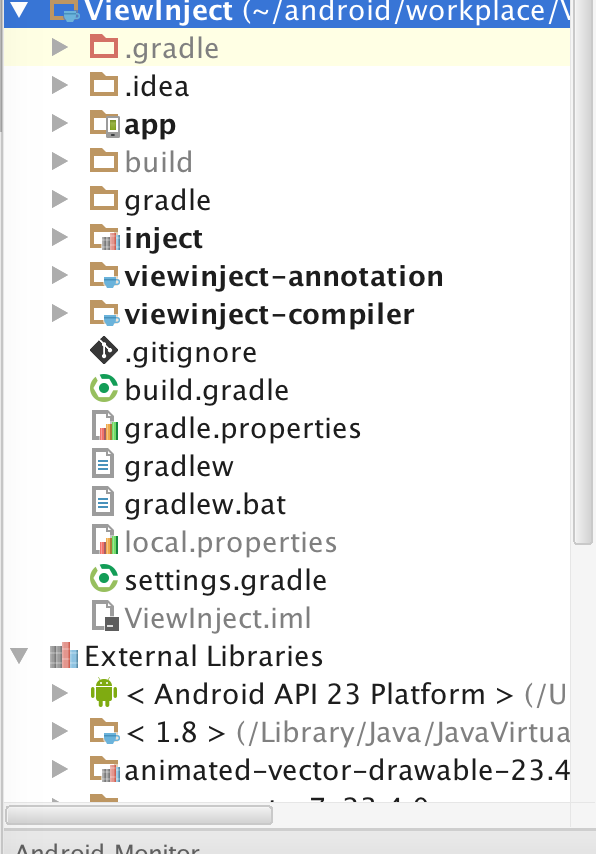 Android 註解與編譯期程式碼生成:簡易 View 注入
APT 的概念 近年來,許多 Android 開源框架都大量使用註解來簡化開發流程,例如 Dagger2、ButterKnife、EventBus 等。這些框架的一個共同
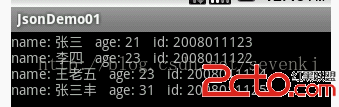 Android 網路資料儲存實作:呼叫 WebService 並用 Gson 解析 JSON
什麼是網路儲存 在實際專案中,把資料放在伺服器上的場景非常多。所謂網路儲存,就是資料存在遠端主機,App 端像訪問一個 URL 那樣去取,拿到回應後再解析成物件。雙方通常