

編輯:關於 Android 程式設計
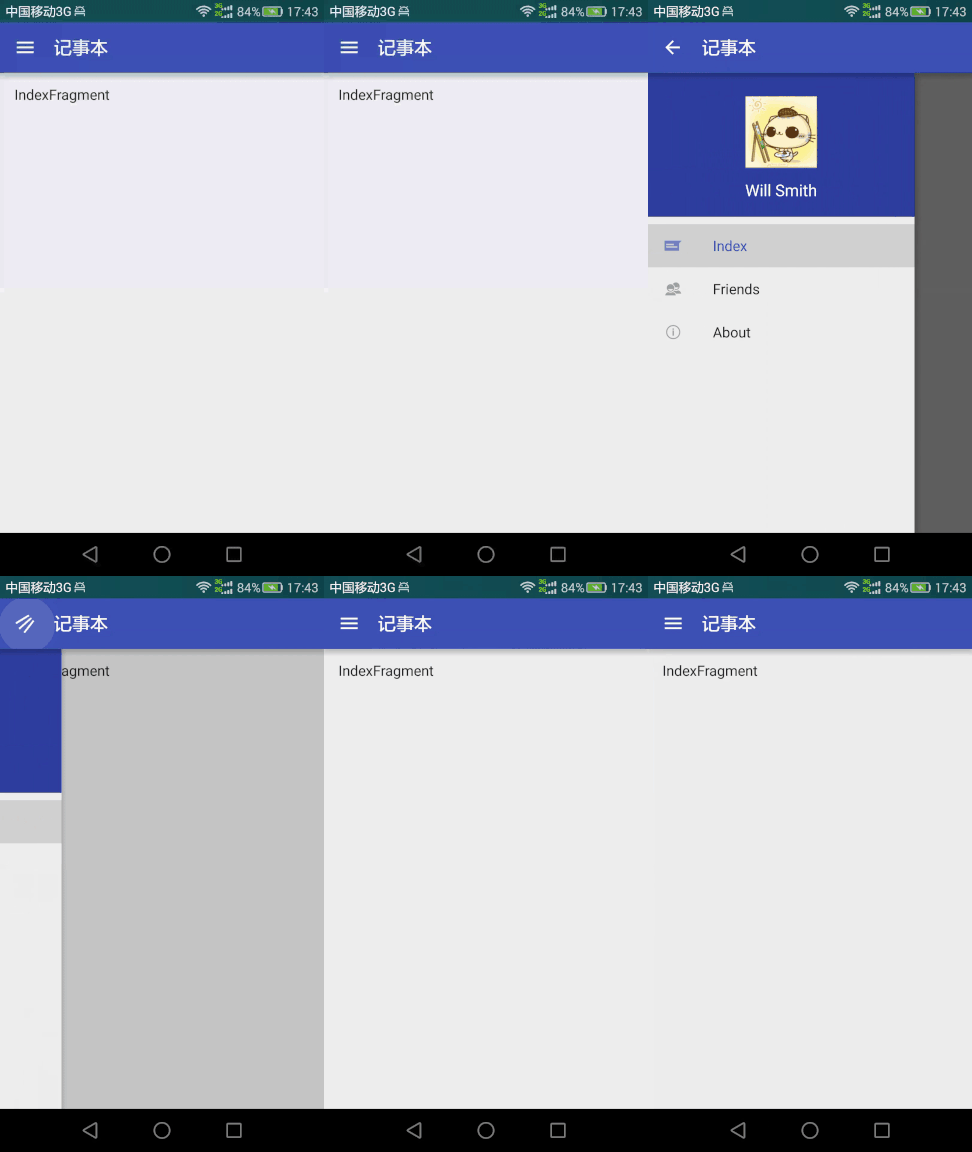
Material Design 有個很細膩的細節:側滑菜單展開與收合時,ActionBar 左上角的圖示會在「漢堡」與「返回箭頭」之間連續變形,而不是硬切換。實作起來只需要幾步。
<android.support.v4.widget.DrawerLayout
    xmlns:android="https://schemas.android.com/apk/res/android"
    xmlns:app="https://schemas.android.com/apk/res-auto"
    android:id="@+id/main_drawer"
    android:layout_width="match_parent"
    android:layout_height="match_parent">

    <!-- 內容佈局 -->
    <FrameLayout
        android:id="@+id/main_content"
        android:layout_width="match_parent"
        android:layout_height="match_parent" />

    <!-- 側滑菜單 -->
    <android.support.design.widget.NavigationView
        android:id="@+id/main_navigation"
        android:layout_width="wrap_content"
        android:layout_height="match_parent"
        android:layout_gravity="start"
        app:headerLayout="@layout/navigation_header"
        app:menu="@menu/menu_drawer" />
</android.support.v4.widget.DrawerLayout>
關鍵是 drawerArrowStyle 與其中的 spinBars:
<style name="AppTheme" parent="Theme.AppCompat.Light.DarkActionBar">
    <item name="colorPrimary">@color/colorPrimary</item>
    <item name="colorPrimaryDark">@color/colorPrimaryDark</item>
    <item name="colorAccent">@color/colorAccent</item>
    <item name="drawerArrowStyle">@style/DrawerArrowStyle</item>
</style>

<style name="DrawerArrowStyle" parent="Widget.AppCompat.DrawerArrowToggle">
    <item name="spinBars">true</item>
    <item name="color">@android:color/white</item>
</style>
記得把 AppTheme 套用至 manifest 的 application 標籤下。
Activity 繼承 AppCompatActivity,在 onCreate() 中加入(使用 Toolbar 時寫法類似):
ActionBar mActionBar = getSupportActionBar();
if (mActionBar != null) {
    mActionBar.setDisplayHomeAsUpEnabled(true);
    mActionBar.setHomeButtonEnabled(true);
}
// 實現左上角 home 圖示「菜單」與「返回」樣式的動畫切換
// 需在 xml 中配置相關樣式
drawerToggle = new ActionBarDrawerToggle(this, drawerLayout,
        R.string.drawer_open, R.string.drawer_close);
drawerLayout.setDrawerListener(drawerToggle);
@Override
protected void onPostCreate(Bundle savedInstanceState) {
    super.onPostCreate(savedInstanceState);
    drawerToggle.syncState();
}
syncState() 的作用是把圖示角度與抽屜的實際狀態對齊。除了 onPostCreate(),任何會導致狀態不一致的時機(例如手動呼叫 openDrawer()、或 configChanges 自行處理了 orientation 變化)都應該補上一次,否則就會出現「抽屜開了但圖示還是漢堡」的尷尬情況。
 兩分鐘搞定極光推送:Android 端整合步驟
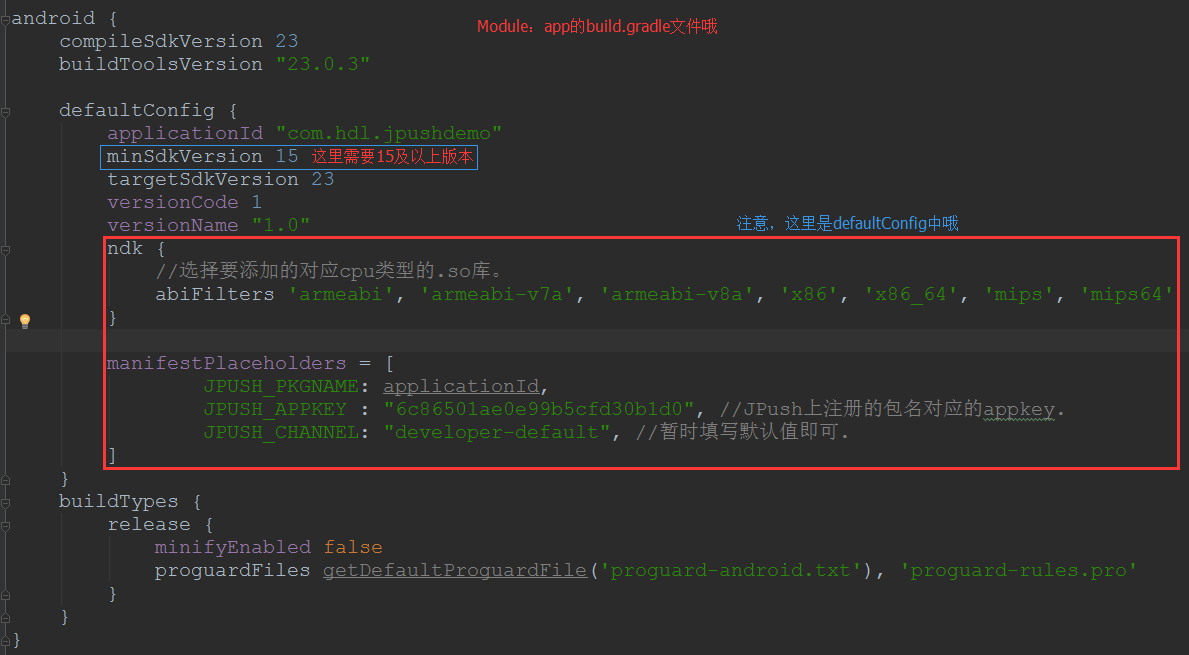
「兩分鐘」是個虛數,不過手腳快的話真的有可能。在 2.1.8 版以前,極光推送的設定非常繁瑣,得在 AndroidManifest.xml 裡堆一大堆配置,篇幅相當可觀。
 Android 應用訪問 Linux 驅動的第一步:編寫並測試一個字符設備驅動
一直想找機會親手試一次「用 Android 應用訪問 Linux 內核驅動」,卻總被各種事情耽擱。最近終於騰出時間,下定決心重新試一試。整個嘗試自然要從一個 Linux
 Android 自定義控件入門:用 Canvas 手寫一個圓形進度條
前言:為什麼要先把 Canvas 摸透 做 Android 自定義控件,幾乎繞不開 Canvas 的 2D 繪圖能力。想把控件寫得既好看又好維護,前提是理解它的繪圖機制。
 天翼4G+是什麼?載波聚合技術與使用條件解析
天翼4G+是中國電信的4G升級方案,核心為載波聚合技術,理論峰值可達300Mbps。 要使用4G+,手機需支援CA,當地也必須有4G+訊號。部分新機已推出,但實際速度仍受