

編輯:關於 Android 程式設計
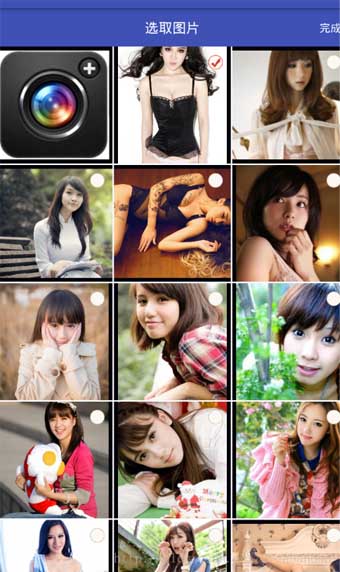
本示例可以實現以下效果:
先看效果圖:
MainActivity 類
public class MainActivity extends AppCompatActivity implements AdapterView.OnItemClickListener, AdapterView.OnItemLongClickListener, ImageAdapter.OnImageCheckListener, View.OnClickListener { private static final int CAMERA_CODE = 12; List<File> fileList = new ArrayList<>(); ImageAdapter adapter; GridView gvImage; TextView tvFinish; @Override protected void onCreate(Bundle savedInstanceState) { super.onCreate(savedInstanceState); setContentView(R.layout.activity_main); initView(); //彈出對話框,加載數據 loadData(); } private void initView() { gvImage = (GridView) findViewById(R.id.gv_image); tvFinish = (TextView) findViewById(R.id.tv_finish); adapter = new ImageAdapter(this, fileList); adapter.setOnImageCheckListener(this); gvImage.setAdapter(adapter); gvImage.setOnItemClickListener(this); gvImage.setOnItemLongClickListener(this); tvFinish.setOnClickListener(this); } private ProgressDialog showProgressDialog() { //彈出對話框 ProgressDialog dialog = new ProgressDialog(this); dialog.setTitle("提示"); dialog.setMessage("正在加載圖片,請稍等。。。"); dialog.show(); return dialog; } private void loadData() { final ProgressDialog dialog = showProgressDialog(); //開啟線程 new Thread() { @Override public void run() { super.run(); //遞歸 //從sd卡中獲取所有圖片 getFile(Environment.getExternalStorageDirectory()); runOnUiThread(new Runnable() { @Override public void run() { dialog.dismiss(); adapter.notifyDataSetChanged(); } }); } }.start(); } public void getFile(File dir) { //1. 獲取子目錄 File[] files = dir.listFiles(); if (files == null) return; //集合或者數組去點for for (File file : files) { if (file.isDirectory()) getFile(file); else { //加載圖片 if (file.getName().endsWith(".png") || file.getName().endsWith(".jpg")) { fileList.add(file); } } } } File cameraFile; //點擊 @Override public void onItemClick(AdapterView<?> parent, View view, int position, long id) { if (position == 0) { //getAbsolutePath返回的路徑是沒有"/" cameraFile = new File(Environment.getExternalStorageDirectory().getAbsolutePath() + "/DCIM/" + System.currentTimeMillis() + ".png"); //打開照相機 Intent intent = new Intent(MediaStore.ACTION_IMAGE_CAPTURE); //照相機需要帶數據 intent.putExtra(MediaStore.EXTRA_OUTPUT, Uri.fromFile(cameraFile)); startActivityForResult(intent, CAMERA_CODE); } else { //打開大圖 File file = fileList.get(position - 1); //帶數據跳轉到現實大圖 Intent intent = new Intent(this, ShowBigImage.class); intent.putExtra("file", file); startActivity(intent); } } @Override protected void onActivityResult(int requestCode, int resultCode, Intent data) { super.onActivityResult(requestCode, resultCode, data); Log.e("TAG", resultCode + "---------------------"); if (requestCode == CAMERA_CODE && resultCode == RESULT_OK) { Log.e("TAG", (cameraFile.exists()) + ""); fileList.add(0, cameraFile); adapter.notifyDataSetChanged(); } } //長按 @Override public boolean onItemLongClick(AdapterView<?> parent, View view, int position, long id) { if (position == 0) return false; else { adapter.open(position); } return true; } @Override public void onImageCheck(boolean b) { //b代表 適配器中 有沒有勾選的值 tvFinish.setEnabled(b); } @Override public void onClick(View v) { //需要知道有哪些數據被選中 //不能使用泛型,ArrayList才實現了序列化,List沒有實現 ArrayList<File> resultList = new ArrayList<>(); //通過適配器中的 為true的 選中的項來加載file SparseBooleanArray booleanArray = adapter.getBooleanArray(); for (int i = 0; i < booleanArray.size(); i++) { boolean isCheck = booleanArray.get(booleanArray.keyAt(i)); if (isCheck) { int position = booleanArray.keyAt(i); resultList.add(fileList.get(position - 1)); } } Intent intent = new Intent(); intent.putExtra("list", resultList); //返回數據 setResult(RESULT_OK, intent); finish(); } }
ImageAdapter 類
public class ImageAdapter extends ListItemAdapter<File> { private boolean select = false; public void open(int posisiont) { select = true; booleanArray.put(posisiont, true); if (onImageCheckListener != null) onImageCheckListener.onImageCheck(true); this.notifyDataSetChanged(); } public void close() { select = false; booleanArray.clear(); notifyDataSetChanged(); } //position //HashMap<Integer, Boolean> map = new HashMap<>(); private SparseBooleanArray booleanArray = new SparseBooleanArray(); public SparseBooleanArray getBooleanArray() { return booleanArray; } public ImageAdapter(Context context, List<File> list) { super(context, list); } @Override public int getCount() { //多出來的就是照相機 return super.getCount() + 1; } @Override public View getView(final int position, View convertView, ViewGroup parent) { ViewHolder holder; if (convertView == null) { convertView = View.inflate(mContext, R.layout.item_image, null); holder = new ViewHolder(convertView); convertView.setTag(holder); } else { holder = (ViewHolder) convertView.getTag(); } if (position == 0) { holder.image.setImageResource(R.mipmap.camera); holder.checkBox.setVisibility(View.GONE); } else { holder.image.setImageURI(Uri.fromFile(getItem(position - 1))); if (select) { holder.checkBox.setVisibility(View.VISIBLE); Boolean b = booleanArray.get(position); if (b == null || b == false) { holder.checkBox.setChecked(false); } else { holder.checkBox.setChecked(true); } holder.checkBox.setOnClickListener(new View.OnClickListener() { @Override public void onClick(View v) { Boolean b = booleanArray.get(position); if (b == null || b == false) b = true; else b = false; booleanArray.put(position, b); for (int i = 0; i < booleanArray.size(); i++) { boolean isChecked = booleanArray.get(booleanArray.keyAt(i)); if (isChecked) { if (onImageCheckListener != null) onImageCheckListener.onImageCheck(true); return; } } if (onImageCheckListener != null) onImageCheckListener.onImageCheck(false); close(); } }); } else { holder.checkBox.setVisibility(View.GONE); } } return convertView; } public interface OnImageCheckListener { public void onImageCheck(boolean b); } private OnImageCheckListener onImageCheckListener; public void setOnImageCheckListener(OnImageCheckListener onImageCheckListener) { this.onImageCheckListener = onImageCheckListener; } class ViewHolder { ImageView image; CheckBox checkBox; public ViewHolder(View convertView) { image = (ImageView) convertView.findViewById(R.id.iv_image); int width = mContext.getResources().getDisplayMetrics().widthPixels / 3 - 2; RelativeLayout.LayoutParams params = new RelativeLayout.LayoutParams(width, width); image.setLayoutParams(params); checkBox = (CheckBox) convertView.findViewById(R.id.cb_check); } } }
ListItemAdapter 類
public abstract class ListItemAdapter<T> extends BaseAdapter { protected Context mContext; protected List<T> mList; public ListItemAdapter(Context context, List<T> list) { mContext = context; mList = list; } public void setList(List<T> list) { this.mList = list; notifyDataSetChanged(); } @Override public int getCount() { return mList == null ? 0 : mList.size(); } @Override public T getItem(int position) { return mList.get(position); } @Override public long getItemId(int position) { return position; } }
ShowBigImage 類
public class ShowBigImage extends AppCompatActivity { @Override protected void onCreate(@Nullable Bundle savedInstanceState) { super.onCreate(savedInstanceState); ImageView iv = new ImageView(this); File file = (File) getIntent().getSerializableExtra("file"); iv.setImageURI(Uri.fromFile(file)); setContentView(iv); } }
main_xml
<?xml version="1.0" encoding="utf-8"?> <LinearLayout xmlns:android="https://schemas.android.com/apk/res/android" xmlns:tools="https://schemas.android.com/tools" android:id="@+id/activity_main" android:layout_width="match_parent" android:layout_height="match_parent" android:orientation="vertical" tools:context="com.example.administrator.imageselector.MainActivity"> <RelativeLayout android:layout_width="match_parent" android:layout_height="50dp" android:background="@color/colorPrimary"> <TextView android:layout_width="wrap_content" android:layout_height="wrap_content" android:layout_centerInParent="true" android:text="選取圖片" android:textColor="@android:color/white" android:textSize="18sp" /> <TextView android:id="@+id/tv_finish" android:layout_width="wrap_content" android:layout_height="wrap_content" android:layout_alignParentRight="true" android:layout_centerVertical="true" android:layout_marginRight="10dp" android:enabled="false" android:text="完成" android:textColor="@color/textenable" /> </RelativeLayout> <GridView android:id="@+id/gv_image" android:layout_width="match_parent" android:layout_height="match_parent" android:horizontalSpacing="2dp" android:numColumns="3" android:verticalSpacing="2dp" /> </LinearLayout>
item_image.xml
<?xml version="1.0" encoding="utf-8"?> <RelativeLayout xmlns:android="https://schemas.android.com/apk/res/android" android:layout_width="match_parent" android:layout_height="match_parent" android:background="#03030a"> <ImageView android:id="@+id/iv_image" android:layout_width="match_parent" android:layout_height="match_parent" android:padding="5dp" android:scaleType="centerCrop" android:src="@mipmap/camera" /> <CheckBox android:id="@+id/cb_check" android:button="@null" android:layout_width="20dp" android:layout_height="20dp" android:background="@drawable/cb_selector" android:layout_alignParentRight="true" android:layout_margin="10dp" /> </RelativeLayout>
res 下 color 文件夾中的 textenable.xml
<?xml version="1.0" encoding="utf-8"?> <selector xmlns:android="https://schemas.android.com/apk/res/android"> <item android:color="@android:color/white" android:state_enabled="true" /> <item android:color="@android:color/darker_gray" android:state_enabled="false" /> </selector>
以上就是這套圖片選擇器的完整實現過程,涵蓋了相機調用、遞歸加載本地圖片、大圖預覽與多選回傳等關鍵環節,希望能對大家的學習有所幫助。
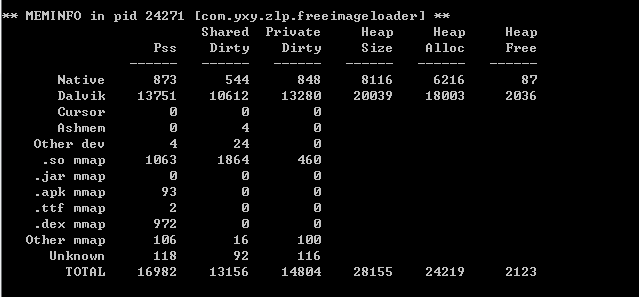 動手寫一個 Android 圖片加載框架:LruCache、DiskLruCache 與效能實測比較
本文從零打造一個簡潔實用的 Android 圖片加載與快取框架,並就「記憶體占用」與「平均加載時間」兩個指標與主流方案 Universal Image Loader 做量
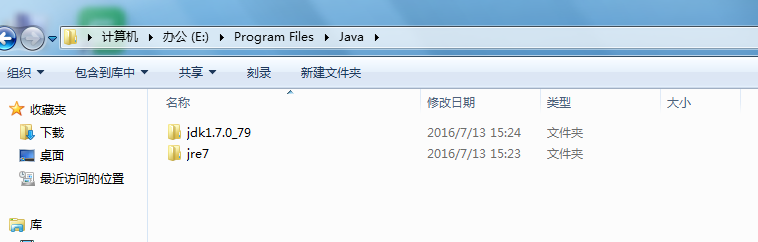 Windows 快速搭建 Android Studio 開發環境全流程
本文記錄在 Windows 上從零開始建立 Android Studio 開發環境的完整流程,包含 JDK 安裝、環境變數設定與 Android Studio 安裝啟動。
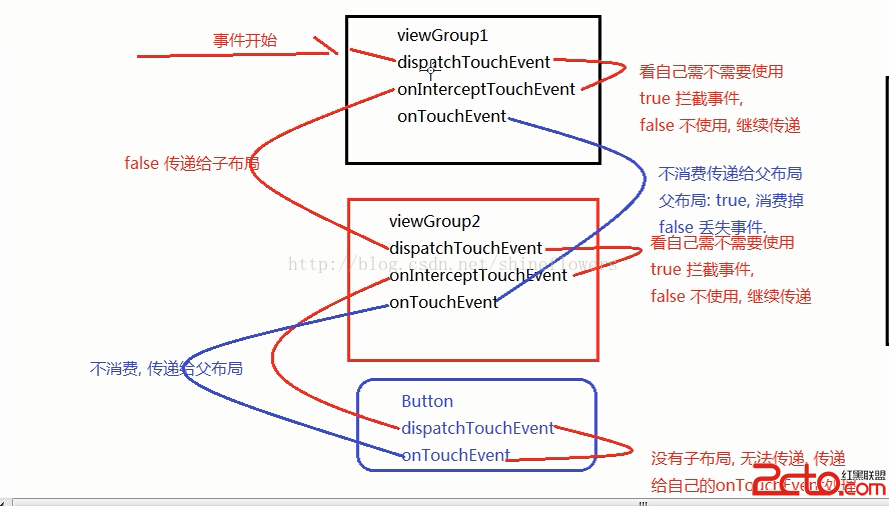 Android Touch 事件的分發與消費機制全解
自訂 View 的滑動衝突、列表點擊失效、手勢被父層搶走……這類問題幾乎都能追溯到同一個根源:沒有搞懂 Touch 事件的分發與消費規則。 一、三個方法、三種角色 To
 為 Android RecyclerView 添加 FootView 與 HeadView
前言: 上一篇已經介紹過 RecyclerView 的基本用法(原文:android RecyclerView 佈局真的只是那麼簡單!),本篇則是更深入的應用。 Foo