

編輯:關於 Android 程式設計
本文用一個小案例示範如何在 Android 上做出懸浮在畫面上方的浮動視窗,適合搭配需要隨時可見的小工具或浮動按鈕。
—主頁面—
//布局中就一個Button public class MainActivity extends Activity { @Override protected void onCreate(Bundle savedInstanceState) { super.onCreate(savedInstanceState); setContentView(R.layout.activity_main); findViewById(R.id.btn).setOnClickListener(new View.OnClickListener() { @Override public void onClick(View view) { //目的就是啟動Service來打開懸浮窗體 startService(new Intent(MainActivity.this, FloatService.class)); finish(); } }); } }
—用 Service 開啟浮動視窗—
/** * description:通過Service來開啟FloatView * 作者:ldm * 時間:20162016/8/17 14:03 * 郵箱:1786911211@qq.com */ public class FloatService extends Service { @Override public void onCreate() { super.onCreate(); CustomViewManager.getInstance(this).showFloatViewOnWindow(); } @Override public IBinder onBind(Intent intent) { return null; } }
—浮動視窗管理類—
重點在 WindowManager.LayoutParams 的幾個參數:type 設為 TYPE_SYSTEM_ALERT 讓它浮在應用之上;flags 設為 FLAG_NOT_FOCUSABLE 則視窗不搶焦點,避免影響背後頁面的操作。
/** * description: * 作者:ldm * 時間:20162016/8/17 11:57 * 郵箱:1786911211@qq.com */ public class CustomViewManager { //上下文 private Context mContext; //本類實例 private static CustomViewManager instance; //自定義的FloatView private FloatView mFloatView; //窗口管理類 private WindowManager mWindowManager; private CustomViewManager(Context context) { this.mContext = context; mFloatView = new FloatView(mContext); mWindowManager = (WindowManager) mContext.getSystemService(Context.WINDOW_SERVICE); } /** * @param * @description 通過單例模式獲取實例對象 * @author ldm * @time 2016/8/17 11:59 */ public static CustomViewManager getInstance(Context mContext) { if (null == instance) { synchronized (CustomViewManager.class) { if (null == instance) { instance = new CustomViewManager(mContext); } } } return instance; } /** * @param * @description 在手機屏幕上顯示自定義的FloatView * @author ldm * @time 2016/8/17 13:47 */ public void showFloatViewOnWindow() { WindowManager.LayoutParams parmas = new WindowManager.LayoutParams(); parmas.width = mFloatView.getFloatWidth(); parmas.height = mFloatView.getFloatHeight(); //窗口圖案放置位置 parmas.gravity = Gravity.LEFT | Gravity.CENTER; // 如果忽略gravity屬性,那麼它表示窗口的絕對X位置。 parmas.x = 0; //如果忽略gravity屬性,那麼它表示窗口的絕對Y位置。 parmas.y = 0; ////電話窗口。它用於電話交互(特別是呼入)。它置於所有應用程序之上,狀態欄之下。 parmas.type = WindowManager.LayoutParams.TYPE_SYSTEM_ALERT; //FLAG_NOT_FOCUSABLE讓window不能獲得焦點,這樣用戶快就不能向該window發送按鍵事件及按鈕事件 //FLAG_NOT_TOUCH_MODAL即使在該window在可獲得焦點情況下,仍然把該window之外的任何event發送到該window之後的其他window. parmas.flags = WindowManager.LayoutParams.FLAG_NOT_FOCUSABLE; // 期望的位圖格式。默認爲不透明。參考android.graphics.PixelFormat。 parmas.format = PixelFormat.RGBA_8888; mWindowManager.addView(mFloatView, parmas); } }
—自訂的 FloatView—
這裡自繪一個圓形並在正中央畫上百分比文字,onMeasure 直接回傳固定尺寸。
/** * description: * 作者:ldm * 時間:20162016/8/17 11:17 * 郵箱:1786911211@qq.com */ public class FloatView extends View { //懸浮球寬度 private int floatWidth = 150; //懸浮球高度 private int floatHeight = 150; //懸浮球畫筆 private Paint mPaint; //繪制文字畫筆 private Paint mTextPaint; private String text = "50%"; public FloatView(Context context) { super(context); initPaint(); } public int getFloatWidth() { return floatWidth; } public int getFloatHeight() { return floatHeight; } public FloatView(Context context, AttributeSet attrs) { super(context, attrs); initPaint(); } public FloatView(Context context, AttributeSet attrs, int defStyleAttr) { super(context, attrs, defStyleAttr); initPaint(); } /** * @param * @description 初始化畫筆 * @author ldm * @time 2016/8/17 11:37 */ private void initPaint() { //設置懸浮球畫筆 mPaint = new Paint(); mPaint.setColor(Color.GREEN); mPaint.setAntiAlias(true); mPaint.setDither(true); //設置文字畫筆 mTextPaint = new Paint(); mTextPaint.setTextSize(25); mPaint.setAntiAlias(true); mTextPaint.setColor(Color.WHITE); mTextPaint.setFakeBoldText(true); } @Override protected void onMeasure(int widthMeasureSpec, int heightMeasureSpec) { //設置大小 setMeasuredDimension(floatWidth, floatHeight); } /** * @param * @description 繪制圖案 * @author ldm * @time 2016/8/17 11:44 */ @Override protected void onDraw(Canvas canvas) { super.onDraw(canvas); //繪制懸浮球 canvas.drawCircle(floatWidth / 2, floatHeight / 2, floatWidth / 2, mPaint); //繪制文字 Paint.FontMetrics metrics = mTextPaint.getFontMetrics(); //文字大小計算可以參考:https://mikewang.blog.51cto.com/3826268/871765/ float textWidth = mTextPaint.measureText(text); float x = floatWidth / 2 - textWidth / 2; float dy = -(metrics.descent + metrics.ascent) / 2; float y = floatHeight / 2 + dy; canvas.drawText(text, x, y, mTextPaint); } }
最後別忘了在 AndroidManifest.xml 補上懸浮窗權限:
<!--添加權限--> <uses-permission android:name="android.permission.SYSTEM_ALERT_WINDOW" />
以及把 Service 註冊進去:
<service android:name=".service.FloatService" />
部分機型跑完發現浮窗沒出現,多半是權限沒開。進系統設定裡的應用權限,把「顯示在其他應用程式上層」這類開關打開就可以了——Android 6.0 以後各家 ROM 對這項權限都有自己的管理入口。
以上就是這次懸浮視窗案例的整理,希望對大家有幫助。
 Android 仿朋友圈全文與收起功能的實作
在社群動態、留言與文章列表中,內容長度不一。若全部展開,頁面會很冗長;若一律折疊,又可能讓使用者錯過重點。因此常見做法是超過一定行數時顯示「全文」,點擊後再展開或收起。
 用 ObjectAnimator 打造弧形菜單 ArcMenu
本文介紹如何以 ObjectAnimator 簡單實現一個弧形展開的菜單 ArcMenu。只要直接使用文中的 ArcMenu 類別,就能快速為應用加入這類扇形彈出菜單。使
 Android Intent 與 Intent 過濾器完整指南
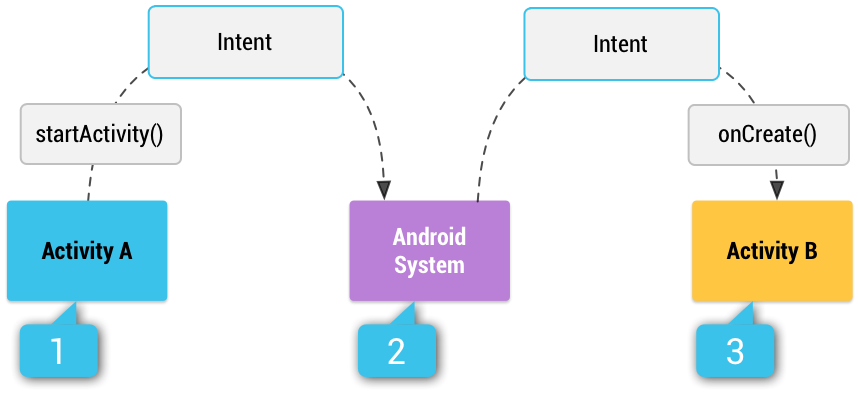
Intent 是一個「訊息傳遞物件」,你用來向其他應用元件請求某個動作。雖然它能促成的溝通方式很多,但實際開發中最常見的三種用途是: 1. 啟動 Activity。Act
 Android 密碼顯示與隱藏功能實例
密碼輸入框的顯示與隱藏是常見的表單功能。Android 中可透過切換 TransformationMethod,讓密碼在明文與掩碼之間切換,提升輸入便利性。 佈局設計