

編輯:關於 Android 程式設計
前陣子看到新浪微博頂部的微博分組效果,覺得很不錯,查了資料才知道是 PopupWindow 做的。於是照着寫了一個例子,記錄在這裡。
PopupWindow 顧名思義就是彈出窗口,有點像 Windows 的開始菜單。它能實現浮層效果,支持自定義顯示位置,還可以設置出現和退出時的動畫。
效果如下:
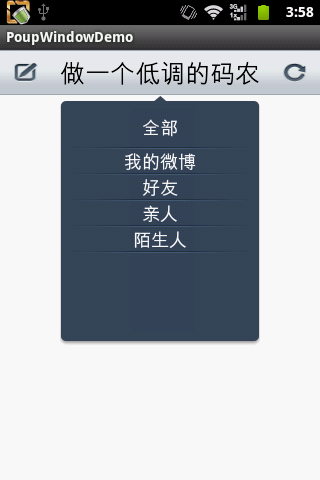
實現思路很直接:在一個 PopupWindow 裡放一個 ListView,用列表承載分組信息。
group_list.xml:
<?xml version="1.0" encoding="utf-8"?> <LinearLayout xmlns:android="https://schemas.android.com/apk/res/android" android:layout_width="fill_parent" android:layout_height="fill_parent" android:layout_margin="0.0px" android:background="@drawable/group_bg" android:orientation="vertical" android:paddingLeft="0.0sp" android:paddingRight="0.0sp" > <TextView android:id="@+id/groupAll" android:layout_width="fill_parent" android:layout_height="@dimen/group_item_height" android:background="@drawable/grouplist_fixed_item_bg" android:gravity="center" android:text="全部" /> <ImageView android:id="@+id/iv_group_list_bg_divider" android:layout_width="fill_parent" android:layout_height="wrap_content" android:layout_margin="0.0px" android:background="@drawable/group_divider" android:padding="0.0px" /> <ListView android:id="@+id/lvGroup" android:layout_width="fill_parent" android:layout_height="fill_parent" android:layout_weight="0.0" android:cacheColorHint="#00000000" android:divider="@drawable/group_divider" android:dividerHeight="2.0px" android:drawSelectorOnTop="true" android:fadingEdgeLength="0.0sp" android:listSelector="@drawable/grouplist_item_bg" /> </LinearLayout>
group_item_view.xml:
<?xml version="1.0" encoding="utf-8"?> <LinearLayout xmlns:android="https://schemas.android.com/apk/res/android" android:layout_width="fill_parent" android:layout_height="@dimen/group_item_height" android:orientation="vertical" > <TextView android:id="@+id/groupItem" android:layout_width="fill_parent" android:layout_height="fill_parent" android:gravity="center" /> </LinearLayout>
Activity 中的代碼:
package com.jiahui.popwindow; import java.util.ArrayList; import java.util.List; import com.jiahui.adapter.GroupAdapter; import android.app.Activity; import android.content.Context; import android.graphics.drawable.BitmapDrawable; import android.os.Bundle; import android.util.Log; import android.view.LayoutInflater; import android.view.View; import android.view.WindowManager; import android.widget.AdapterView; import android.widget.AdapterView.OnItemClickListener; import android.widget.ArrayAdapter; import android.widget.Button; import android.widget.ListView; import android.widget.PopupWindow; import android.widget.TextView; import android.widget.Toast; public class PoupWindowDemoActivity extends Activity { private PopupWindow popupWindow; private ListView lv_group; private View view; private View top_title; private TextView tvtitle; private List<String> groups; public void onCreate(Bundle savedInstanceState) { super.onCreate(savedInstanceState); setContentView(R.layout.main); top_title = this.findViewById(R.id.top_title); tvtitle = (TextView) top_title.findViewById(R.id.tvtitle); tvtitle.setText("做一個低調的碼農"); tvtitle.setOnClickListener(new View.OnClickListener() { @Override public void onClick(View v) { showWindow(v); } }); } /** * 顯示 * * @param parent */ private void showWindow(View parent) { if (popupWindow == null) { LayoutInflater layoutInflater = (LayoutInflater) getSystemService(Context.LAYOUT_INFLATER_SERVICE); view = layoutInflater.inflate(R.layout.group_list, null); lv_group = (ListView) view.findViewById(R.id.lvGroup); // 加載數據 groups = new ArrayList<String>(); groups.add("我的微博"); groups.add("好友"); groups.add("親人"); groups.add("陌生人"); GroupAdapter groupAdapter = new GroupAdapter(this, groups); lv_group.setAdapter(groupAdapter); // 創建一個PopuWidow對象 popupWindow = new PopupWindow(view, 200, 250); } // 使其聚集 popupWindow.setFocusable(true); // 設置允許在外點擊消失 popupWindow.setOutsideTouchable(true); // 這個是為了點擊"返回Back"也能使其消失,並且並不會影響你的背景 popupWindow.setBackgroundDrawable(new BitmapDrawable()); WindowManager windowManager = (WindowManager) getSystemService(Context.WINDOW_SERVICE); // 顯示的位置為:屏幕的寬度的一半-PopupWindow的高度的一半 int xPos = windowManager.getDefaultDisplay().getWidth() / 2 - popupWindow.getWidth() / 2; Log.i("coder", "windowManager.getDefaultDisplay().getWidth()/2:" + windowManager.getDefaultDisplay().getWidth() / 2); // Log.i("coder", "popupWindow.getWidth()/2:" + popupWindow.getWidth() / 2); Log.i("coder", "xPos:" + xPos); popupWindow.showAsDropDown(parent, xPos, 0); lv_group.setOnItemClickListener(new OnItemClickListener() { @Override public void onItemClick(AdapterView<?> adapterView, View view, int position, long id) { Toast.makeText(PoupWindowDemoActivity.this, "groups.get(position)" + groups.get(position), 1000) .show(); if (popupWindow != null) { popupWindow.dismiss(); } } }); } }
這裡有幾個實踐中的關鍵點值得強調:
setFocusable(true) 讓 PopupWindow 獲得焦點,點擊外部和按返回鍵都能關閉;
setBackgroundDrawable(new BitmapDrawable()) 這行不能省,否則按返回鍵無法關閉彈窗;
用 showAsDropDown 並計算 xPos 使其相對於父 View 水平居中,比 showAtLocation 定位到屏幕坐標跟手性更好,菜單會跟着按鈕走。
 Android 與 H5 混合開發:仿微信朋友圈的 WebView 實作
混合開發讓 Android 能借助 H5 快速呈現動態內容。本文以仿微信朋友圈為例,說明如何透過 WebView 載入本地 HTML,並讓 Java 與 JavaScri
 Android 基礎入門教程 9.3:兩種方式玩轉相機拍照
本節引言 這一節聊相機。實現拍照的路子基本就兩條:一是直接調起系統相機,拍完把圖取回來;二是自己寫一個拍照界面。下面各寫一個例子體驗一下。 一、調用系統自帶相機 核心只
 Android Studio 下去不掉標題欄?三種解法與背後的原因
在 Eclipse 時代,要拿掉 Activity 的預設標題欄,我習慣寫這一行: requestWindowFeature(Window.FEATURE_NO_TIT
 Android Studio 效率翻倍實戰技巧整理
本文整理自 Philippe Breault 的《Android Studio Tips Of the Day》系列,從中挑出實務上最能提升效率的部分。這些技巧一旦養成肌